 Onn TV Hacks Master Your Onn TV with Expert Guides, Hacks, & Apps
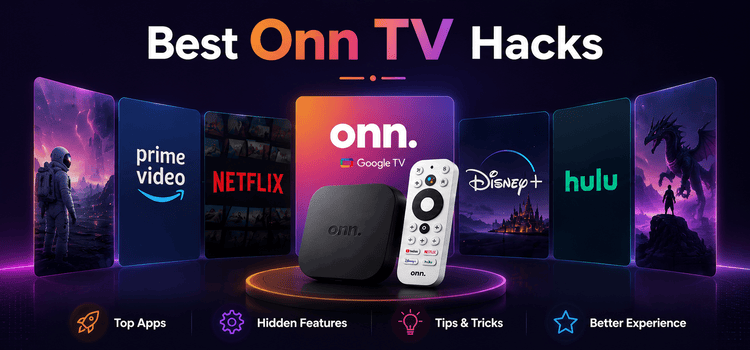
You paid less than $50 for your Onn TV 4K Pro Box and just under $20 for Onn TV Stick. But most people are only using 40% of what it can actually do.
The good stuff is hidden and nobody tells you it’s there.
These 11 simple hacks will completely change how you use your Onn TV device. No technical experience needed. Just follow the steps.
Let’s get into it.
1. Unlock Developer Option to Install Any App
This is the master key. Buried inside your Onn’s settings is a hidden Developer Options menu. Enabling it will allow you to install apps from outside the Google Play Store, entirely legally.
Sideloading lets you install any Android APK on your device: apps not available in your region, apps Google has restricted to phones, or streaming apps simply not in the Play Store.
📋 How To Do It
| 01 | From the Onn home screen, open Settings (gear icon, top right) |
| 02 | Navigate to System → About |
| 03 | Scroll to Android TV OS Build and click it rapidly 7 times |
| 04 | You’ll see: “You are now a developer!” — you’re in |
| 05 | Go back to System — Developer Options now appears |
| 06 | Enable USB Debugging and Install Unknown Apps |
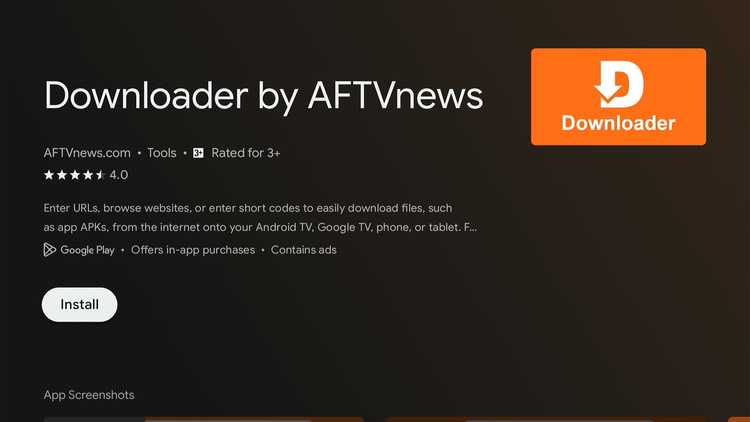
| 07 | Install Downloader by AFTVnews from the Play Store to fetch APKs by URL |
💡 Pro Tip: Once you have installed the Downloader app, you can add a code 8533602 and you’ll get a full library of the apps to choose from and download it on your device.
2. Secure Your ONN Device with a VPN
Your Onn TV knows everything you watch. Every stream, every search, every app, and so does your Internet Service Provider.
A VPN encrypts your traffic and routes it through a server in another location, so your ISP sees nothing and geo-blocked content becomes accessible.
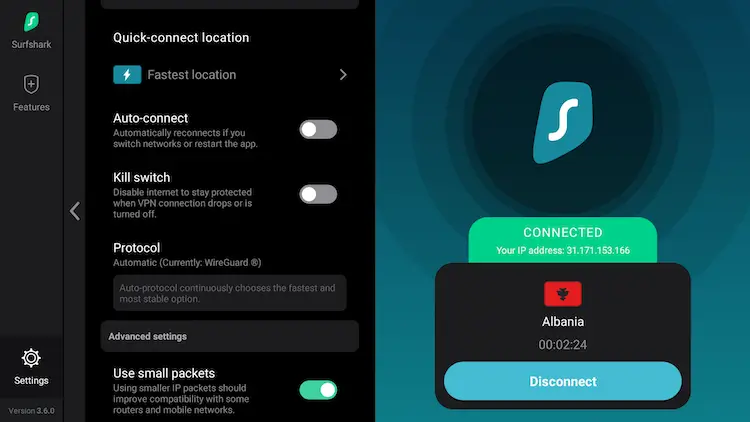
Surfshark VPN is our top choice for Onn TV users. It has a native Android TV app, supports unlimited devices on one subscription, and is one of the fastest and most affordable VPNs available.
📋 How To Do It
| 01 | Go to Surfshark website on your phone or PC and sign up for a plan |
| 02 | Open the Downloader app (see Hack #1) |
| 03 | Type code 8533602 and click Go |
| 04 | Scroll down to select the VPN category/tag |
| 05 | Scroll down to select Surfshark and click Download |
| 06 | Login with your credentials and Tap Allow when prompted to set up a VPN connection |
| 07 | Choose a server location — US, UK, or Canada unlocks the biggest streaming libraries |
| 08 | Hit Connect — the VPN icon appears in your status bar when active |
💡 Pro Tip: Use Surfshark’s Fastest Server option for everyday streaming as it picks the nearest server automatically so you get the best speeds. You can also check out best VPNs that works great with Onn.
3. Replace the Default Launcher with a Custom One
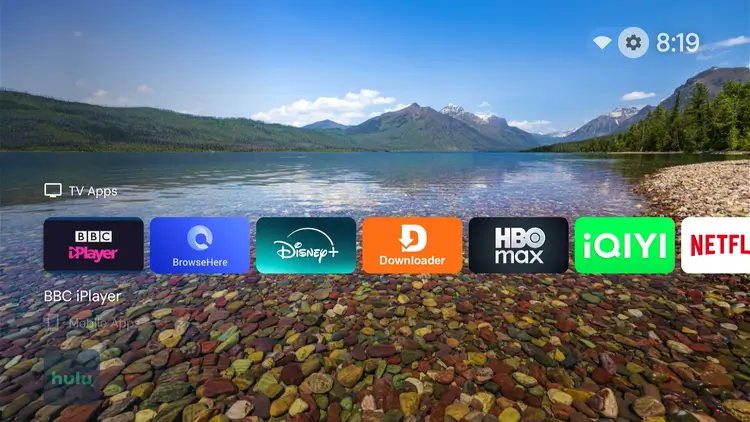
Google TV’s home screen is cluttered with banner ads, promotional content, and rows of recommendations you didn’t ask for. Replacing it with a custom launcher transforms your experience.
Projectivy Launcher is the most popular choice that is fully customizable, ad-free, actively maintained, and used by hundreds of thousands of people. Wolf Launcher is another popular option.
📋 How To Do It
| 01 | Enable Developer Options first (Hack #1 above) |
| 02 | Search for Projectivy Launcher in the Google Play Store and click Install |
| 03 | Install both Projectivy Launcher and the Projectivy Plugin |
| 04 | Now go to Settings → System → Accessibility → Projectivy Launcher → ENABLE → OK |
| 05 | Go back to Settings again and click on Apps → Special App Access → Notification Access → ON |
| 06 | Projectivy app will now launch. Tap Allow → YES → Get Started |
| 07 | Click on Projectivy Launcher Settings → General → Turn ON Override Current Launcher |
💡 Pro Tip: If the Home button stops working properly after switching launchers, use Button Mapper (Hack #5) to remap it directly to Projectivy.
4. Watch YouTube Without Ads
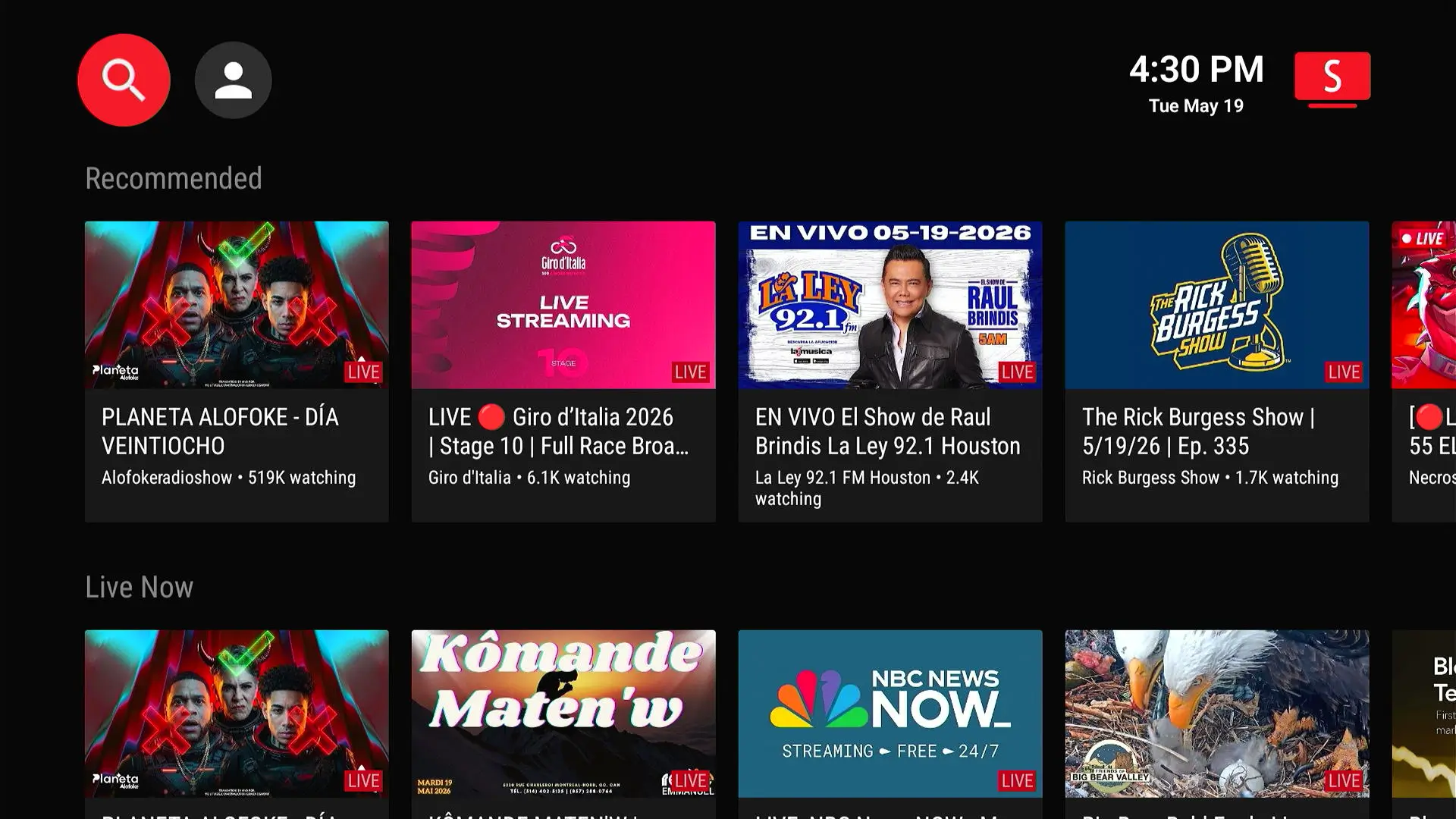
The default YouTube app on Google TV is full of unskippable ads, sponsor mid-rolls, and age-restriction walls. SmartTube is a free, open-source YouTube client app that doesn’t feature ads.
It delivers true ad-blocking, automatic SponsorBlock integration (skips sponsored segments inside videos), up to 8K playback, multiple account support, customizable playback speed, and a TV-optimized interface.
📋 How To Do It
| 01 | Make sure sideloading is enabled (Hack #1) |
| 02 | Open the Downloader app on your Onn device |
| 03 | Enter this CODE: 8533602 and click on IPTV Media Player tab |
| 04 | Scroll down to select SmarTube Next and click Download |
| 05 | Once installed, open SmartTube app and start using it without sign up |
💡 Pro Tip: In SmartTube settings, enable the AV1 codec if your TV supports it. It noticeably improves streaming quality, especially for 4K, at the exact same bitrate.
5. Expand Storage with a USB Drive (Crucial for Onn Devices)
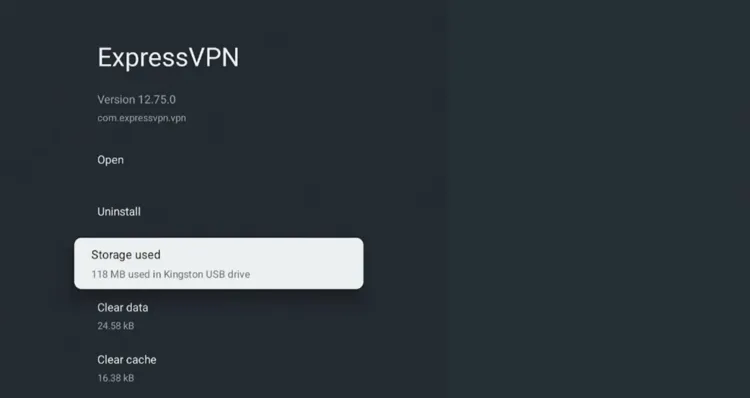
The standard Onn 4K Stick/Box only comes with 8 GB of internal storage, and less than 5 GB of that is actually usable. It fills up quickly after installing just a few apps.
The Onn 4K Pro has a full USB 3.0 port, while older models can use a $6 Micro-USB OTG cable. Either way, a USB drive is the easiest fix for storage problems.
📋 How To Do It
| 01 | Enable Developer Options first (Hack #1 above) |
| 02 | Go to Settings → System → Developer Options and turn ON Force allow apps on external |
| 03 | Plug a FAT32/exFAT USB drive into the USB port or OTG cable (connect power to the OTG cable on older models) |
| 04 | Go to Settings → System → Storage, select your drive, then tap Erase & Format as Device Storage → Format |
| 05 | Tap Move Now when prompted, or move apps later via Settings → Apps → See all apps → Storage used |
✅ The Result: The flash drive is formatted as internal memory, so you can move heavy apps and media files straight onto it and free up your Onn’s built-in storage.
6. Swap Your Remote Button With Your Favorite App
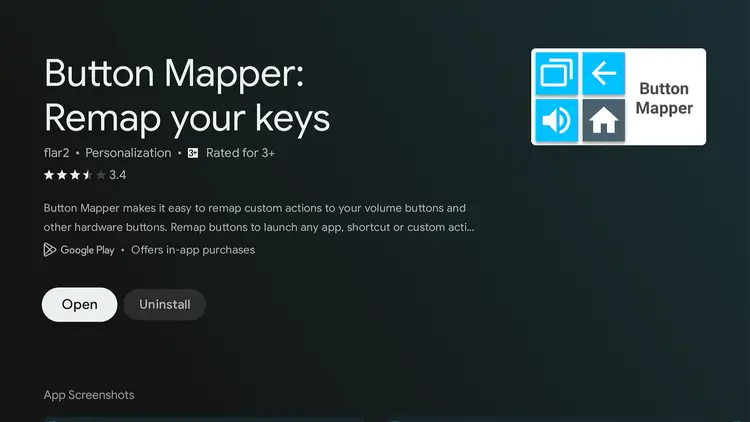
The original Onn remote has dedicated buttons for streaming services you might never use. Button Mapper lets you reassign every button to do exactly what you want.
With this Button Mapper app, you can open any app, toggle subtitles, launch SmartTube instead of YouTube, or jump straight to a favorite playlist.
📋 How To Do It
| 01 | Install Button Mapper from the Google Play Store (free version works great) |
| 02 | Open it and grant Accessibility access when prompted |
| 03 | Select the button you want to remap (e.g. the YouTube button) |
| 04 | Choose Single Press → App Launch → pick your preferred app |
| 05 | Optionally set a Long Press action for a second shortcut |
| 06 | Test the button — changes apply immediately, no restart needed |
💡 Pro Tip: Remap the Home button to your custom launcher and set a second button as your app drawer shortcut. Nothing ever gets buried again.
7. Dial In Your 4K HDR and Dolby Vision Settings
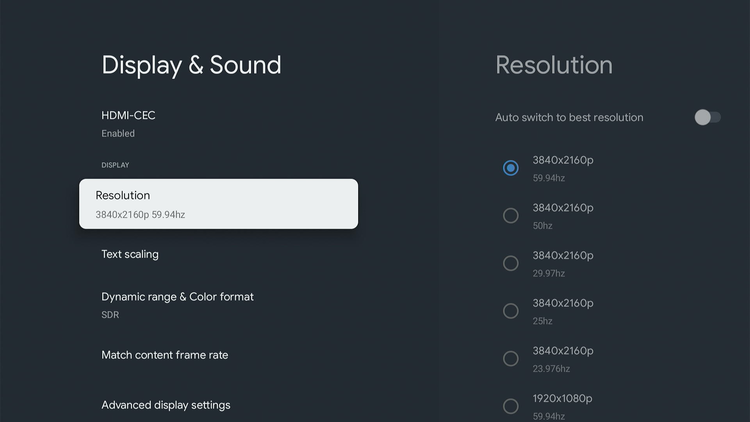
Most Onn devices comes with poor default settings, so even though you have a 4K device, it would look like a washed-out HDR and the dreaded “soap opera effect”.
A few setting changes make an immediate, visible difference, and they cost nothing.
📋 How To Do It
| 01 | On your TV: set the HDMI port to Enhanced / HDMI 2.0 / UHD Deep Color |
| 02 | On Onn: go to Settings → Display & Sound → Resolution → set to Auto |
| 03 | Disable Motion Smoothing / TruMotion / Motion Flow on your TV |
| 04 | Set your TV Picture Mode to Cinema, Movie, or Filmmaker Mode — never Vivid |
| 05 | Enable Dolby Atmos passthrough if you have a soundbar or AV receiver |
💡 Pro Tip: After making these changes, play a scene you know well. The difference in color depth, black levels, and highlights on HDR content is often dramatic compared to default settings.
8. Clean Up Your Onn TV
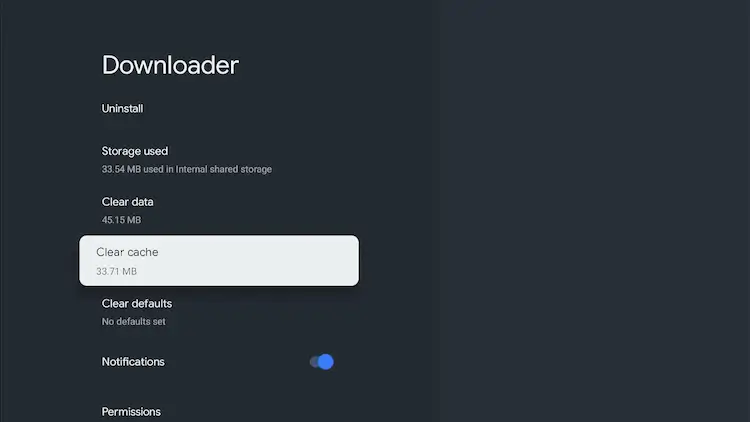
Over time, your Onn TV quietly collects junk data in the background, leftover app files, cached images, and temporary data that never get cleaned up automatically.
The result? Slower menus, sluggish app loading, and that frustrating lag when switching between shows.
The good news: a few quick tweaks inside your settings will make your Onn TV feel noticeably faster with no extra apps, no technical skills, and nothing to download. Most people notice the difference immediately!
📋 How To Do It
| 01 | Go to Settings → Apps |
| 02 | Select See All Apps and open each app you use regularly |
| 03 | Tap Clear Cache for each app. This removes junk without deleting your logins |
| 04 | Go back to Settings → Device Preferences → About |
| 05 | Enable Developer Options (check Hack #1) |
| 06 | Go to Developer Options and find Window Animation Scale — set it to 0.5x |
| 07 | Do the same for Transition Animation Scale and Animator Duration Scale — both to 0.5x |
| 08 | Restart your Onn TV. menus and apps will feel significantly faster |
💡 Pro Tip: Make clearing your app cache a monthly habit, just 5 minutes keeps your Onn TV running at its best. Netflix, YouTube, and your web browser tend to accumulate the most junk over time.
9. Replace the Screensaver with Aerial Views
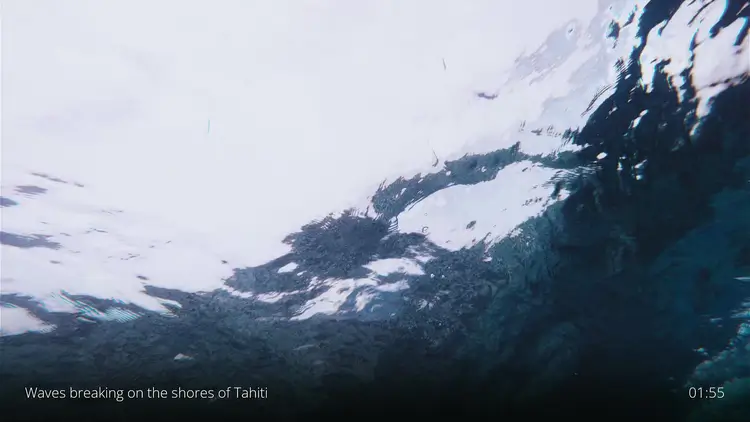
The default screensaver is a dull slideshow. With Aerial Views app, you get breathtaking 4K aerial footage of cities, coastlines, and mountains playing silently when the TV is idle.
Aerial Views is a free app that brings Apple TV’s famous Aerial screensaver to Android TV / Google TV devices. It plays stunning 4K drone footage from around the world. Cities at dawn, desert landscapes, Norwegian fjords, all in full 4K HDR on your display.
📋 How To Do It
| 01 | Search for Aerial Views in the Google Play Store and install it |
| 02 | Go to Settings → Device Preferences → Screensaver |
| 03 | Select Aerial Views as your screensaver |
| 04 | Set your screensaver timer (5–15 minutes works great) |
| 05 | Open the Aerial Views app to pre-download footage over Wi-Fi for offline use |
💡 Pro Tip: Download a few videos in advance so the screensaver plays from local storage — no buffering, no loading delays. Just instant 4K visuals every time the TV idles.
10. Browse Internet with Freedom
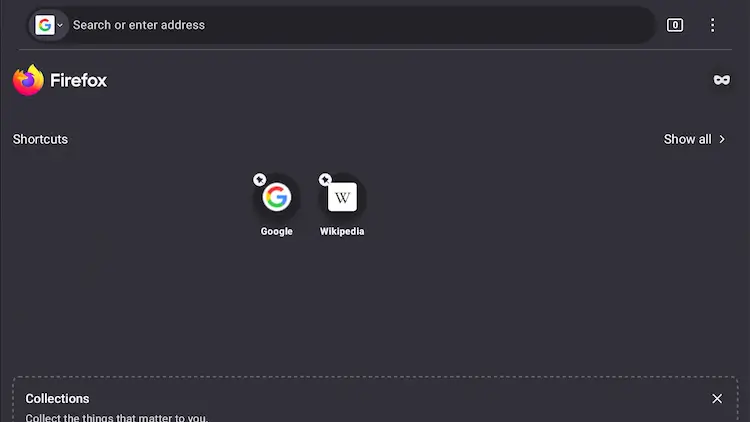
Your Onn TV doesn’t come with a proper web browser, which means no browsing the internet, no accessing websites, and no watching content from sites that don’t have a dedicated app.
By sideloading Firefox for Android TV, you get a full, real web browser on your big screen. Look up recipes, read the news, visit any website, or access streaming services that aren’t in the Play Store.
📋 How To Do It
| 01 | Enable Developer Options (Hack #1) |
| 02 | Open the Downloader app and enter the code 8533602 |
| 03 | Select Utilities tab and scroll down to select Firefox browser |
| 04 | When the download finishes, tap Install and wait for it to complete |
| 05 | Open Firefox and start browsing internet with it |
| 06 | Find Firefox in your app list and add it to your home screen for quick access |
💡 Pro Tip: Pair a cheap wireless Bluetooth keyboard and mouse combo with your Onn TV for a much better browsing experience.
11. Fix the “Unsupported Region” Error
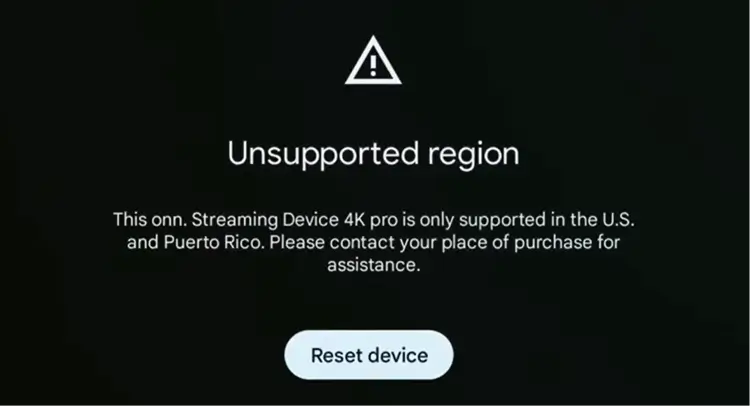
Onn devices are locked to the US & Puerto Rico only. If you bought one in the US and set it up abroad (or factory reset it while traveling), you’ll hit the “Unsupported Region” error and won’t be able to continue.
The fix is free: share a US VPN connection from your Windows PC through a Mobile Hotspot and set up your Onn TV on it.
📋 How To Do It
| 01 | Install Surfshark VPN on your Windows PC and connect to a United States server |
| 02 | Go to Settings → Network & internet → Mobile hotspot, click Edit, set a password, and turn the hotspot ON |
| 03 | Press Start, type ncpa.cpl, and press Enter to open Network Connections |
| 04 | Right-click Surfshark WireGuard → Properties → Sharing, check the box, and select your hotspot connection from the dropdown |
| 05 | On your Onn TV, pair the remote, select English, then choose United States as your region |
| 06 | Select Set up with TV instead, then connect to your PC’s hotspot Wi-Fi and enter the password |
| 07 | Sign in to your Google account and finish the setup screens |
💡 Pro Tip: Turn on both Wi-Fi and Mobile Hotspot on your PC, and use a paid VPN like Surfshark. Free VPNs rarely give a stable US IP. Repeat this after any future factory reset abroad.
12. Use Your Smartphone as a Remote (Google TV App)
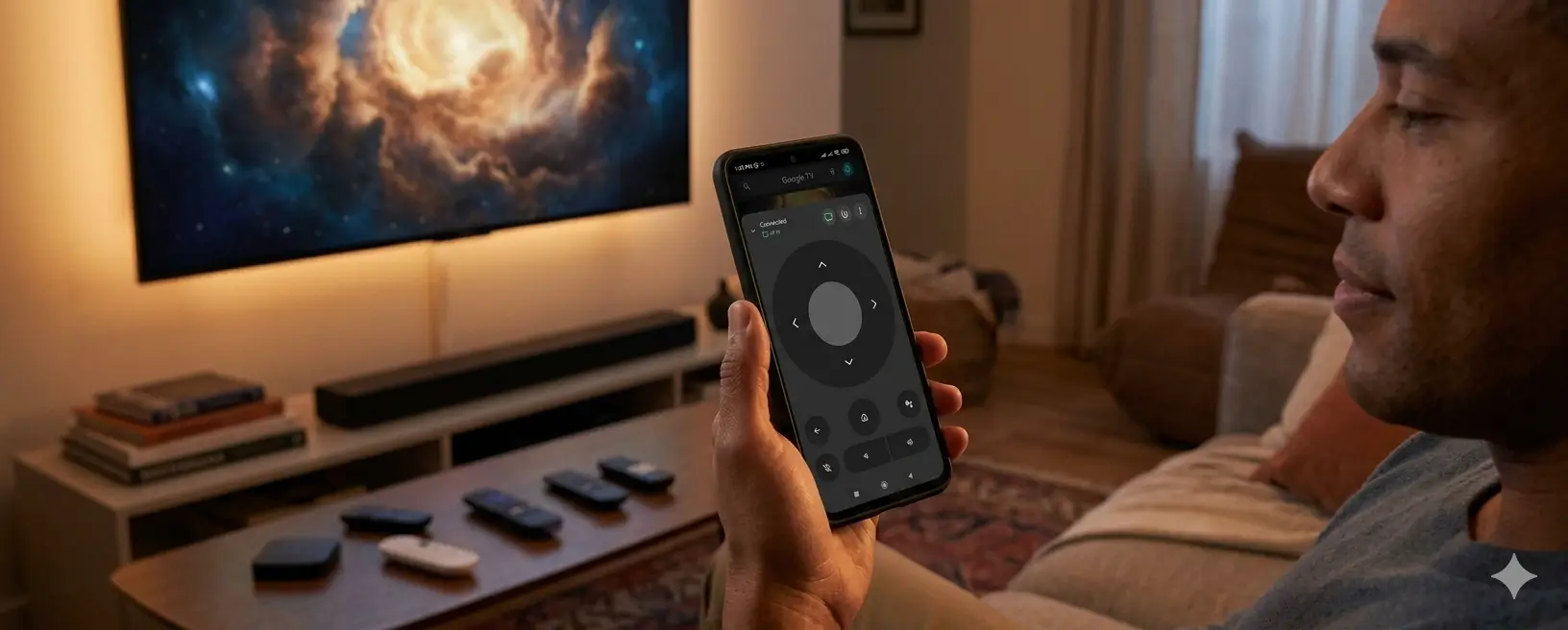
Your smartphone can fully replace the Onn physical remote. Google TV has built-in remote functionality in the Google TV app, giving you a full keyboard for searching, a touchpad for faster navigation, and voice control without pressing any buttons.
This also means you’re never stuck without a remote if the physical one dies or goes missing. Multiple family members can each use their own phone to control the TV at the same time.
📋 How To Do It
| 01 | Install the Google TV app on your iPhone or Android phone |
| 02 | Make sure your phone and Onn are on the same Wi-Fi network |
| 03 | Open the app and tap the Remote icon at the bottom of the screen |
| 04 | Select your Onn from the list — it auto-discovers on the same network |
| 05 | Use the touchpad, full keyboard, and voice button just like a physical remote |
💡 Pro Tip: Pair a Bluetooth keyboard directly with your Onn for the fastest input experience — super handy if you search a lot or use browser-based apps on your TV.
13. Debloat Your Device with ADB for Better Performance
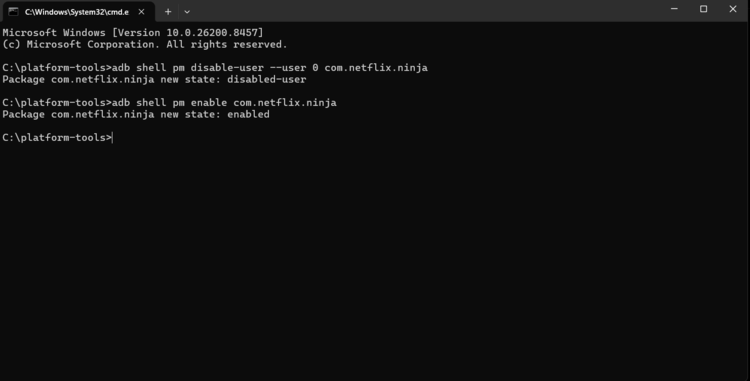
Your Onn device comes with pre-installed apps you’ll never use, but they run in the background consuming RAM, eating into your storage, and sometimes sending telemetry.
Disabling them makes the device noticeably faster. The App launch times improve and menus feel more responsive.
📋 How To Do It
| 01 | Connect via Wireless ADB first (Hack #9) |
| 02 | Run adb shell pm list packages to see all installed apps |
| 03 | Identify what you want to disable (see safe list in Pro Tip below) |
| 04 | Run: adb shell pm disable-user –user 0 [package.name] |
| 05 | Repeat for each app — changes take effect immediately |
| 06 | To undo: adb shell pm enable [package.name] |
💡 Pro Tip: Safe ones to start with — com.google.android.videos (Play Movies), com.android.gallery3d (Gallery), and com.google.android.youtube.tv (after installing SmartTube). Never disable core Google services.
Final Thoughts
The Walmart Onn streaming device is one of the most capable and customizable streaming boxes on the market. Whether you paid $19 for the stick or $49 for the 4K Pro, you’re sitting on a full Android TV platform that a large community has been yearning for.
Start with the easy wins: Developer Options, SmartTube, Button Mapper, Google TV app, and your HDR settings. Once you’re comfortable, work through the intermediate hacks.
Every step compounds, and the end result is a device that feels like it costs three times what you actually paid.
Bookmark this page and work through the hacks one at a time. Your streaming experience will never be the same.