 Onn TV Hacks Master Your Onn TV with Expert Guides, Hacks, & Apps

Written and tested by Black Joseph
Updated August 5, 2026
When you buy through our links, we may earn a commission. See how we work with brands here.
If you just plugged in your Onn TV Stick or Box and left everything on default, you’re missing out on peak performance.
These default settings often lead to washed-out picture quality, hidden background data sharing with Google, and unnecessary system lag.
To get the absolute most out of your device, a few quick tweaks can make a big difference. Here are the must-change Onn TV settings to transform your setup into a smoother, faster, and more secure device.
📋 Table of Contents
Quick Onn TV Settings Breakdown
A quick overview of the Onn TV settings covered in this guide, along with what each one does and exactly how to change it.
| Setting | Purpose | Action |
|---|---|---|
| Install Unknown Apps | Sideload APKs via Downloader | Enable (per app) |
| Usage & Diagnostics | Stop Google collecting usage data | Disable |
| Ads Personalization | Stop tracking-based ad targeting | Disable |
| Match Content Frame Rate | Fix judder on movies & shows | Set to Non-seamless |
| Surround Sound Format | Get real Dolby Atmos passthrough | Set to Auto |
| HDMI-CEC | Control your TV with one remote | Enable |
| Screensaver Timer | Reduce background resource use | Adjust to 10 min |
| Device Name | Identify your Onn box easily | Rename via Settings |
| Date & Time Zone | Fix wrong time while traveling | Set manually |
| Cast Discoverability | Cast from phone apps reliably | Enable |
| App Cache & Storage | Fix lag & free up space | Clear regularly |
11 Hidden Settings for Onn TV Box/Stick [Step by Step]
Here are the essential Onn TV settings to optimize your device, along with detailed step-by-step navigation paths for easy setup.
Note: Please restart your device after adjusting these options if the changes don’t apply immediately.
1. Allow Installing Unknown Apps
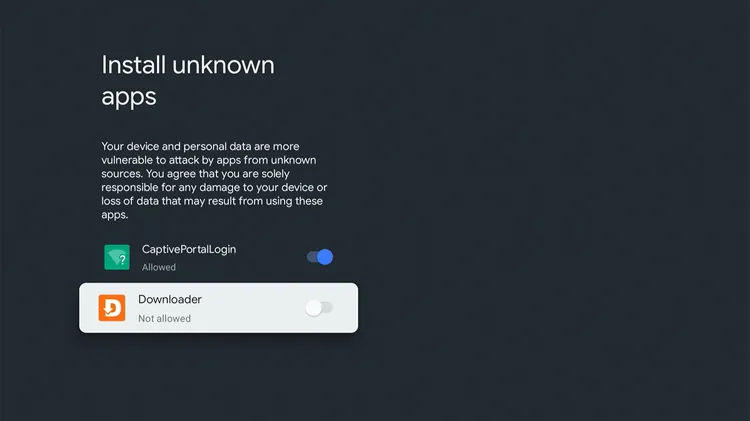
Allow installing apps from unknown sources
Use: To sideload third-party apps like IPTV players and streaming apps that aren’t available on the Google Play Store, using the downloader codes through the Downloader app.
- Open Downloader (or any third-party app) for the first time.
- When prompted, tap Settings on the “Install blocked” popup.
- Turn ON “Install Unknown Apps” for Downloader.
- Proceed to Install again.
2. Turn Off Usage & Diagnostics
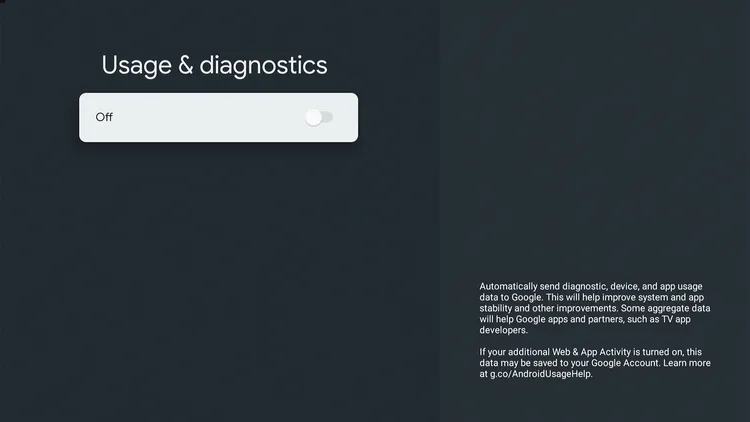
Disable Usage & Diagnostics data collection
Use: By default, your Onn device sends crash reports and usage statistics back to Google. Turning this off keeps that data on your device.
- Go to Settings.
- Select Privacy.
- Tap Usage & Diagnostics.
- Turn it OFF.
3. Turn Off Ads Personalization
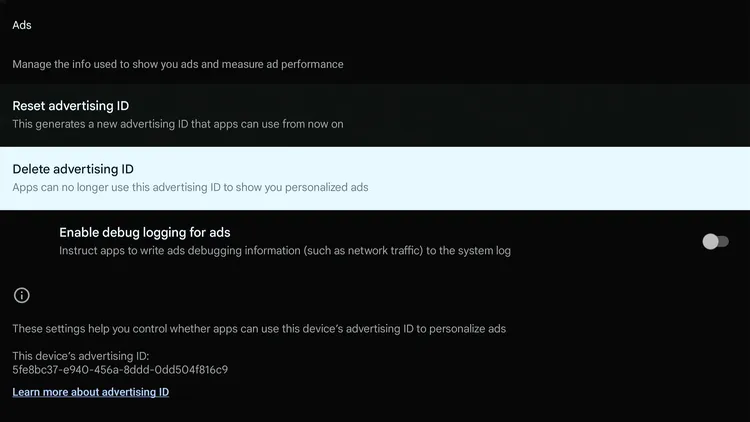
Delete advertising ID
Use: This stops Google from using your viewing habits and app activity to target you with personalized ads on the home screen and inside apps.
- Go to Settings.
- Select Privacy.
- Tap Ads.
- Tap “Delete advertising ID.”
4. Turn On Match Content Frame Rate
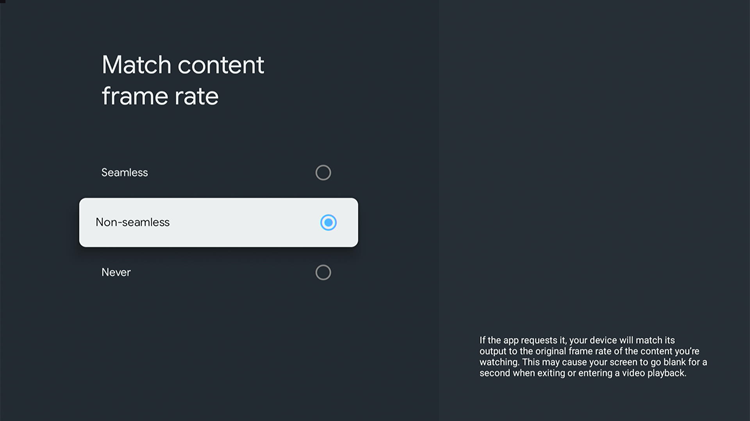
Set Match Content Frame Rate to Non-seamless
Use: Movies are filmed at 24fps but your Onn box outputs 60Hz by default, causing slight stutter during panning shots. This forces your Onn TV to match the video’s original frame rate, eliminating motion stutter and keeping camera movements smooth during movies and shows.
- Go to Settings.
- Select Display & Sound.
- Tap Match content frame rate.
- Choose Non-seamless.
5. Set Surround Sound Format to Auto
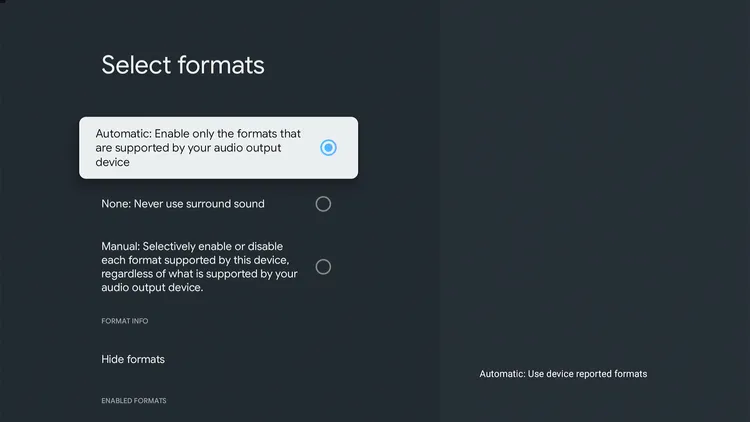
Set Surround Sound to Auto for real Dolby Atmos
Use: If you’re connected to a soundbar or AV receiver, this lets supported apps like Netflix and Disney+ pass through real Dolby Atmos audio instead of downmixing it to stereo.
- Go to Settings.
- Select Display & Sound.
- Tap Advanced sound settings.
- Select Automatic: Enable only the formats that are supported by your audio output device.
6. Turn On HDMI-CEC for Single Remote Control
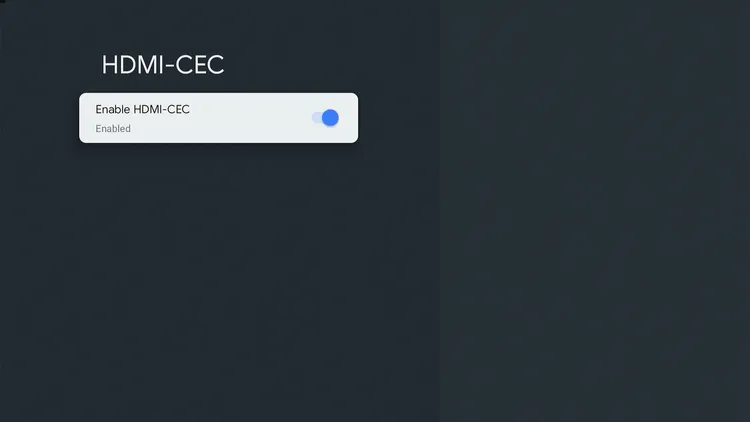
Turn on HDMI-CEC for one-remote control
Use: This lets your Onn remote power your TV on/off and control the volume automatically, so you’re not juggling two remotes every time you watch something.
- Go to Settings.
- Select Display & Accessories.
- Tap HDMI-CEC.
- Enable HDMI-CEC switch.
7. Adjust the Screensaver Timer
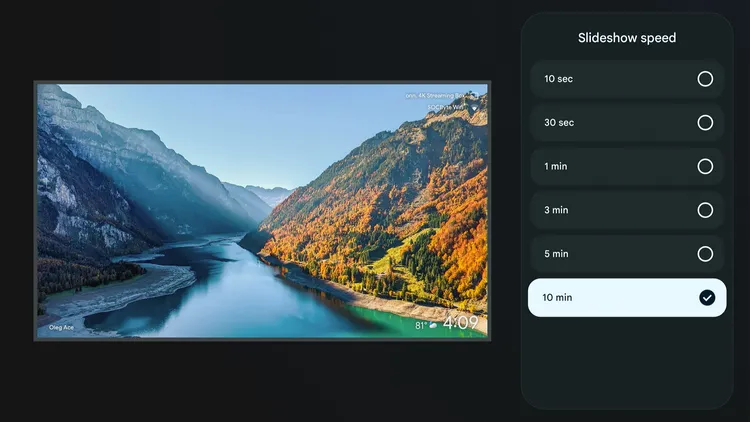
Adjust the Screensaver timer
Use: The default screensaver cycles full-screen photo backgrounds frequently, which quietly uses up background resources. Extending the timer reduces this.
- Go to Quick Settings.
- Tap Screensaver.
- Scroll down to Screensaver settings, then select Settings.
- Choose Slideshow speed and set it to 10 minutes.
8. Rename Your Onn Device
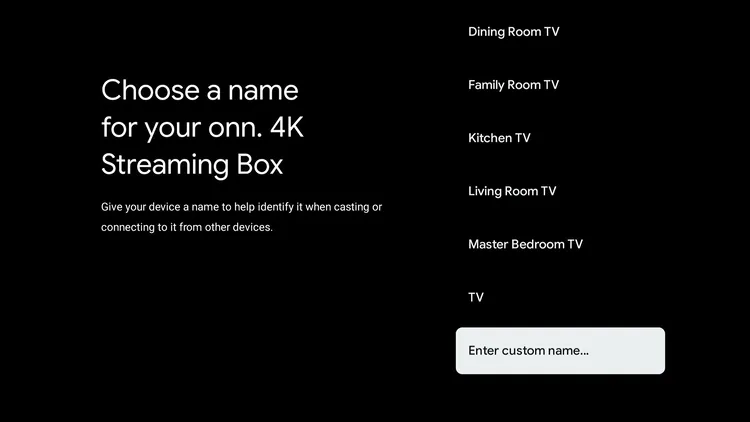
Rename your Onn TV device
Use: By default, your device shows up as its model name. Renaming it helps you tell it apart from other Onn or Google TV devices on your network when casting or connecting Bluetooth accessories.
- Go to Settings.
- Scroll down and select System.
- Tap About, then Device name.
- Choose a preset name or select Edit to type a custom one, then tap Save.
9. Set the Correct Date & Time Zone
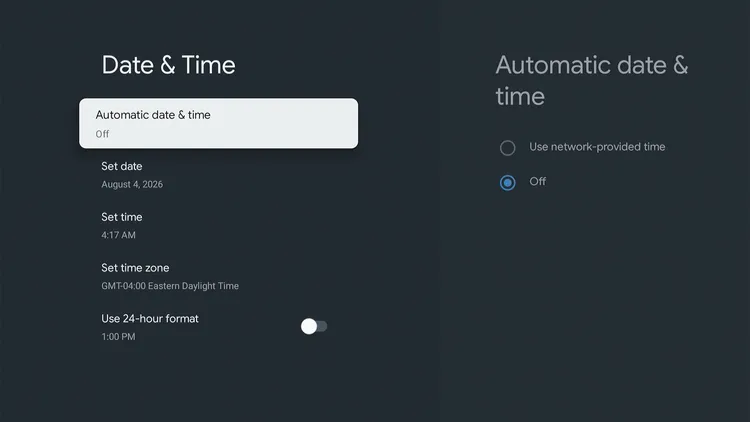
Set the correct date and time zone
Use: Your Onn box sets its time zone based on your network location during setup. If you’re traveling or using a VPN, the clock and program guide times can show incorrectly until this is set manually.
- Go to Settings.
- Scroll down and select System.
- Tap Date & time.
- Turn off Automatic date & time and select your correct Time zone.
10. Turn On Cast Discoverability
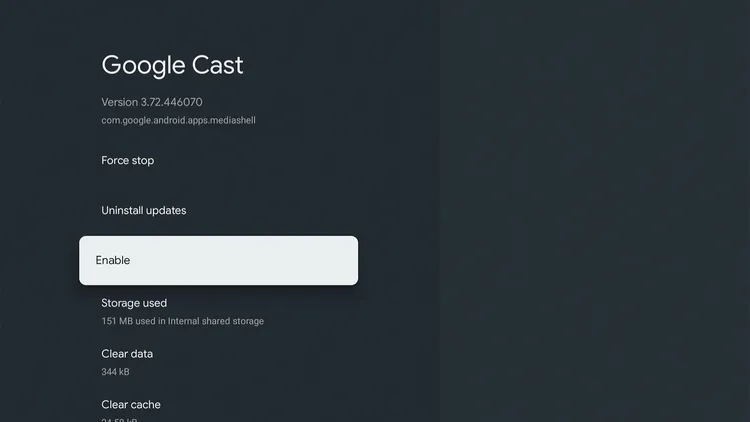
Turn on Cast Discoverability
Use: Onn boxes have Chromecast built in, but if it’s not discoverable, phone apps like YouTube or Spotify won’t find it on the network to cast to.
- Go to Settings > Apps > See All Apps.
- Scroll to the bottom and select Show system apps.
- Select Google Cast (or Chromecast built-in).
- Ensure it’s set to Enable.
11. Clear App Cache & Free Up Storage
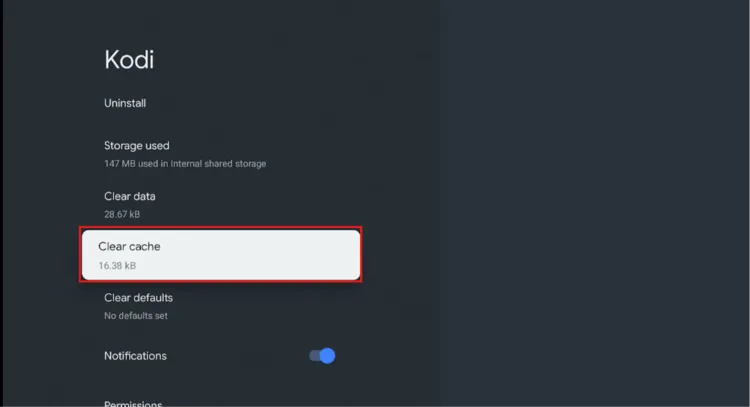
Clear app cache
Use: Onn boxes ship with limited storage and RAM, so a buildup of app cache and unused apps is one of the biggest causes of slow menus and laggy app switching.
- Go to Settings.
- Select Apps, then See all apps.
- Choose an app you rarely use.
- Tap Clear cache or Uninstall.
📌 Related Onn TV Guides
- How to Remove Ads from Onn TV Home Screen — get a clean, ad-free home screen.
- How to Close Background Apps on Onn TV — stop buffering caused by apps running in the background.
- How to Jailbreak Onn TV — unlock even more from your Onn device.
Frequently Asked Questions
1. Why does my Onn TV picture look jittery during movies?
This is almost always a frame rate mismatch. Movies are shot at 24fps but your Onn box outputs 60Hz by default. Turning on Match content frame rate and setting it to Non-seamless fixes this in most cases.
2. Should I turn off Usage & Diagnostics?
Yes, if you’d rather keep your device usage private. Turning it off has no effect on app performance or features — it only stops crash reports and usage stats from being sent to Google.
3. Why can’t my phone find my Onn box when I try to cast?
This is usually because Discoverable is turned off under Settings > Google TV Home, or your phone and Onn box are on different Wi-Fi networks. Both devices need to be on the same network to cast.
4. Why is my Onn box running slowly after a few months of use?
Onn boxes have limited RAM and storage, so a buildup of app cache and rarely-used apps is the most common cause of slowdown. Clearing cache and uninstalling unused apps under Settings > Apps usually restores normal speed.
5. Do I need to change these settings again after a software update?
Usually not, since these settings are stored on your device and typically survive routine updates. It’s only after a full factory reset that you’ll need to go through and reapply them.
Final Verdict
Your Onn TV device is capable of a genuinely great streaming experience — you just need to move a handful of hidden settings away from their defaults.
Turning on Match Content Frame Rate alone fixes most picture complaints, while tightening up privacy, renaming your device, and clearing storage takes care of the rest. Run through this list once and you shouldn’t need to touch it again.
📌 Found this guide useful? Share it with your friends or drop a comment below. Check out our Best Apps for Onn TV guide to install tons of useful apps on your Onn TV.