 Onn TV Hacks Master Your Onn TV with Expert Guides, Hacks, & Apps

Enabling Developer Options is essential for sideloading apps on your device. This hidden setting allows you to install APK files that are not available on the Google Play Store. Sideloading is required using the Downloader app.
Without these options, tools like Downloader cannot operate. Toggle on “Install Unknown Apps” permission to add custom streaming apps and IPTV players to your Onn device.
📋 Table of Contents
- Why You Need Developer Options on Onn TV
- How to Enable Developer Options on Onn TV
- How to Enable ‘Install Unknown Apps’ on Onn TV
- How to Install Third-Party Apps Using Downloader on Onn TV
- How to Enable Permissions on the Downloader App
- Developer Options Not Appearing on Onn TV? Here’s How to Fix It
- FAQs
- Final Verdict
🛡️ OUR TOP PICK FOR ONN TV
Your ISP sees every stream. Unverified apps expose your IP. Fix both in under 2 minutes.
🚫 Built-in ad blocker
💰At $2.49/month
Save 87% Get 3 Extra Months FREE with Surfshark VPN
🔒 30-day money-back guarantee • Special limited-time deal

Why You Need Developer Options on Onn TV?
Developer Options is required to install apps that are not available on the Google Play Store. Without it, you cannot sideload APKs or use third-party app installers.
Tools such as the Downloader app require toggling ON ‘Install Unknown Apps’ permission. This setting is also necessary for USB sideloading and certain screen mirroring applications.
How to Enable Developer Options on Onn TV
Follow these steps exactly to enable Developer Options on your Onn device. The entire process takes less than two minutes and requires no technical experience.
From the Onn TV home screen, tap the top-right gear icon to open Quick Settings.
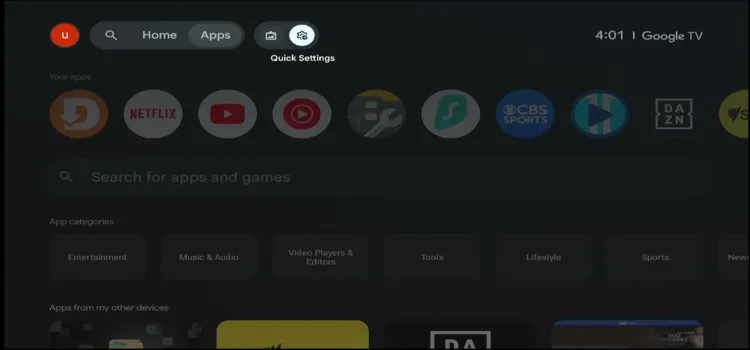
Open Quick Settings from the top-right gear icon
Click on All Settings.

Click on All Settings
Scroll down and select System.

Select System
Select About.
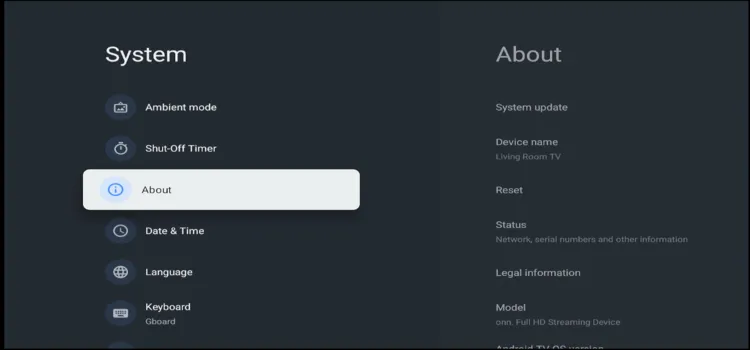
Select About
Select Android TV OS Build (This tells the device’s firmware version, model info, and build details) and press OK 7 Times (A counter will appear on screen showing how many presses remain).

Press OK 7 times on Android TV OS Build — a counter shows remaining presses
A new message, ‘You are now a developer!’ will appear.
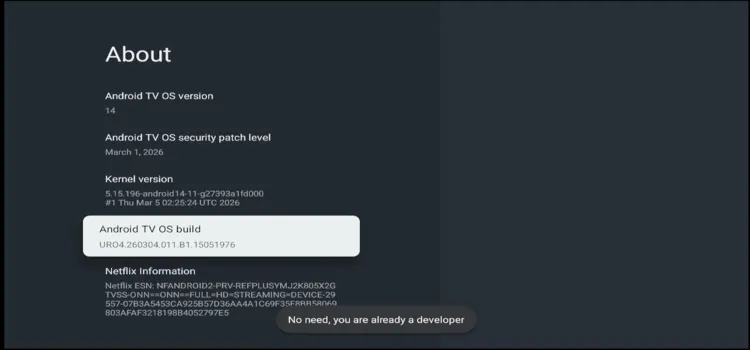
“You are now a developer!” confirmation message appears on screen
Go back to System, and there you will spot Developer Options.
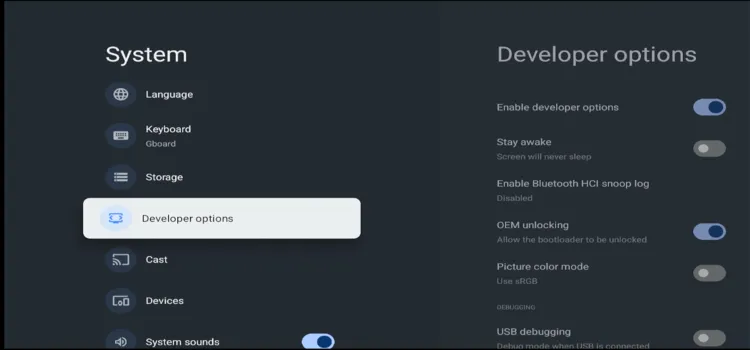
Developer Options now appears inside the System menu
Tap on Developer Options to access all developer settings.
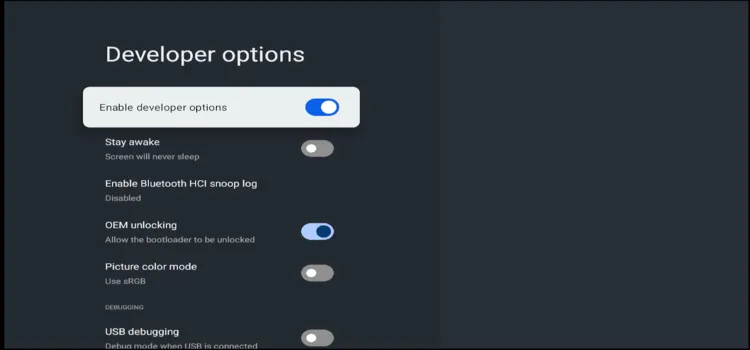
Tap Developer Options to open all developer settings
How to Enable ‘Install Unknown Apps’ on Onn TV?
Enabling Developer Options is only the first step. You must also grant permission to apps like Downloader. Once enabled, you can sideload and install APK files directly on your Onn TV device.
Press Home button and click on Quick Settings (gear icon).
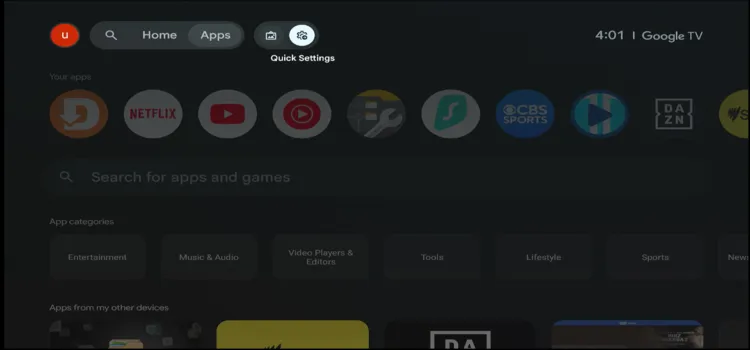
Press Home button then open Quick Settings
Click All Settings.
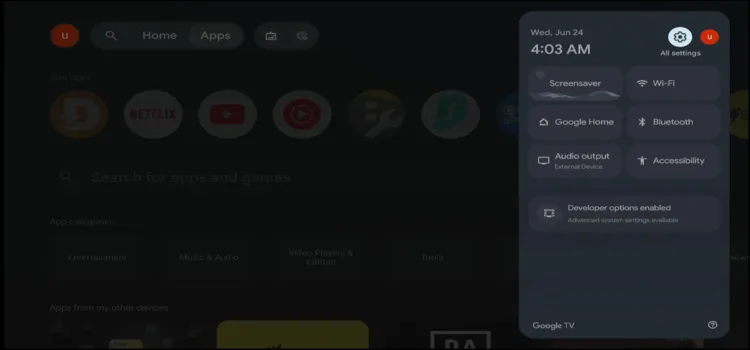
Select All Settings
Click Apps.

Click Apps
Click Security.
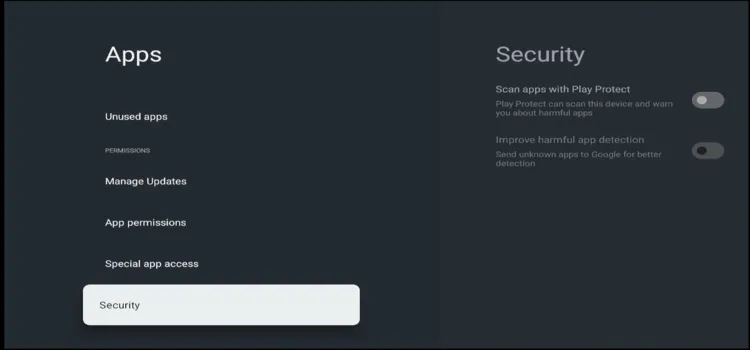
Click Security
Disable Scan apps with Play Protect.
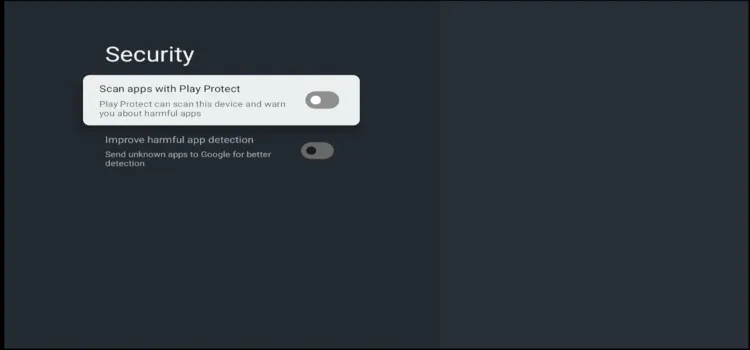
Disable Scan apps with Play Protect
How to Install Third-Party Apps using Downloader on Onn TV?
Once Developer Options and Install Unknown Apps are enabled, you can use several reliable methods to install third-party apps on your Onn TV device.
Go to Onn TV Home and then click on the Settings icon
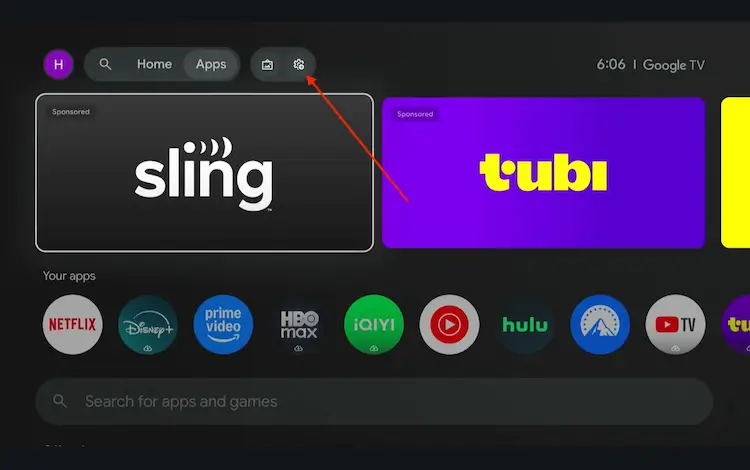
Settings icon on the Onn TV home screen
Select All Settings
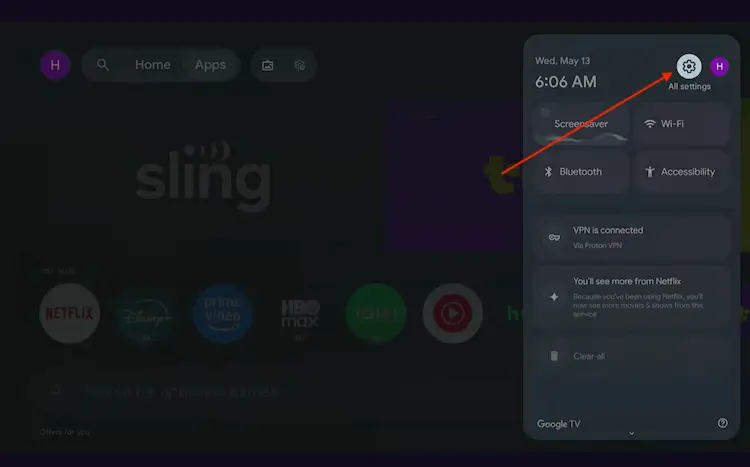
All Settings icon
Scroll down and select System, then choose About from the list.
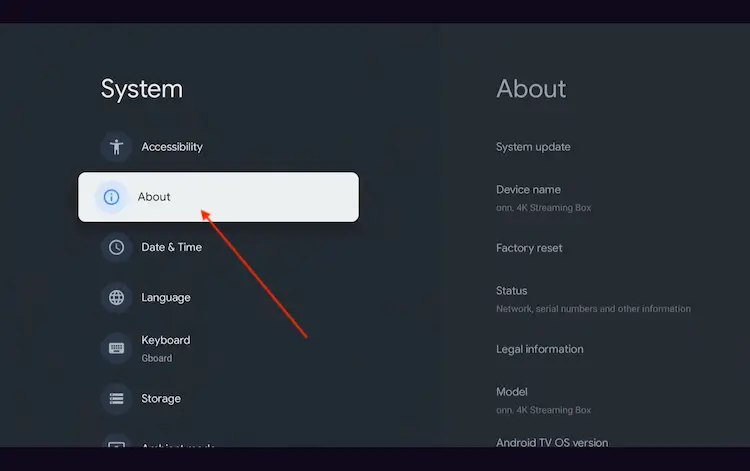
Navigate to System > About
Scroll to the bottom and click Android TV OS Build 7 times continuously until a pop-up says "You are now a developer."
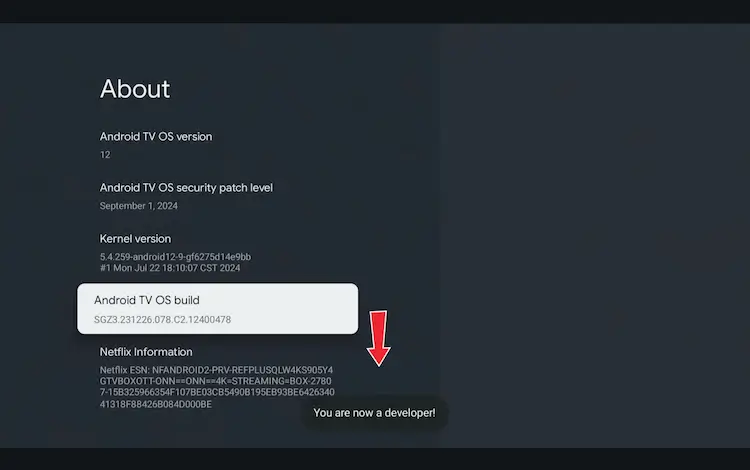
Click Android TV OS Build 7 times to unlock Developer Mode
Press the Home button on your remote, go to the top menu, and select Apps.
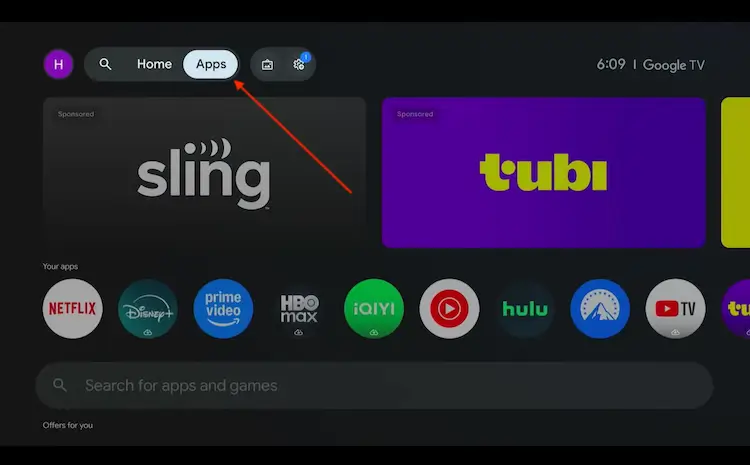
Back to the Onn TV home screen > Apps
Use the search bar and type Downloader and select the one at the top of the list
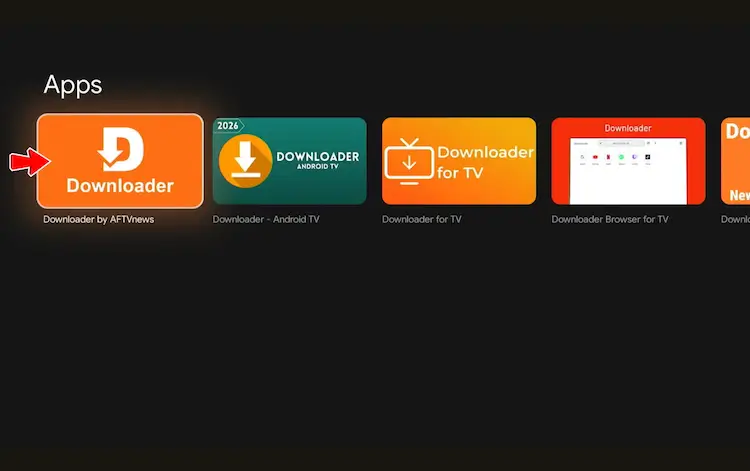
Select the Downloader app at the top of the search results
Click Install
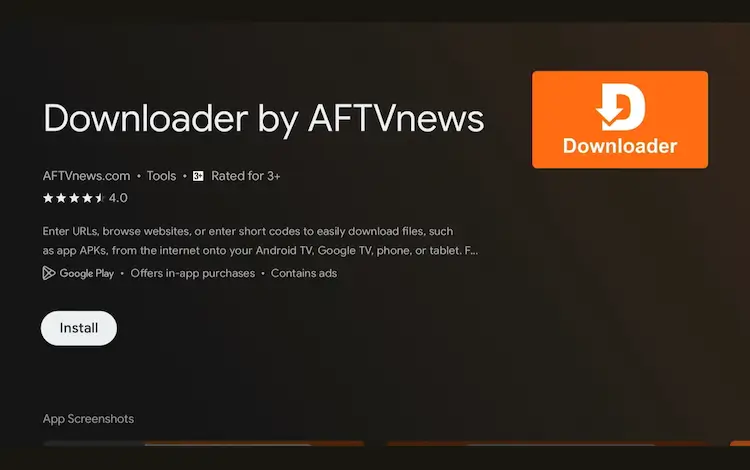
Press Install
Once installed, open the Downloader app and click on the URL/search bar.
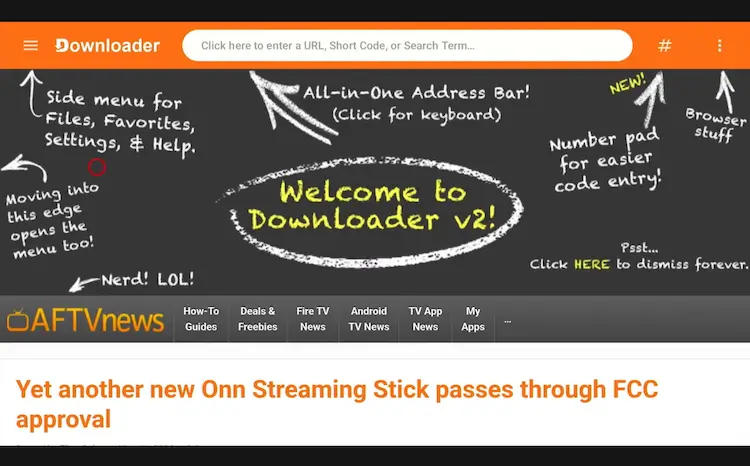
Open Downloader app > URL Search bar
Enter the exclusive Onn TV Hacks downloader code 8533602 below and press Go.
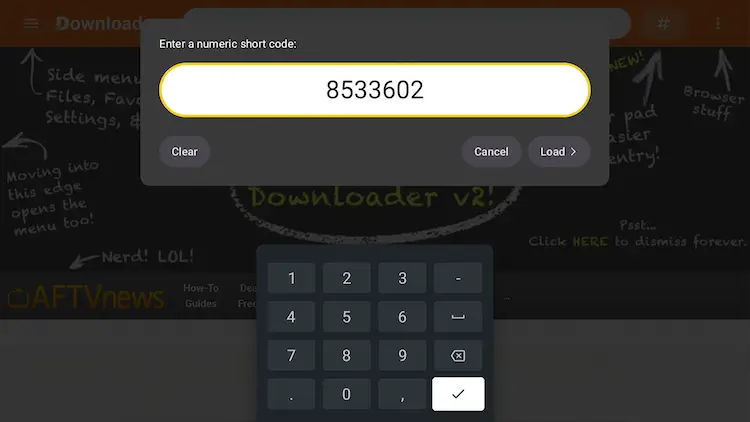
Add the popular 8533602 code
How to Enable Permissions on the Downloader App?
If the Downloader app is unable to access files or download APKs properly, checking its permissions can help resolve the issue.
Go to Quick Settings.

Go to Quick Settings
Go to All Settings.
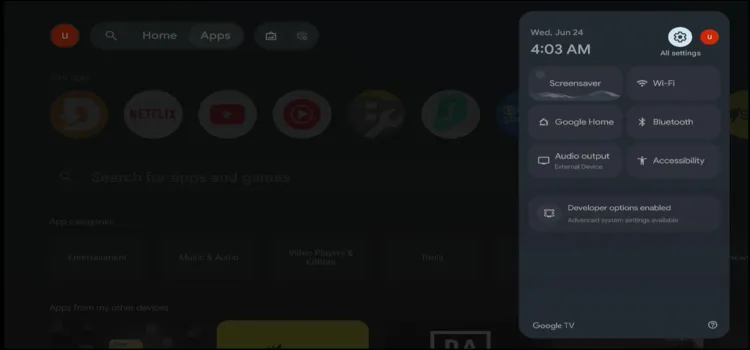
Go to All Settings
Go to Apps.

Go to Apps
Scroll and click on ‘See All apps’.

Scroll and click See All apps
Under All Apps, click on Downloader.
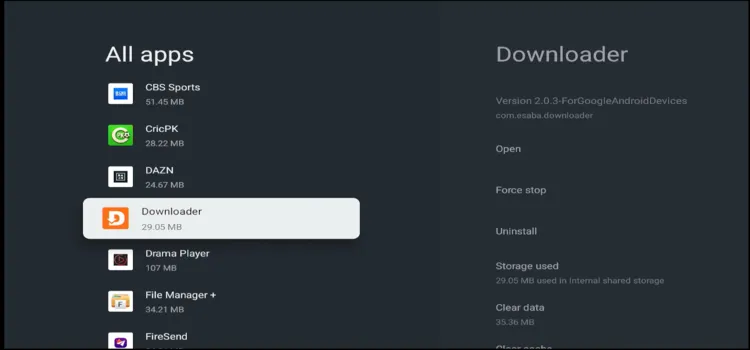
Click on Downloader under All Apps
Scroll down and select Permissions.

Scroll down and select Permissions
Toggle ON ‘Remove Permissions and free up space’.

Toggle ON Remove Permissions and free up space
Developer Options Not Appearing on Onn TV? Here’s How to Fix it
If Developer Options does not appear after following the steps above, one of the following issues is likely preventing it from being enabled:
| Issue | Fix |
|---|---|
| Check the Correct Build Number | Onn TV uses a specific build field. Make sure you tap Android TV OS Build 7 times. Pressing the wrong one will not trigger the unlock. Go to Quick Settings → Settings → System → Android TV OS Build |
| Restart the Device | In some cases, a restart is required before the Developer Options menu becomes visible. Go to Quick Settings → Settings → System → Restart. |
| Update Onn TV Software | Outdated firmware can sometimes interfere with the activation process. Navigate to Quick Settings → Settings → System → About → System Update and install any available updates. |
FAQ’s
Q How many times do I need to press the Build Number on Onn TV?
Press Android TV OS Build exactly 7 times. A counter appears on screen to guide you. After the 7th press, the device confirms that Developer Options has been unlocked.
Q Can I install APKs without enabling Developer Options?
No. Install Unknown Apps permission only becomes available after Developer Options is enabled. Without it, Android TV blocks all third-party APK installations by default.
Q Does enabling Developer Options affect my Onn TV warranty?
Enabling Developer Options does not void your warranty. It is a built-in Android TV feature. However, installing unofficial apps or modifying system files after accessing Developer Options may carry risks.
Q Can I turn Developer Options off later?
Yes. Go to Settings → System → Developer Options and toggle the master switch at the top to OFF. This disables all developer settings without affecting installed apps.
Final Verdict
Developer Options gives you more control over your Onn device by allowing you to install IPTV players, streaming apps, and other tools that are not available on the Google Play Store. It is safe to enable and only takes a few minutes.
Once enabled, you can sideload APKs, use the Downloader app, and install third-party applications with greater flexibility. For the best experience, enable the required app permissions and disable Play Protect scanning when needed to avoid installation issues.