 Onn TV Hacks Master Your Onn TV with Expert Guides, Hacks, & Apps

Written and tested by Black Joseph
Updated August 11, 2026
When you buy through our links, we may earn a commission. See how we work with brands here.
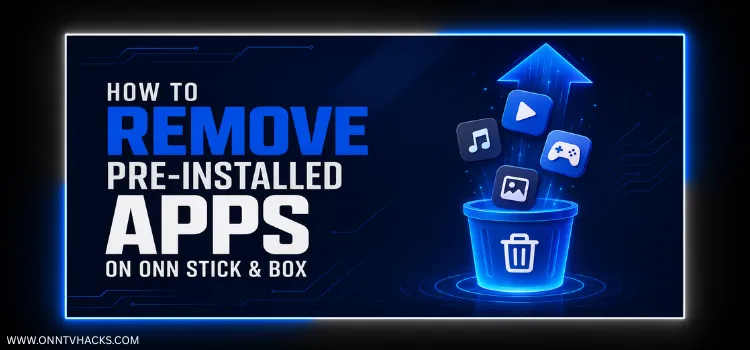
Quick Answer: Pre-installed apps on Onn TV and Google TV devices can’t be removed through standard settings, but you can safely disable or delete all unwanted apps using the free app called ADBTV.
New Onn TV devices come with many preinstalled apps (like Google Play Games) you’ll probably never use.
Those apps also keep updating in the background, taking up your limited storage and dragging down your device’s speed over time.
ADBTV is a free Play Store app that uses Android’s built-in developer mode to let you delete or disable pre-installed system apps and stop any background updates from happening.
📋 Table of Contents
Watch: Quick Video on How to Remove Pre-installed Apps on Onn TV
How to Remove Pre-Installed Apps on Onn TV
First, you’ll need to install the ADBTV app from the Google Play Store and adjust a few quick settings to start removing those unwanted apps.
It takes less than five minutes, and you don’t need any technical skills — just follow the step-by-step process below.
Open the Google Play Store on your Onn TV and search for ADBTV.
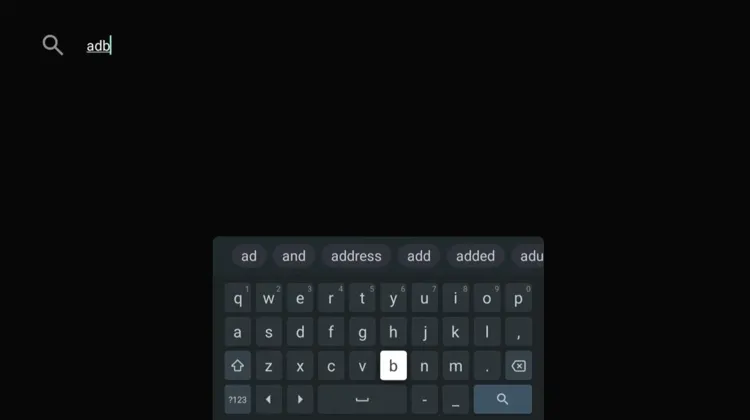
Search for ADBTV on the Google Play Store
Select the ADBTV app and install it.
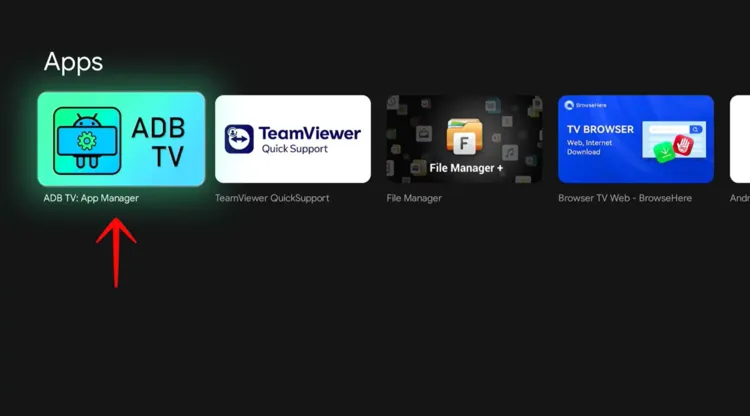
Install the ADBTV app
Tap Open.
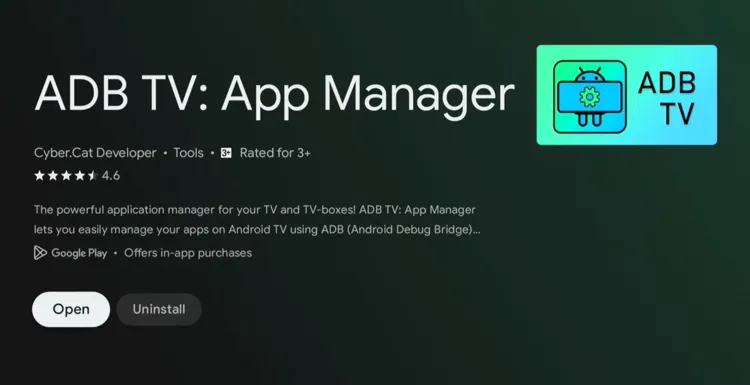
Tap “Open” to launch ADBTV
Press OK on the initial prompt.
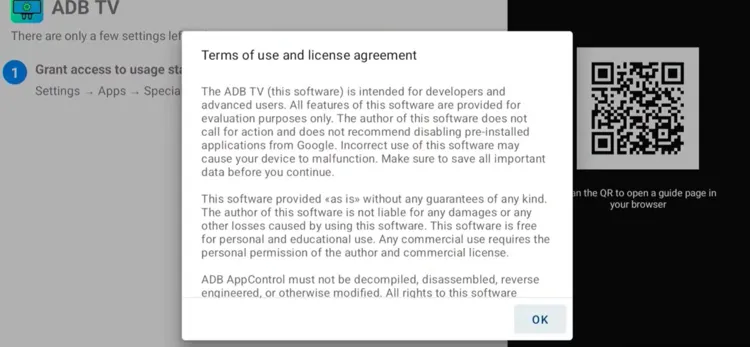
Press “OK”
Go back to the setup screen and open Usage Statistics settings by pressing the center button on your remote.
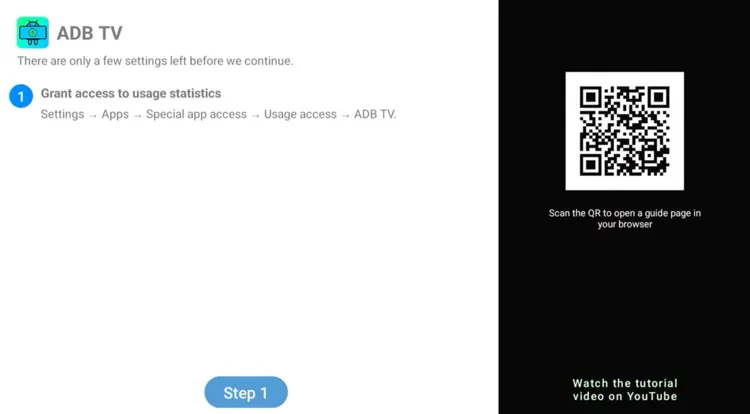
Open “Usage Statistics” settings
In the TV settings menu that opens, select ADBTV from the list and toggle the permission ON.
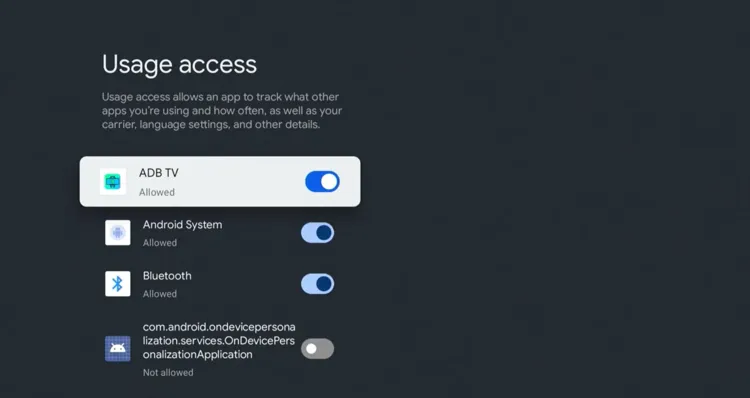
Toggle usage access permission ON for ADBTV
Press Back to return to the app setup screen, then press the center button to open settings again.
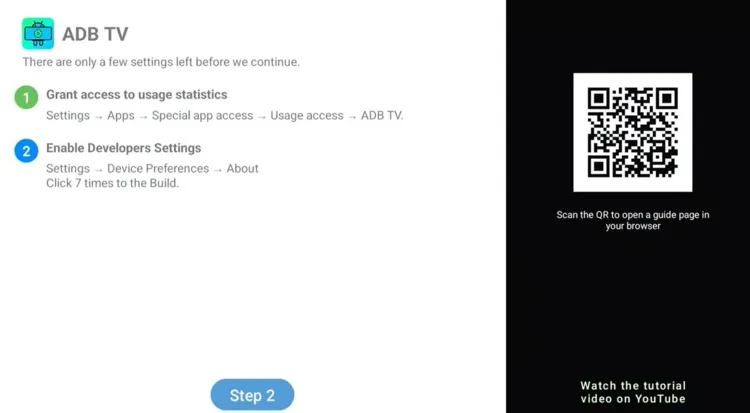
Return to the ADBTV setup screen
Scroll down to Android TV OS build and press the center button 7 times until a message confirms developer mode is enabled.
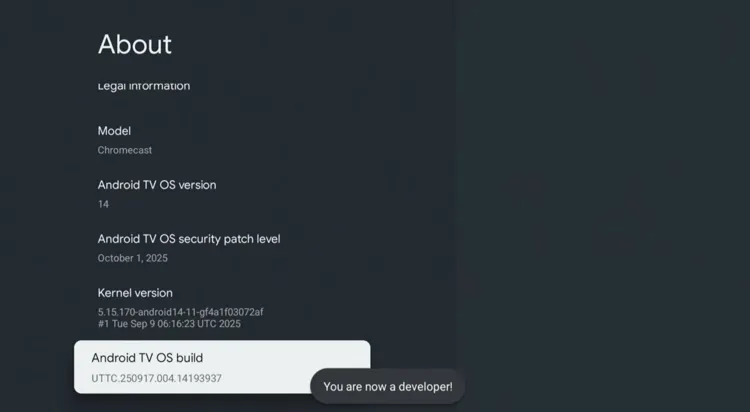
Tap “Android TV OS build” 7 times to enable developer mode
Press Back to return to the setup screen, then select the option to enable ADB Debugging.
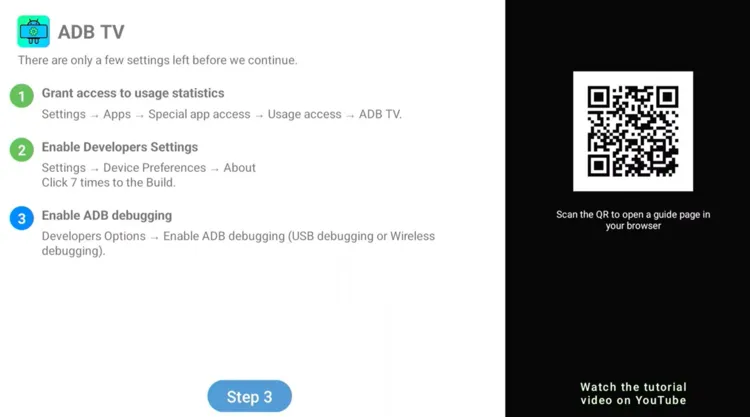
Return to the ADBTV setup screen
Scroll down to USB Debugging and turn it ON.
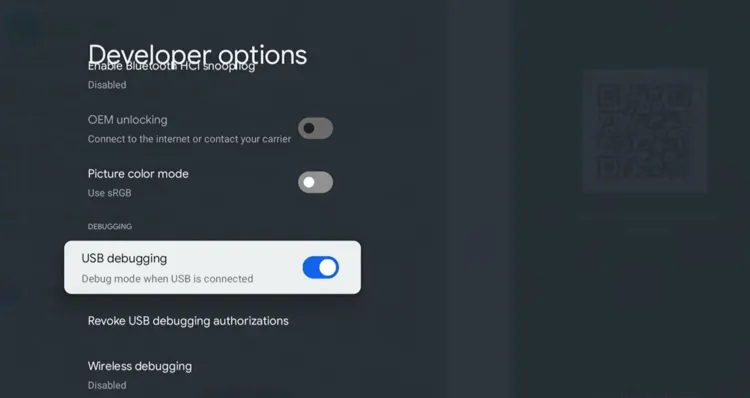
Turn ON USB Debugging for ADBTV
Press OK on the confirmation prompt.
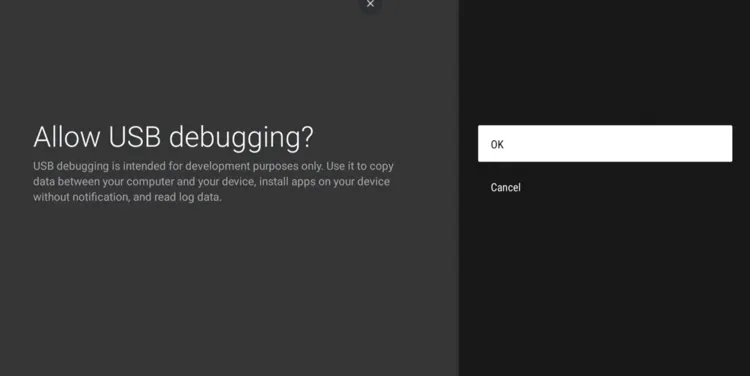
Confirm the USB Debugging prompt
Return to the setup screen and wait for the connection request. When it appears, check “Always allow from this computer” and select Allow.
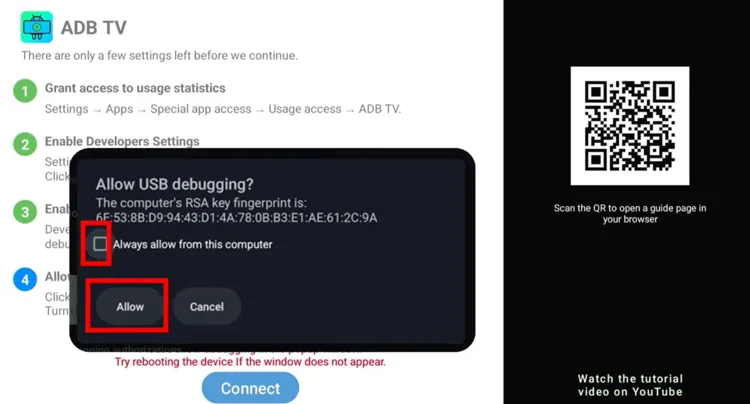
Allow the ADBTV connection request
Wait a few seconds for ADBTV to establish the connection with your device.
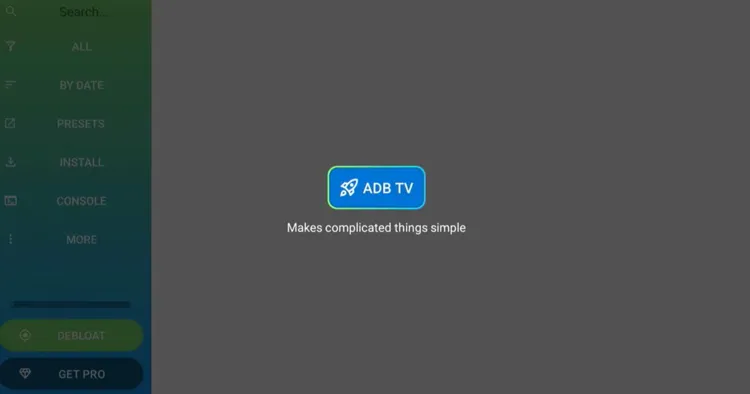
ADBTV establishes connection with your device
Once connected, browse the app list, select any unwanted pre-installed app (like Netflix), and choose Disable or Uninstall.
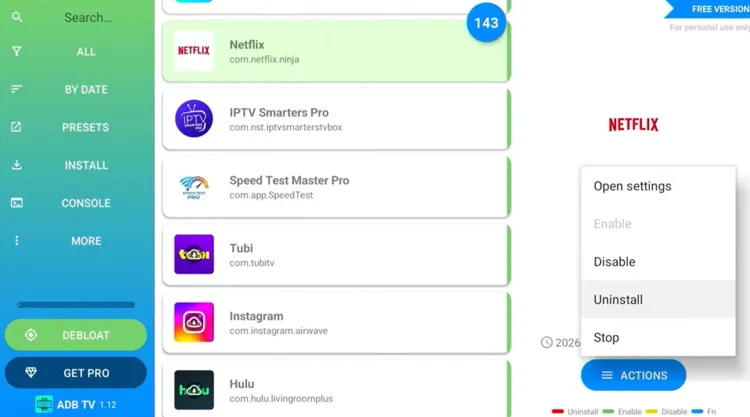
Select an unwanted app and choose “Disable” or “Uninstall”
Done! The selected system apps are now removed or hidden from your device.
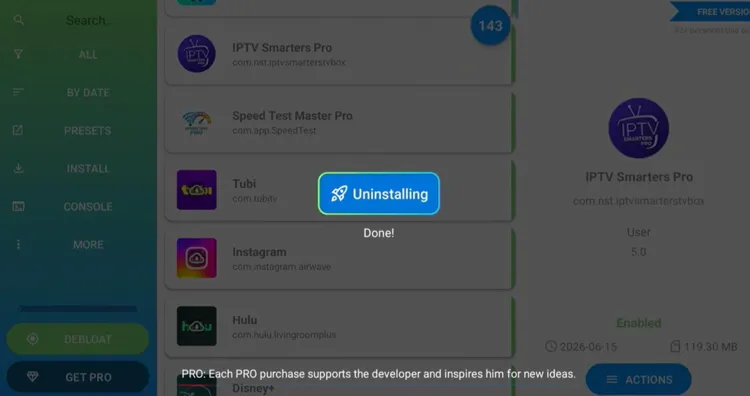
Pre-installed app successfully removed from Onn TV
How Pre-Installed Apps Are Slowing Down Your Onn TV
Most Onn TV streaming sticks and boxes come with pre-loaded streaming services, games, and promo utilities that you may never use.
Because they’re integrated into the system, standard Android TV settings won’t allow you to uninstall them.
On top of that, Google routinely pushes background updates to these apps, which slowly eats into your available space and can eventually make lower-storage devices like the Onn stick slow over time.
📌 Related Onn TV Guides
- Update Onn TV Device to the Latest Version — update your device to get the best performance.
- Onn TV Downloads Page — sideload other useful apps with a single code.
- How to Jailbreak Onn TV — unlock even more from your Onn device.
Frequently Asked Questions
Will removing pre-installed apps void my Onn TV warranty?
No. ADBTV works through Android’s standard developer and debugging tools, which are officially built into the OS. Disabling or uninstalling system apps this way does not void your warranty.
What’s the difference between Disable and Uninstall?
Disable keeps the app on the device but hides it and stops its background activity. Uninstall removes it completely, freeing up more storage. If you’re not sure an app is safe to remove, Disable is the safer choice.
What if ADBTV won’t connect to my device?
Double-check that USB Debugging is turned on and that you selected “Always allow from this computer” on the connection prompt. Restarting your Onn device and reopening ADBTV usually resolves connection issues.
Can I turn Developer Options off again after this?
Yes. Go to Settings → System → Developer Options and toggle the master switch OFF. Your removed apps stay removed either way.
Final Verdict
Pre-installed junk apps are one of the most annoying limitations of Onn TV and Google TV devices.
With the ADBTV app, you get a safe, official way to get your storage back and stop updates from slowing your device down.
📌 Found this guide useful? Share it with your friends or drop a comment below. Check out our Best Apps for Onn TV guide to install tons of useful apps on Onn TV.