 Onn TV Hacks Master Your Onn TV with Expert Guides, Hacks, & Apps

Updating your Onn TV offers smooth performance and strengthens device security. Regular software updates protect your streaming experience and keep applications running without glitches.
These updates bring UI improvements, bug fixes, and better stability, a meaningful boost, especially on affordable devices like the $39 Onn 4K Plus.
📋 Table of Contents
Before Updating Your Onn TV
Check your internet connection before updating. A stable Wi-Fi network prevents download interruptions and helps the installation complete smoothly without corrupting system files.
Plug your device into a reliable power source. Unexpected power loss during a firmware update can severely damage system software and potentially cause your streaming device to malfunction.
If you haven’t jailbroken or sideloaded any apps yet, it’s worth updating first, our guide to the best apps for Onn TV assumes you’re on the latest build.
How to Check Your Current Onn TV Software Version
Finding your current firmware version helps determine if a newer release exists. You can locate this information inside the Settings menu of your Android TV or Google TV interface.
Grab your remote and scroll to the Quick Settings gear icon.
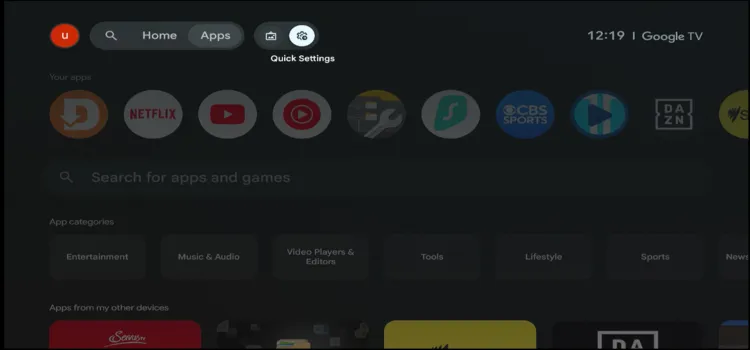
Scroll to the Quick Settings gear icon.
Select All Settings.
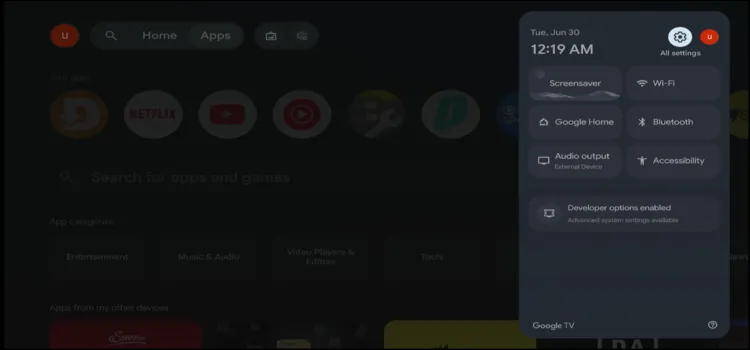
Select “All Settings.”
Scroll down and choose the System menu option.
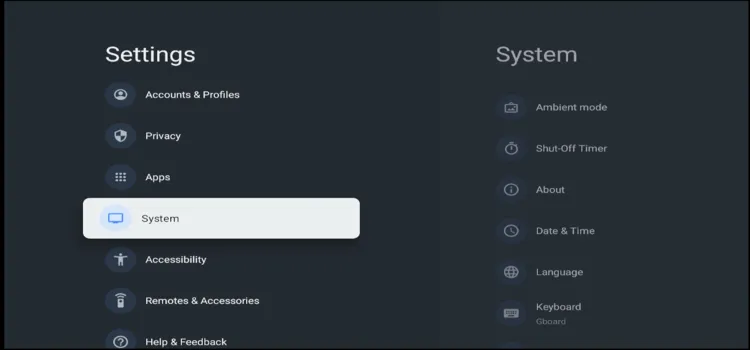
Choose the “System” menu option.
Click on About to view detailed device information.
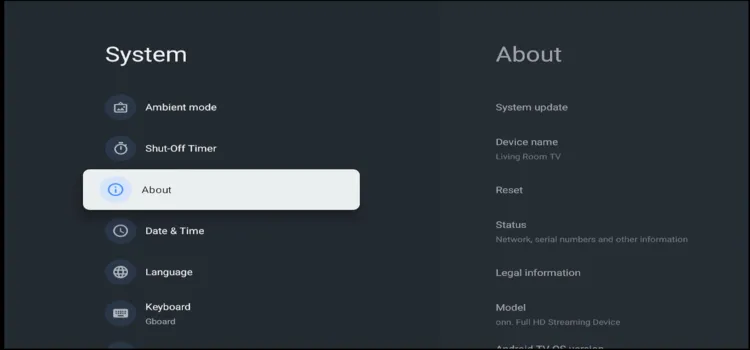
Click “About” for detailed device info.
Scroll down to find the Android TV OS build version — this is your current firmware.
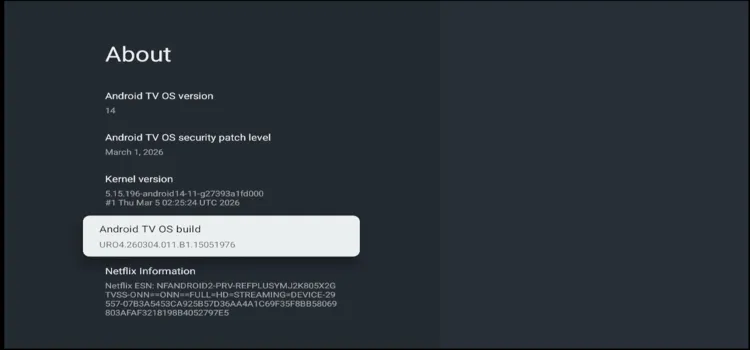
Your Android TV OS build version appears here.
How to Update an Onn Google TV or Android TV
Keeping your streaming device updated guarantees you receive the latest security patches, bug fixes, and performance improvements.
Open Quick Settings from the home screen.
Open “Quick Settings” from the home screen.
Select All Settings.
Select “All Settings.”
Scroll down and select System.
Scroll down and select “System.”
Click About.
Click “About.”
Select System Update. The device checks for updates automatically — if one’s available, click Download and Install.
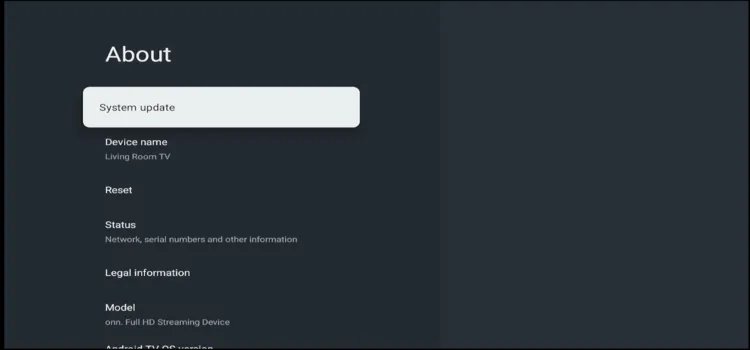
Select “System Update.”
How to Enable Automatic Updates on Onn TV
Enabling automatic updates saves time and keeps your apps updated with the latest features, security patches, and bug fixes.
Open Quick Settings from the home screen.
Open “Quick Settings” from the home screen.
Select All Settings.
Select “All Settings.”
Select Apps.
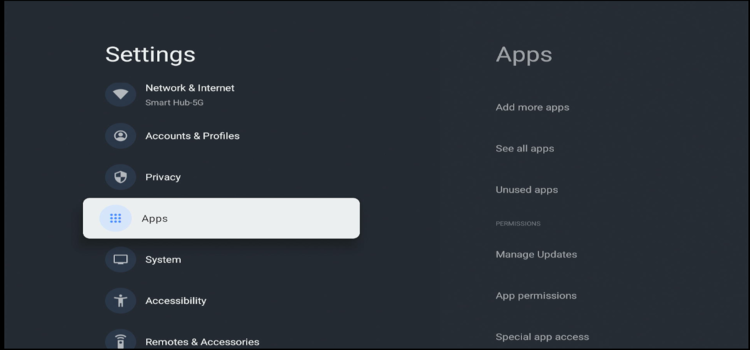
Select “Apps.”
Choose Manage Updates or Security and Restrictions.
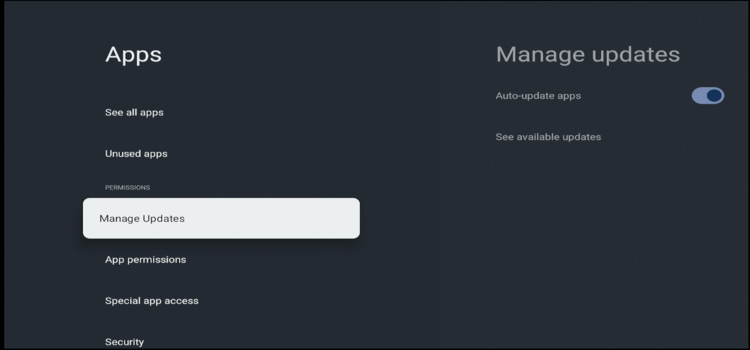
Choose “Manage Updates” or “Security and Restrictions.”
Turn on the Auto-update switch.
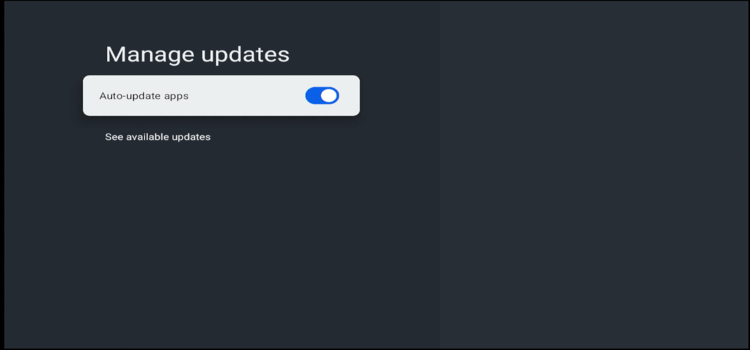
Turn on the “Auto-update” switch.
Common Onn TV Update Problems and Fixes
Occasional update errors can interrupt your streaming experience. These solutions help restore system functionality quickly.
| Issue | Fix |
|---|---|
| Update Not Showing Up | Updates often roll out in regional phases. Wait a few days and check again. |
| TV Stuck During Update | Wait at least 30 minutes before restarting the device, as large updates can take longer. |
| Update Download Failed | Check your Wi-Fi connection and free up internal storage by removing unused apps or clearing cache. |
| TV Keeps Restarting After Update | Unplug the TV for 2 minutes, reconnect it, and allow it to boot normally. |
What to Do If Your Onn TV Won’t Update
Older app versions may not be compatible with the latest system software. Open the Google Play Store and install any available app updates to restore compatibility.
Persistent update failures usually require additional troubleshooting.
| Tip | Description |
|---|---|
| Restart the TV | Restarting clears temporary cache files and resolves minor software conflicts. Unplug the TV for 60 seconds, then reconnect it. |
| Reset Network Settings | A fresh Wi-Fi connection can resolve communication issues with the update servers. On your Wi-Fi, select Forget Network, re-enter the password, and reconnect. |
| Perform a Factory Reset | Restores the device to its original settings and removes all installed apps and personal data. Quick Settings → All Settings → System → About → Reset → Factory Reset |
| Contact Onn Support | If nothing works, contact or reach out to Onn Support for warranty assistance. |
Related Onn TV Guides
- Best Apps for Onn TV Box & Stick — reinstall your favorites once the update finishes.
- Best VPN for Onn TV Box & Stick — Try the best VPNs for your Onn device and keep your online privacy and streaming secure.
- Must-Try Onn TV Hacks to Supercharge Your Streaming — more settings tweaks worth making after you update.
FAQs – About Onn Update
Can I Update My Onn TV Without Internet?
No. An active internet connection is required to download and verify the latest firmware update.
Why Is My Onn TV Not Finding Updates?
Your TV may already have the latest software version. It can also be caused by network issues or regional rollout delays.
How long does an Onn TV Box Update take?
A standard firmware update usually takes 5 to 15 minutes. The exact duration depends on your internet speed and the update size.
Does Updating Onn TV Delete My Apps?
No. Standard software updates keep your apps and settings intact. Only a factory reset erases your data.
How Often Does Onn Release Updates?
Onn typically releases minor software updates every few months, while major operating system updates are less frequent.
Can I Roll Back to a Previous Version?
No. Official software downgrades are not supported after installing a newer firmware version.
Is It Safe to Leave Automatic Updates Enabled?
Yes. Keeping automatic updates enabled ensures your device receives important security patches, bug fixes, and performance improvements automatically.
Final Thoughts
Keeping your Onn TV updated delivers a smoother streaming experience, improves system performance, enhances security, and reduces software compatibility issues.
For Onn Google TV and Android TV devices, enabling automatic updates is the easiest way to receive new features and security improvements. If an update gets stuck, the troubleshooting steps above can usually restore normal functionality.
📌 Found this guide helpful? Share it with friends and drop a comment below. Visit Onn TV Hacks for more tips, tutorials, and the latest app updates.