 Onn TV Hacks Master Your Onn TV with Expert Guides, Hacks, & Apps

Written and tested by Black Joseph
Updated October 22, 2026
When you buy through our links, we may earn a commission. See how we work with brands here.
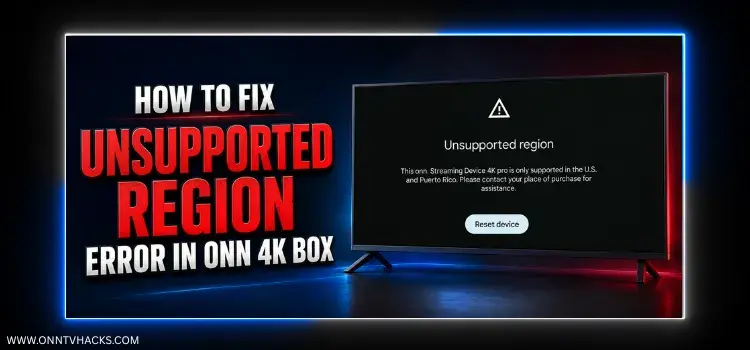
Quick Answer: Fix the “Unsupported Region” error by connecting your PC to a US server using Surfshark VPN, sharing that connection through a Mobile Hotspot, and setting up your Onn TV device through that hotspot.
If you bought your Onn 4K streaming device in the US and are now trying to use it outside the country, you’ve probably run into the frustrating “Unsupported Region” error during setup.
The same thing can happen if you’ve just done a factory reset while abroad. This error happens because Onn devices are locked to the US & Puerto Rico only.
The good news? It can be bypassed for free using Surfshark VPN and a mobile hotspot trick. I’ve given the exact, step-by-step method.
🛡️ OUR TOP PICK FOR ONN TV
Your ISP sees every stream. Unverified apps expose your IP. Fix both in under 2 minutes.
🚫 Built-in ad blocker
💰At $2.49/month
Save 87% Get 3 Extra Months FREE with Surfshark VPN
🔒 30-day money-back guarantee • Special limited-time deal

📋 Table of Contents
Video: Fix Unsupported Region Error on Onn TV Stick/Box
Watch this complete video to fix the unsupported region error that you on face on your Onn TV Box or Stick:
How to Fix the Unsupported Region Error on Onn 4K Box
You’ll only need a Windows laptop or PC and a Surfshark VPN subscription for this. The whole process takes about 10 minutes, just follow it step by step.
Open your laptop, click Start, type network, and select View network connections (Alternate method: click Start, type and open PowerShell, then type ncpa.cpl and press Enter).
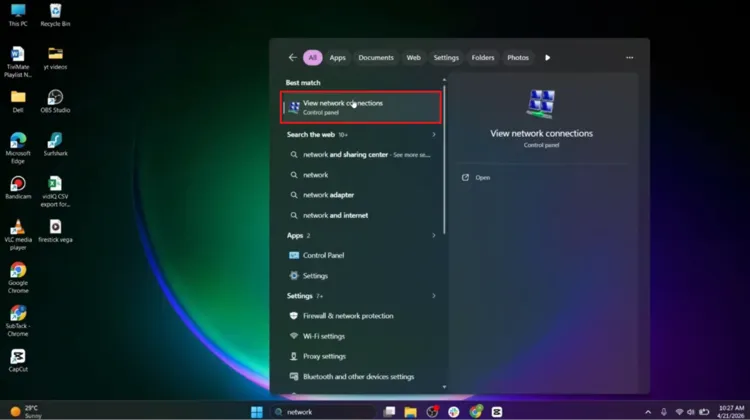
Open the Network Connections window
The Network Connections window will open.
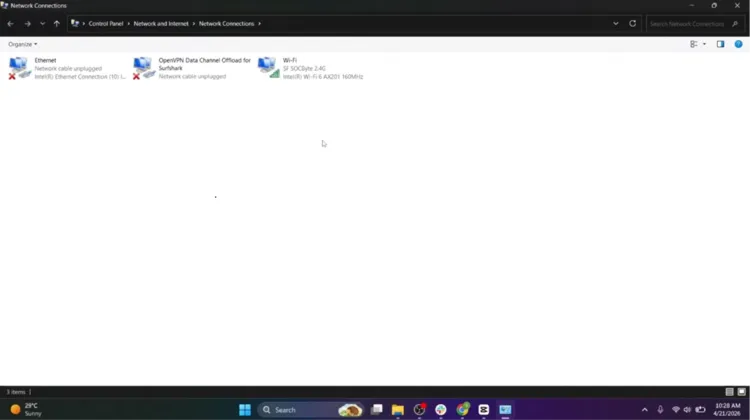
Network Connections window opens
Go to the Surfshark VPN website and subscribe.
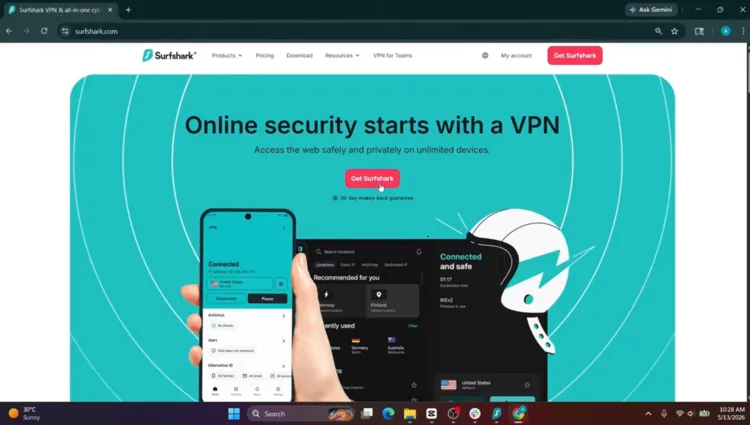
Subscribe to Surfshark VPN
Scroll down and click Windows under the Downloads option to download the app to your laptop.
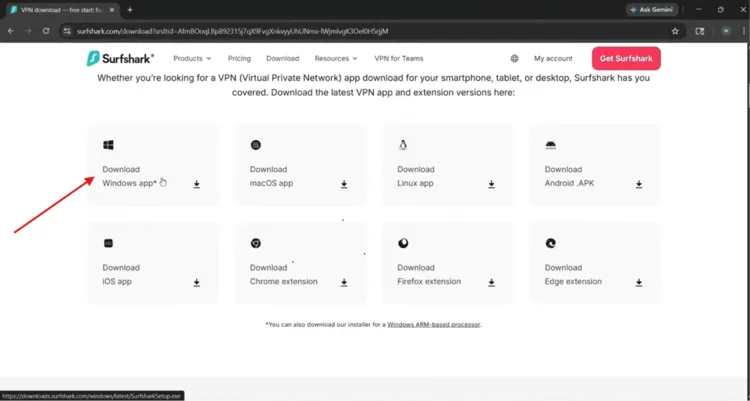
Download the Surfshark Windows app
Once the download is complete, click the downloaded file to start the installation.
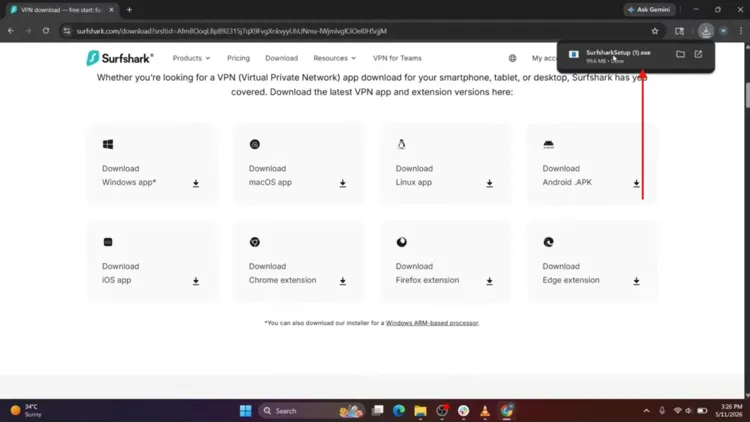
Run the downloaded installer
Click Install and complete the installation process.
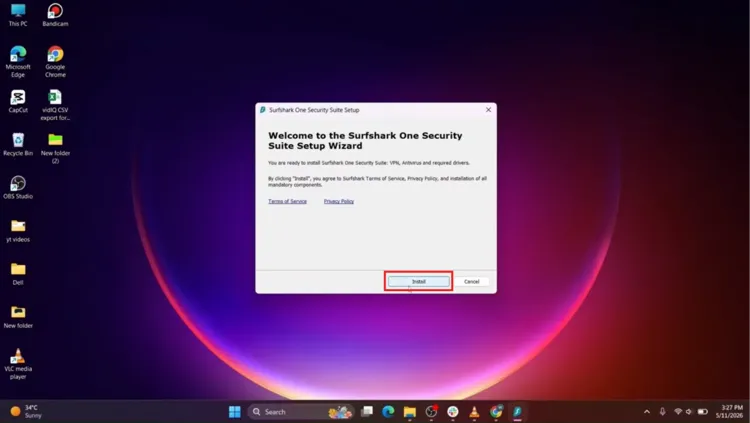
Click “Install” to finish setup
Once Surfshark is installed, click Start and search for Settings.
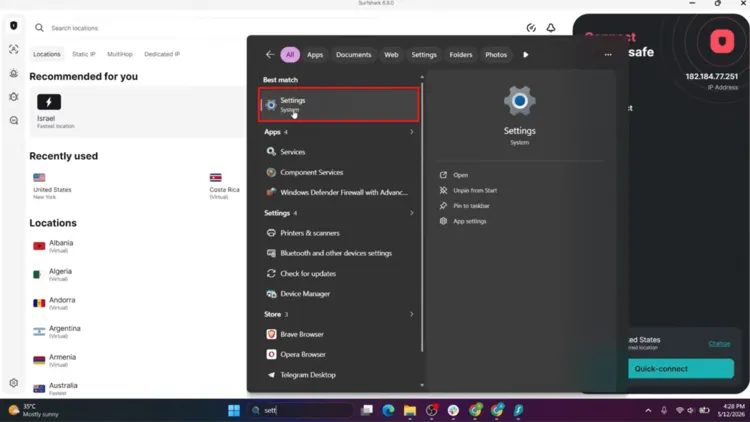
Open Windows Settings
Click Network & internet.
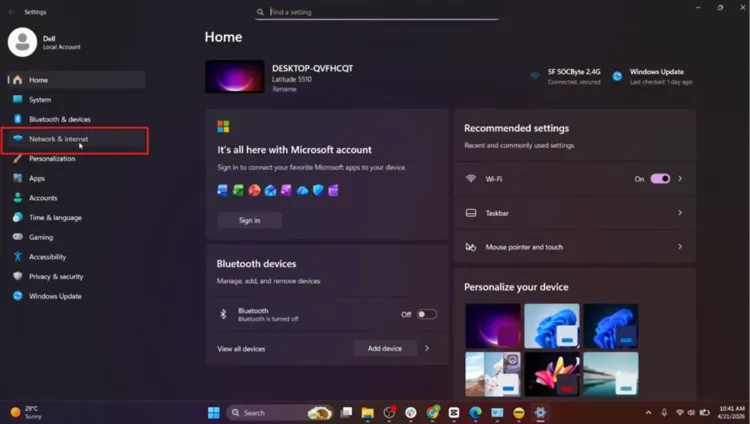
Select “Network & internet”
Click Mobile hotspot.
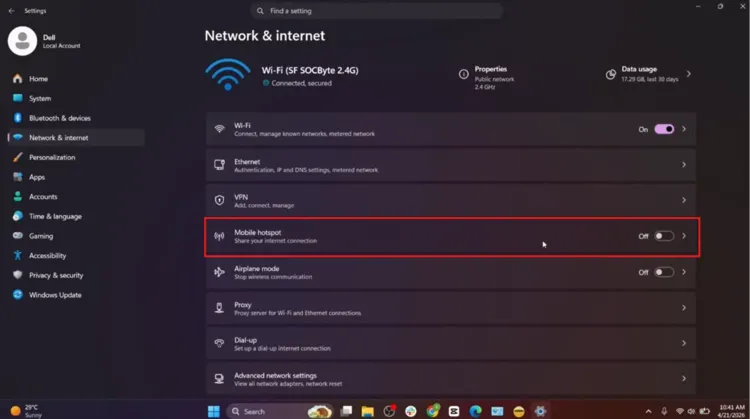
Open Mobile hotspot settings
Click Edit.
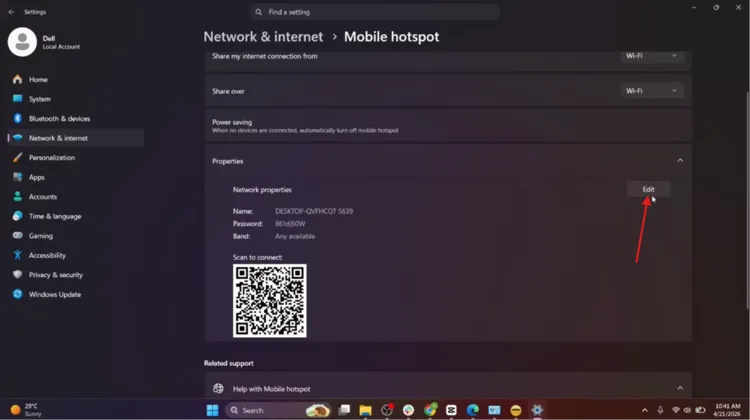
Click “Edit” on the hotspot details
Set an easy password and save it.
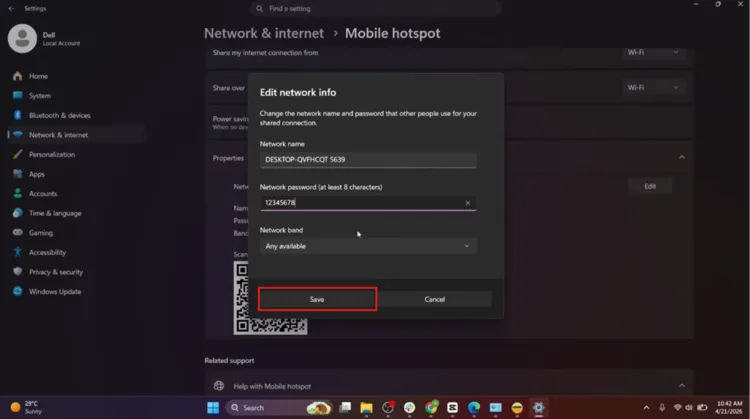
Set a simple hotspot password and save
Turn Mobile hotspot ON (make sure both your Mobile Hotspot and Wi-Fi are enabled on the PC).
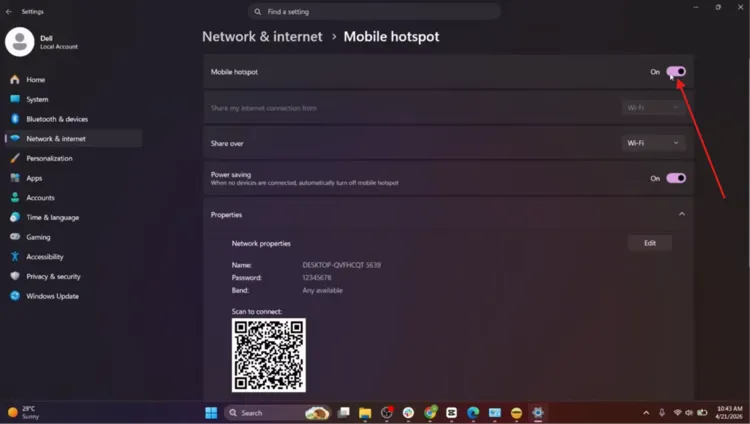
Turn Mobile hotspot ON
Go back to Network Connections to find your connection name by toggling your hotspot OFF and ON to identify it (example connection: Local Area Connection 10).
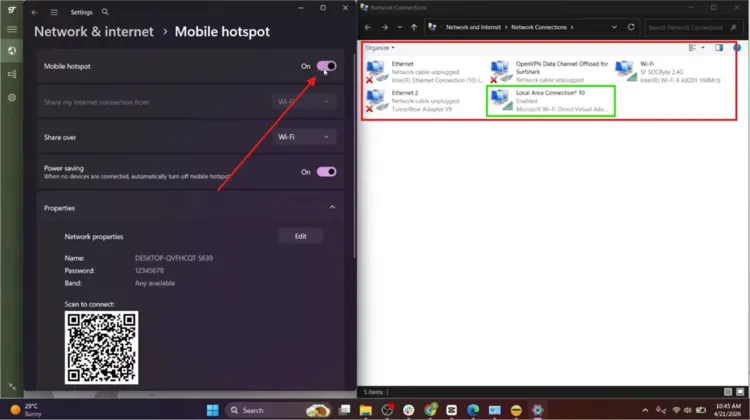
Identify your hotspot connection name
Open Surfshark VPN and connect to a United States server.
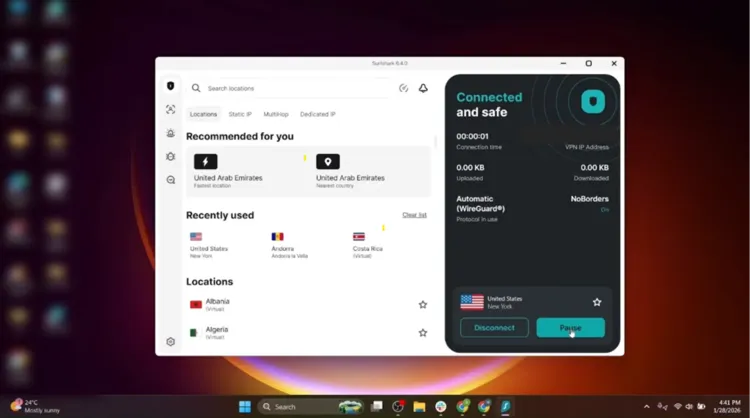
Connect Surfshark to a US server
Return to Network Connections, right-click Surfshark WireGuard, and select Properties.
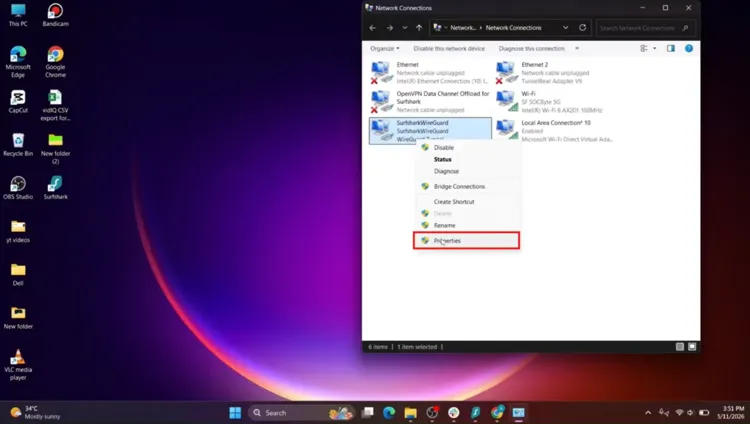
Open Surfshark WireGuard properties
Choose the Sharing tab, check the box, and click OK.
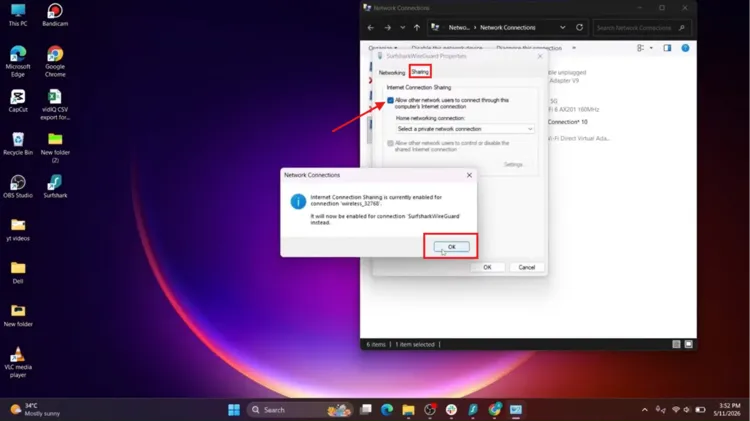
Enable Internet Connection Sharing
Select your hotspot connection from the dropdown menu and click OK.
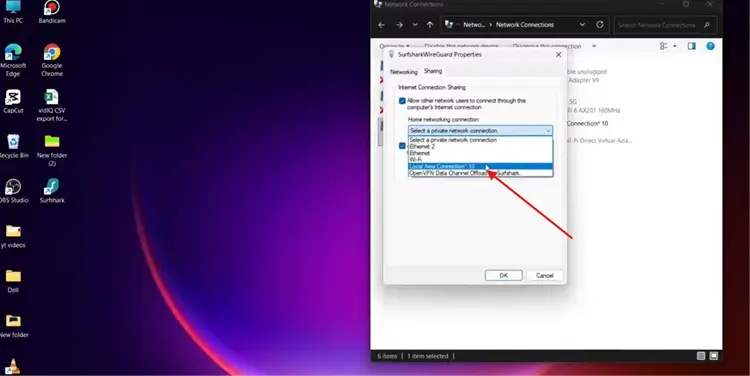
Select your hotspot from the dropdown
Power on your Onn TV device.
Power on your Onn TV device
Pair the remote.
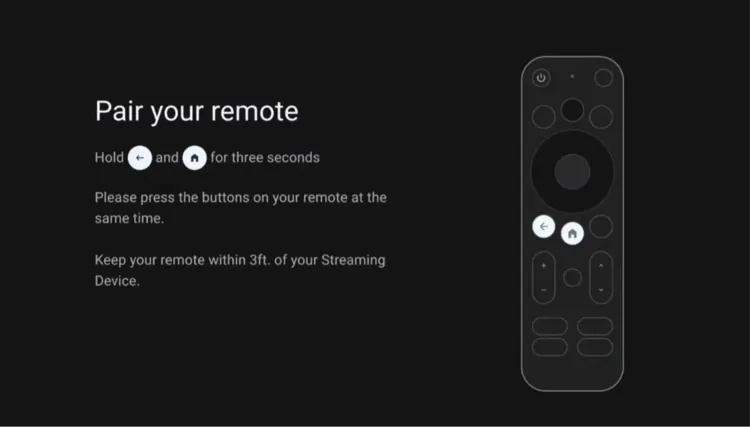
Pair the Onn remote
Select English as your language.
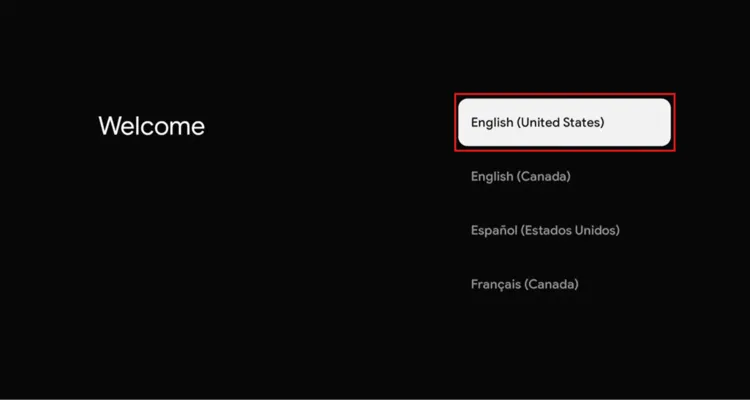
Select English as your language
Select United States as your region.
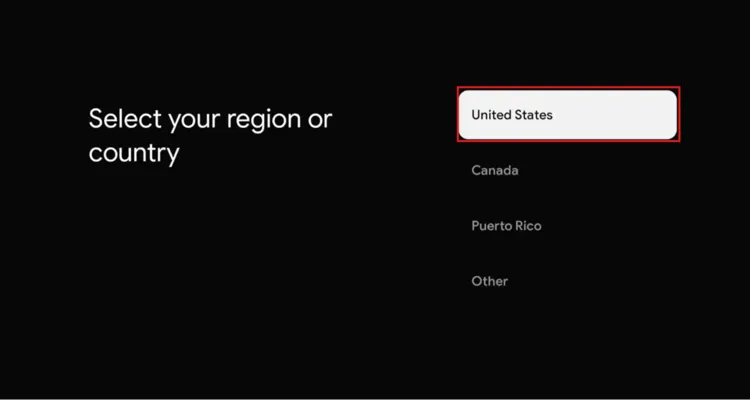
Select United States as your region
Choose Set up with TV instead.
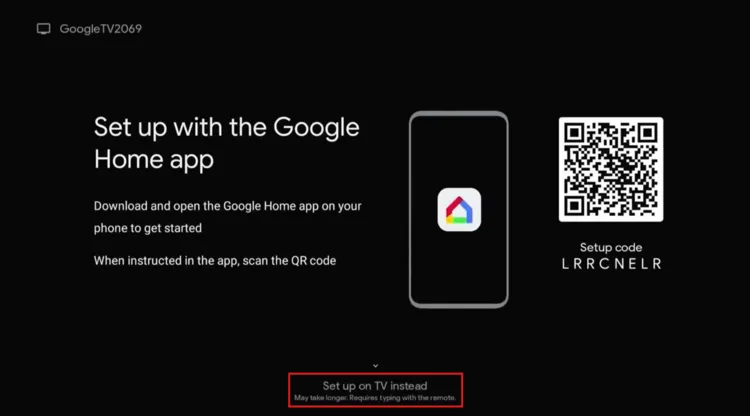
Choose “Set up with TV instead”
Connect the Onn TV device to your PC’s Mobile Hotspot Wi-Fi by selecting your network name.
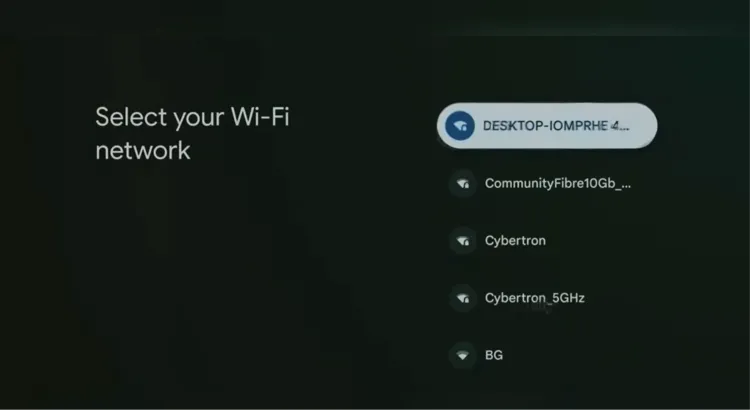
Select your Mobile Hotspot Wi-Fi network
Enter the password you set earlier.
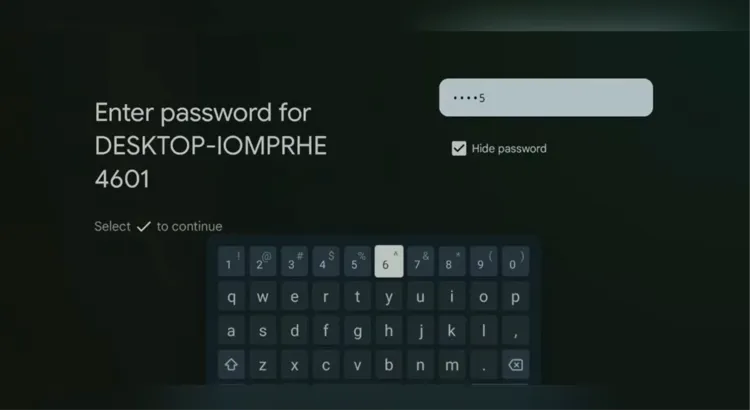
Enter the hotspot password
Sign into your Google account and complete the setup screens.
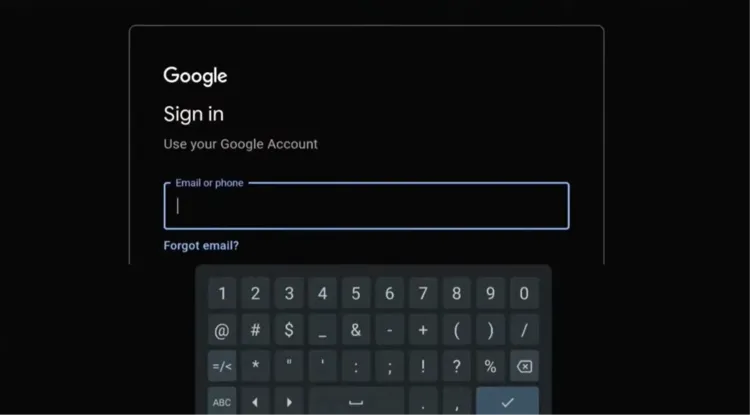
Sign into your Google account
There you go, you’re now on your Google TV home screen. You can go to your Wi-Fi Settings and switch back to your normal home Wi-Fi network, and it will keep working without a VPN.
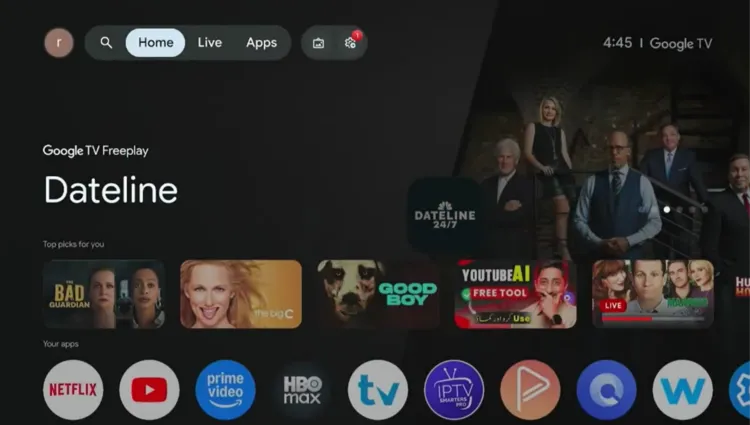
Onn TV home screen unlocked and ready to use
Why the “Region Unsupported” Error Happens on Onn TV
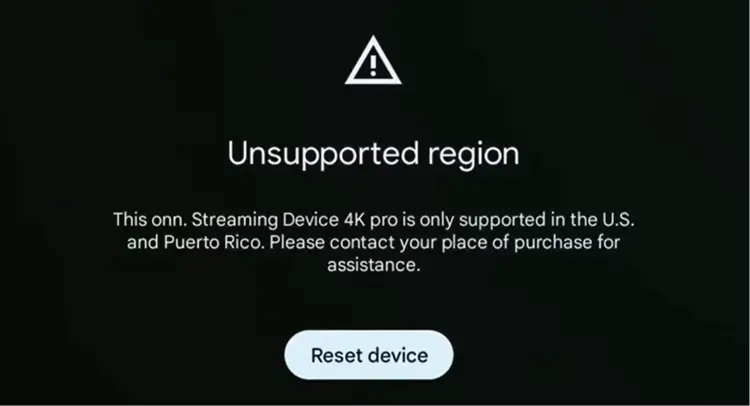
Onn streaming devices are built on Google TV, and Google TV checks your network’s IP address during setup to determine your region.
If that IP address doesn’t match (the United States or Puerto Rico), the setup screen throws the “Region Unsupported” error and won’t let you continue.
This commonly happens after a factory reset while traveling, or when a US-bought Onn device is set up on a foreign home network.
📌 Related Onn TV Guides
- How to Jailbreak Onn TV — unlock even more from your Onn device.
- How to Set Up Your Onn TV Box — the full setup walkthrough from unboxing to home screen.
- Best VPNs for Onn TV — compare your options beyond Surfshark.
Frequently Asked Questions
1. Why does my Onn 4K box say “Region Unsupported”?
Onn devices run on Google TV, which checks your network’s IP address during setup. If it detects a country outside the supported list — usually anywhere other than the US — it blocks setup with the “Region Unsupported” error.
2. Do I need to keep the VPN running forever?
No. The VPN and mobile hotspot are only needed during the initial setup. Once your Onn device is registered to a US region, you can switch it back to your normal home Wi-Fi and everything will keep working normally.
3. Can I use a free VPN instead of Surfshark?
Free VPNs often lack dedicated US servers with stable IPs and reliable sharing features, which makes them unreliable for this specific fix. A paid VPN like Surfshark gives you a stable US IP address needed to pass the region check.
4. Why do I need a mobile hotspot instead of connecting the VPN directly on the Onn box?
Onn TV devices don’t support installing a VPN app directly during the initial setup screen. Sharing your PC’s VPN connection through a mobile hotspot lets the Onn device inherit the US IP address without needing to install anything on the TV itself.
5. What if the error appears again after a future factory reset?
Just repeat the same steps. Since it’s tied to the setup screen’s region check, any factory reset done outside the US will trigger the error again, and reconnecting through a US VPN and hotspot will resolve it the same way.
Final Verdict
The “Region Unsupported” error on your Onn 4K box is just a network-based restriction, and it’s easy to bypass once you know the trick.
Connect your PC to a Surfshark VPN US server and share that connection through a mobile hotspot.
Your Onn device will then pass the region check and complete setup normally, no matter where in the world you are.
📌 Found this guide useful? Share it with your friends or drop a comment below. Check out our Best Live TV Apps for Onn TV guide to install tons of useful apps on Onn TV.