 Onn TV Hacks Master Your Onn TV with Expert Guides, Hacks, & Apps
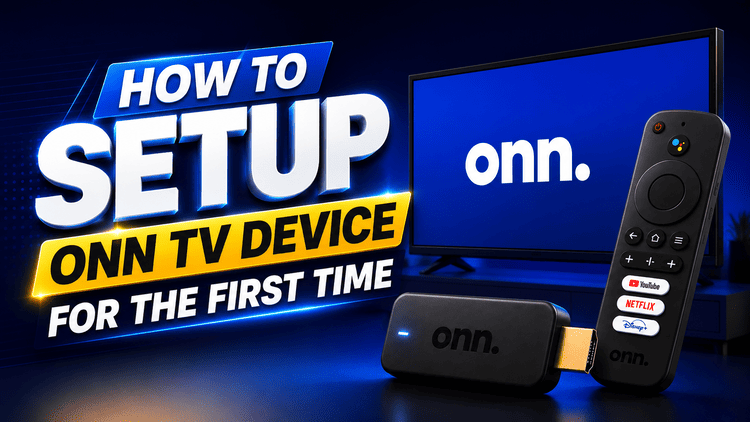
Just picked up the Onn Pro 4K Box or Streaming Stick powered by Google TV and not sure where to start? You’re in the right place.
In this guide, we’ll walk you through everything from unboxing to the final setup screen, so you can start streaming in minutes.
We’ll also cover the specs, what’s inside the box, and how to fix the Google region lock if you’re setting it up outside the US.
📋 Table of Contents
What is the Onn Full HD Streaming Stick?
The Onn Full HD Streaming Stick is Walmart’s budget-friendly streaming device powered by Google TV.
It plugs directly into your TV’s HDMI port and transforms any TV into a smart TV, giving you access to thousands of apps, Google Assistant voice search, Google Cast, and more.
What makes it stand out is the price — under $20 — making it one of the most competitive streaming sticks on the market right now, especially compared to Amazon Fire Stick.
How to Setup Onn Box/Stick [Video]
Onn Full HD Streaming Stick Specs
Since I’ll be unboxing Onn HD Streaming stick, here’s a quick look at what this device is packing under the hood:
| Spec | Details |
|---|---|
| 📺 Resolution | 1080p Full HD |
| 🔊 Audio | Dolby Audio |
| 🧠 Processor | Quad-core Cortex A35 |
| 💾 RAM / Storage | 1.5 GB RAM / 8 GB Storage |
| 📶 Wi-Fi | Wi-Fi 2.4 GHz |
| 📡 Connectivity | Google Cast built-in |
| 🎙 Remote | Google TV Voice Remote with Google Assistant |
| 💰 Price | Under $20 (available at Walmart) |
📦 What’s Inside the Box
When you open the box, here’s everything you’ll find inside:
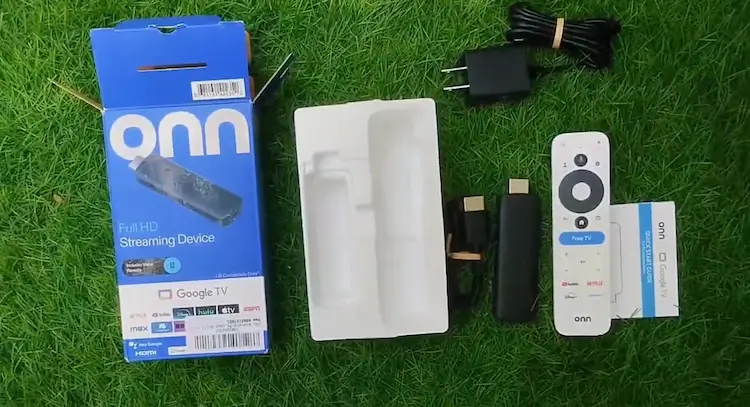
- 📄 Instruction Manual
- 📺 Onn Streaming Stick / Box
- 🎙 Google TV Voice Remote
- 🔌 AC Power Adapter + 1.5m Cable (~5ft)
- 🔋 2x AAA Batteries
- 🔗 HDMI Extender (~30cm)
🔌 How to Connect the Onn Stick to Your TV
Before jumping into the software setup, let’s get the hardware connected. Follow these steps:
Connect the power cable to the Onn Stick, and plug the adapter into a power socket.

Connect the power cable to the Onn Stick, and plug the adapter into a power socket
Attach the HDMI extender to the Onn Stick.
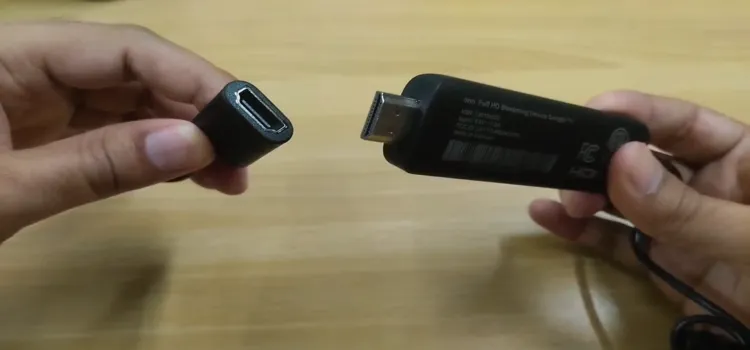
Attach the HDMI extender to the Onn Stick
Connect the Onn Stick to your TV’s HDMI port.
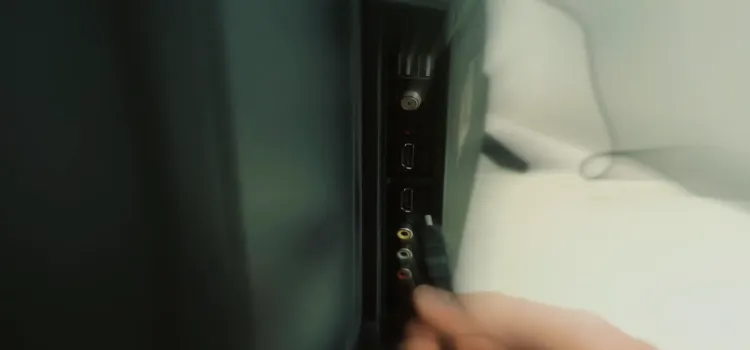
Connect the Onn Stick to your TV’s HDMI port
On your TV remote, press Source or Input.
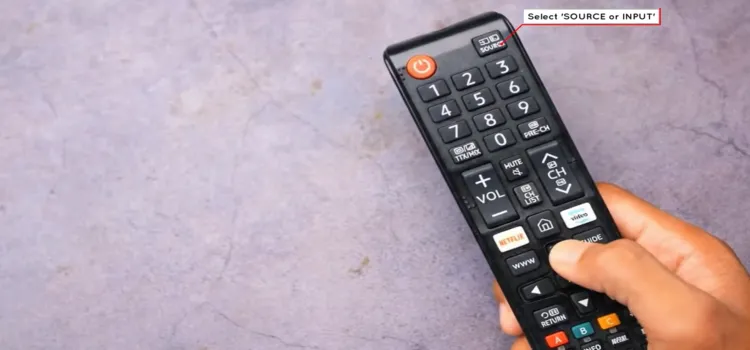
On your TV remote, press ‘Source’ or ‘Input’
Select the HDMI input on your TV where your Onn Stick is connected.
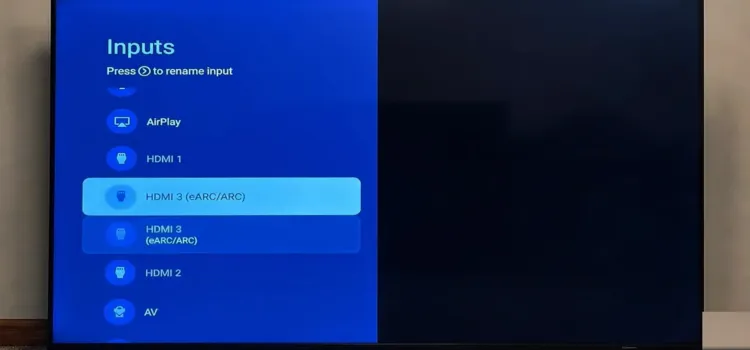
Select the ‘HDMI input’ on your TV where your Onn Stick is connected
The Google TV logo will appear on your screen.

The Google TV logo will appear on your screen.
⚙️ Step-by-Step ONN Google TV Setup
Once the Google TV logo appears, the on-screen setup begins. Here’s exactly what to do at each step:
Pair your Google TV remote with the Onn stick.
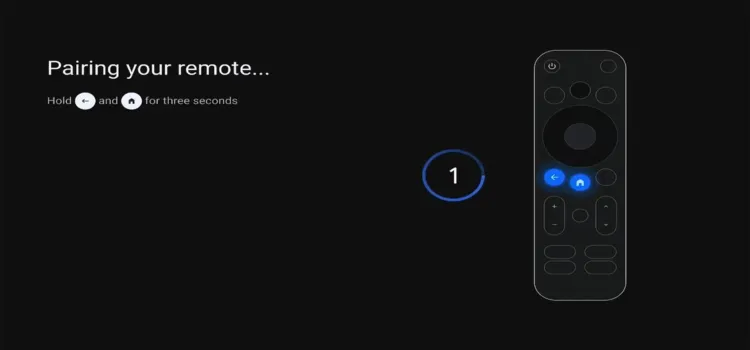
Pair your Google TV remote with the Onn Stick
Select your country or region from the list (If you’re in the US, select United States, see the region lock fix section below).

Select your country or region from the list
Connect your device to Wi-Fi network.
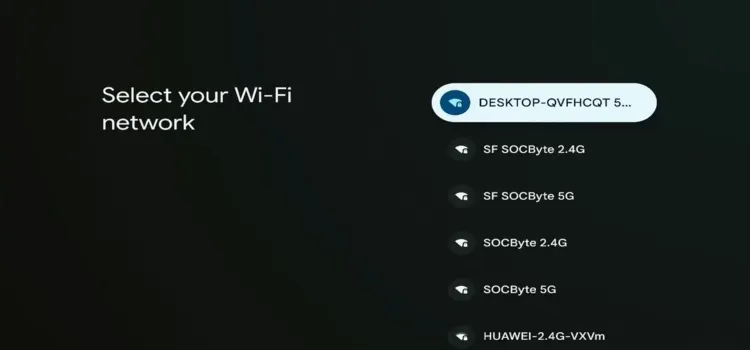
Connect your device to Wi-Fi network
Enter your gmail and password. (You can change or add accounts later in Settings).
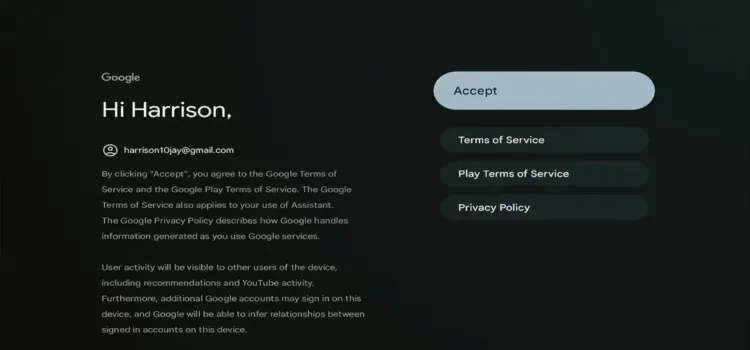
Enter your ‘gmail’ and ‘password’
Click on Accept.

Click on ‘Accept’
Google Services window will open. Click on Accept.
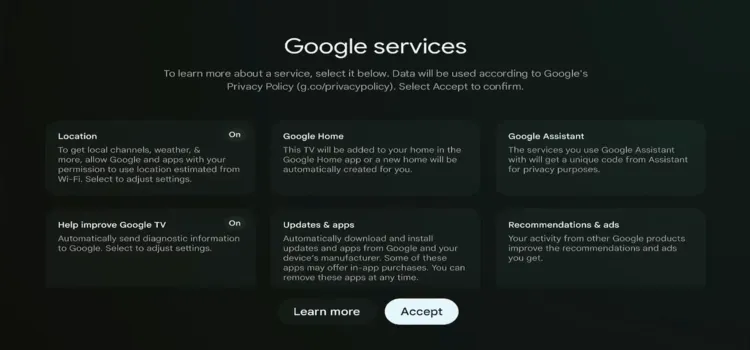
Google Services window will open. Click on ‘Accept’
Click on No Thanks to skip sign-in.

Click on ‘No Thanks’ to skip sign-in
Select No Thanks to skip permissions.
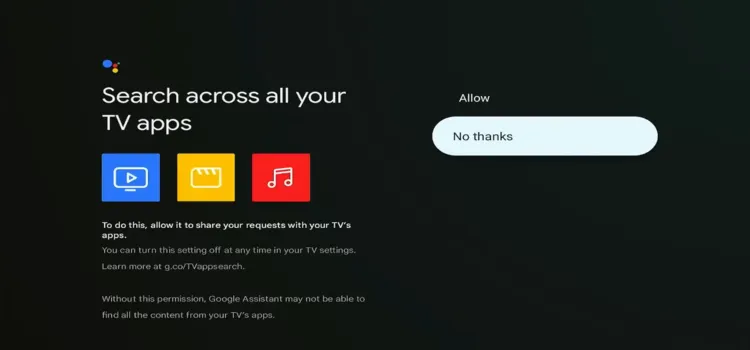
Select ‘No Thanks’ to skip permissions
Google will configure your device as part of the initial setup process.
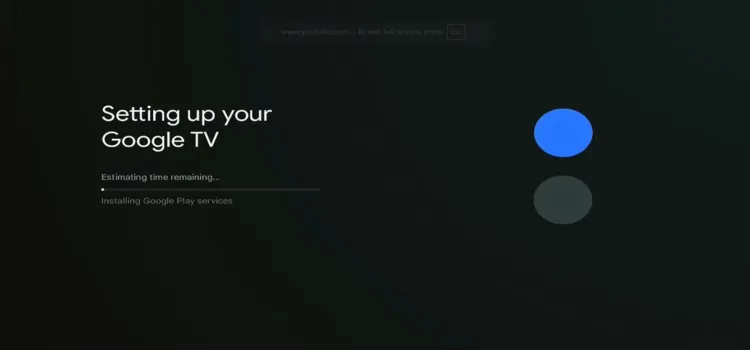
Google will configure your device as part of the initial setup process
Your Onn device has been set up successfully. Your home interface will now appear.
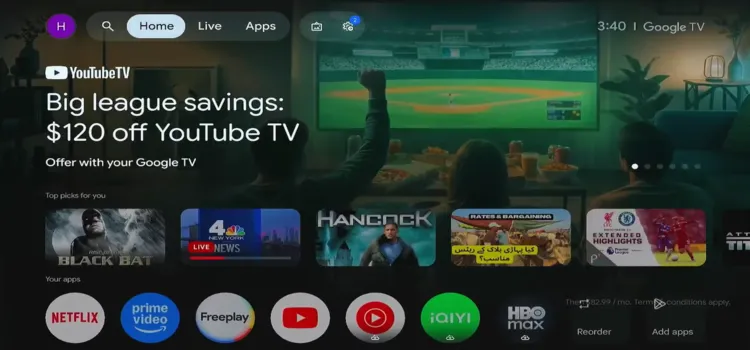
Your Onn device has been set up successfully. Your home interface will now appear
🌍 Google Region Lock Fix (Outside the US)
If you’re setting up your Onn stick outside the United States, you may run into a Google region lock error during setup.
This is a common issue that prevents the device from completing the setup process in certain regions.
What to Do After Setup?
Your Onn stick is set up, but the real fun starts now. The default Google TV app selection is pretty limited, so here’s what we recommend doing next:
📥 Install the Downloader App
The Downloader app is your gateway to hundreds of apps not available on the Google Play Store. Install it first.
🔑 Use the Onn TV Hacks Code
Enter code 8533602 in the Downloader app to access 300+ free streaming apps in one place.
🔒 Set Up a VPN
Scroll down to Surfshark VPN and install it on your ONN Device. A VPN is highly recommended.
❓ Frequently Asked Questions
How do I setup my Onn TV stick?
Plug the Onn stick into your TV’s HDMI port, connect the power cable, switch your TV input to the correct HDMI source, then follow the Google TV on-screen setup — pair the remote, select your region, connect to Wi-Fi, and sign into your Google account.
How long does the Onn TV setup take?
The initial Google TV setup takes around 5 minutes, but can take longer depending on your internet connection speed.
Does the Onn Full HD Stick work outside the US?
Yes, but you may encounter a Google region lock during setup. You can bypass it using a PC or laptop — check our dedicated region lock fix guide for the full process.
How much does the Onn Full HD Streaming Stick cost?
It’s available for under $20 on Walmart, one of the most affordable Google TV streaming devices available right now.
Do I need a Google account to set up the Onn stick?
Yes. You’ll need a Gmail account to complete the setup. If you don’t have one, you can create a free Google account at google.com before starting.
Can I install extra apps on the Onn Full HD Stick?
Absolutely. Using the Downloader app and code 8533602, you can install 300+ free apps including live TV, sports, kids content, and more, all in one place from Onn TV Hacks.
Final Thoughts
The Onn Full HD Streaming Stick is an impressive little device for the price. At under $20, you get a fully capable Google TV experience with a voice remote, Google Assistant, Google Cast, and Dolby Audio, everything you need to cut the cord without spending a fortune.
And once you’ve got it set up, don’t forget to install the Downloader app and use code 8533602 to unlock hundreds of additional streaming apps from Onn TV Hacks. Happy streaming! 🎬
📌 Found this guide helpful? Share it with someone who just picked up an Onn stick and drop a comment below if you ran into any issues during setup. Visit Onn TV Hacks for more tips, app guides, and tutorials.
