 Onn TV Hacks Master Your Onn TV with Expert Guides, Hacks, & Apps

Written and tested by Black Joseph
Updated November 3, 2026
When you buy through our links, we may earn a commission. See how we work with brands here.
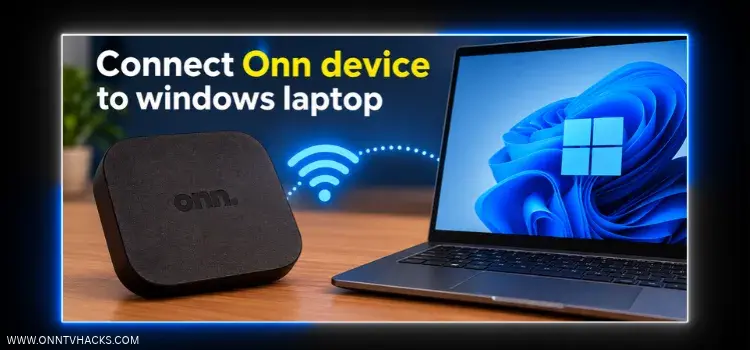
Want to use your Onn streaming device without a TV nearby, or record what’s on its screen? Your Windows laptop can act as the display.
The trick is a cheap HDMI video capture device and a free program called OBS Studio.
Together they turn your laptop screen into a live window for your Onn device, with full-screen mode, screen recording, and sound.
I’ll walk you through everything you need: the hardware setup, the OBS setup, and how to fix the missing audio most people run into. You can also watch the full video tutorial first.
Lost the remote, or tired of typing with it?
Use your phone as an Onn TV remote with Joz Remote, our free Android app.
Get it on Google PlayWe built this app ourselves.
📋 Table of Contents — tap to expand
What You Need to Connect Onn TV to a Laptop
Gather these items before you start. You can buy an HDMI video capture device from the Amazon or AliExpress links in the table.
| Item | Details |
|---|---|
| 📺 Onn Device | Any Onn streaming box or stick |
| 💻 Windows Laptop | With a USB port |
| 🎥 HDMI Video Capture Device | Available on Amazon, with budget options on AliExpress |
| 🔌 HDMI Cable | Connects your Onn device to the capture device |
| 🖥️ OBS Studio | Free software, installed on your laptop |
| 🔋 Onn Power Supply | The original power cable and adapter |
Step 1: Connect Your Onn TV Box/Stick With an HDMI Capture Device
First, wire everything together. The Onn device plugs into the capture device, and the capture device plugs into your laptop. Here’s how:
Connect your Onn device to the HDMI video capture device.
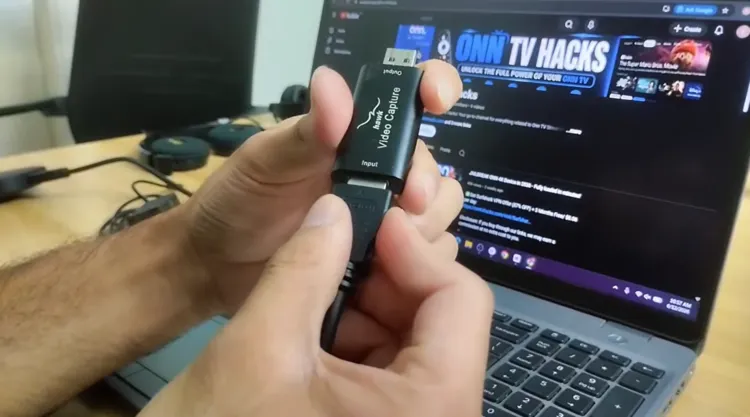
Onn device to HDMI capture
Plug the HDMI capture device into a USB port on your laptop.
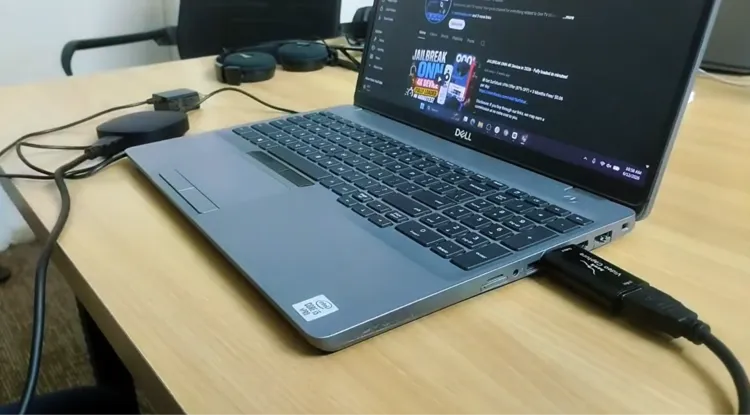
Capture device to laptop USB
Plug the power cable into your Onn device.
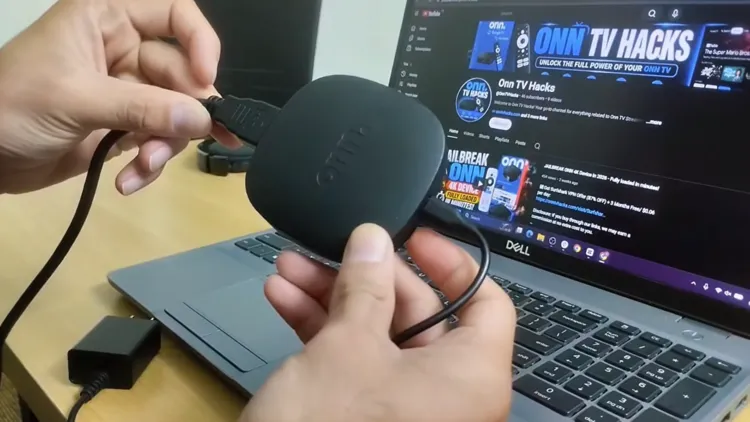
Connect the power cable
Connect the power adapter to an electric socket.
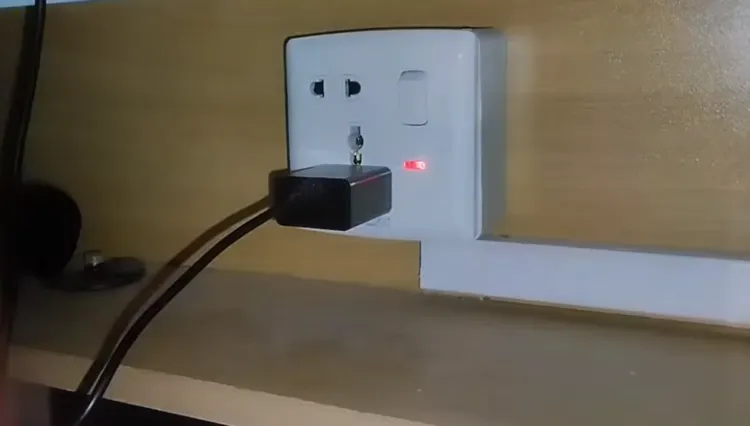
Plug into the socket
Step 2: Install OBS Studio on Your Windows Laptop
OBS Studio is free and takes only a minute or two to install:
Open your browser and search for OBS Studio, then open the official site, obsproject.com. Skip any ads above the results.
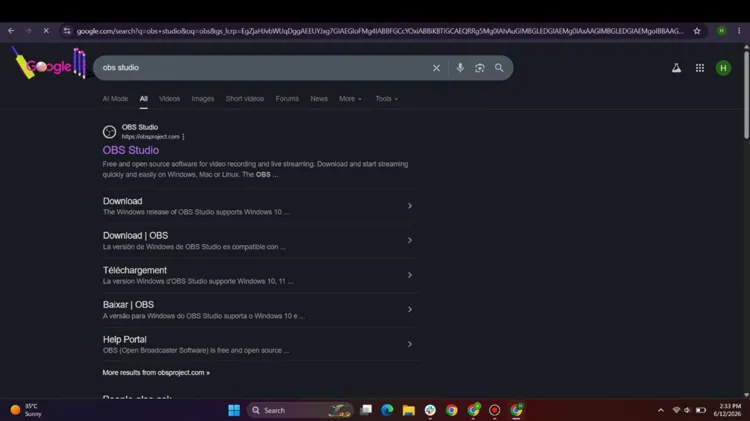
Search “OBS Studio”
On the official page, click Windows to start the download.
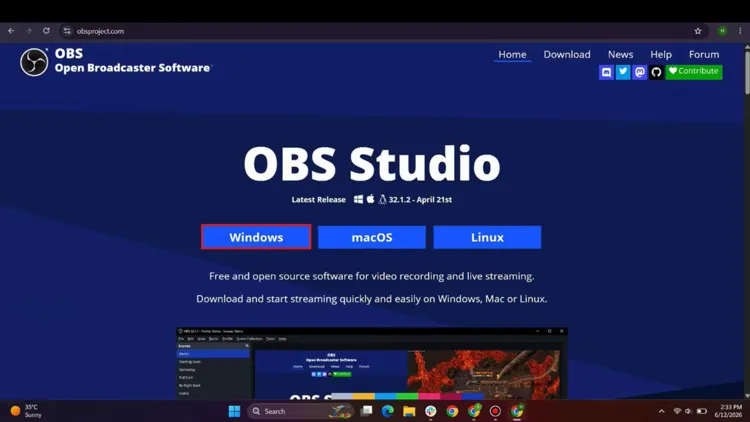
Click “Windows”
Open the downloaded setup file and click Next a couple of times.
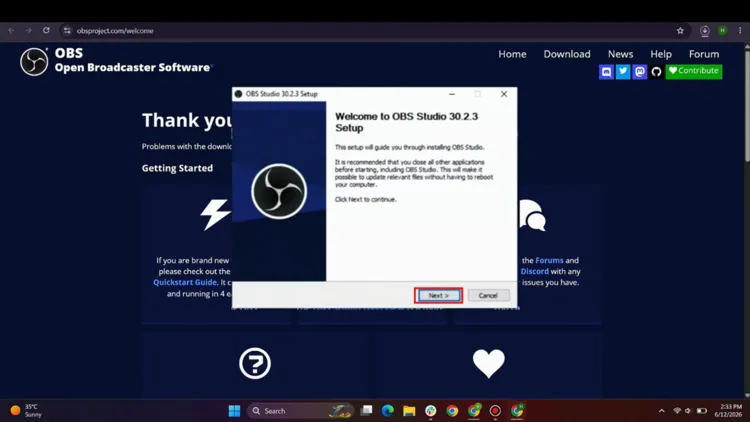
Click “Next”
Click Install and wait for the installation to finish.
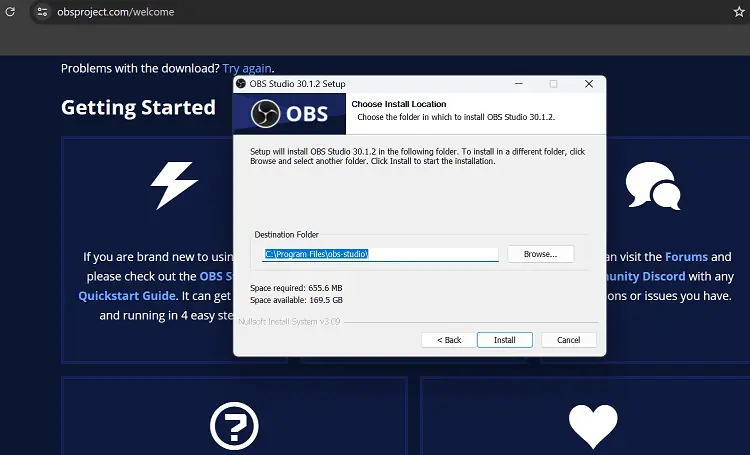
Click “Install”
Press Finish to launch OBS Studio.
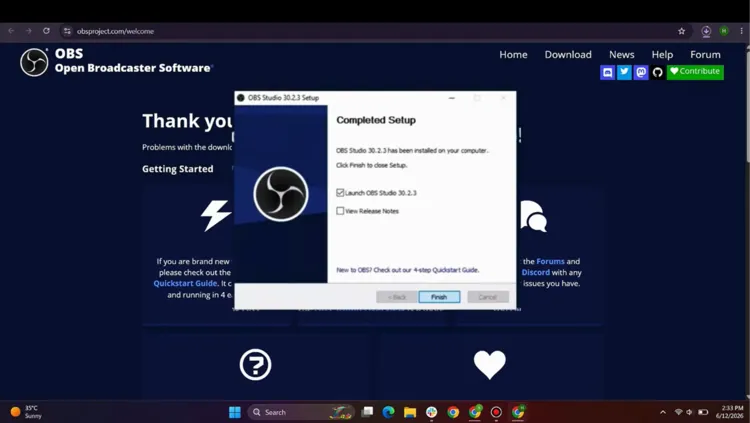
Click “Finish”
Step 3: Set Up Your Onn Device in OBS Studio
With OBS open, add your capture device as a source so the Onn screen appears on your laptop:
Click the plus (+) icon at the bottom (in the Sources box) and select Video Capture Device.
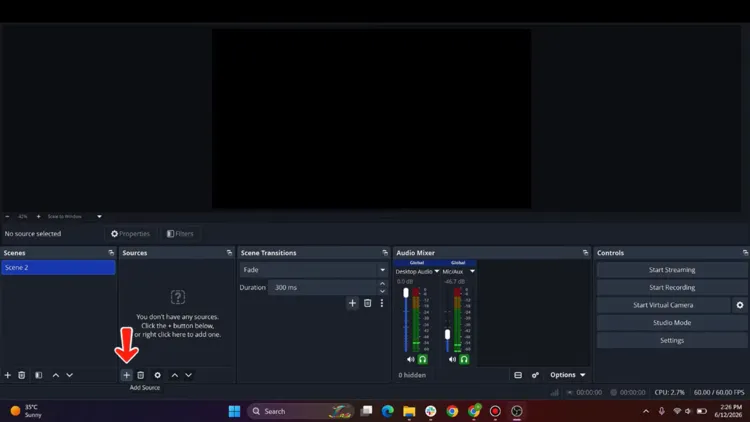
Select “Video Capture Device”
Rename it to Onn Device and click OK.
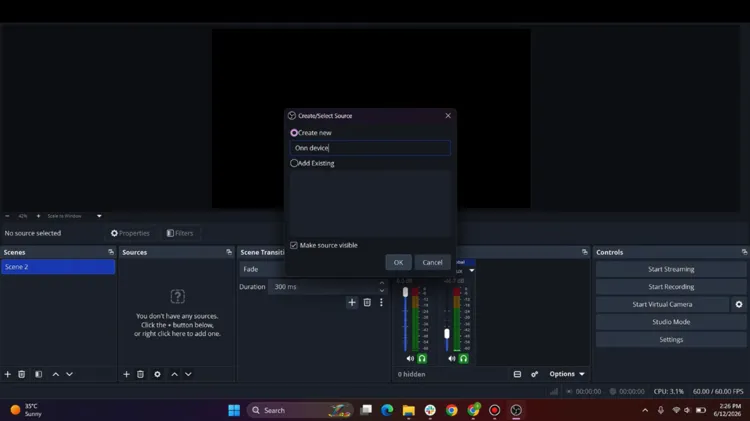
Rename and click “OK”
You’ll now see your Onn device screen on your laptop. If it doesn’t show automatically, choose the device as USB Video.
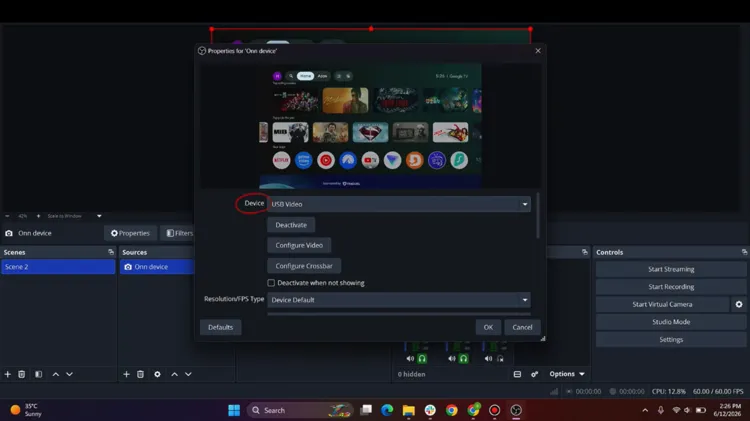
Choose “USB Video”
To go full screen, right-click the preview, choose Open Preview Projector, then select Full Screen.
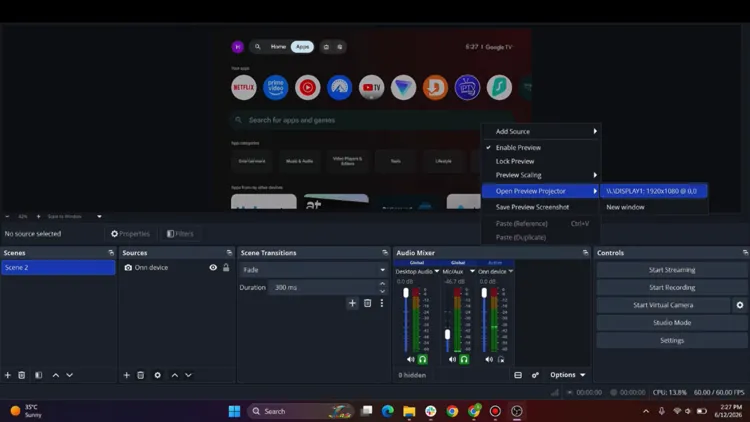
Preview Projector > Full Screen
That’s your Onn TV on your laptop.
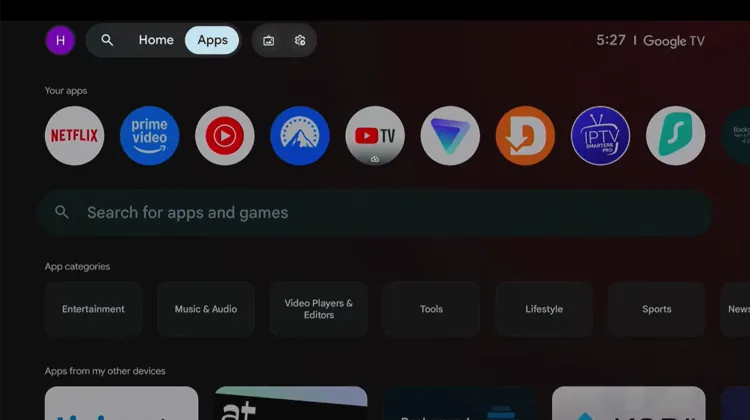
Onn TV on your laptop
How to Screen Record Your Onn Device
OBS Studio also lets you record whatever is happening on your Onn screen, which is handy for tutorials and demos.
In OBS Studio, click Start Recording.
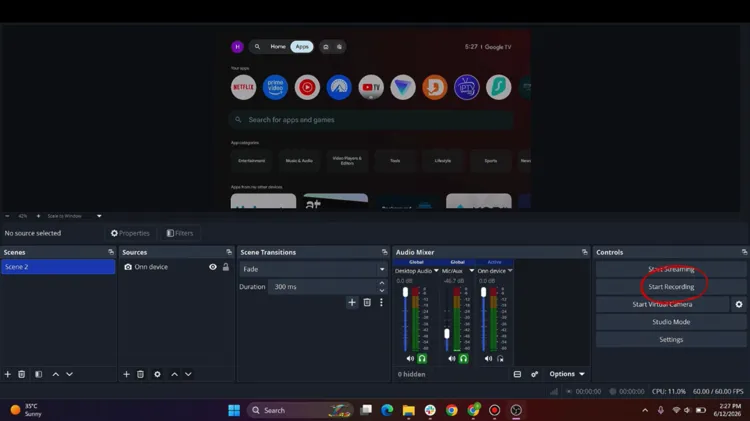
Click “Start Recording”
The recording has started. Click Stop Recording when you’re finished.
Recording in progress
How to Get Audio From Your Onn Device
Many users get video but no sound from their Onn device in OBS. Once your video is working, fix it like this:
Go to the Audio Mixer section in OBS Studio.
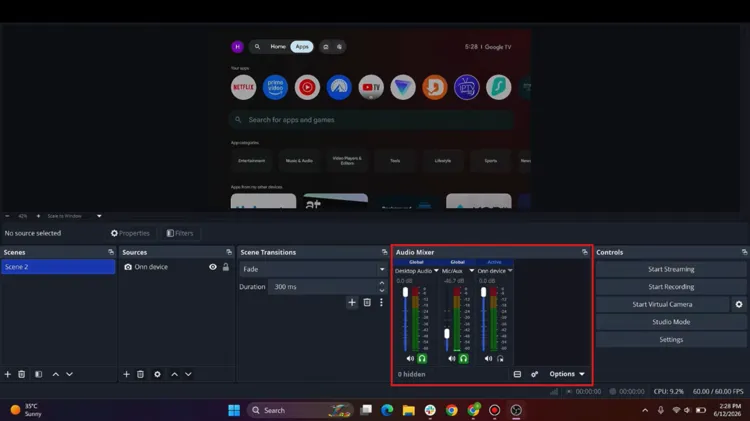
Open the Audio Mixer
Click the settings button at the bottom of the Audio Mixer.
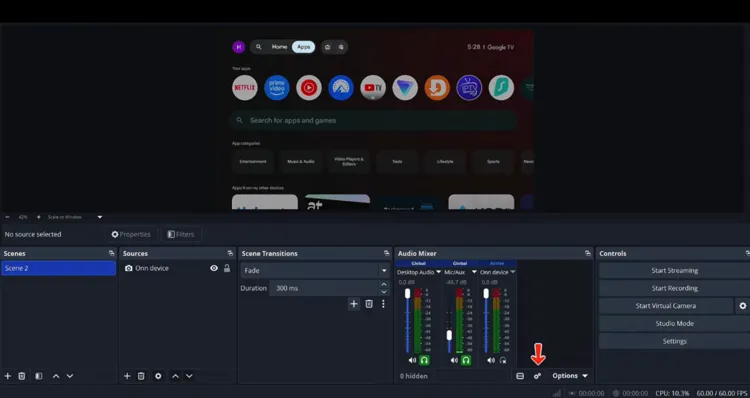
Click the settings button
Under Audio Monitoring, select Monitor and Output from the drop-down menu.
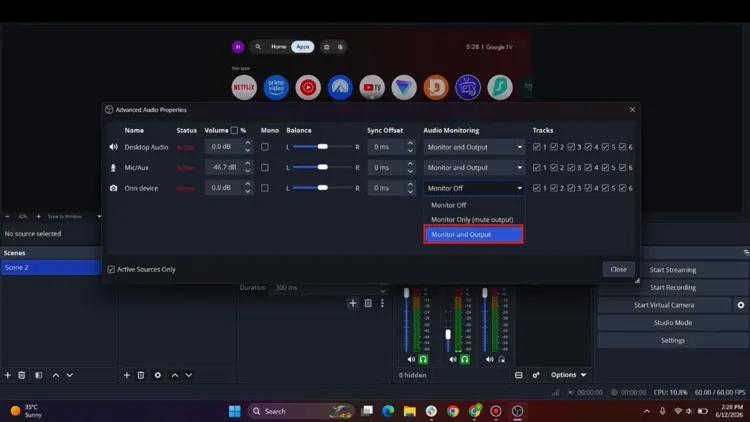
Select “Monitor and Output”
📌 Related Onn TV Guides
- How to Set Up Your Onn TV Box — new to Onn TV? Start here.
- Hidden Onn TV Settings to Change — settings worth tweaking on your device.
- Use Your Phone as an Onn TV Remote — control your Onn TV from your phone.
Frequently Asked Questions
What is an HDMI video capture device?
An HDMI video capture device converts the video signal from your Onn device into a USB video feed that your laptop can read, so programs like OBS Studio can show or record it.
Can I connect my Onn TV to a laptop with just an HDMI cable?
Usually no. Most laptop HDMI ports are outputs, not inputs, so you need an HDMI video capture device connected to a USB port, plus OBS Studio.
Does this work with both the Onn TV Box and the Stick?
Yes, the steps are the same for the Onn TV Box and the Onn TV Stick, since both send video out over HDMI to the capture device.
Is OBS Studio free?
Yes, OBS Studio is free, and it works on Windows, Mac, and Linux.
Why is there no sound from my Onn device in OBS?
Open the Audio Mixer settings in OBS, and under Audio Monitoring, choose Monitor and Output.
What if the Onn screen doesn’t appear in OBS?
Select your capture device in the Video Capture Device settings and choose USB Video as the device.
Can I record my Onn device screen?
Yes, click Start Recording in OBS Studio and it will record whatever appears on the Onn screen. Apps that use copy protection may show a black screen when recorded.
Conclusion
Connecting your Onn TV Box or Stick to a Windows laptop takes just a capture device, an HDMI cable, and the free OBS Studio.
Once it’s set up, you can watch full screen, record the screen, and hear audio through your laptop speakers, all without needing a TV.
📌 Found this guide useful? Share it with a fellow streamer and drop a comment below. Check out our Best Apps for Onn TV guide for more.