 Onn TV Hacks Master Your Onn TV with Expert Guides, Hacks, & Apps
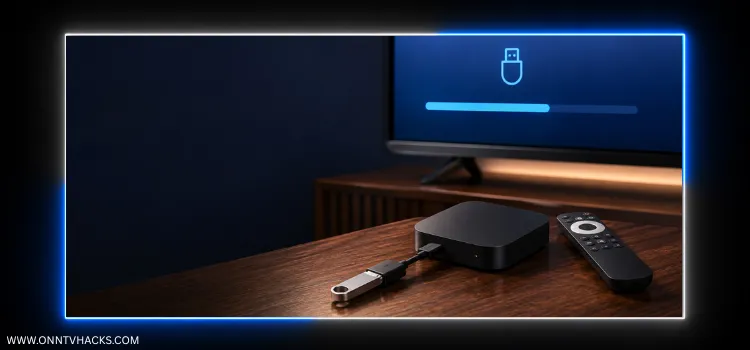
8GB. 16GB. Maybe 32GB if you’re lucky. That’s all the room Onn TV gives you out of the box, and system files eat a chunk of it before you even start sideloading.
The fix? A jailbroken Onn TV can turn any USB flash drive into extra internal storage — no more uninstalling one app to make room for the next.
Here’s exactly how to set it up, move your existing apps over, and fix it if something goes wrong. If you’re sideloading a lot, run a VPN in the background too. Surfshark VPN is our top choice
Video: Expand Onn TV Storage with USB Drive
What You’ll Need

Before you get started, make sure you have the following on hand:
- A USB 3.0 flash drive formatted to FAT32 or exFAT (32GB–128GB).
- A 2-in-1 OTG cable (micro-USB or USB-C depending on your Onn model).
- A jailbroken Onn TV device — Developer Options and the “Force allow apps on external” toggle aren’t visible until this is done.
How to Expand Storage on Onn TV Using a USB Drive
Follow these five steps in order — don’t skip the jailbreak stage, since the storage-formatting option won’t appear without it.
The process will take about 15–20 minutes, since formatting the drive takes a few minutes on its own.
Step 1: Connect the USB Drive
Connect your USB flash drive to the female end of the OTG cable and plug the micro-USB (or USB-C) connector of the OTG cable into your Onn TV box or stick.

USB drive connected to the OTG cable
Connect the Onn power adapter to the OTG cable’s power port, then plug it into a wall outlet.

Power adapter connected to the OTG cable
Plug the Onn TV device into your television’s HDMI port and power it on.

Onn TV plugged into the TV
Step 2: Jailbreak Your Onn TV
First, jailbreak your Onn TV: go to Onn TV Home screen then Quick Settings.
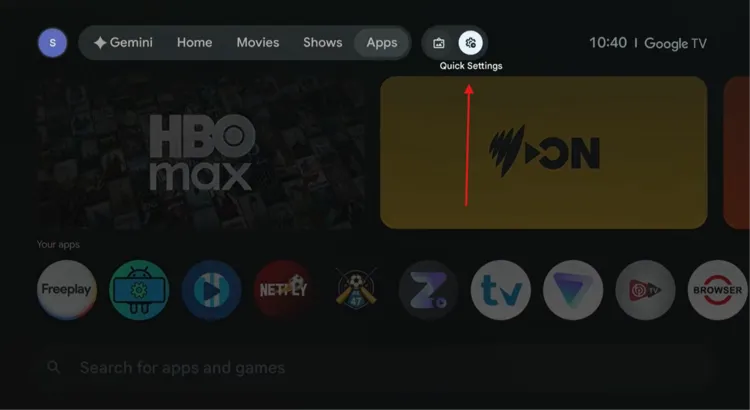
Home > Quick Settings
Select Settings.
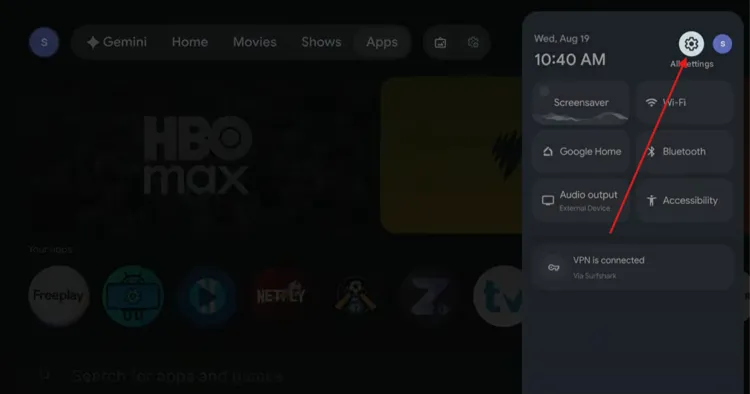
Choose ‘Settings’
Select System
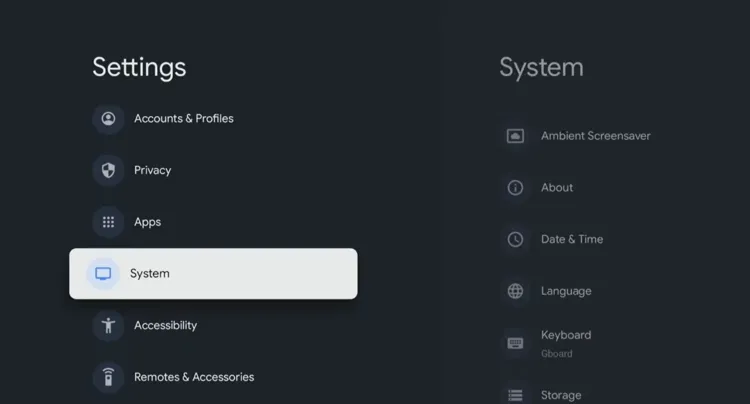
Tap “System”
Select About.
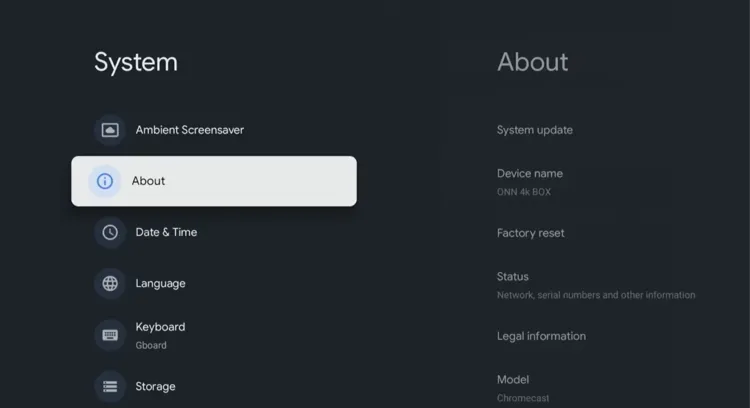
Select “About”
Scroll down to Android TV OS Build, and tap it 7 times until you see “You are now a developer!”

Tap “Android TV OS Build” 7 times
Step 3: Enable “Force Allow Apps on External”
Go to Settings > System > Developer Options, scroll down, and toggle ON “Force allow apps on external.”

Toggle ON “Force allow apps on external”
Step 4: Format the USB Drive
Go to Settings > System > Storage.

Settings > System > Storage
Your connected USB drive should appear under Removable Storage. Select it.
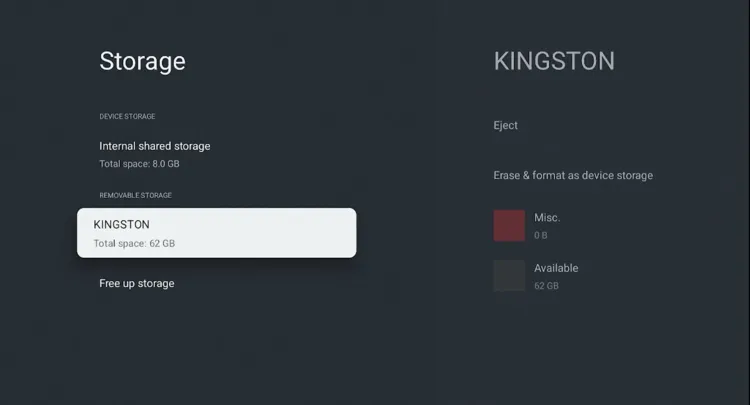
Select your USB drive under Removable Storage
Select “Erase & Format as Device Storage.”
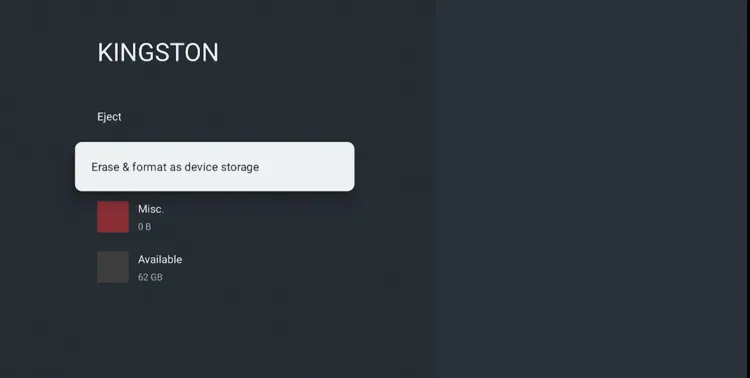
Choose “Erase & Format as Device Storage”
Tap Format.

Tap “Format”
Let the device finish formatting the drive — this can take a few minutes.

Formatting complete — your Onn TV now has extra storage!
You’ll see a prompt asking if you want to move existing app data over. Tap Move Now if you want to do it right away.

Choose whether to move your existing apps now
🎉 Done! Your Onn TV will now treat the USB drive as extra internal storage. Any new app you sideload from this point on will default to installing there.
Step 5: Move Existing Apps to USB Storage
If you skipped “Move Now” earlier, or you just want to free up space on an app that’s already installed on internal storage, here’s how to shift it over manually:
From the Onn TV home screen, go to Settings > All Settings > Apps > See all apps.
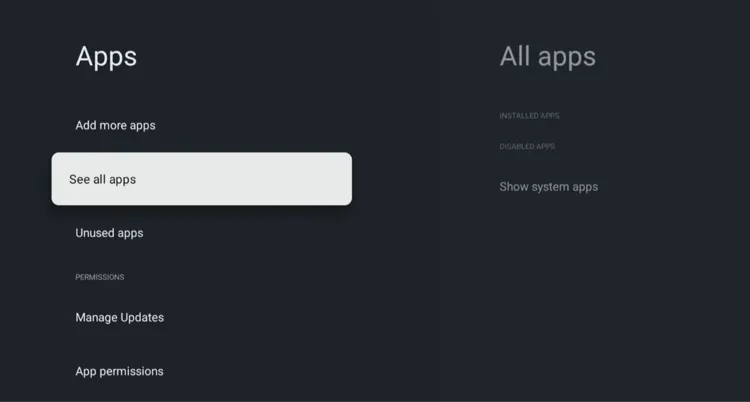
Settings > Apps > See all apps
Select the app you want to move (for example, ExpressVPN).
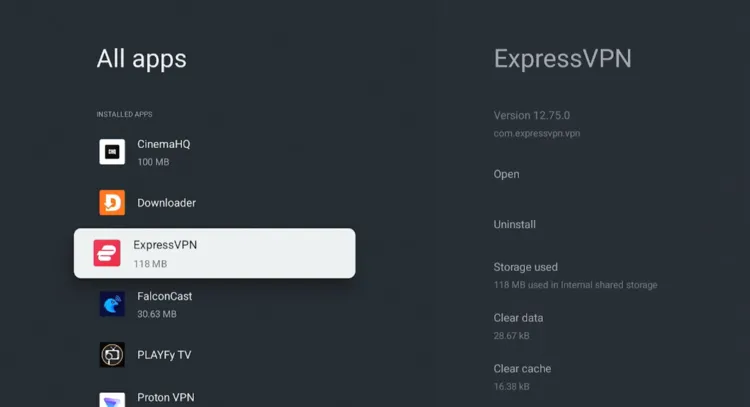
Select the app you want to move
Tap Storage used.

Tap “Storage used”
Switch the storage location to your USB drive and confirm.

Switch to your USB drive
Wait while the app is moved.
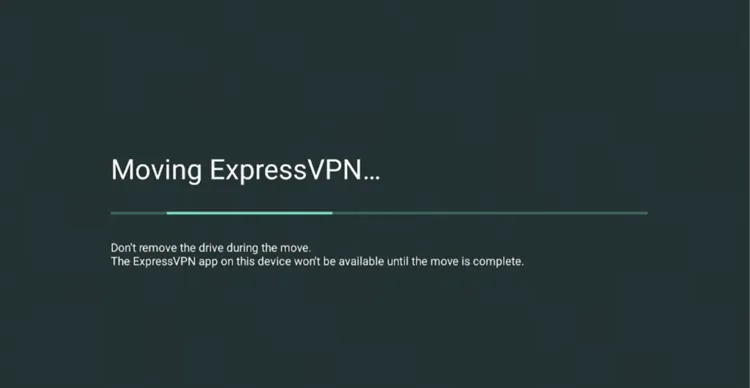
The App is being moved
The app has been moved. Repeat for any other large app you’d like off internal storage.
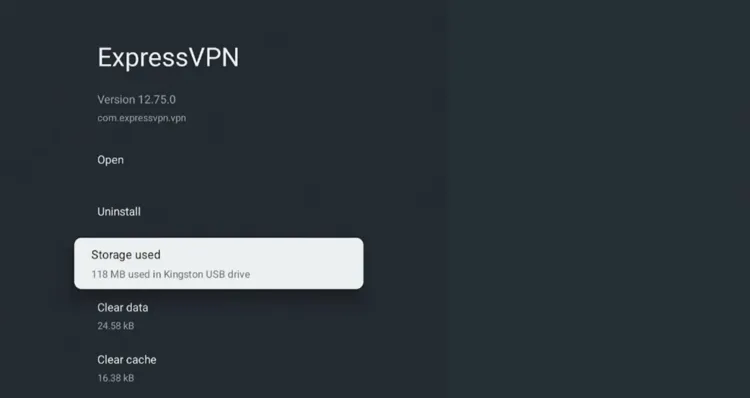
Enjoy the extra room!
Troubleshooting Common Issues
USB storage expansion can be a bit finicky on Onn TV. Here’s how to fix the most common issues:
| Issue | Fix |
|---|---|
| Onn TV doesn’t recognize the USB drive at all | Confirm it’s formatted to FAT32 or exFAT (not NTFS), try a different port/cable, test the drive on a laptop, then restart the Onn TV with the drive connected. |
| Formatting gets stuck or never finishes | Unplug, restart the Onn TV, and retry. More common on drives over 128GB or cheap flash drives — a name-brand 32GB–64GB drive formats far more reliably. |
| “USB not connected” error appears | Go to Settings > System > Storage, select the drive, choose “Forget this device storage,” confirm, then reconnect and reformat. |
| No “Force allow apps on external” toggle in Developer Options | The jailbreak step likely didn’t fully take. Tap the Android TV OS Build entry 7 times again under Settings > System > About, then recheck Developer Options. |
| Using two USB drives at once | Not supported. Onn TV only recognizes one external drive at a time — move to a larger single drive instead of adding a second. |
| Can’t uninstall a pre-installed app to free up space | Some system apps can only be disabled, not removed, under Settings > Apps > See all apps. See our Remove Pre-Installed Apps on Onn TV guide for the full walkthrough. |
Bonus Tips for Managing Storage
A few habits that will keep your expanded storage running smoothly:
Set It Up Early
Expand storage before your device fills up, not after apps start crashing
Don’t Yank the Drive
Unplug the USB only after powering off the Onn TV, never mid-use
Pick the Right Size
32GB–64GB formats fastest and covers most sideloaded app libraries
Delete Leftover APKs
Clear Downloader’s file list after every install to save even more room
Know It Resets Factory Wipes
A factory reset removes the jailbreak and USB link — you’ll redo both
Related Onn TV Guides
- Remove Pre-Installed Apps on Onn TV — free up even more space on internal storage.
- Best Apps for Onn TV Box & Stick — what to install once your storage worries are gone.
- Onn TV Downloads Page — sideload apps with a single code.
Frequently Asked Questions
How much internal storage does Onn TV actually have?
Most Onn TV Stick models come with 8GB to 32GB of internal storage. After system files and pre-installed apps, usable space is often far less than the advertised total.
Do I need to jailbreak my Onn TV to expand storage?
Yes. The “Force allow apps on external” toggle that makes storage expansion possible only appears once Developer Options is unlocked, which happens as part of the jailbreak process.
Will formatting the USB drive delete anything on my Onn TV?
No, the format only erases the USB drive itself so it can be recognized as extra storage. Your Onn TV’s existing apps and settings are untouched, apart from any app data you choose to move over afterward.
What happens if I unplug the USB drive later?
Any app you moved or installed onto that drive will stop working until you plug it back in. It’s best to treat the USB drive as a permanent part of your setup once you’ve moved apps to it.
I’ve got more storage now — will streaming still buffer?
Storage and buffering are separate issues. Buffering is usually down to your internet connection or the streaming source itself, and running a VPN like Surfshark can sometimes help by routing around ISP throttling.
Conclusion
Onn TV’s limited internal storage doesn’t have to hold you back. Once your device is jailbroken, a simple USB flash drive and OTG cable is all it takes to turn 8GB or 16GB into as much room as your drive can hold.
Format the drive, move your existing apps over, and you’ll never see that “Storage space is running low” warning again. Just remember to keep the drive permanently connected, and pair your setup with a solid VPN. Surfshark VPN is our recommended choice
📌 Found this guide useful? Share it with a fellow Onn TV user and drop a comment below. Check out our Hidden Onn TV Settings to Change guide for more ways to keep your device running smoothly.