 Onn TV Hacks Master Your Onn TV with Expert Guides, Hacks, & Apps
Quick answer: Install Android TV ADB Mouse from the Google Play Store on your smartphone. Connect the phone and Onn TV to the same Wi-Fi network, enter or detect the Onn TV IP address, and approve the USB debugging request.
Android TV ADB Mouse is a free accessibility app that adds a controllable on-screen cursor to Android TV devices through smartphones. It lets you tap, scroll, and interact with apps without requiring a remote.
The app installs straight from the Google Play Store. No sideloading is required. This guide covers installation, setup, and fixes for the most common Mouse Toggle issues on Onn devices.
📋 Table of Contents
How to Set Up & Install Mouse Toggle on Onn TV
Mouse Toggle installs directly from the Google Play Store, no sideloading or Downloader app needed. Follow these steps to install and configure it on your smartphone.
Open the Google Play Store on your smartphone.
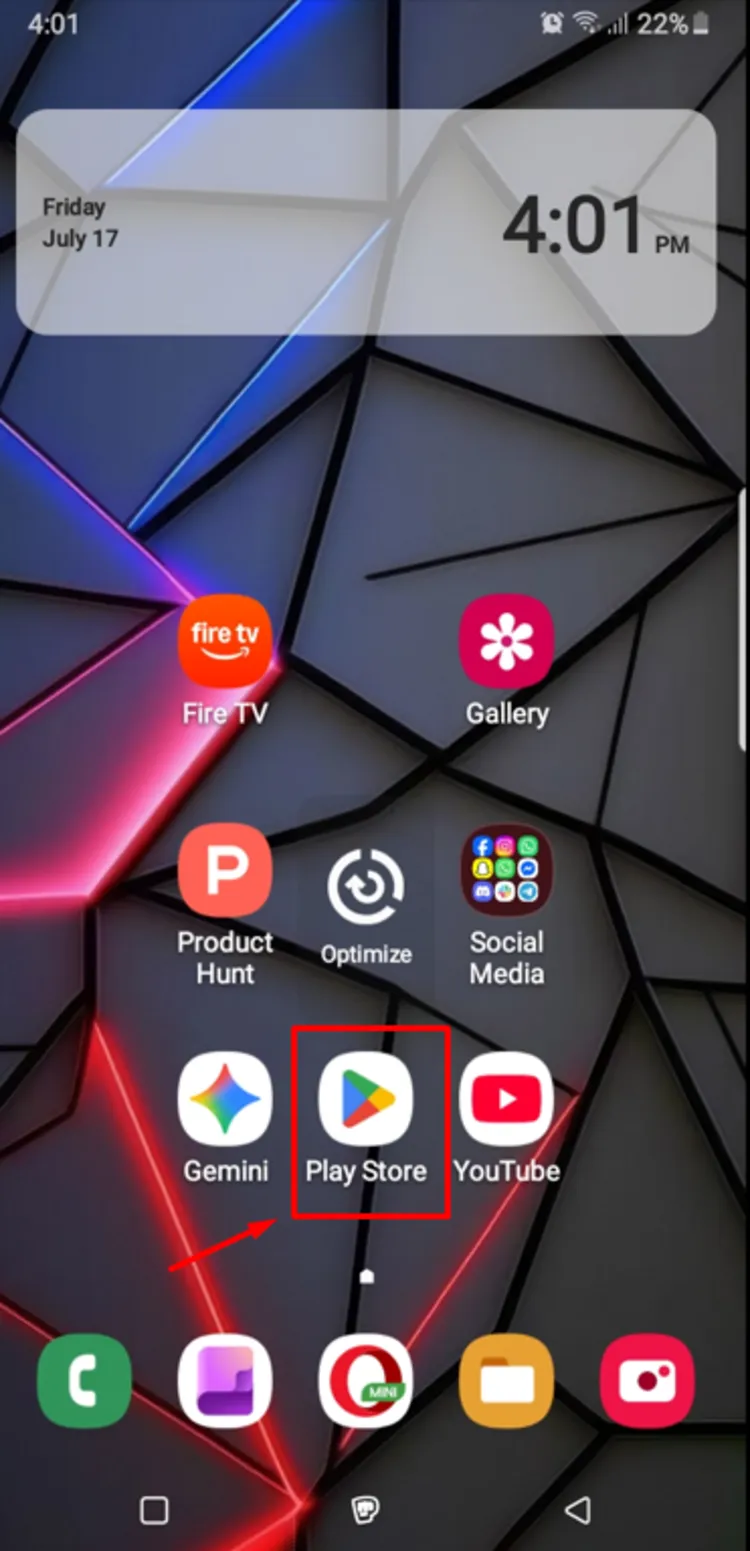
Open Google Play Store on your phone
Search for Android TV ADB Mouse in the search bar.
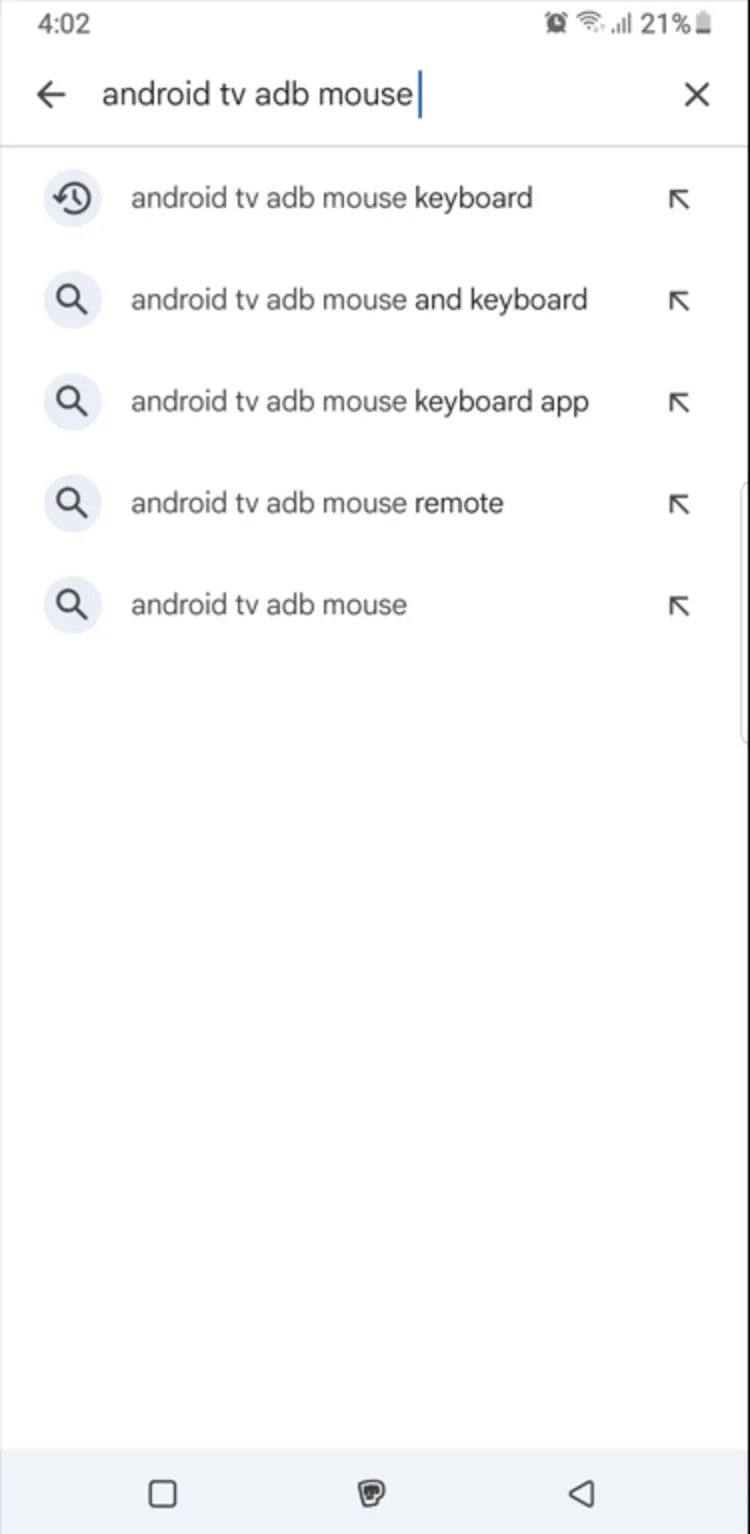
Search “Android TV ADB Mouse”
Select the app and tap Install. Wait for the download to finish.
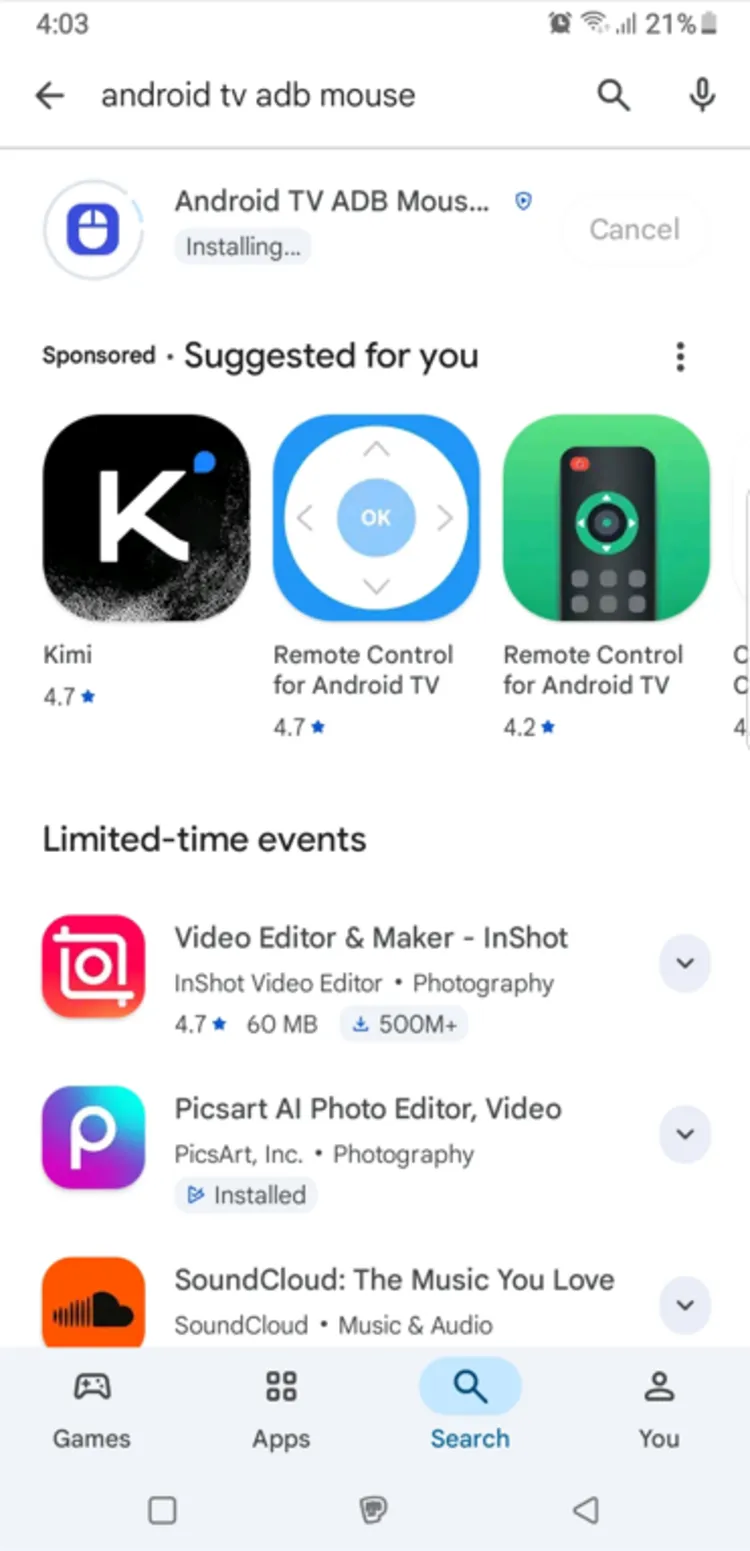
Installing Mouse Toggle from the Play Store
Launch the app.
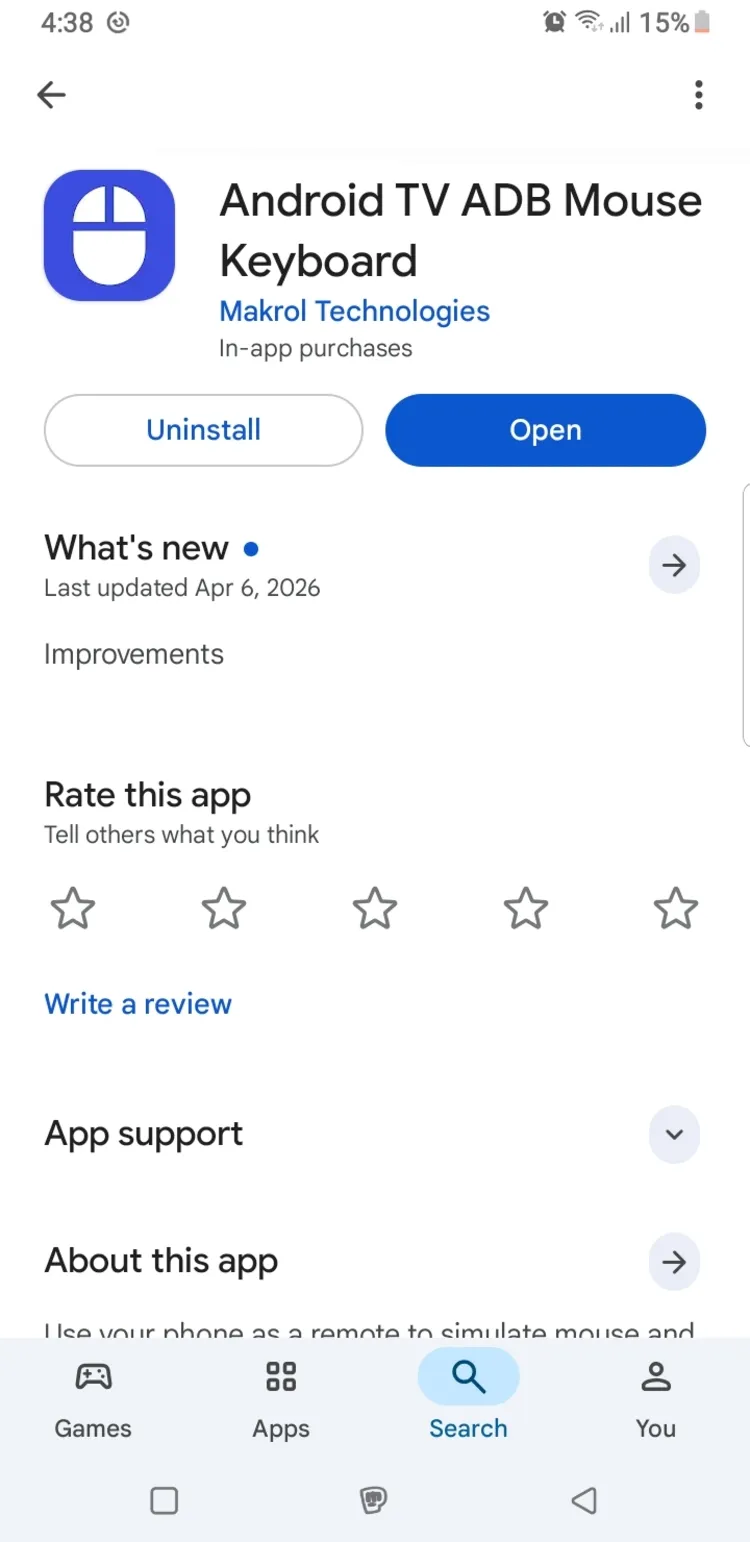
Open the app once installation completes
Tap the Settings icon in the bottom-left corner.
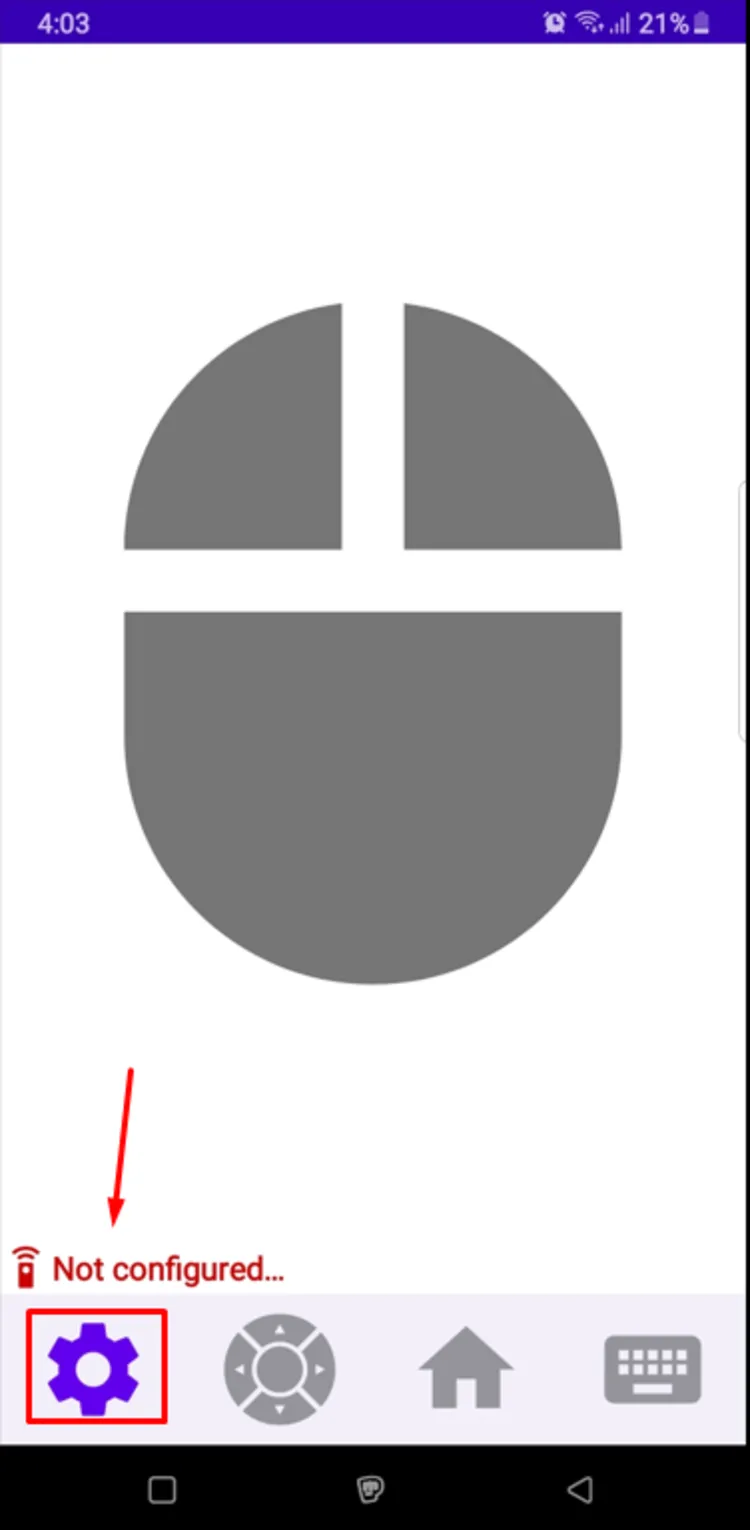
Tap the Settings icon in the bottom-left corner
Enter the Server IP Address, or tap Find Server Automatically.
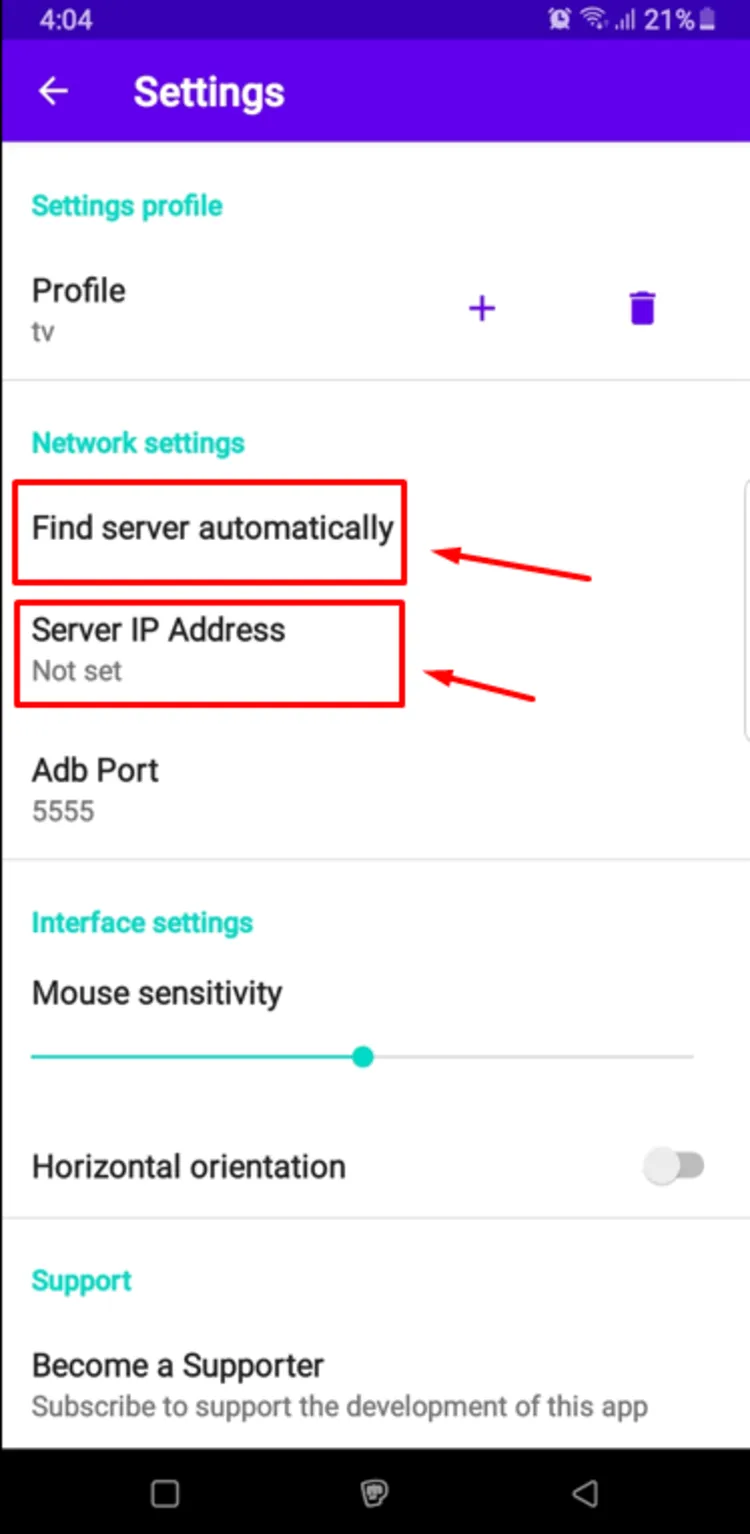
Enter “Server IP Address” or tap “Find Server Automatically”
If you don’t know the IP address, press the Home button on your Onn remote and follow: Quick Settings → All Settings → System → About → Status → IP address.
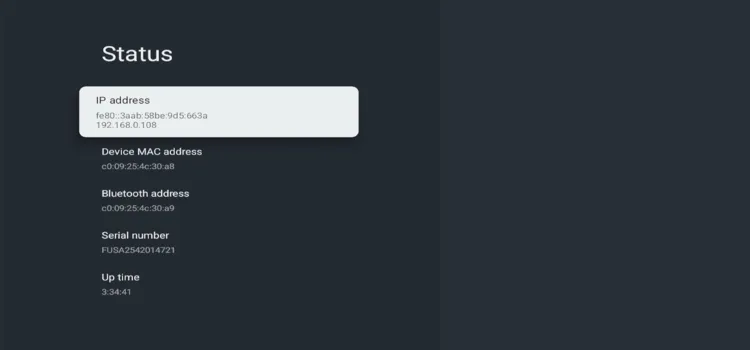
Quick Settings → All Settings → System → About → Status → IP address
After confirming the IP address, tap Find Server Automatically or enter the Server IP address.
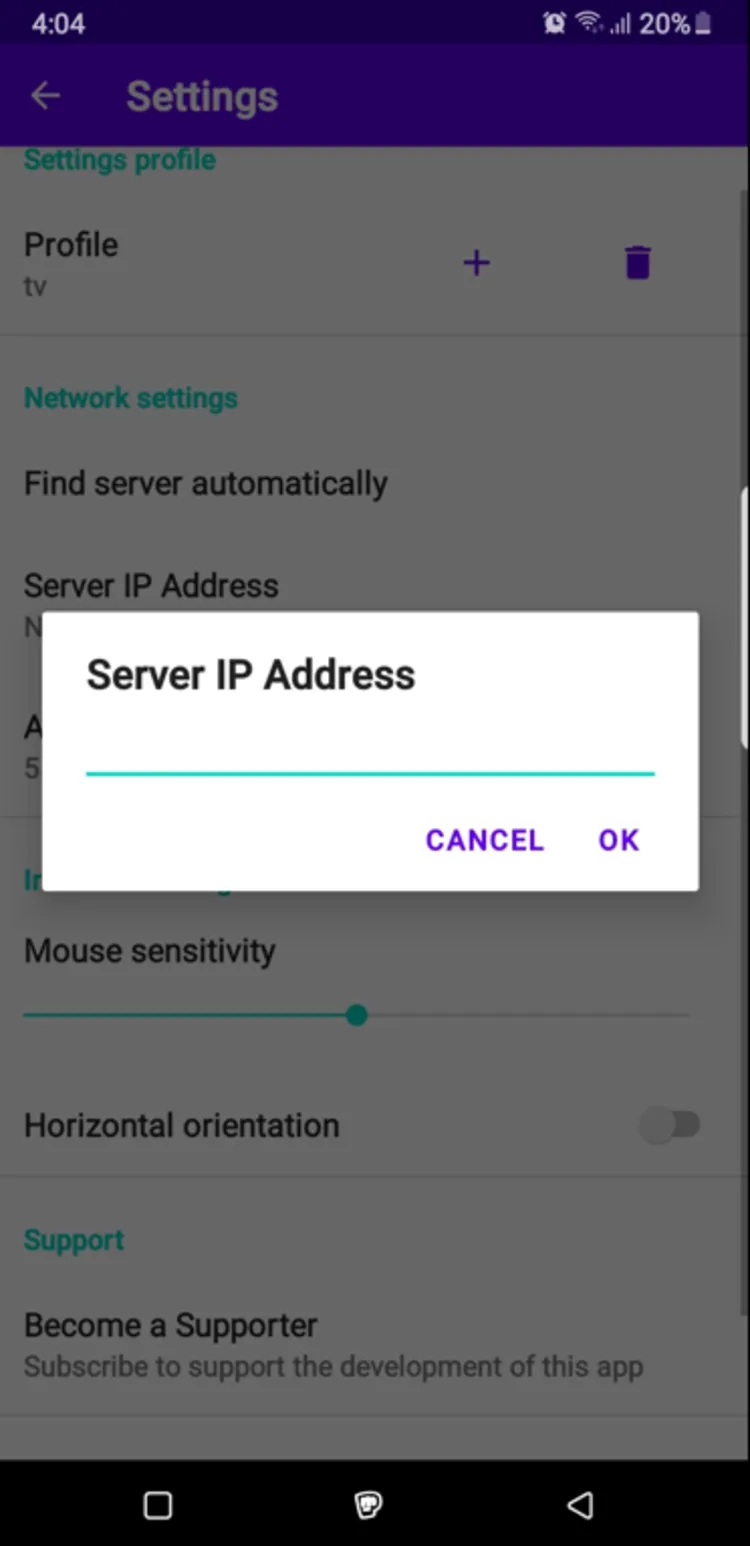
Enter IP address
A prompt will appear on your Onn TV asking for USB debugging. Tap OK.
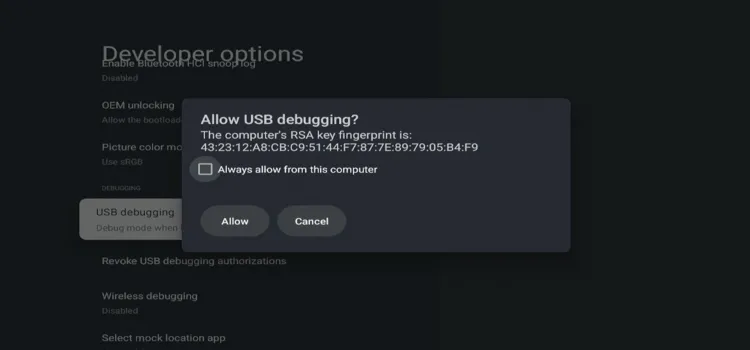
A prompt will appear onscreen asking for “USB debugging.” Tap “OK”
How to Use Mouse Toggle on Onn TV
This is one of the easiest ways to add mouse support to your Onn TV without buying any additional accessories.
After completing the setup, here’s how to use the app:
Drag your finger across your phone screen to move the cursor freely in any direction on your Onn TV. This lets you navigate apps, buttons, and menus that don’t work properly with the standard Onn remote.
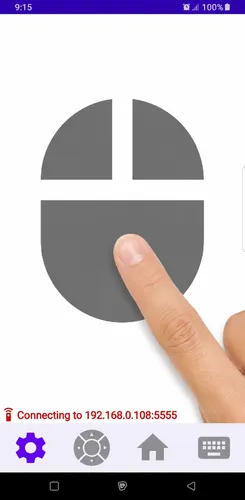
Drag your finger across the phone screen
To navigate with standard D-pad controls instead, tap the navigation icon beside the Settings icon. You’ll see Up, Down, Left, Right, and Select buttons, just like an Onn remote.

Tap the navigation icon beside the Settings icon
To type something, tap the keyboard icon in the bottom-right corner. Enter text on your phone, and it will instantly appear on your Onn TV.
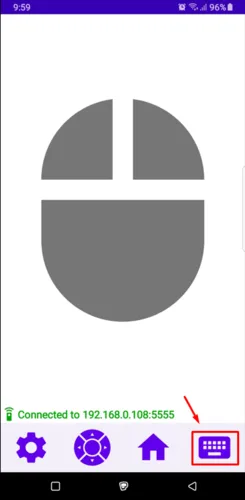
Compatibility and Requirements
Mouse Toggle works on most Onn TV Stick and Onn TV Box models running Android TV / Google TV. Before installing, make sure your device meets these requirements:
| REQUIREMENT | DETAILS |
| 📱 Onn device | An Onn streaming box or stick running Android TV or Google TV |
| 📲 Android phone/tablet | The latest app version may require Android 12L or newer |
| 📶 Same Wi-Fi network | Your phone and Onn device must be connected to the same Wi-Fi network |
| ▶️ Google Play Store | Your Onn device must have the Play Store enabled. It comes preinstalled on all Onn TV Stick and Box models |
| ⚙️ Developer Options | Go to Settings → Device Preferences/System → About, then select Build seven times to unlock Developer Options |
| 📥 Unknown Sources | Open Developer Options and enable Install Unknown Apps for the required app so permissions can be granted properly |
Mouse Toggle Not Working on Onn TV
If the cursor doesn’t appear or your smartphone can’t connect, try the following solutions in order.
Check the Wi-Fi Connection
Make sure your smartphone and Onn TV device are connected to the same Wi-Fi network. The app cannot detect devices connected to another network.
Confirm USB Debugging Is Enabled
Open Settings → System → Developer Options and confirm that USB Debugging is enabled. Turn it off and back on if it’s already active.
Reconnect the Onn Device
Open Android TV ADB Mouse on your smartphone and select Find Server Automatically. You can also enter the Onn device’s IP address manually.
Approve the Debugging Request
Check your TV screen for a USB debugging request. Select Always allow from this computer, then tap OK.
Restart Your Onn Device
Unplug your Onn device from the power source for about 10 seconds. Reconnect it, wait for the home screen, and try connecting again.
Clear the Mobile App Cache
On your smartphone, open Settings → Apps → Android TV ADB Mouse → Storage. Select Clear Cache, reopen the app, and reconnect.
Reinstall Android TV ADB Mouse
Remove the app from your smartphone and reinstall the latest version from Google Play. Complete the connection process again after installation.
📌 Still Not Connecting? Restart your router and check whether network isolation or a guest Wi-Fi mode is preventing your smartphone from detecting the Onn device.
FAQs
Q Do I need to sideload the Mouse Toggle app onto my Onn TV?
No, sideloading using the Downloader app is not required. The “Android TV ADB Mouse” app can be installed directly from the Google Play Store on your smartphone.
Q Is the Android TV ADB Mouse app free?
Yes, the app is completely free to download and use. It acts as an accessibility utility for apps that don’t support standard remote navigation.
Q Does this app only work as a mouse, or can I use normal D-pad controls?
It does both. If you want standard remote controls, tap the navigation icon next to the Settings icon in the app. This brings up standard Up, Down, Left, Right, and Select buttons just like a physical Onn remote.
Q What should I do if I’ve restarted my devices and it still won’t connect?
Restart your router and make sure your network doesn’t have “network isolation” or “guest Wi-Fi” mode enabled, as these settings prevent devices on the same network from communicating with each other.
Final Thoughts
Mouse Toggle is a simple, free fix for one of the biggest annoyances on Android TV devices — apps that don’t support D-pad navigation. It’s a must-have utility for any Onn TV Stick/Box owner.
Installation takes under two minutes through the Play Store, and once Accessibility permissions and Start on Boot are enabled, it runs quietly in the background without any extra maintenance.
If the cursor stops responding after an update, the fixes above resolve it in most cases.
