 Onn TV Hacks Master Your Onn TV with Expert Guides, Hacks, & Apps

XCIPTV Player is one of the most feature-packed IPTV players that’s completely free and runs smoothly on all Onn TV devices.
The player itself is empty, so you’ll need an IPTV subscription, before there’s anything to watch.
XCIPTV itself is 100% legal, but it’s recommended to connect with a premium VPN before you stream anything on IPTV. Surfshark VPN is our top choice.
📋 Table of Contents
🛡️ OUR TOP PICK FOR ONN TV
Your ISP sees every stream. Unverified apps expose your IP. Fix both in under 2 minutes.
🚫 Built-in ad blocker
💰At $2.49/month
Save 87% Get 3 Extra Months FREE with Surfshark VPN
🔒 30-day money-back guarantee • Special limited-time deal

How to Install XCIPTV on Onn TV Box Using the Downloader App
XCIPTV isn’t listed on the Google Play Store, so it has to be sideloaded. If you haven’t jailbroken your Onn TV yet or don’t have the Downloader app installed, follow the steps below first. Otherwise, skip to step 9.
Before streaming anything on XCIPTV, make sure to install Surfshark VPN on your Onn device.
Go to Onn TV Home and then click on the Settings icon
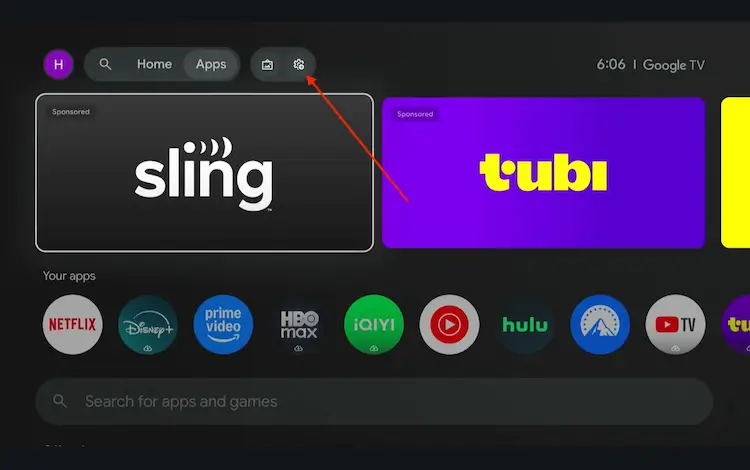
Settings icon on the Onn TV home screen
Select All Settings
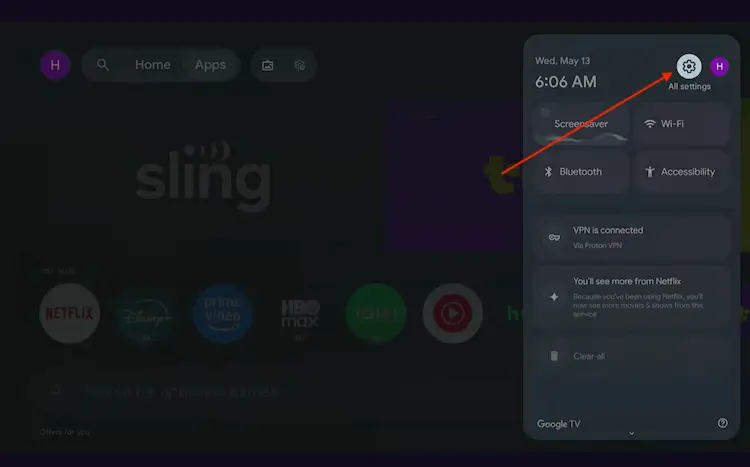
All Settings icon
Scroll down and select System, then choose About from the list.
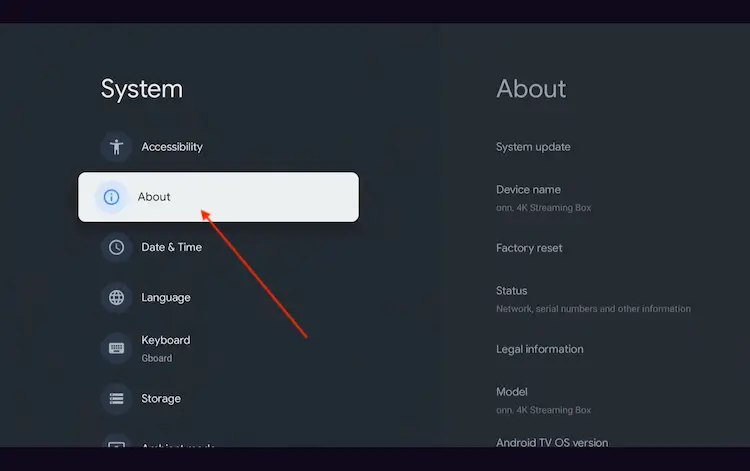
Navigate to System > About
Scroll to the bottom and click Android TV OS Build 7 times continuously until a pop-up says "You are now a developer."
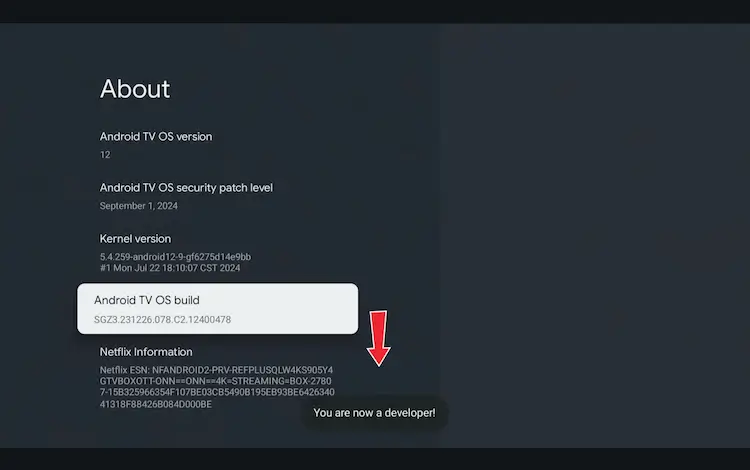
Click Android TV OS Build 7 times to unlock Developer Mode
Press the Home button on your remote, go to the top menu, and select Apps.
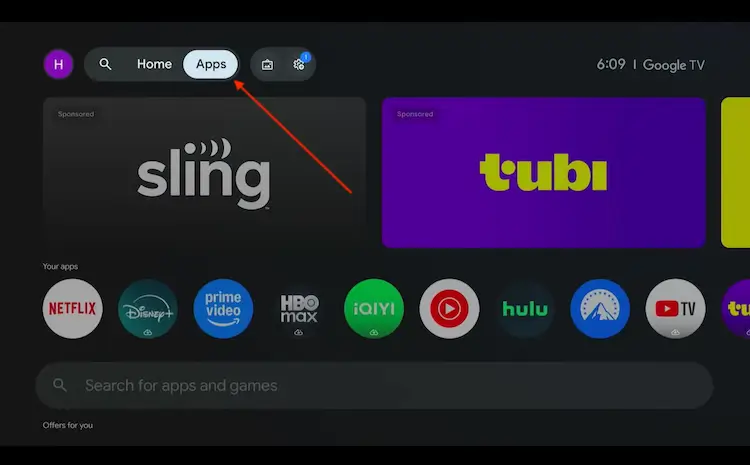
Back to the Onn TV home screen > Apps
Use the search bar and type Downloader and select the one at the top of the list
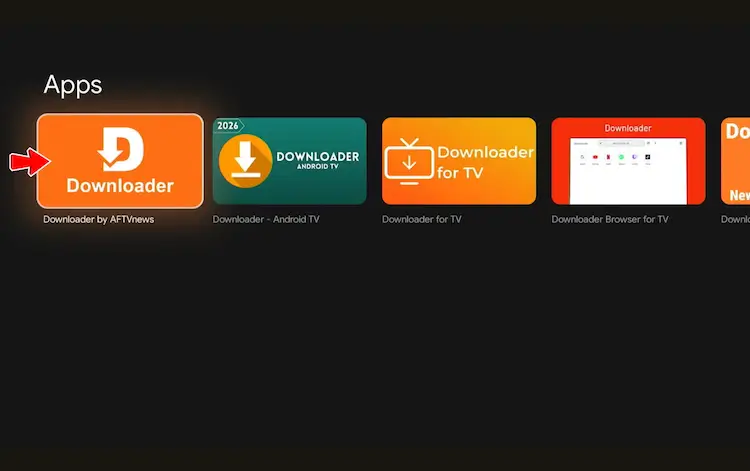
Select the Downloader app at the top of the search results
Click Install
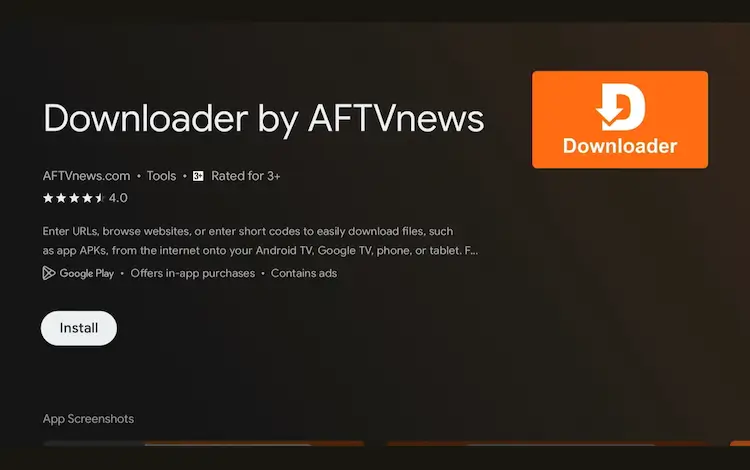
Press Install
Once installed, open the Downloader app and click on the URL/search bar.
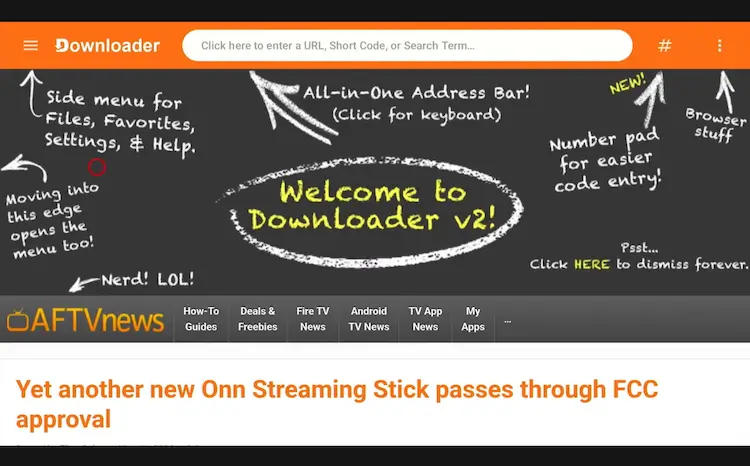
Open Downloader app > URL Search bar
Enter the exclusive Onn TV Hacks downloader code 8533602 below and press Go.
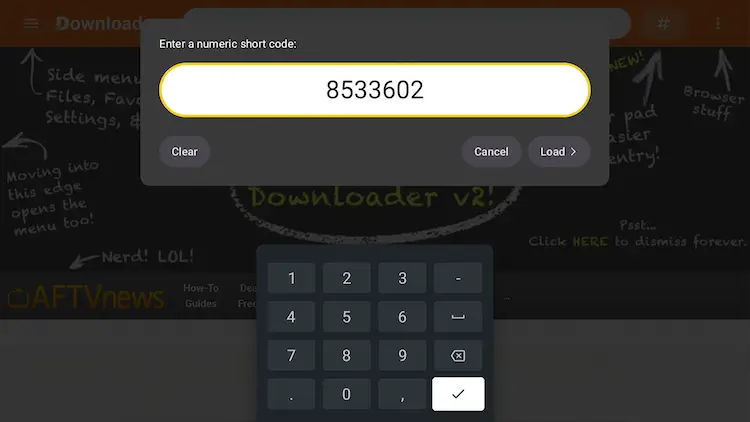
Add the popular 8533602 code
Scroll down our downloads page and click on the “IPTV Media Player” button.
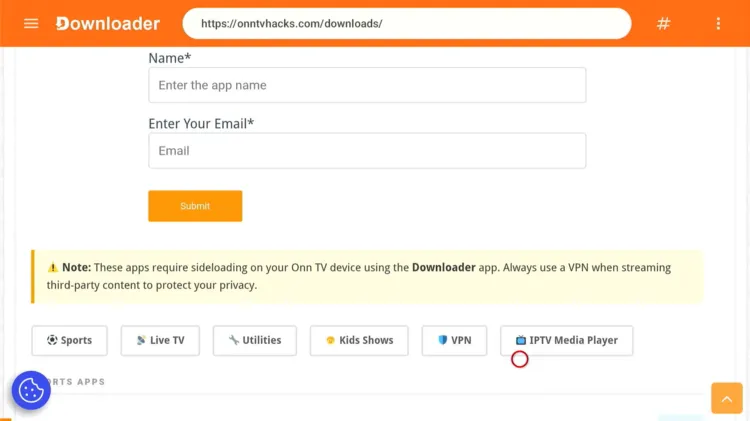
Click on the “IPTV Media Player” button
Scroll below, locate XCIPTV Player, and click Download.

Click on “Download”
XCIPTV APK will start downloading.
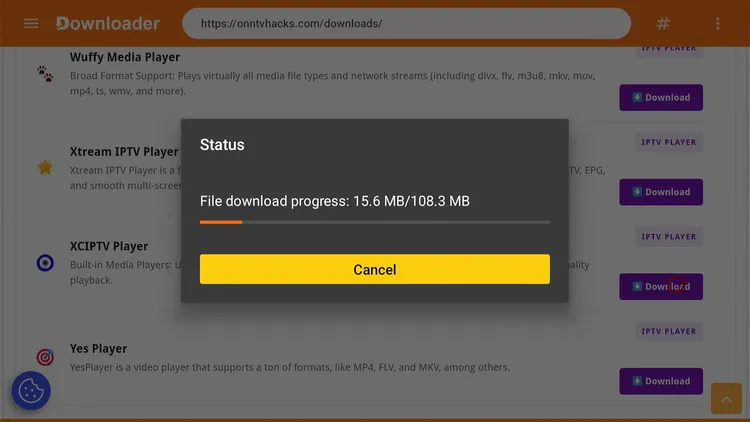
XCIPTV Player is downloading
Click Install.
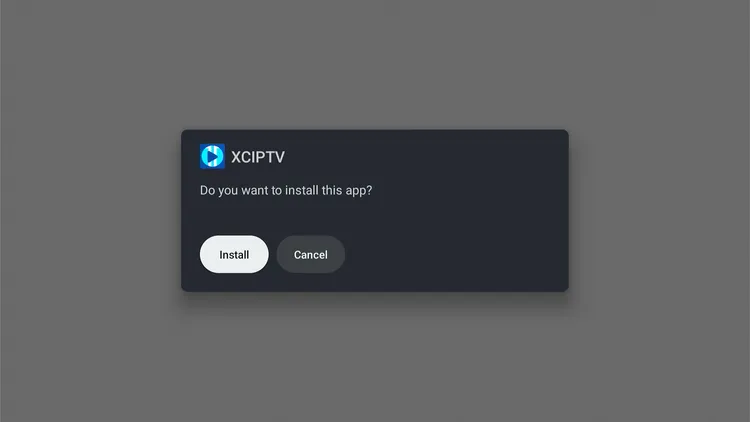
Click on “Install”
Once installed, click Done.

Click “Done”
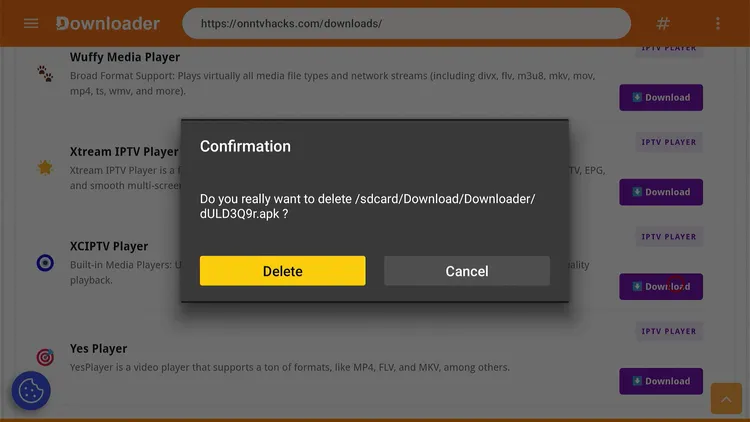
Click Delete to remove the APK and free up space.

Click “Delete”
Click Delete again to finish.
Setup IPTV on XCIPTV
Once the installation wraps up, make sure to install & connect to Surfshark VPN on your Onn TV first when using IPTV services.
Open Surfshark VPN and connect to any server.
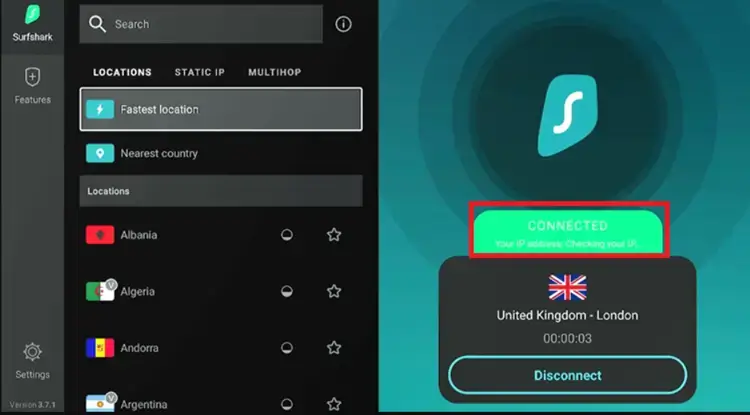
Connect to Surfshark VPN
Press Home, scroll to Your Apps, and click on XCIPTV to launch it.

Home > Locate “XCIPTV”
Tap the Settings icon at the bottom right, then choose your Playlist Type (M3U URL, Xtream Codes, FastoCloud, or EZ Server).

Choose “Playlist Type”
Enter the credentials provided by your IPTV provider, then click Next.
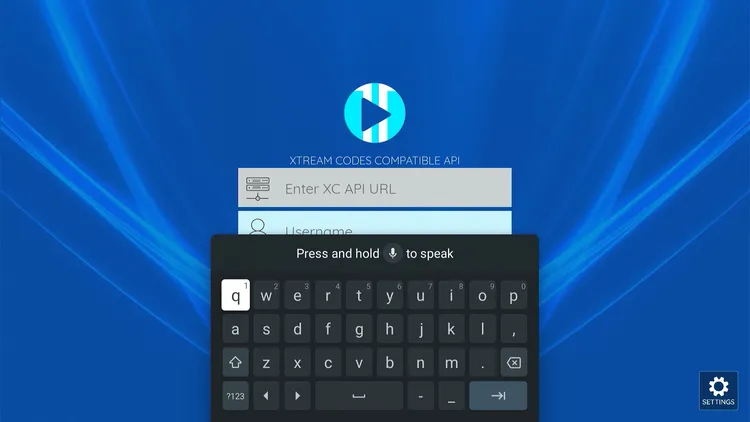
Enter “IPTV Subscription Details”
Your IPTV will be successfully set up on XCIPTV. Select what you want to stream and enjoy.

IPTV Setup done
Get Surfshark — 86% Off Today →
Best XCIPTV Settings for Onn TV
A few features worth setting up once your channels are loaded, so you get the most out of XCIPTV on Onn TV.
1. Multi IPTV Format Support
- M3U URLs
- Xtream Codes
- FastoCloud
- EZ Server
2. Multiscreen Streaming

- Open the XCIPTV app and go to the Multi-Screen icon in the main menu.
- Choose your preferred layout.
- Select the channels to add to separate screens.
3. Built-In Player Selection

Has built-in players like VLC Player and Exo Player.
- Go to Settings, then “Player.”
- Choose VLC or ExoPlayer.
- Assign the player to Live TV, VOD, or Catch-Up.
4. Parental Controls

- Go to Settings, then “Parental.”
- Create a PIN to restrict channels or categories.
- Lock any inappropriate categories.
5. Mark Favorites
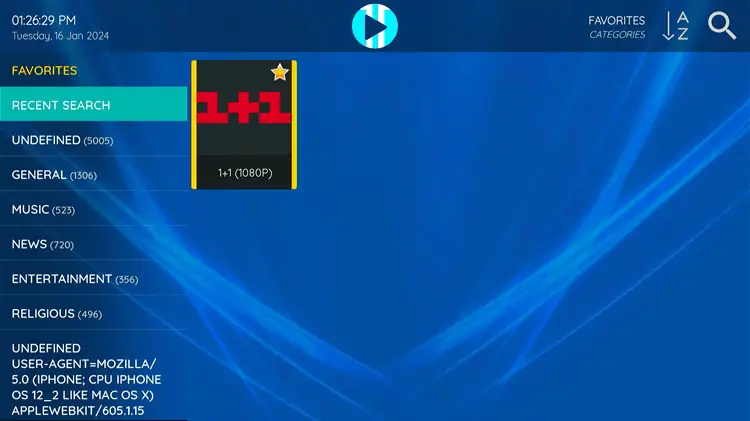
- Play the channel you want to favorite.
- Long-press “Select” on your Onn TV remote.
- Go to Home, then “Favorites” to see it listed.
P.S. — To remove a channel from Favorites, play it again and long-press “Select” on your Onn TV remote.
6. Recording & Catch-Up
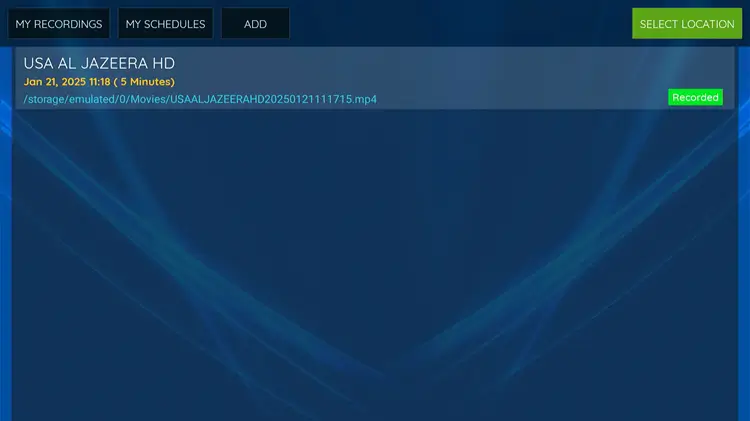
- Tap “Recording” in the top bar, then “Add.”
- Set the length, date, and time, then click “Schedule.”
- Check “My Schedules” for scheduled/in-process recordings.
- Play from “My Recording” once the video is ready.
7. EPG Setup
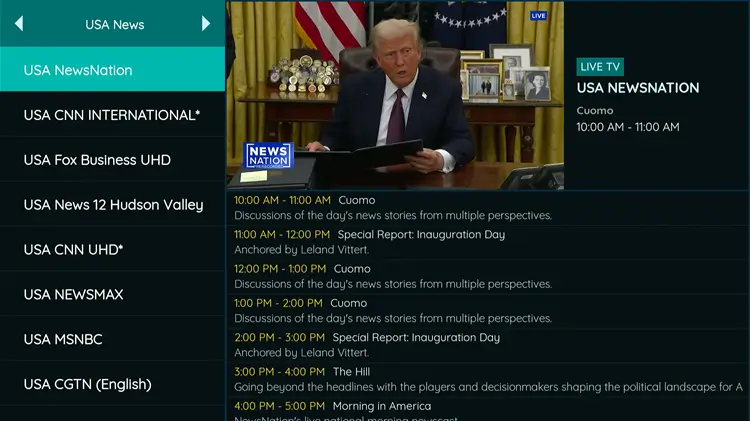
- Open the EPG option from the main menu.
- View the full schedule per channel (if your provider supports it).
Frequently Asked Questions
Is XCIPTV compatible with Onn TV Box?
Yes. Onn Google TV devices run on Google TV (built on Android TV), so XCIPTV runs smoothly once sideloaded via Downloader.
Can I get XCIPTV from the Play Store?
No. XCIPTV isn’t listed on the Google Play Store, so you’ll need to sideload it on Onn TV using the Downloader app and the code above.
Why is XCIPTV buffering or loading slowly?
This is usually linked to internet or provider issues rather than the app itself. Make sure your connection is stable and your IPTV subscription is still active.
Do I need to enable settings on Onn TV to sideload XCIPTV?
Yes, you’ll need to enable “Unknown Sources” / “Install Unknown Apps” in Settings before installing the APK manually through Downloader.
Does XCIPTV come with channels already loaded?
No. XCIPTV is only a player; it doesn’t sell or include any channels. You’ll need login details from an IPTV provider, or an M3U/Xtream Codes playlist, to start watching.
What login methods does XCIPTV support?
XCIPTV accepts M3U URLs, Xtream Codes, FastoCloud, and EZ Server playlists, so most provider formats will work without conversion.
Is XCIPTV really free, or is there a premium tier?
XCIPTV is fully free with no premium paywall, unlike some other IPTV players that lock features like recording behind a subscription.
Is XCIPTV legal to use on Onn TV?
Yes, the app itself is legal — it’s simply a media player. Legality depends entirely on the IPTV source/provider you connect to.
Conclusion
Sideloading XCIPTV onto your Onn TV Box takes less than 5 minutes using the Downloader method above, and you won’t pay a cent for the app itself.
For a safe experience, use a reliable VPN. Surfshark VPN is our recommended choice It prevents ISP throttling, keeps your activity private, and unlocks geo-restricted content.
📌 Found this guide helpful? Drop a comment below and share it with your friends. Check out our Best Apps for Onn TV guide for more top picks to install alongside XCIPTV.