 Onn TV Hacks Master Your Onn TV with Expert Guides, Hacks, & Apps

Written and tested by Black Joseph
Updated November 4, 2026
When you buy through our links, we may earn a commission. See how we work with brands here.
Your Onn TV Box or Stick can look far better than it does out of the box, but only if the display settings are set up properly. Get them wrong and you can end up with washed-out colors, choppy motion, or HDR that never switches on.
The good news is that it only takes a few minutes. Below are the best picture settings for Onn TV for movies, shows, and gaming, plus a few TV-side tweaks that matter just as much.
Lost the remote, or tired of typing with it?
Use your phone as an Onn TV remote with Joz Remote, our free Android app.
Get it on Google PlayWe built this app ourselves.
📋 Table of Contents — tap to expand
Video Tutorial: Best Picture Settings for Onn TV
Best Picture Settings for Onn TV
Short on time? Here’s every setting and the value to use:
| Setting | Recommended Value |
|---|---|
| 📺 Resolution | Auto (or 4K 60 Hz if set manually) |
| 🌈 Match Content Dynamic Range | On |
| 🎞️ Match Content Frame Rate | Always |
| 🎨 Color Format | Auto |
| ✨ Allow Dynamic Range Formats | Choose the HDR format your TV and Onn model both support (HDR10, or Dolby Vision on the Onn 4K Plus and 4K Pro) |
How to Set the Best Picture Settings on Onn TV
Every setting below lives in the same place. From the Onn TV home screen, select Quick Settings and move to the top right corner.
Then select the Settings icon and choose Display & Sound.
Setting 1 of 5: Resolution
What it does: Picks the best resolution your TV supports. You can choose 4K 60 Hz manually.
Select Resolution.
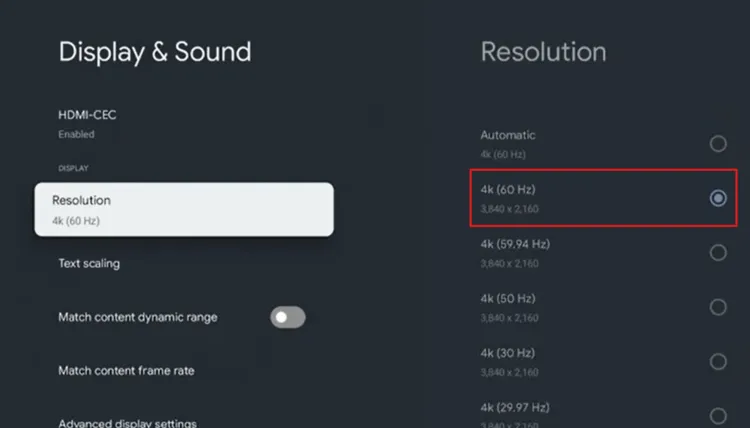
Choose Resolution
Set it to Automatic.
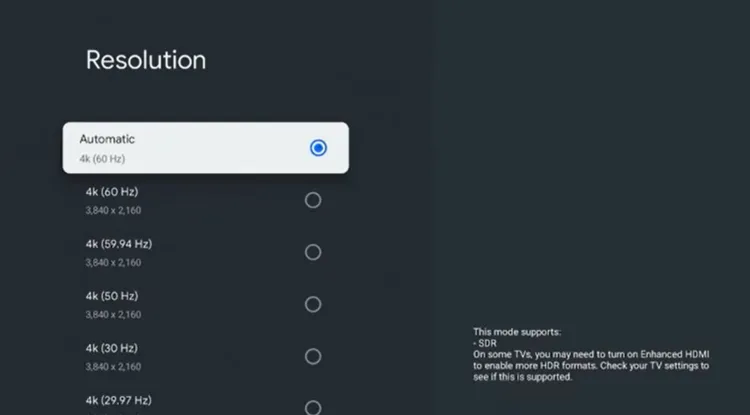
Set it to Automatic
Select OK.
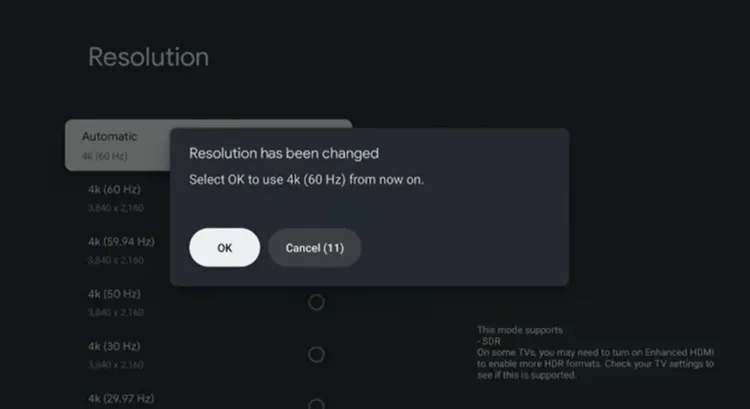
Select OK
Setting 2 of 5: Match Content Dynamic Range
What it does: Switches between SDR and HDR10 automatically, and to Dolby Vision on models that support it. A brief screen blink is normal.
Turn on Match content dynamic range.
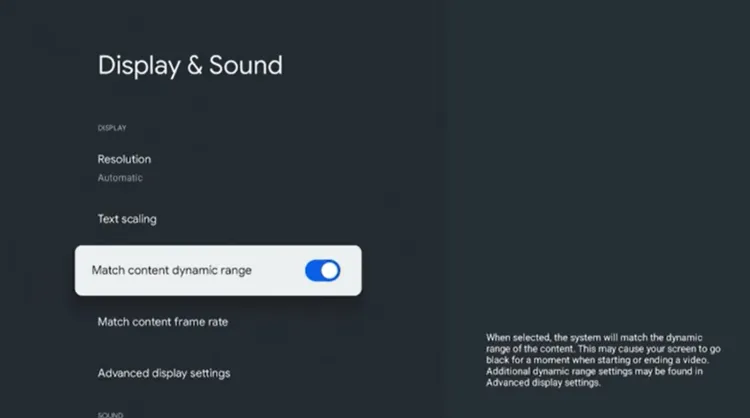
Turn on “Match content dynamic range”
Setting 3 of 5: Match Content Frame Rate
What it does: Reduces judder and smooths motion in 24 fps movies and shows.
Select Match content frame rate.
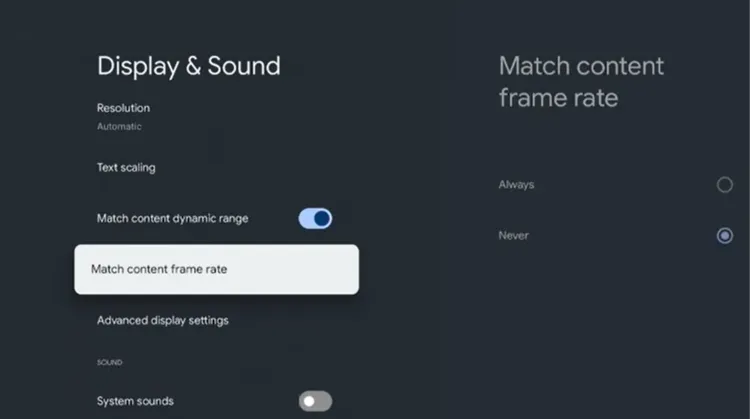
Select Match content frame rate
Set it to Always.
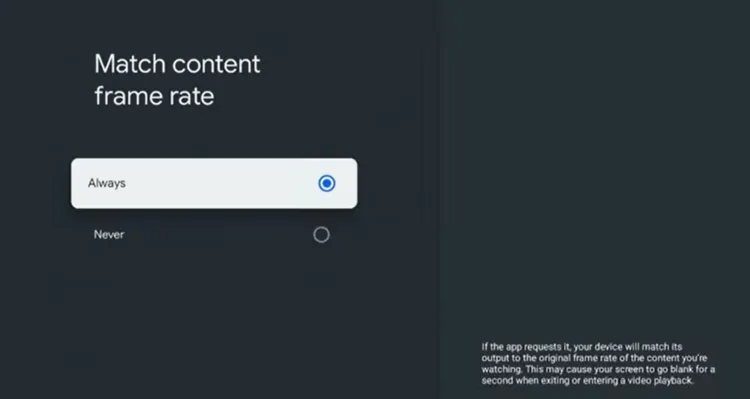
Set to “Always”
Setting 4 of 5: Color Format
What it does: Lets your Onn device pick the best color format for your TV.
Open Advanced display settings.
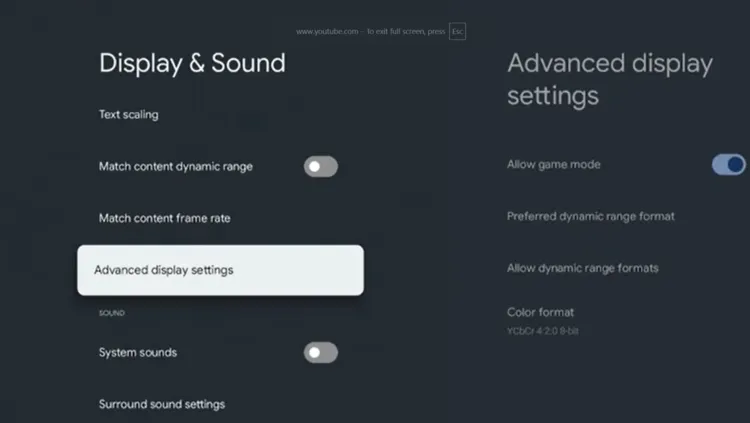
Advanced display settings
Choose Color format.
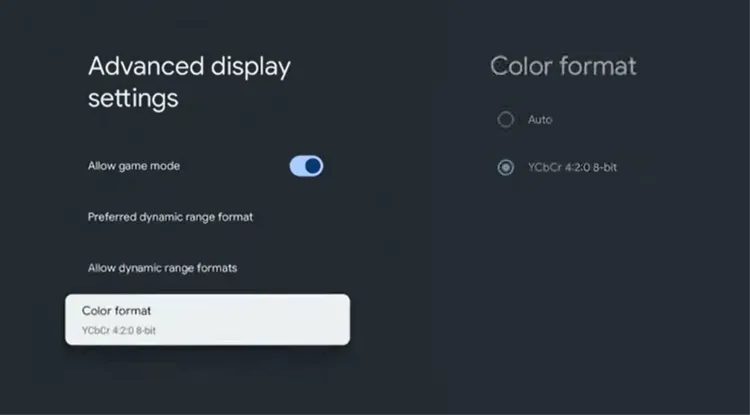
Select Color format
Set it to Auto.
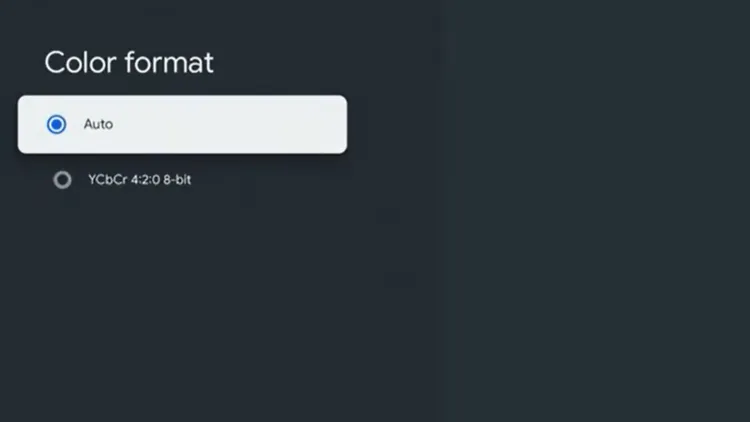
Set to Auto
Setting 5 of 5: Allow Dynamic Range Formats
What it does: Tells the device which HDR format to prioritize, such as HDR10, or Dolby Vision on models that support it.
Select Allow dynamic range formats, then open Show formats.
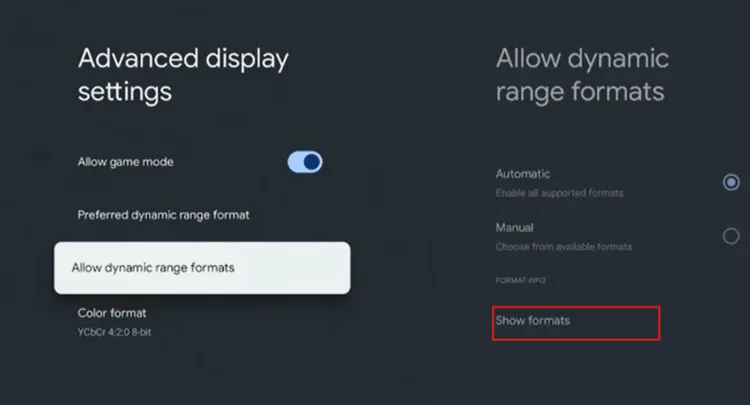
Allow dynamic range formats > Show formats
Choose your TV’s HDR format.
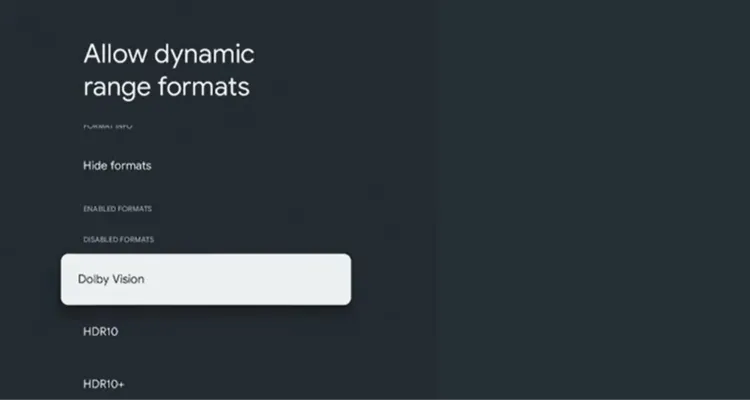
Choose your TV’s HDR format
Don’t Forget Your TV’s Own Settings
The Onn device only sends the signal. Your TV has to be set up to receive it properly, and skipping this is the most common reason HDR never looks right.
Check these four things on your TV:
| Setting | What to Do | Why It Helps |
|---|---|---|
| 🔌 Enhanced HDMI Format | Turn it on for your Onn’s HDMI input. The name varies by TV brand. | Needed for 4K HDR on many TVs. |
| 🎬 Movie / Filmmaker Mode | Set your TV’s picture mode to it. | Keeps motion natural. |
| 🎮 Game Mode | Turn it on when gaming. | Cuts input lag. |
| 🔗 HDMI Cable | Use an 18 Gbps high-speed cable. | Stops HDR flicker and dropouts. |
Common Onn TV Picture Problems and Fixes
If something still looks off, find your problem here:
| Problem | Why It Happens | Fix |
|---|---|---|
| Screen blinks or goes black | Your TV is switching dynamic range or frame rate. | Nothing to fix. This is normal. |
| Colors look oversaturated | Regular (non-HDR) video is being pushed into HDR. | Turn on Match content dynamic range. |
| HDR doesn’t switch on | The TV input isn’t in enhanced mode, the cable is weak, or the format isn’t supported. | Enable the enhanced HDMI format, use an 18 Gbps cable, and pick a supported format. |
| Motion looks jerky | Frame rates don’t match, or the TV is adding motion smoothing. | Set Match content frame rate to Always and turn off motion smoothing on your TV. |
📌 Related Onn TV Guides
- Hidden Onn TV Settings to Change — more settings worth tweaking.
- How to Update Your Onn TV — keep your device on the latest software.
- How to Set Up Your Onn TV Box — new to Onn TV? Start here.
Frequently Asked Questions
What are the best picture settings for Onn TV?
The best picture settings for Onn TV are: Resolution on Auto, Match content dynamic range on, Match content frame rate set to Always, Color format on Auto, and the HDR format your TV supports allowed.
Do these settings work on both the Onn TV Box and the Stick?
Yes, the settings are in the same place on Onn devices that run Google TV, but 4K options only appear on 4K models, and Dolby Vision is only available on the Onn 4K Plus and 4K Pro.
Should I set the resolution to 4K 60 Hz manually?
Auto works best for most people because the device picks the best resolution your TV supports. Choose 4K 60 Hz manually only if you want to force it.
Why does my screen go black for a second?
Your screen goes black for a second when the Match content settings switch your TV to a different dynamic range or frame rate. It’s completely normal.
Which Onn models support Dolby Vision?
The Onn 4K Plus and Onn 4K Pro support Dolby Vision. The Onn 4K Box and the Onn HD Stick support HDR10 and HDR10+ but not Dolby Vision, and your TV must support the format too.
Why isn’t HDR working on my Onn TV?
Check that your TV’s HDMI input uses the enhanced signal format, use a high-speed HDMI cable, and pick a supported format under Allow dynamic range formats.
Conclusion
Setting up your Onn TV Box or Stick properly takes only a few minutes, and the difference in sharpness, motion, and HDR is easy to notice.
Combine these device settings with the right picture mode on your TV, and you’ll get a noticeably better picture.
📌 Found this guide useful? Share it with a fellow streamer and drop a comment below. Check out our Best Apps for Onn TV guide for more.