 Onn TV Hacks Master Your Onn TV with Expert Guides, Hacks, & Apps

Quick Answer: To close background apps and stop buffering on your Onn TV, install the free Background Apps and Process List app.
Every time you jump between apps on your Onn TV device, the apps don’t actually shut down, they just keep running in the background.
Over time, too many apps piling up in the background eat up RAM, and this is one of the most common reasons an Onn stick or box starts buffering, lagging, or freezing even with a good internet connection.
The Background Apps and Process List app is a free app that gives you a full view of everything currently running on your device, and lets you force close one app, multiple apps, or every background app at once.
📋 Table of Contents
Watch: Quick Video on How to Close Background Apps
How to Close Background Apps on Onn TV
To close background apps on your Onn TV, you’ll need to install the “Background Apps and Process List” app. It’s available on the Google Play Store, but if you can’t find it there, you can sideload it just as easily using the Downloader app.
We’ve covered the Downloader method in this guide. It takes less than five minutes and requires no technical skills — just follow the steps below.
Go to Onn TV Home and then click on the Settings icon
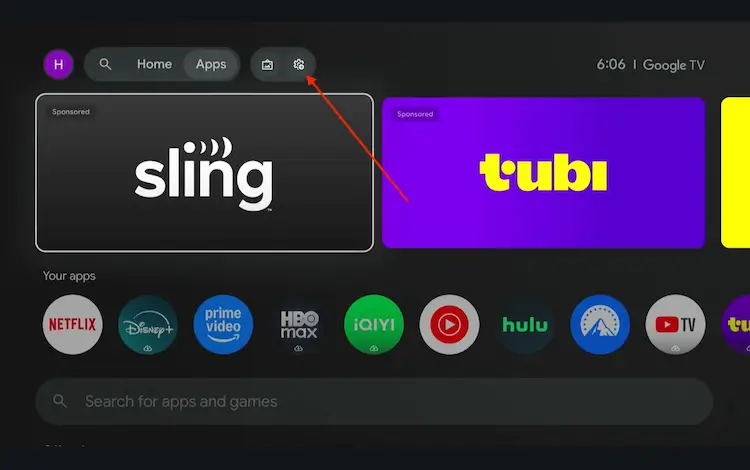
Settings icon on the Onn TV home screen
Select All Settings
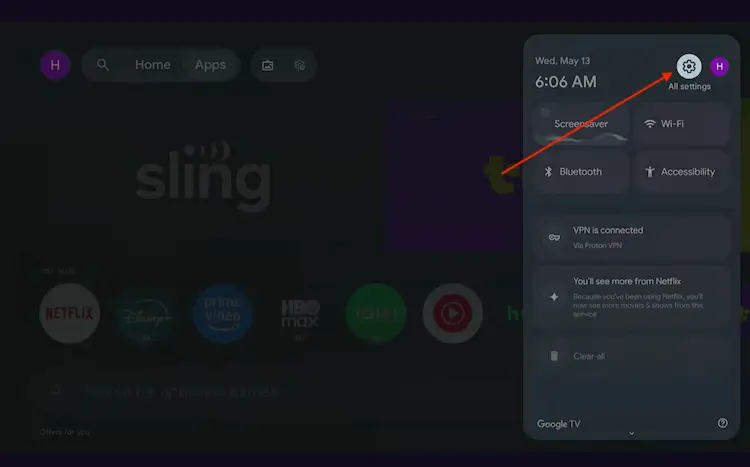
All Settings icon
Scroll down and select System, then choose About from the list.
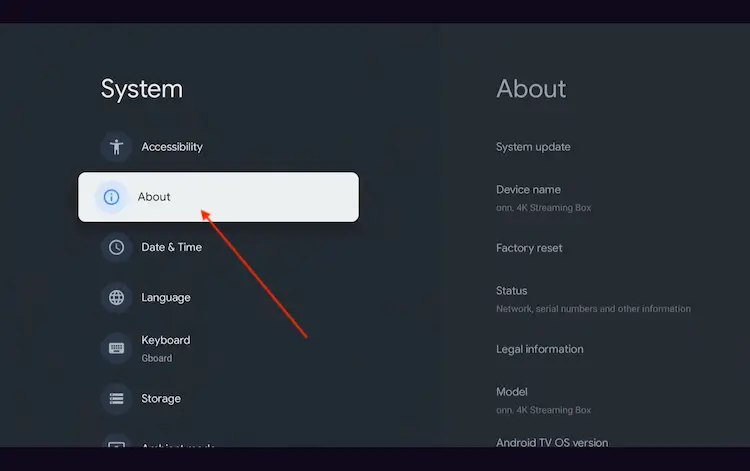
Navigate to System > About
Scroll to the bottom and click Android TV OS Build 7 times continuously until a pop-up says "You are now a developer."
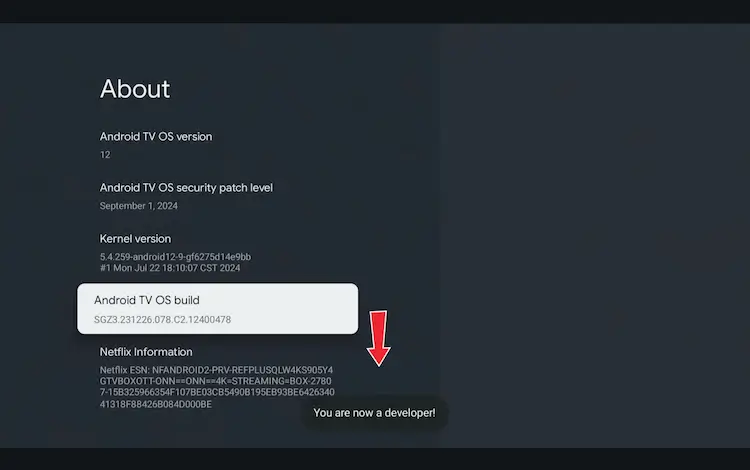
Click Android TV OS Build 7 times to unlock Developer Mode
Press the Home button on your remote, go to the top menu, and select Apps.
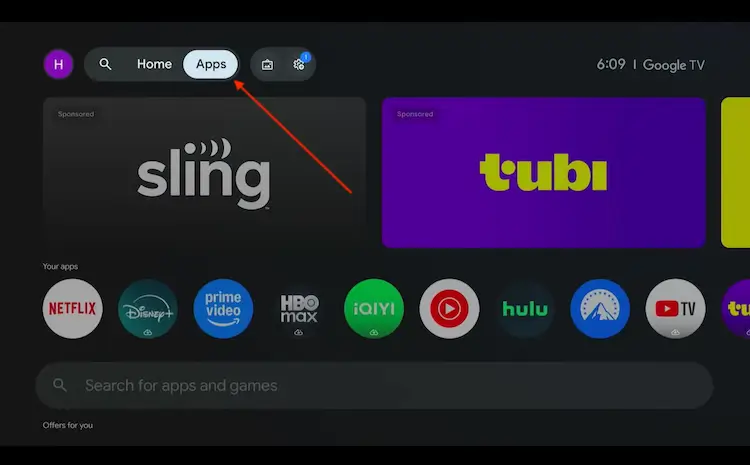
Back to the Onn TV home screen > Apps
Use the search bar and type Downloader and select the one at the top of the list
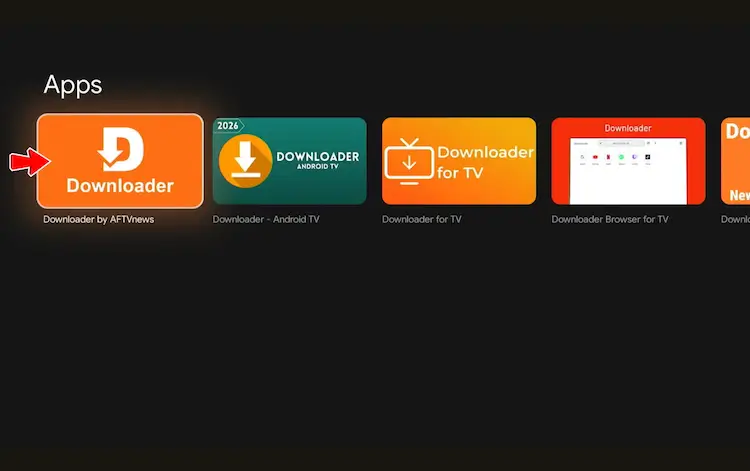
Select the Downloader app at the top of the search results
Click Install
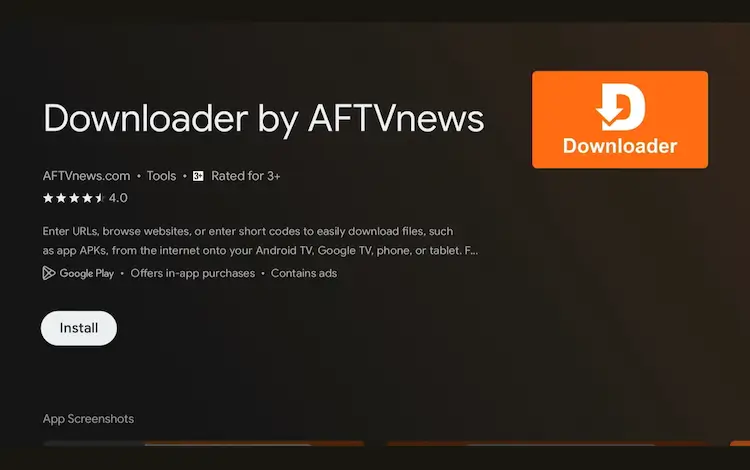
Press Install
Once installed, open the Downloader app and click on the URL/search bar.
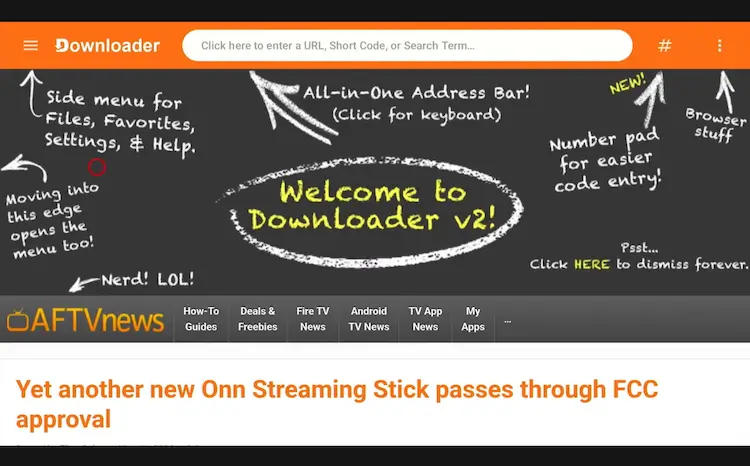
Open Downloader app > URL Search bar
Enter the exclusive Onn TV Hacks downloader code 8533602 below and press Go.
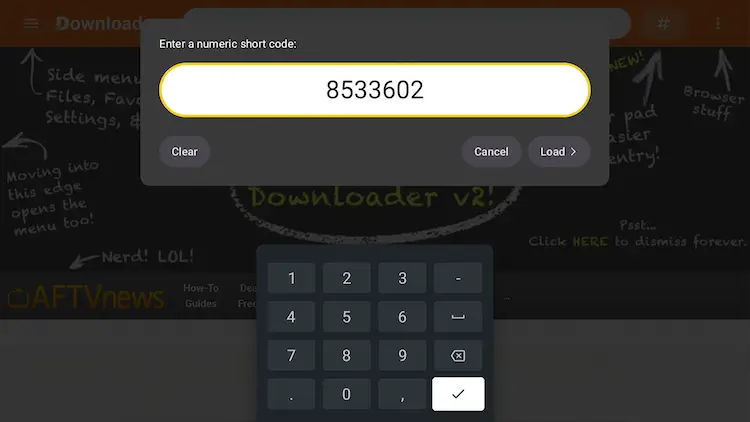
Add the popular 8533602 code
Click on the Utilities category.

Click into the Utilities category
Select the Background Apps and Process List app and tap Download.

Select “Background Apps and Process List,” then “Download”
Wait for the file to finish downloading.
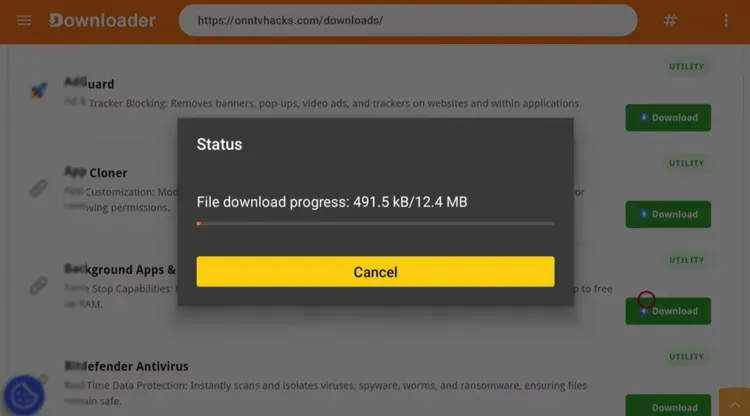
Wait for the download to complete
Tap Install.
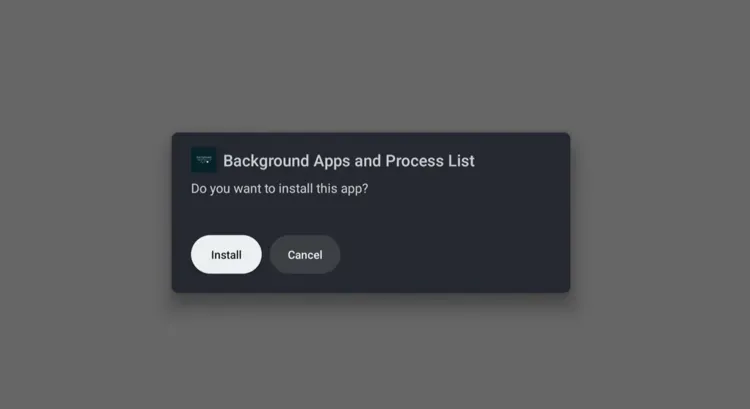
Tap “Install”
Tap Done once the installation is complete.
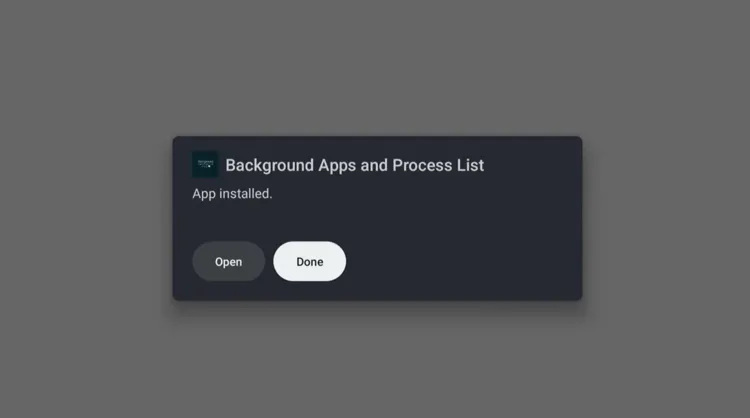
Tap “Done” after installation finishes
Tap Delete when prompted to remove the APK file and free up storage.

Tap “Delete” to remove the APK file
Tap Delete again to confirm.
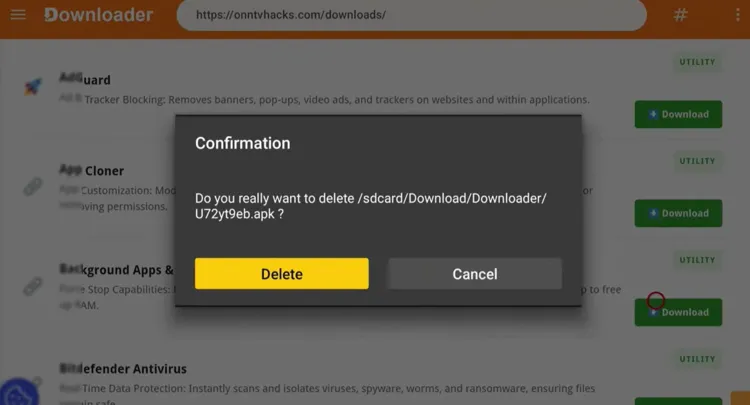
Confirm the delete prompt
Open the Background Apps and Process List app. Tap Got It to dismiss the intro prompt.

Tap “Got It” to dismiss the intro prompt
You can close a single app, multiple apps, or all apps at once. To close a single app, select an active app from the list.

Select an active app from the background list
Tap Force Stop.

Tap “Force Stop” on the selected app
Tap OK to confirm.

Confirm by tapping “OK”
To close everything at once, switch to the Close All Apps tab instead.

Switch to the “Close All Apps” tab
Tap Force Stop, then OK to confirm, and repeat for each app in the list until they’re all closed.
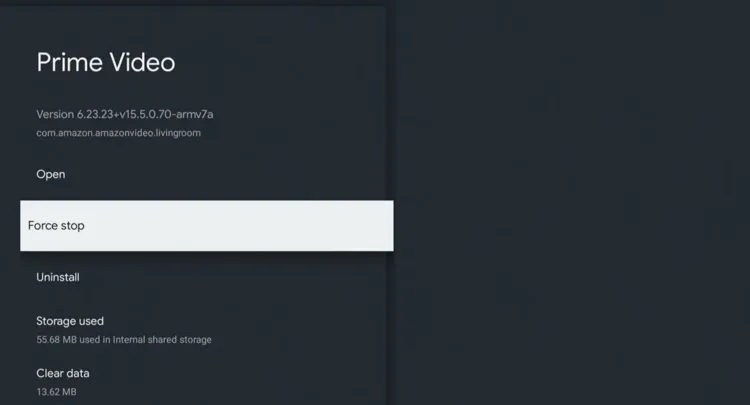
Force Stop each app in the list, confirming each one

Cycle through the remaining apps until the list is empty
Done! Your Onn TV device should now run smoothly, free of buffering caused by background apps.
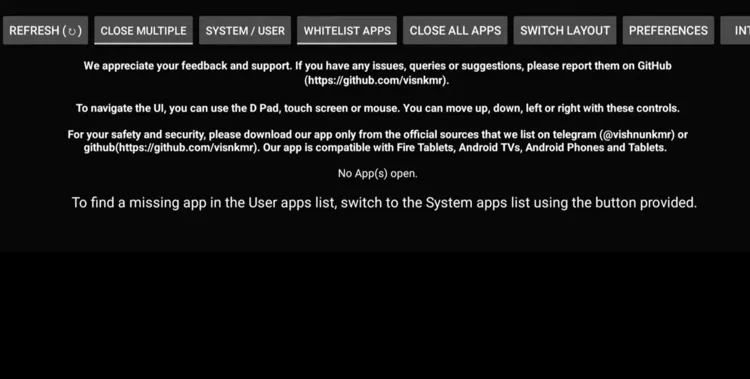
All background apps successfully closed on Onn TV
Why Background Apps Slow Down Your Onn TV?
Most Onn devices come with only 5GB of onboard storage and limited RAM, so several apps stacking up in the background can seriously drag down performance.
This is what causes the buffering and lag many users start noticing after a few weeks of regular use.
The problem is that going through each app one by one and closing it manually doesn’t guarantee you’ve caught them all, since there’s no built-in way to see everything currently running.
That’s exactly what the Background Apps and Process List app solves.
📌 Related Onn TV Guides
- How to Remove Pre-Installed Apps on Onn TV — free up storage by deleting apps you never use.
- Update Onn TV Device to the Latest Version — update your device to get the best performance.
- How to Jailbreak Onn TV — unlock even more from your Onn device.
Frequently Asked Questions
1. Does closing background apps free up storage on Onn TV?
No. Force closing background apps frees up RAM and processing power, not storage space. If you want to free up storage, you’ll need to remove pre-installed or unused apps instead.
2. Does restarting my Onn TV close all background apps?
Restarting can clear some background activity, but it doesn’t reliably close every app from memory. Using the Background Apps and Process List app gives you a complete, guaranteed clean-up.
3. Is the Background Apps and Process List app free to use?
Yes, it’s completely free to install and use, and it’s available through our Downloader code 8533602 under the Utilities category.
4. How often should I close background apps on my Onn TV?
If you use several streaming or gaming apps daily, doing a quick force-close session once or twice a week is enough to keep your Onn device running smoothly.
Final Verdict
Buffering and lag on Onn TV devices are often caused by nothing more than apps piling up unseen in the background. With the Background Apps and Process List app, you get a simple, free way to see exactly what’s running and shut it all down in seconds.
📌 Found this guide useful? Share it with your friends or drop a comment below. Check out our Best Apps for Onn TV guide to install tons of useful apps on your Onn TV.