 Onn TV Hacks Master Your Onn TV with Expert Guides, Hacks, & Apps

Written and tested by Black Joseph
Updated October 29, 2026
When you buy through our links, we may earn a commission. See how we work with brands here.
GeeSports is a very underrated sports app and a solid pick for streaming football, PPV, cricket, darts, and tennis live on your Onn TV, completely free and ad-free.
It also supports M3U playlists and Xtream Codes, so you can load your own IPTV service right inside GeeSports.
There’s a built-in floating player for watching multiple streams at once, though it didn’t work as expected.
GeeSports is a third-party app, so it’s a good idea to keep a VPN connected for your online privacy while you stream. Surfshark VPN is our top choice
📋 Table of Contents
🔥 BLACK FRIDAY DEAL
Our Recommended VPN - Surfshark VPN
Now only $2.49/mo
🔒 30-day money-back📱 Unlimited devices🚫 Ad blocker$0.08/day

How to Install GeeSports on Onn TV Box/Stick Using the Downloader App
GeeSports isn’t listed on Onn TV’s official app store, so getting it running means sideloading the APK yourself using just a downloader code in the Downloader app.
If you haven’t jailbroken your Onn Stick/Box yet or don’t have the Downloader app installed, follow the steps below first (otherwise, skip to step 9).
Go to Onn TV Home and then click on the Settings icon
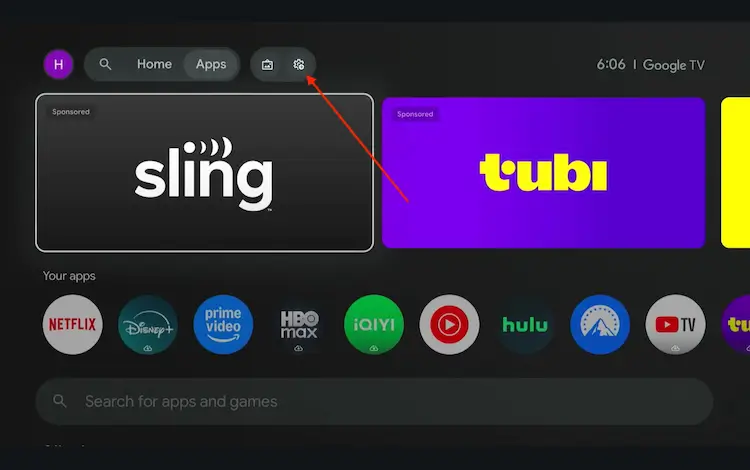
Settings icon on the Onn TV home screen
Select All Settings
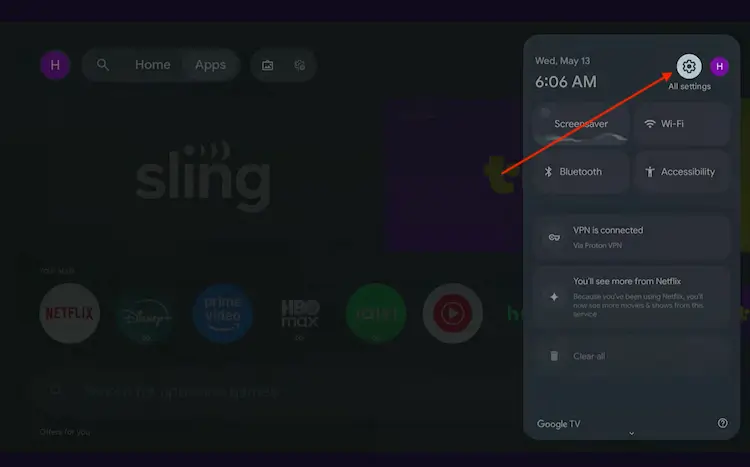
All Settings icon
Scroll down and select System, then choose About from the list.
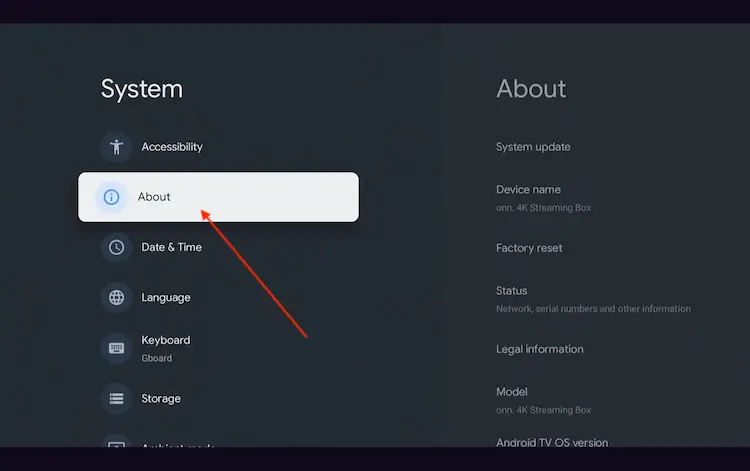
Navigate to System > About
Scroll to the bottom and click Android TV OS Build 7 times continuously until a pop-up says "You are now a developer."
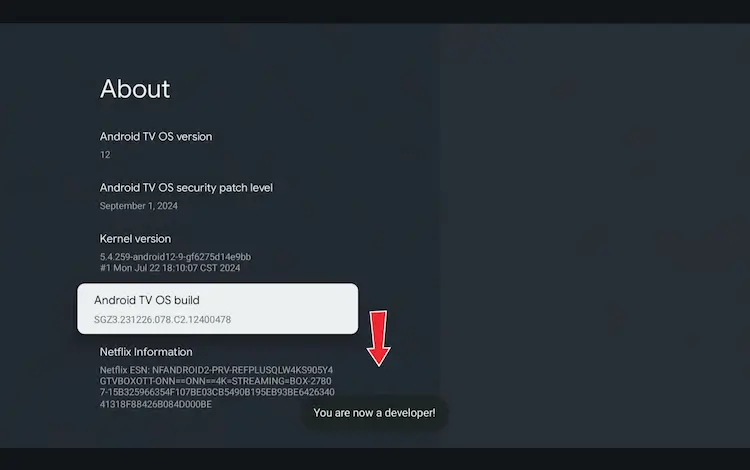
Click Android TV OS Build 7 times to unlock Developer Mode
Press the Home button on your remote, go to the top menu, and select Apps.
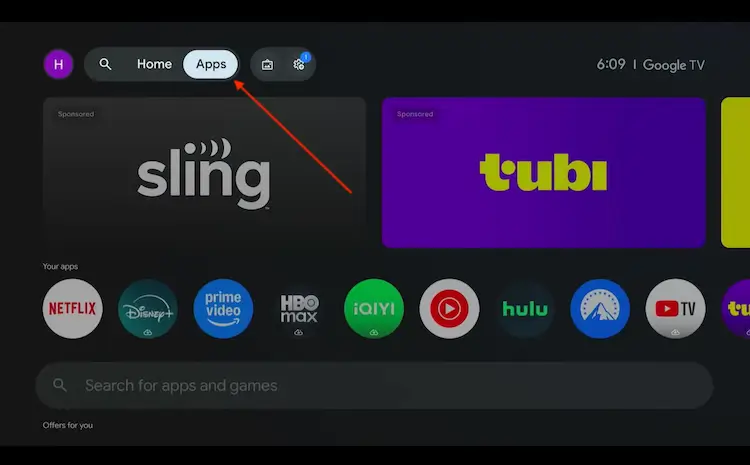
Back to the Onn TV home screen > Apps
Use the search bar and type Downloader and select the one at the top of the list
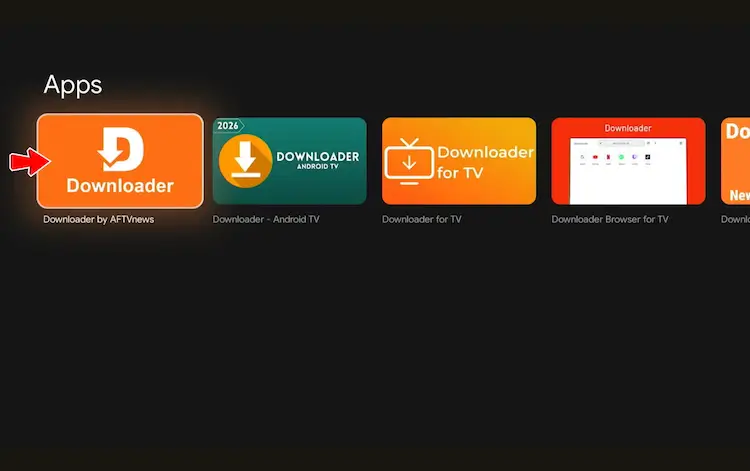
Select the Downloader app at the top of the search results
Click Install
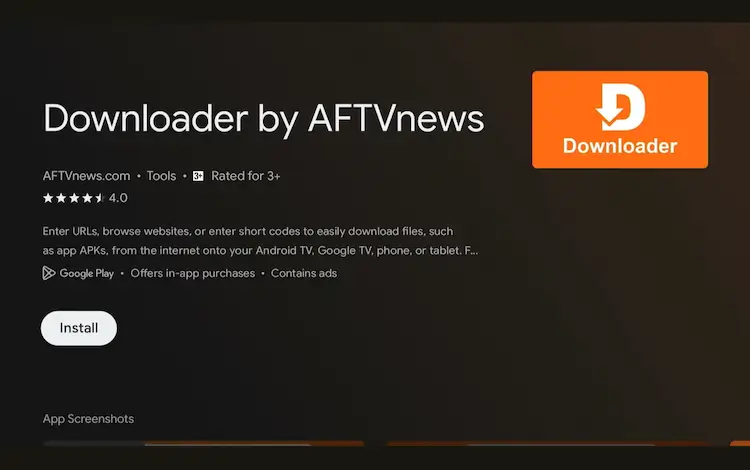
Press Install
Once installed, open the Downloader app and click on the URL/search bar.
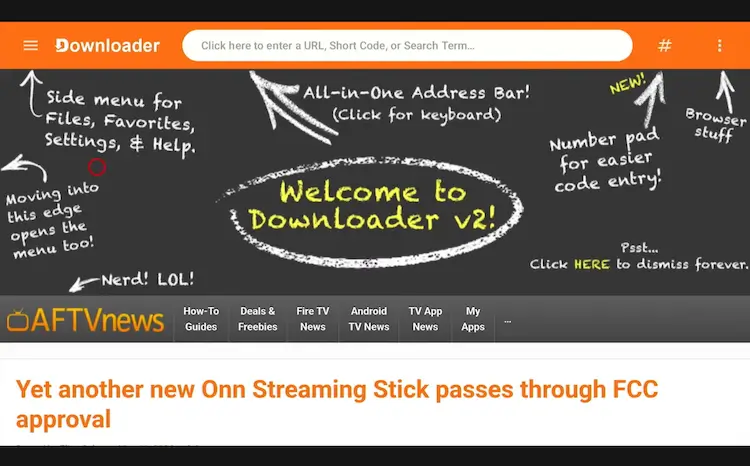
Open Downloader app > URL Search bar
Enter the exclusive Onn TV Hacks downloader code 8533602 below and press Go.
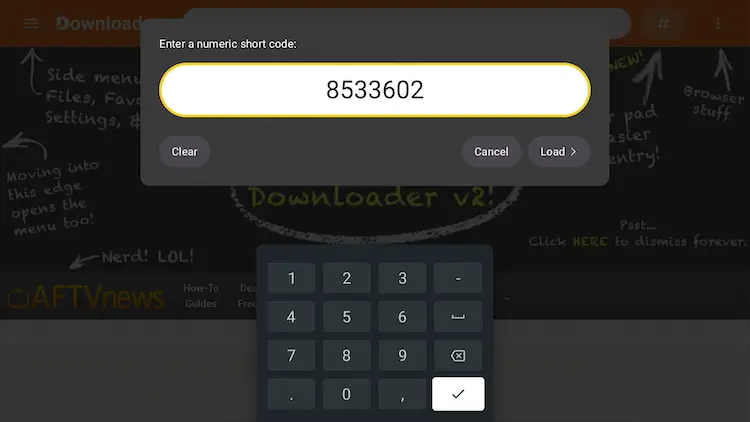
Add the popular 8533602 code
Scroll down and click on the “Sports Apps” category inside the downloads page.
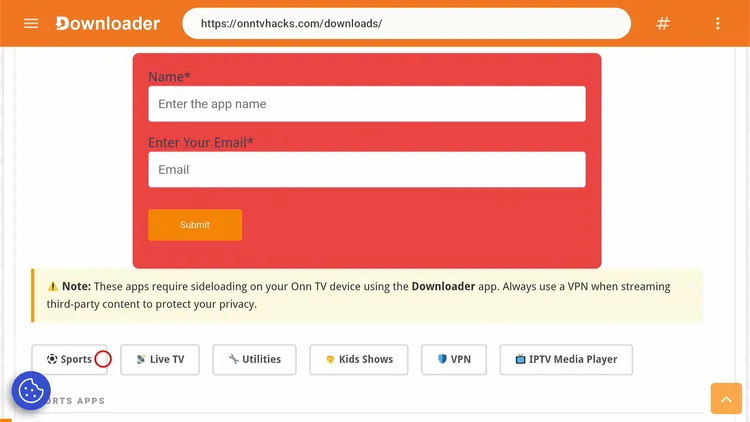
Scroll to the Sports Apps category
Search for GeeSports and click Download.
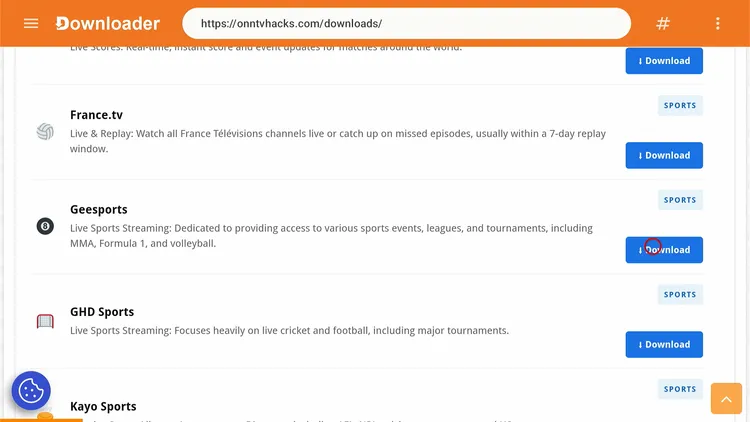
Tap “GeeSports” to start the download
Click the download icon.
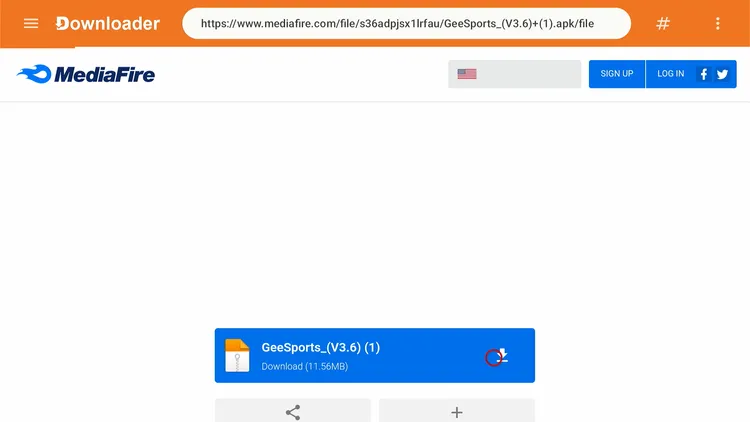
Tap the download icon
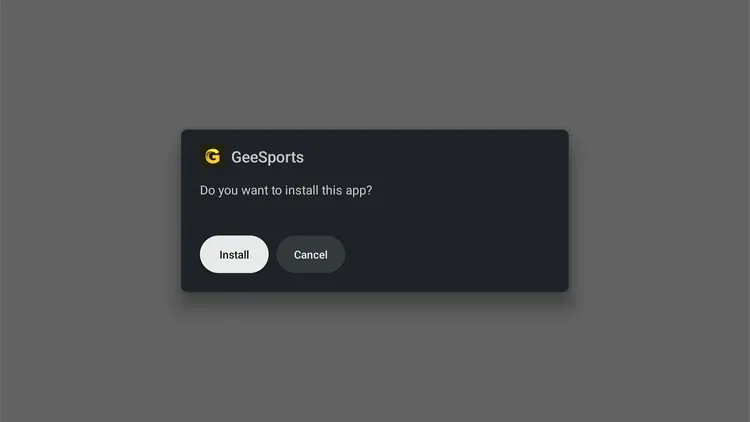
After downloading is finished, click Install.
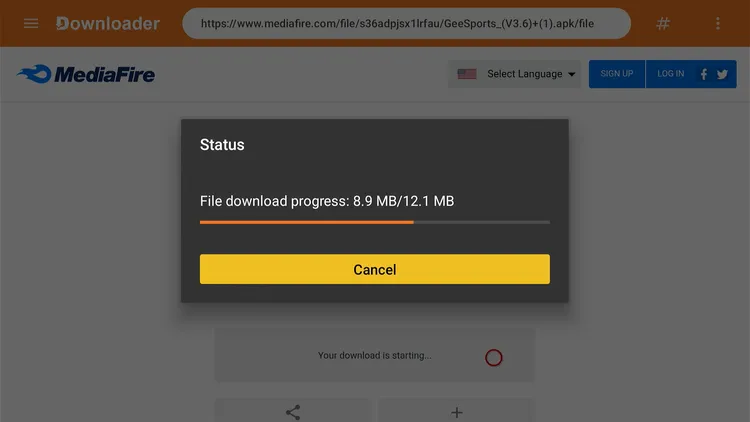
Tap “Install” and wait a few seconds
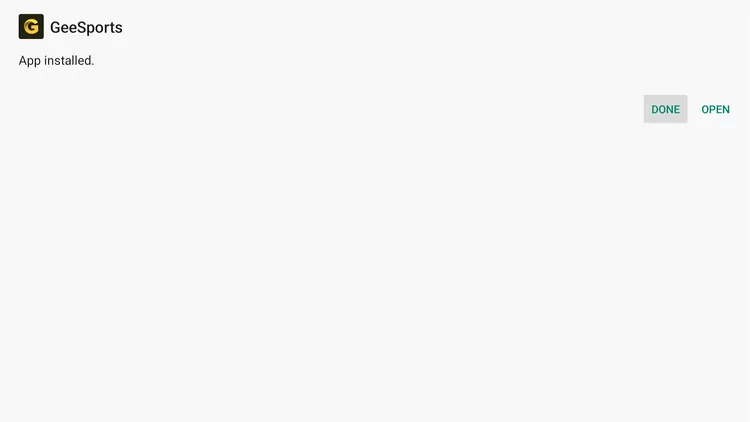
Once installed, click Done.
Tap “Done” to close the installer
Click Delete to remove the setup file and free up storage space.
Tap “Delete” to free up space
Click Delete again to confirm.
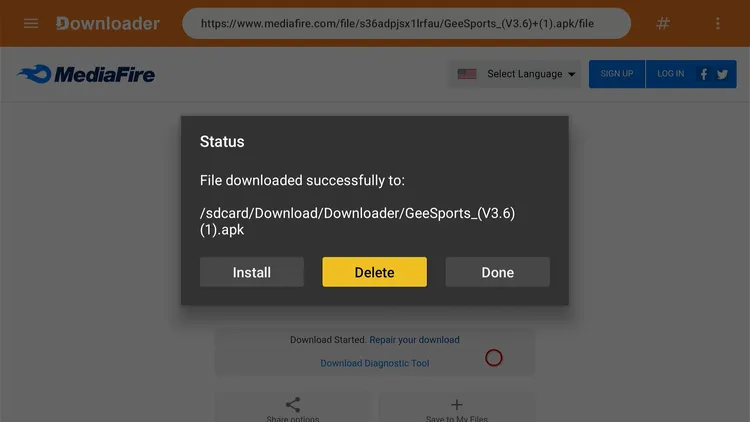
Confirm to finish the install process
🎉 Done! GeeSports is now installed on your Onn TV Box or Stick.
Get Surfshark — 87% Off Today →
Special limited-time deal · 30-day money back · No risk
How to Use GeeSports
Before you open the app, get your Surfshark VPN connected. It adds a layer of privacy while you stream.
Open your VPN app (e.g., Surfshark) and connect to a Hong Kong server to protect your privacy.
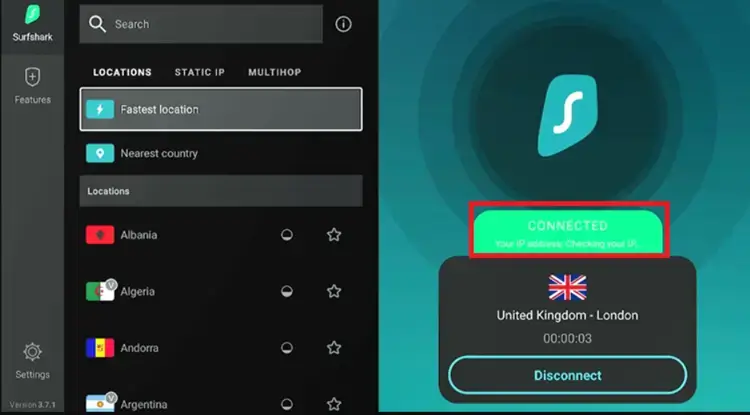
Connect to a Surfshark server before streaming
Go to your Onn Home page and open GeeSports.
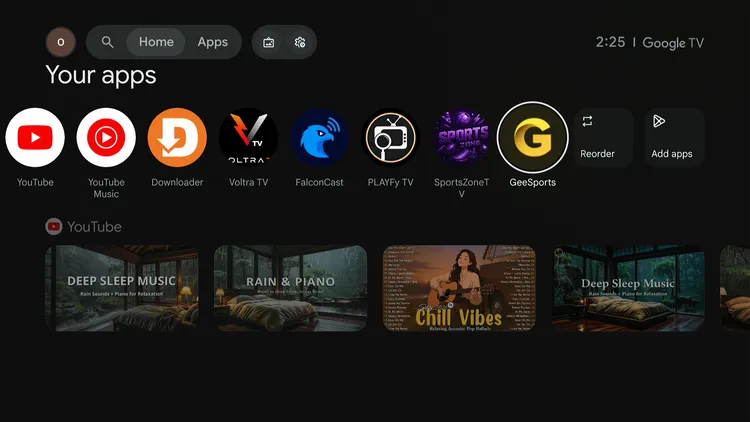
Home Page > GeeSports
This is the GeeSports interface. Choose any sports event from the list.
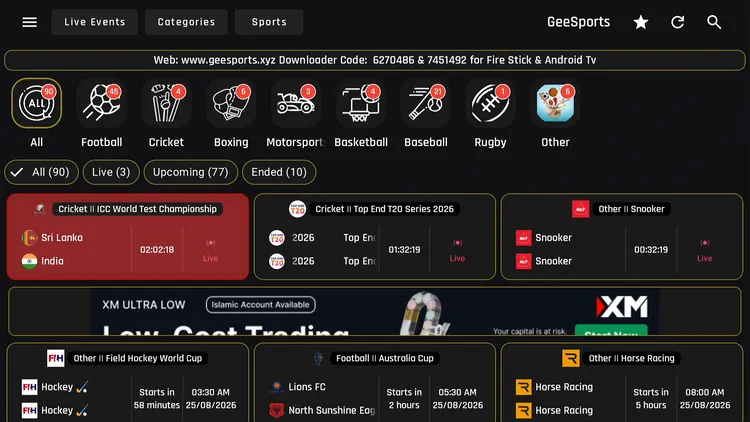
Choose a sports event from the list
Choose the channel.
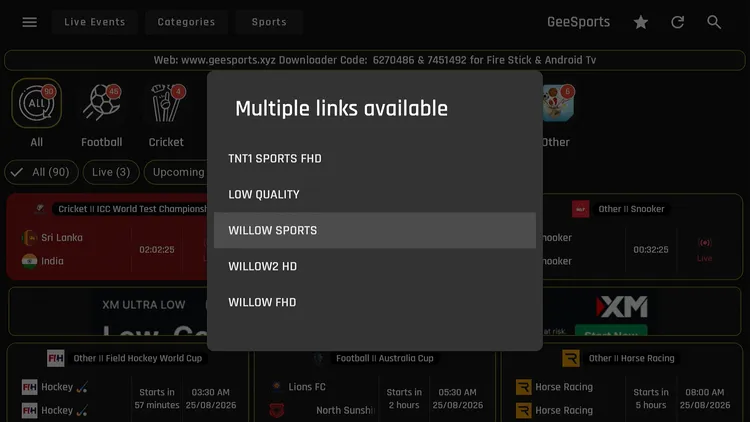
Select a channel
Enjoy streaming!
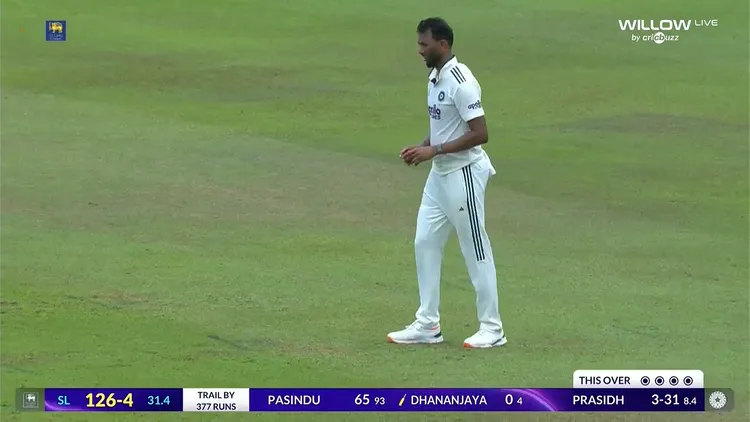
The event is now streaming
Under Categories, you’ll find many live TV channels.
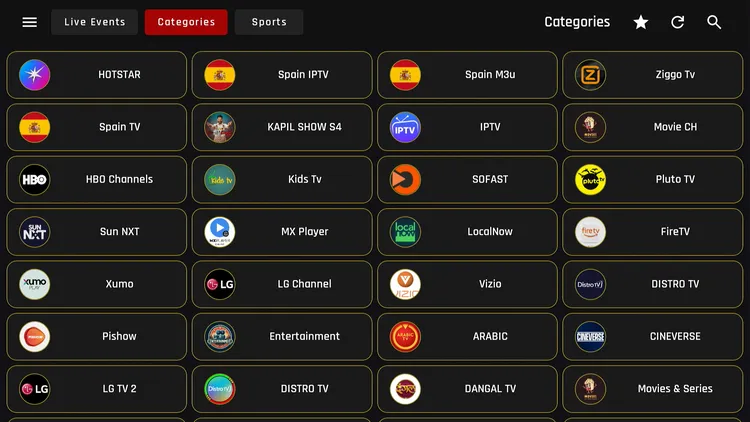
Browse live TV channels under Categories
Under Sports, you’ll find many sports channels and sports events.
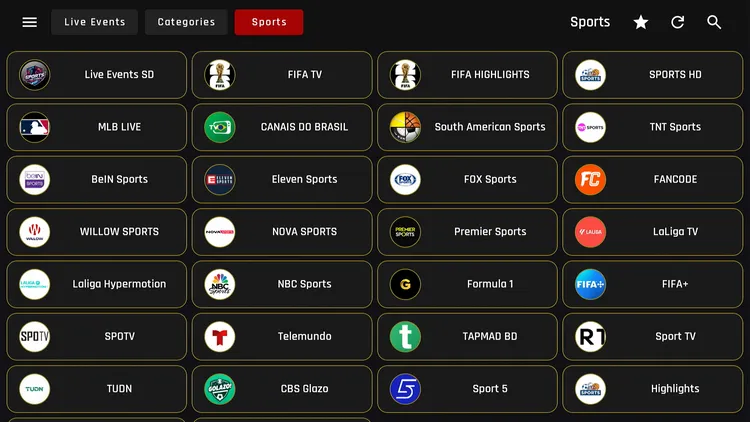
Browse sports channels and events under Sports
You can also adjust the streaming quality from the player settings if your stream is buffering.
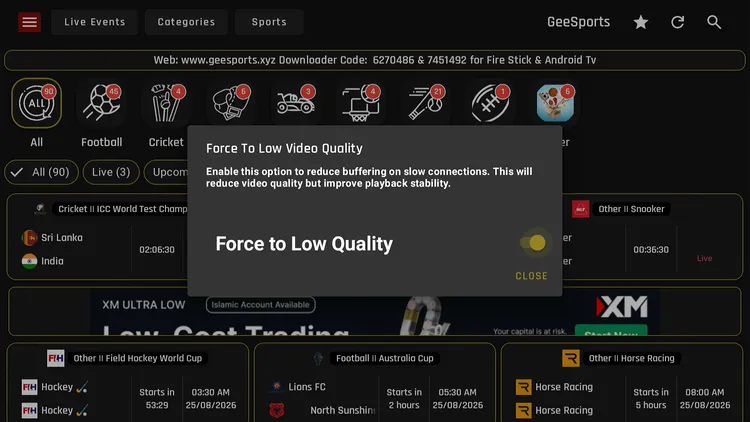
Adjust streaming quality
Get Surfshark — 87% Off Today →
Use GeeSports as an IPTV Player
GeeSports also works as an IPTV player, letting you load your own Xtream Codes or M3U playlists from any IPTV service you subscribe to.
Keep Surfshark VPN connected for your online privacy while you stream.
Connect to Surfshark VPN and connect to any server.
Connect to Surfshark VPN
From the left side menu, click Playlists.
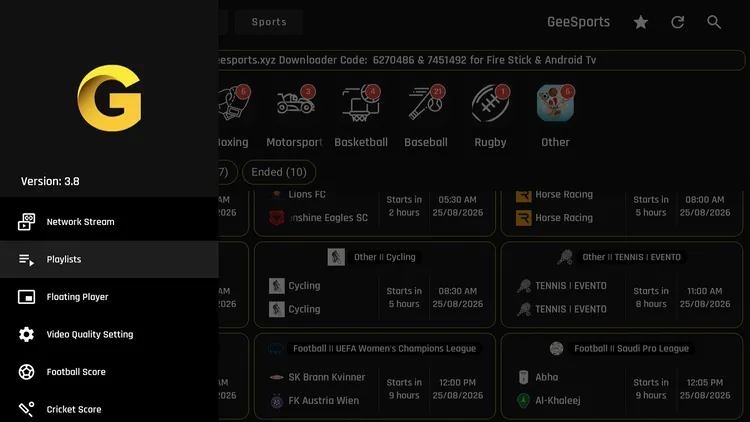
Tap “Playlists”
Choose Xtream Codes or M3U URL to load your channels.
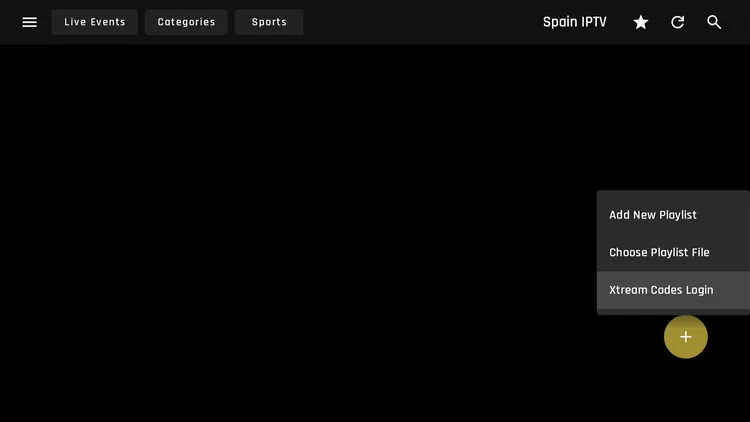
Choose Xtream Codes or M3U URL
🎉 Once loaded, choose your channel from the list to start streaming.
Get Surfshark — 87% Off Today →
Special limited-time deal · 30-day money back
GeeSports Content Review
GeeSports leans sports-first, with live scores and a solid spread of live TV mixed in. You’ll typically find:
- Live football, PPV, cricket, darts, and tennis streams
- Live scores for football and cricket right in the app
- A dedicated Sports tab with sports channels and events
- A Categories tab with a range of general live TV channels
- Support for custom M3U and Xtream Codes playlists via the built-in IPTV player
Sports streaming on GeeSports held up well in our testing, with little to no buffering and quick channel switching.
The floating player is the one weak spot — it’s meant to let you watch multiple streams at once, but it didn’t work as expected.
GeeSports Features
Here’s what stands out about running GeeSports on your Onn TV Box or Stick:
🆓
Free
No cost to install or use
⚽
Live Sports
Football, cricket, WWE & MotoGP
📺
Live TV Channels
A wide spread of channels under Categories
🚫
Ad-Free
No ad interruptions while streaming
📊
Live Score
Real-time scores for football and cricket
🎚️
Adjustable Streaming Quality
Tune the resolution right from player settings
📶
Little to No Buffering
Smooth playback in day-to-day use
✅
No Registration Process
Install and start streaming right away
Is GeeSports Safe & Legal to Use?
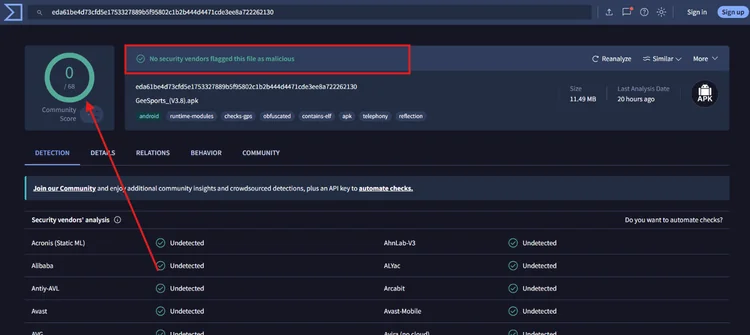
GeeSports itself clearly states it sources its links from third-party providers, so there’s no built-in guarantee that every stream holds proper redistribution rights.
I ran the current APK through VirusTotal before installing to confirm the file itself isn’t carrying anything malicious. For your online privacy, always connect Surfshark before opening GeeSports.
Get Surfshark — 87% Off Today →
Special limited-time deal · 30-day money back · No risk
📌 Other Onn TV Apps We’ve Covered
About GeeSports
Here’s a quick snapshot of the GeeSports app:
| Detail | Info |
|---|---|
| Content Type | Live Sports |
| Price | Free |
| File Size | 21.1 MB |
| Version | 3.6 |
| Safe to Use? | No malware or virus detected. But always use VPN. |
| Developer | GeeSports |
| External Player | No |
Frequently Asked Questions
Is GeeSports available in the Onn TV app store?
No, it isn’t listed officially. You need to sideload it using the Downloader app, as covered in the install steps above.
Does GeeSports work on both the Onn TV Box and the Stick?
The install steps are the same on the Onn TV Box and the Onn TV Stick. Jailbreak the device, install the Downloader app, and follow the steps above.
Is GeeSports free to use on Onn TV?
Yes. GeeSports is free to install and use, with no ads and no sign-up.
Does GeeSports have ads?
No, GeeSports runs completely ad-free.
Do I need to create an account to use GeeSports?
No sign-up is required. Just install and start streaming.
Can I add my own IPTV playlist to GeeSports?
Yes. Open Playlists from the left-side menu and choose Xtream Codes or M3U URL to load a playlist from your own IPTV service.
What sports can I watch on GeeSports?
GeeSports covers football, PPV, cricket, darts, tennis, WWE, and MotoGP, plus live TV channels under the Categories tab.
Why does GeeSports keep buffering on my Onn TV?
Buffering is usually caused by network congestion or a slow ISP route. Lowering the streaming quality from the player settings, connecting via Ethernet, or switching your Surfshark server can help.
Conclusion
GeeSports is a genuinely underrated pick for free, ad-free live sports on your Onn TV Stick or Box, no subscription or account needed. Easy setup through the Downloader app, and the built-in IPTV player is a nice bonus.
Just make sure to keep a VPN running for your online privacy any time you stream. Surfshark VPN is our recommended choice
📌 Found this guide useful? Check out our full roundup of the Best Apps for Onn TV for more streaming options.