 Onn TV Hacks Master Your Onn TV with Expert Guides, Hacks, & Apps
Quick Answer: To remove ads, sponsored tiles, and app recommendations from your Onn TV home screen, install the free Launcher Manager Mini app and switch to a custom launcher like Projectivy Launcher.
Out of the box, your Onn TV device’s home screen is packed with sponsored ads, banners, and app suggestions you never asked for.
All that clutter makes finding your actual apps harder.
Launcher Manager Mini is a free app that lets you swap the default Onn home screen for a custom launcher, giving you a clean, ad-free layout that opens automatically every time you turn your device on.
📋 Table of Contents
Watch: Video on How to Remove Ads from Onn TV Home Screen
How to Remove Ads from Onn TV Home Screen
To remove ads from your Onn TV home screen, you’ll need to install Launcher Manager Mini using the Downloader app, then activate it with a free companion app on your phone called ATV Tools.
It takes about five minutes.
If you haven’t set up Downloader yet, complete steps 1–8 to jailbreak your Onn TV first. Otherwise, skip straight to step 9.
Go to Onn TV Home and then click on the Settings icon
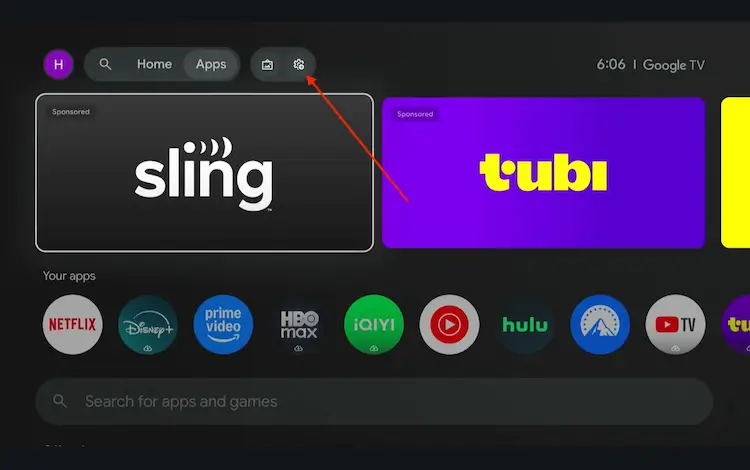
Settings icon on the Onn TV home screen
Select All Settings
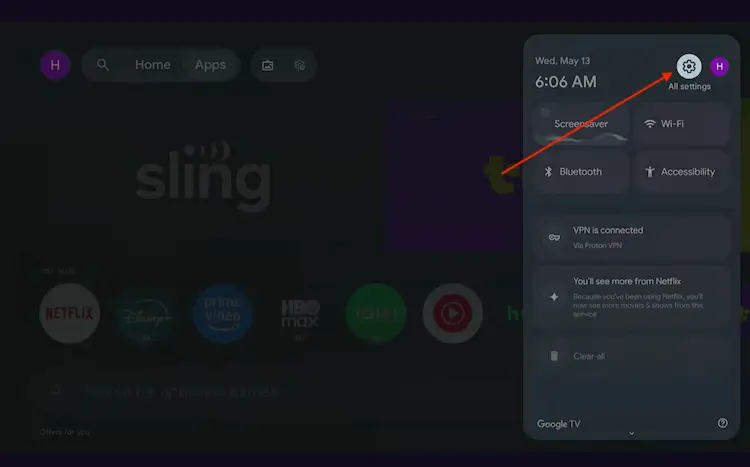
All Settings icon
Scroll down and select System, then choose About from the list.
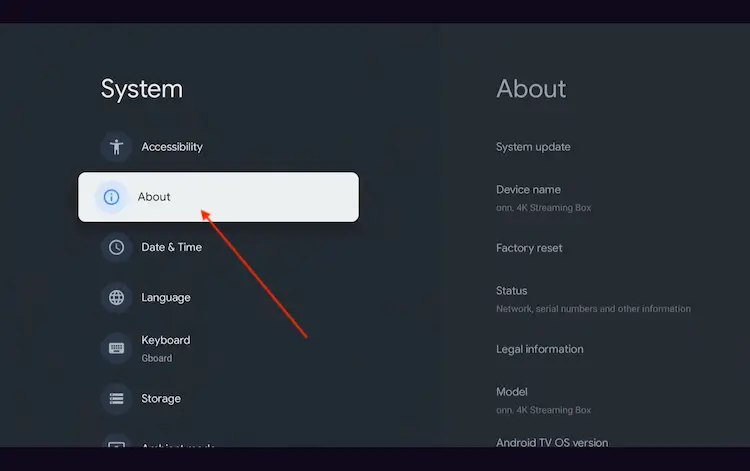
Navigate to System > About
Scroll to the bottom and click Android TV OS Build 7 times continuously until a pop-up says "You are now a developer."
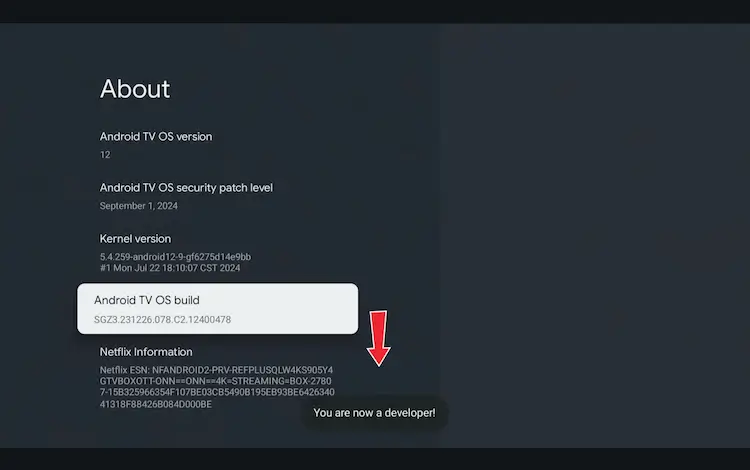
Click Android TV OS Build 7 times to unlock Developer Mode
Press the Home button on your remote, go to the top menu, and select Apps.
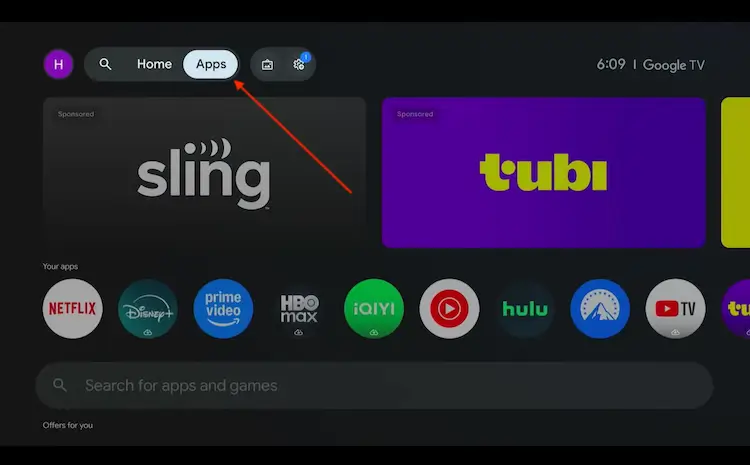
Back to the Onn TV home screen > Apps
Use the search bar and type Downloader and select the one at the top of the list
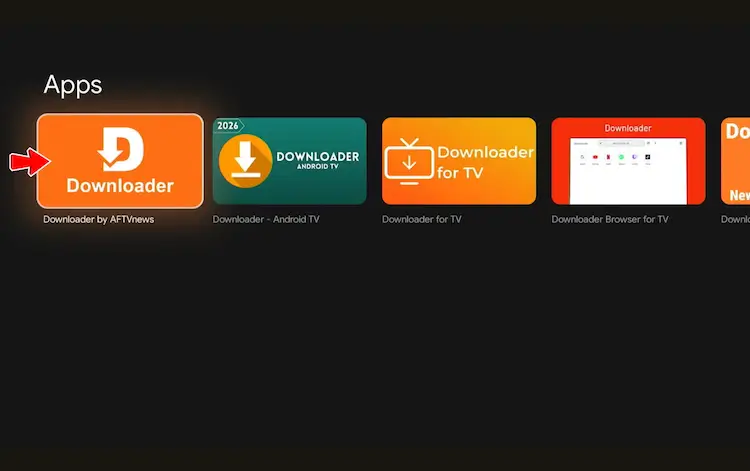
Select the Downloader app at the top of the search results
Click Install
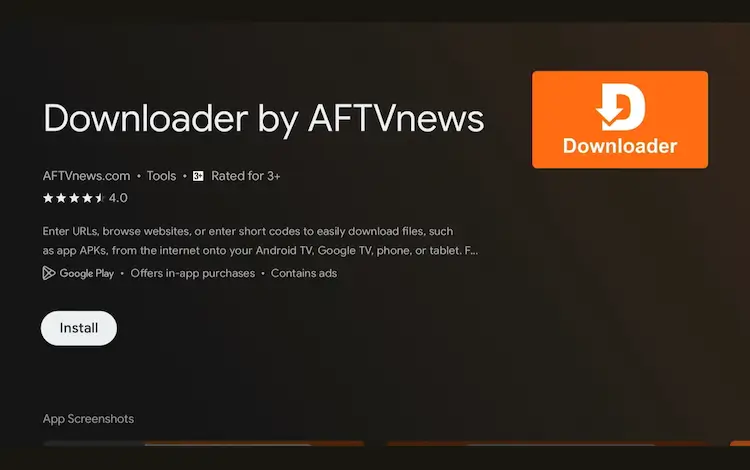
Press Install
Once installed, open the Downloader app and click on the URL/search bar.
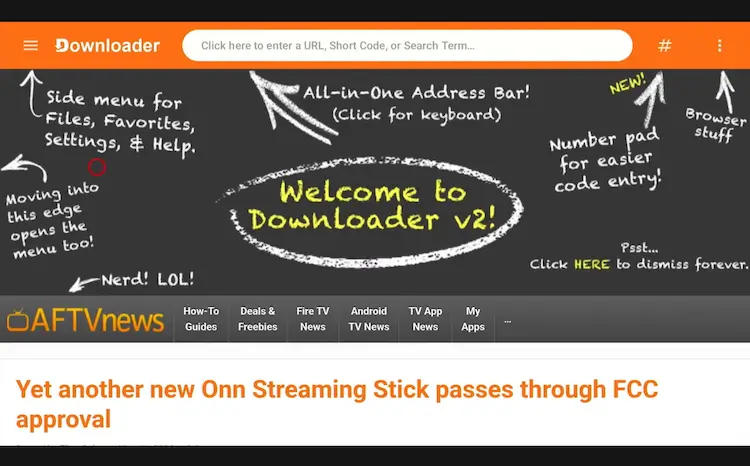
Open Downloader app > URL Search bar
Enter the exclusive Onn TV Hacks downloader code 8533602 below and press Go.
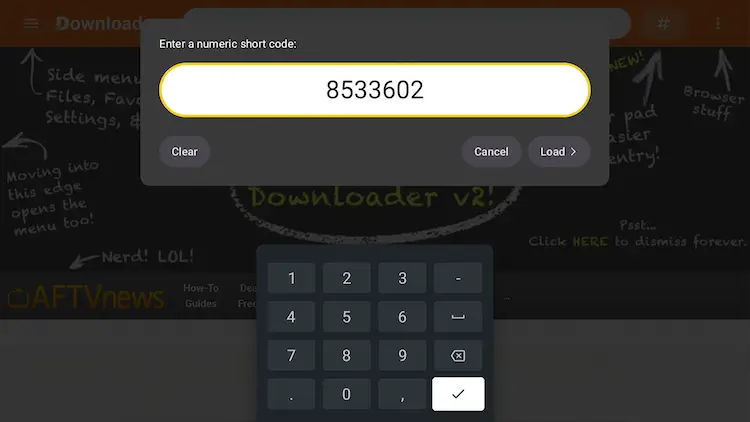
Add the popular 8533602 code
Scroll down to the category section and select Utilities.
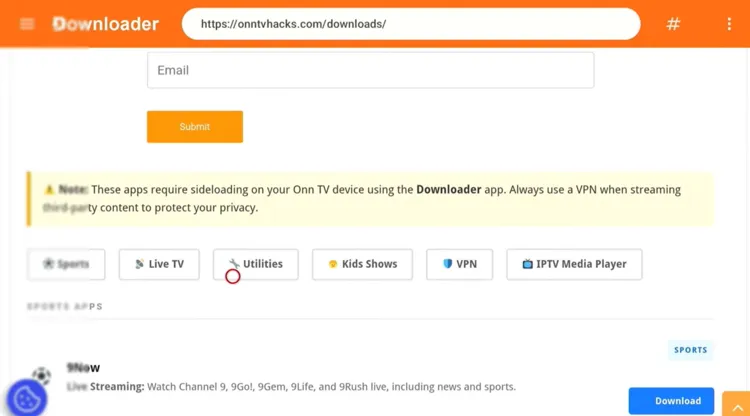
Select the “Utilities” category
Scroll down until you find the Launcher Manager Mini app, then tap it to start the download.
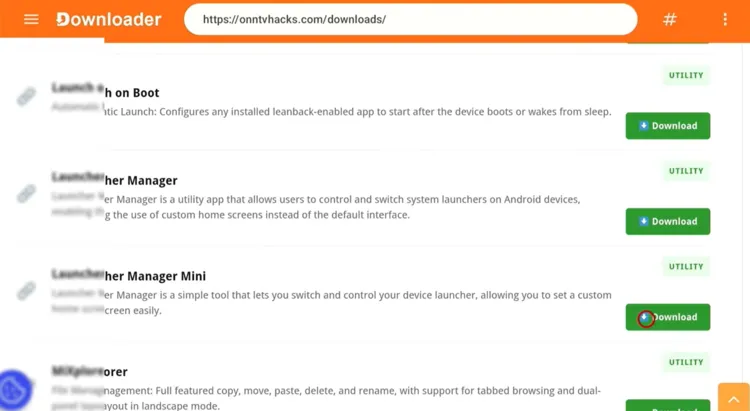
Find and select Launcher Manager Mini
It will start downloading.
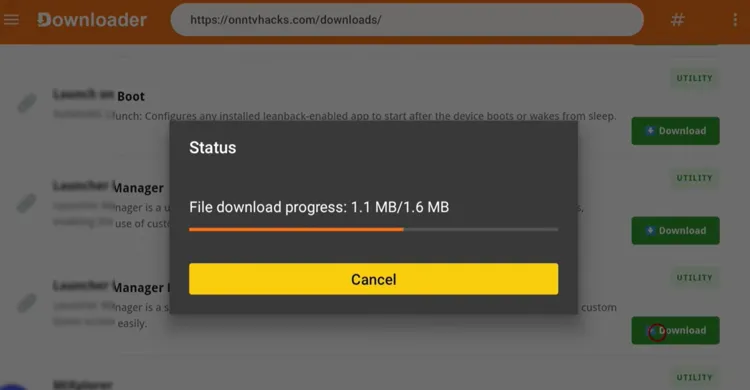
Launcher Manager Mini downloading
Once it finishes downloading, tap Install.
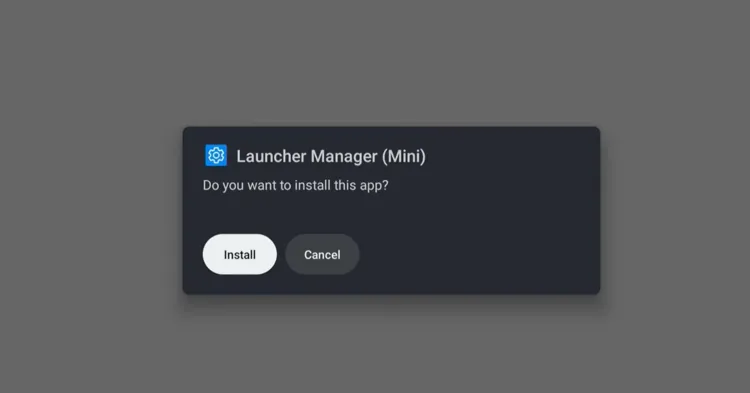
Tap “Install”
Tap Done once the installation is complete.
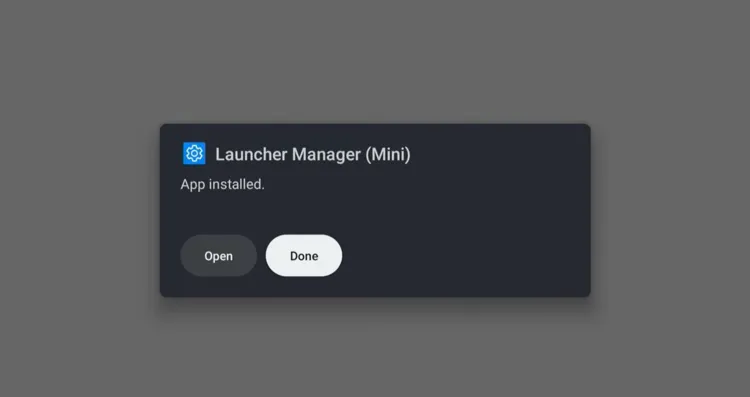
Tap “Done” after installation finishes
When prompted, tap Delete to remove the installation file and free up storage.
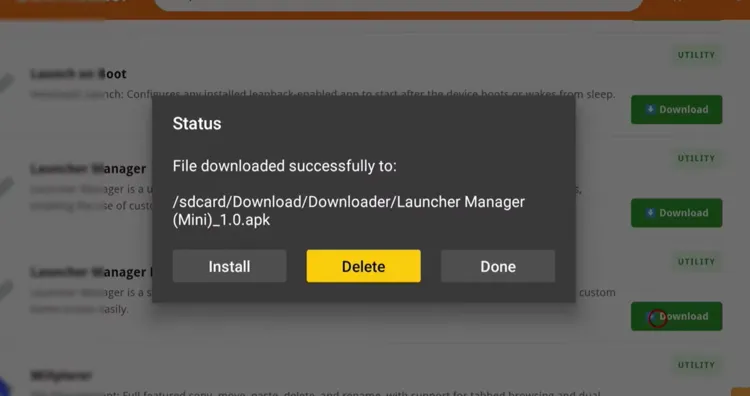
Tap “Delete” to remove the installation file
Tap Delete again to confirm.
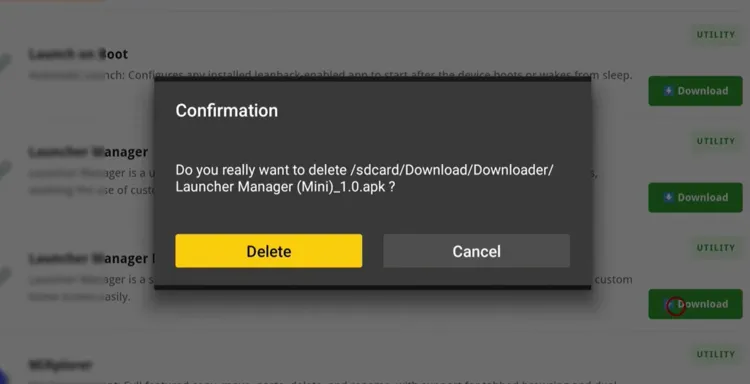
Confirm the delete prompt
Go back to your home screen and open Launcher Manager Mini.
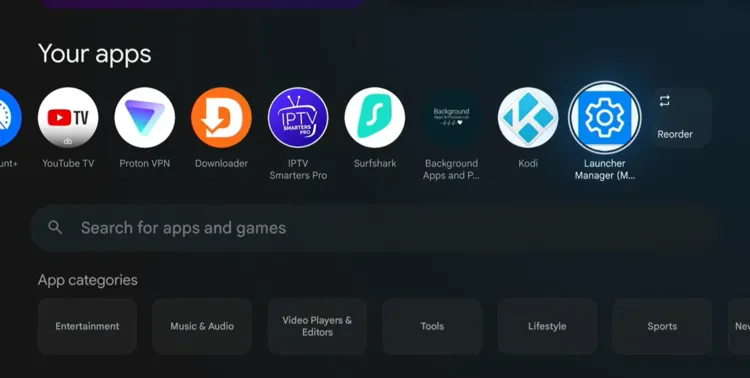
Launch Launcher Manager Mini
It will show as inactive. To activate it, install the free ATV Tools app on your phone, tap Onn TV Streaming 4K Box, and connect it to your Onn TV device over the same Wi-Fi network.
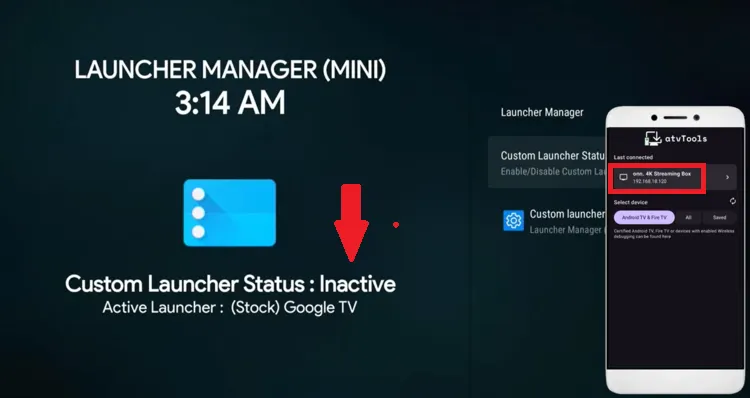
Connect ATV Tools to your Onn TV device
Tap Allow to confirm the connection.
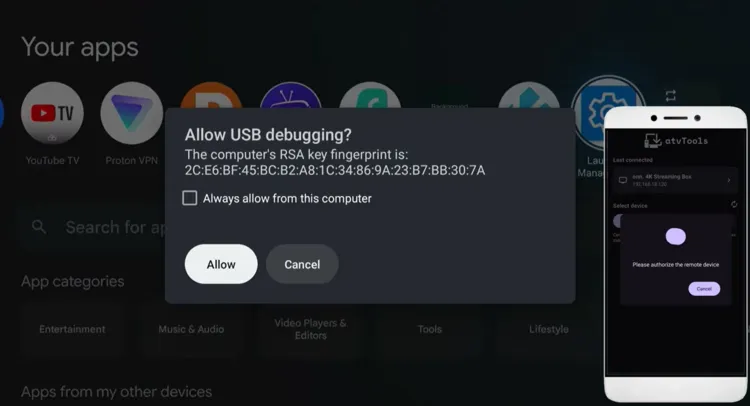
Tap “Allow”
Once connected, open the Shell icon inside the ATV Tools app.
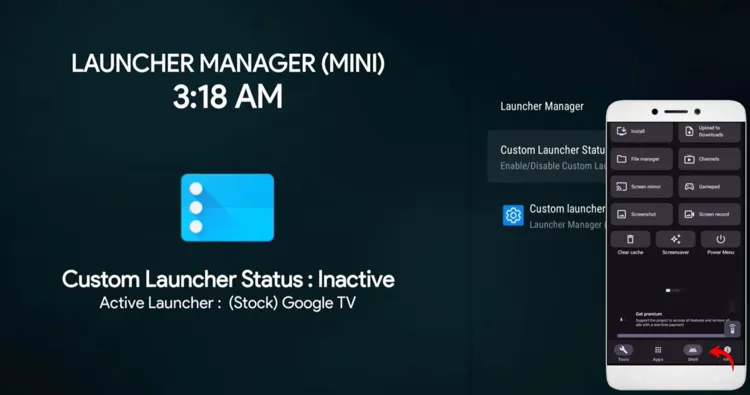
Open the Shell icon
Enter this exact command: adb shell pm grant com.wolf.minilm android.permission.READ_LOGS
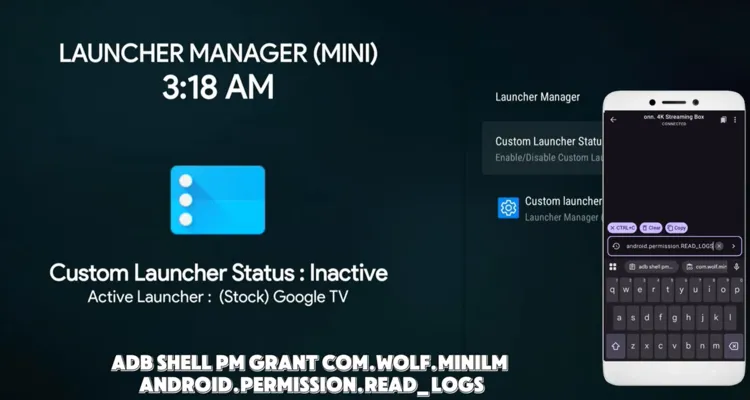
Enter the activation command
Once the command runs, close ATV Tools on your phone. Then close and reopen Launcher Manager Mini on your Onn TV. Tap Custom Launcher Status — it will now show as Active.
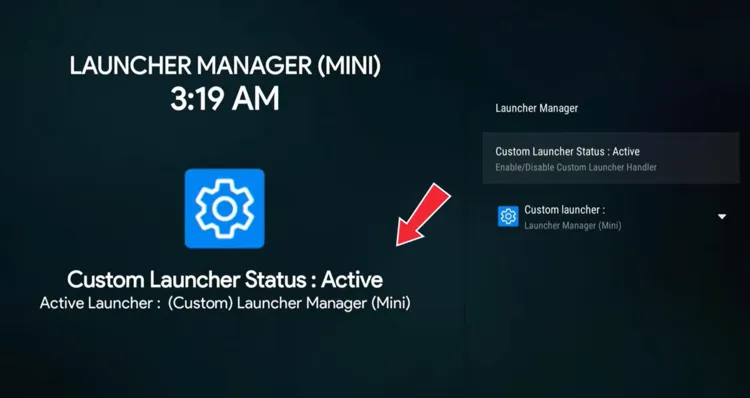
Custom Launcher Status becomes “Active”
Tap Custom Launcher and select Projectiviy Launcher.
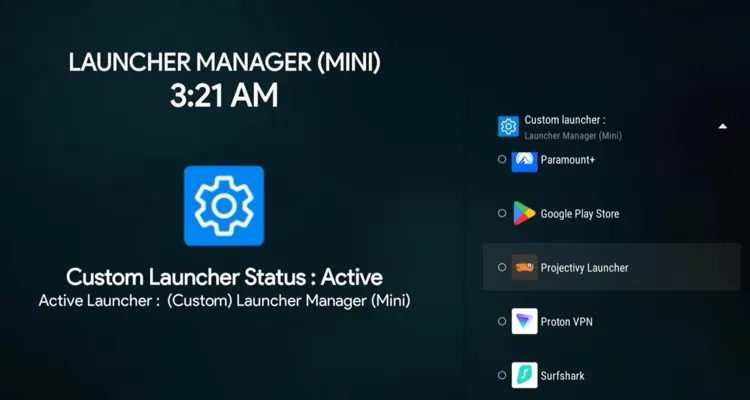
Select Projectivy Launcher as your custom launcher
Restart your Onn TV device and wait a few seconds for it to boot back up.
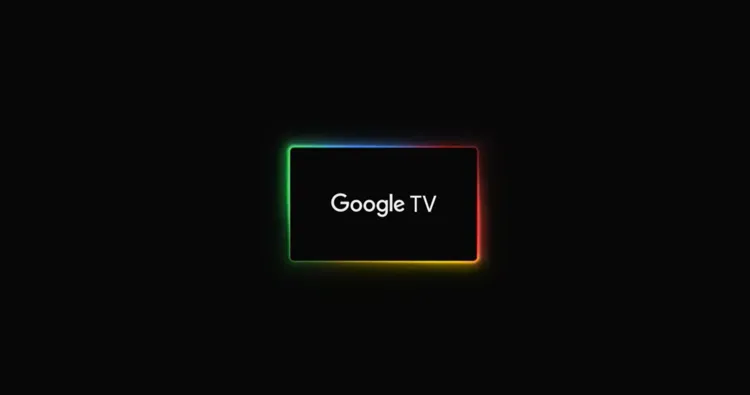
Restart your Onn TV device
Projectivy Launcher will now open automatically every time your Onn TV starts.
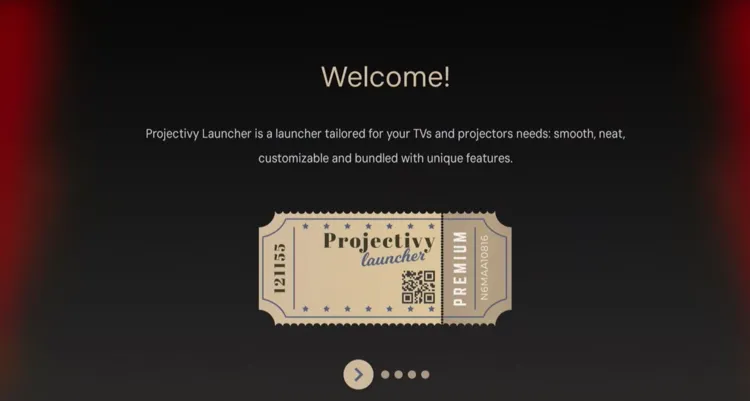
Onn TV now boots straight into Projectivy Launcher
Done! You’ll see a clean, ad-free home screen.
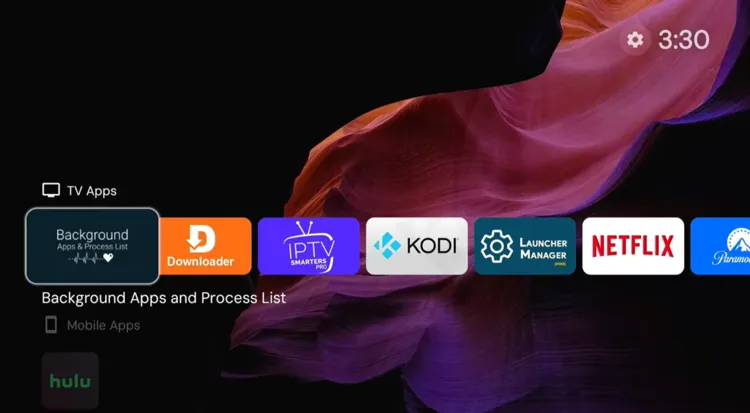
Final ad-free home screen, ready to use
Why Onn TV Shows So Many Ads on the Home Screen
Onn TV devices run on Google TV, and the default launcher is built to surface sponsored content, streaming service banners, and app recommendations right on your home screen.
There’s no built-in setting to turn this off.
The only way around it is to replace the default launcher with a third-party one that skips the ads entirely — that’s exactly what Launcher Manager Mini does.
📌 Related Onn TV Guides
- How to Close Background Apps on Onn TV — stop buffering caused by apps running in the background.
- Enable Developer Option on Onn Device — useful if you want to go further with ADB tools like the ones used here.
- How to Jailbreak Onn TV — unlock even more from your Onn device.
Frequently Asked Questions
1. Is it safe to install a custom launcher on Onn TV?
Yes. Installing Launcher Manager Mini and a custom launcher like Projectivy Launcher doesn’t modify your device’s system files — it simply changes which app opens as your home screen. You can always switch back to the default launcher at any time.
2. Does this remove ads from apps too, or just the home screen?
This method only removes the sponsored tiles and recommendations on the home screen. It doesn’t remove ads shown inside individual streaming apps, since those are controlled by each app separately.
3. Do I need my phone every time I want to use my Onn TV?
No. Your phone and the ATV Tools app are only needed once, to activate Launcher Manager Mini. After that, your Onn TV will boot straight into the custom launcher on its own.
4. Are Launcher Manager Mini and ATV Tools free to use?
Yes, both apps are completely free. Launcher Manager Mini is available through our Downloader code 8533602 under the Utilities category, and ATV Tools can be installed for free on your phone.
5. Can I switch back to the default Onn home screen later?
Yes. Simply open Launcher Manager Mini again, tap Custom Launcher, and select the default Onn launcher instead of Projectivy Launcher.
Final Verdict
The ads and clutter on your Onn TV home screen aren’t something you’re stuck with.
With Launcher Manager Mini and a custom launcher like Projectivy Launcher, you get a clean, ad-free home screen that opens automatically every time you turn your device on.
📌 Found this guide useful? Share it with your friends or drop a comment below. Check out our Best Apps for Onn TV guide to install tons of useful apps on Onn TV.
