 Onn TV Hacks Master Your Onn TV with Expert Guides, Hacks, & Apps

Written and tested by Black Joseph
Updated November 4, 2026
When you buy through our links, we may earn a commission. See how we work with brands here.
Quick answer: To install IPVanish on an Onn TV Box or Stick, search for IPVanish in the Google Play Store, or sideload it with Downloader using the code 8533602.
IPVanish is a premium VPN with a self-owned network of 3,400+ servers in 150+ locations, and it’s one of the most capable VPNs for your Onn TV Box or Stick.
Since IPVanish owns its own hardware instead of renting it, it has tighter control over privacy and security across its network.
One thing that sets IPVanish apart is unlimited simultaneous device connections on a single account, so you can cover all your devices. Plans start at about $2.19/month on a 2-year term, backed by a 30-day money-back guarantee.
📋 Table of Contents — tap to expand
Featured VPN for Onn TV
IPVanish
3,400+ self-owned servers, unlimited device connections, and a straightforward setup on Onn TV.
Get IPVanish — 87% Off Today →
Disclaimer: OnnTVHacks does not host, operate, or verify the licensing status of any third-party apps, websites, or streaming services mentioned on this site. We do not own or resell any media content.
IPVanish Quick Overview
Before getting into the installation, here’s the short version of what you’re getting with IPVanish on Onn TV:
| Detail | Info |
|---|---|
| 📱 Platform | Google TV / Android TV (available on Google Play Store) |
| 📺 Onn Models Supported | Onn 4K, Onn 4K Plus, Onn 4K Pro, Onn 4K Stick |
| 📥 Install Method | Google Play Store or Downloader app |
| 💰 Price | From about $2.19/month on a 2-year plan (promotional) |
| 🆓 Free Version | Not available |
| ↩️ Money-Back Guarantee | 30 days |
| 🌍 Servers | 3,400+ servers in 150+ locations |
| 🔐 Protocols | WireGuard, OpenVPN (UDP/TCP), IKEv2 |
| 📶 Devices | Unlimited simultaneous connections per account |
How to Subscribe to IPVanish
To use IPVanish, you’ll need to sign up and choose a subscription plan on ipvanish.com first, from a phone, PC, or laptop.
You can pay using major credit cards or PayPal, and every plan comes with a 30-day money-back guarantee.
Go to IPVanish’s website from your laptop and click Get Started.
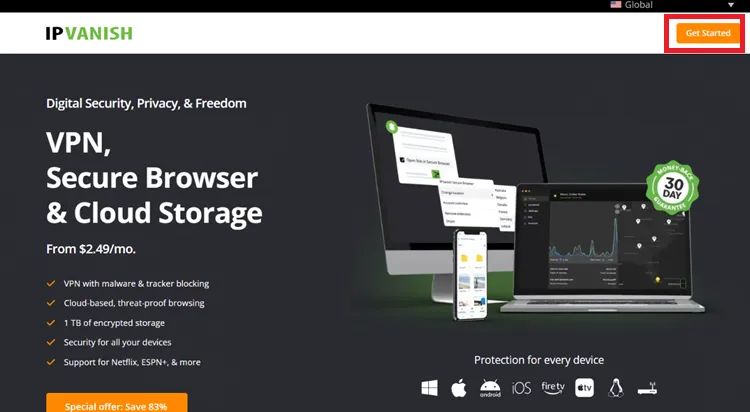
IPVanish website
Choose the plan you want (Essential or a higher tier, on a monthly, yearly, or two-year term).
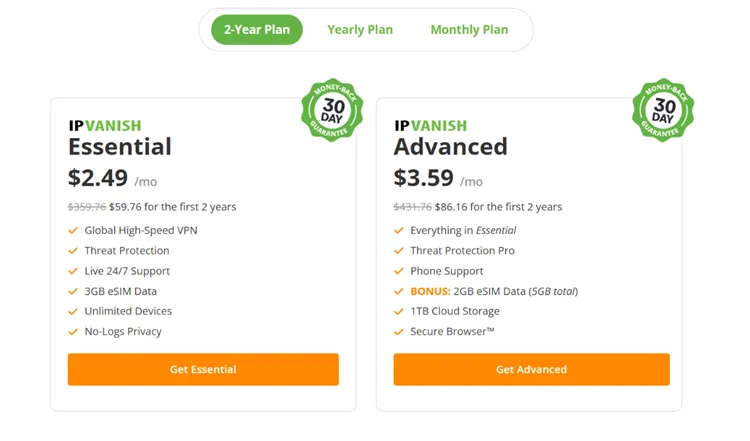
Choose the plan
Enter your details and choose a payment method to complete the purchase.
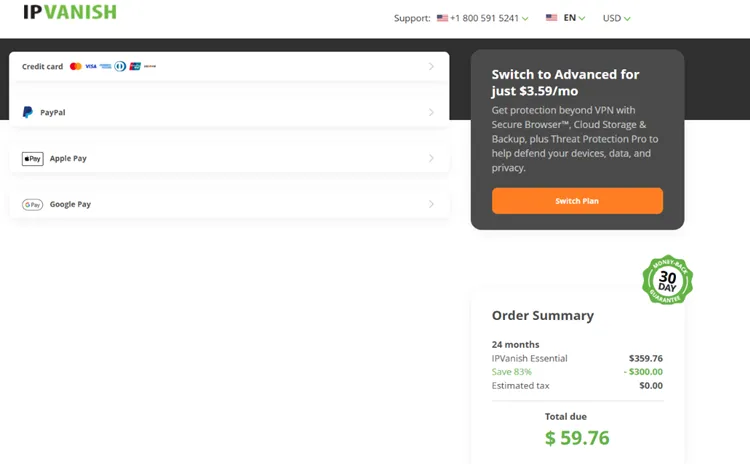
Enter your details and pay
Method 1: Install IPVanish From the Google Play Store
You can install the IPVanish app directly from the Google Play Store on your Onn TV. Here’s how:
Go to the Onn TV home screen and select Apps from the top menu.
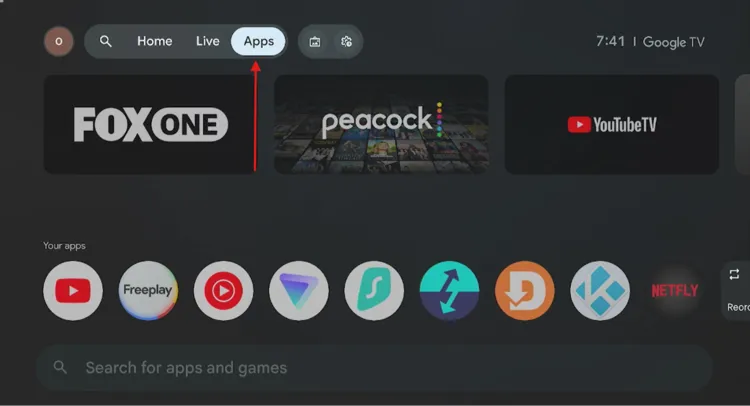
Home screen > Apps
Scroll down and select the Search bar.
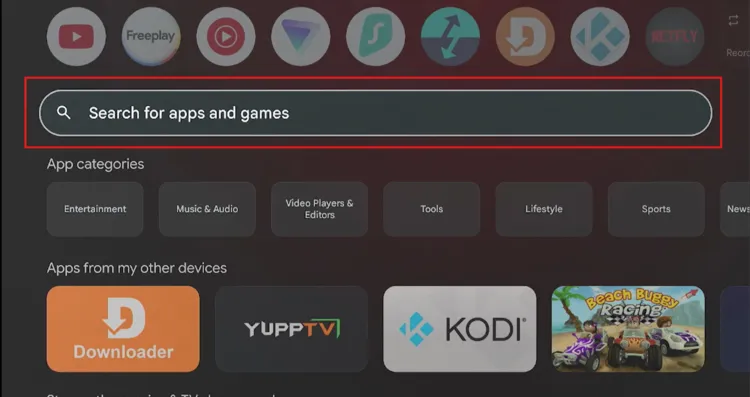
Select the search bar
Type “IPVanish” and select the search icon.
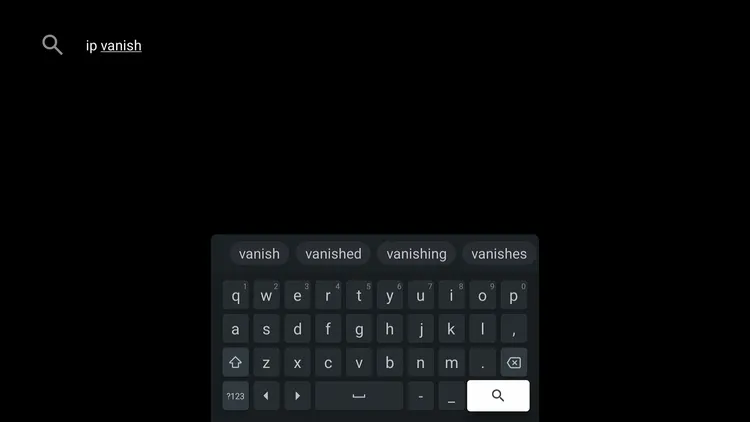
Search “IPVanish”
Select IPVanish from the search results.
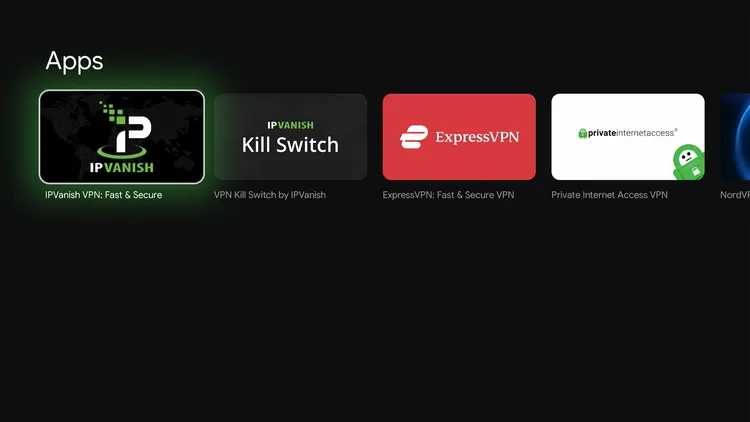
Select “IPVanish”
Select Install.
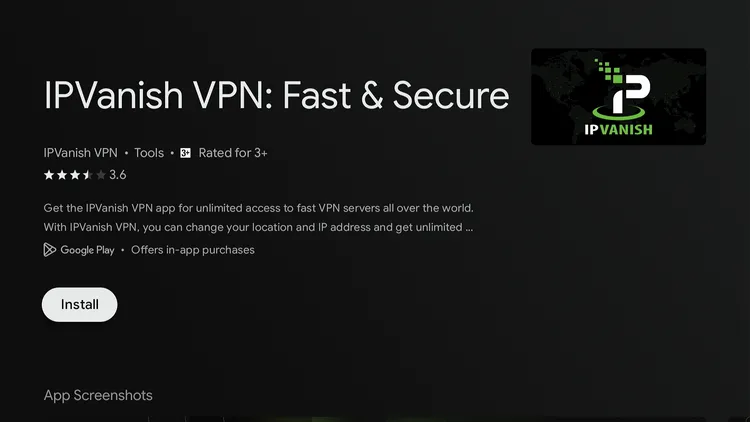
Select “Install”
Once finished, select Open to launch IPVanish.
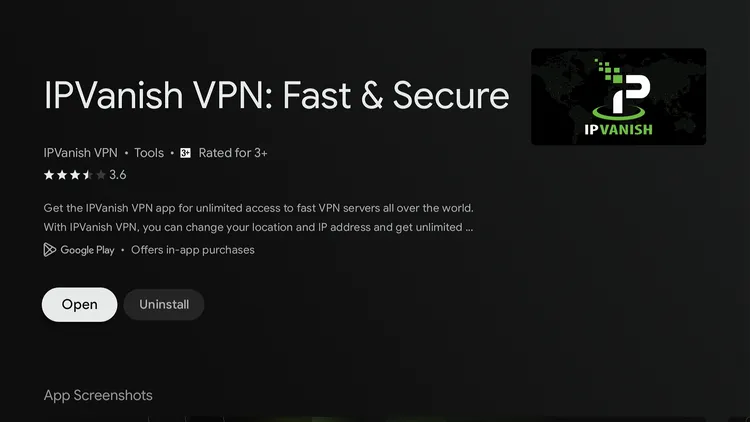
Select “Open”
Method 2: Install IPVanish on Onn TV Box/Stick Using Downloader
In case Method 1 doesn’t work, or the IPVanish app isn’t showing up in your region’s Play Store, you can sideload it on your Onn TV Box or Stick using the Downloader app.
This also lets you install a specific version if you ever run into a Play Store installation error.
If you haven’t jailbroken your Onn TV yet or don’t have the Downloader app installed, follow the steps below first. Otherwise, skip to step 10.
Go to Onn TV Home and then click on the Settings icon
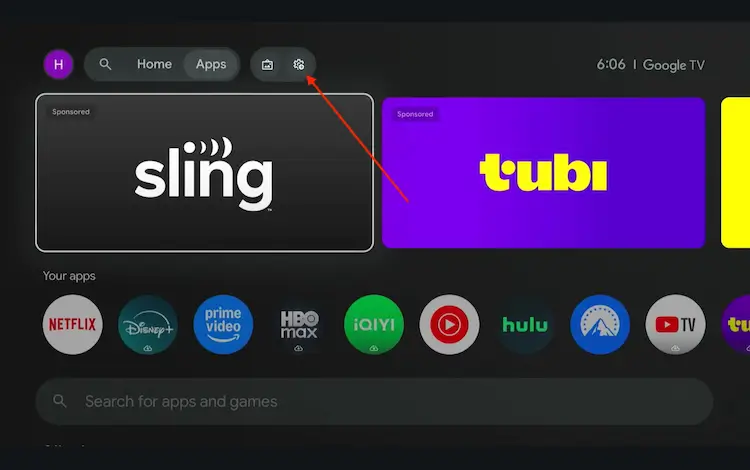
Settings icon on the Onn TV home screen
Select All Settings
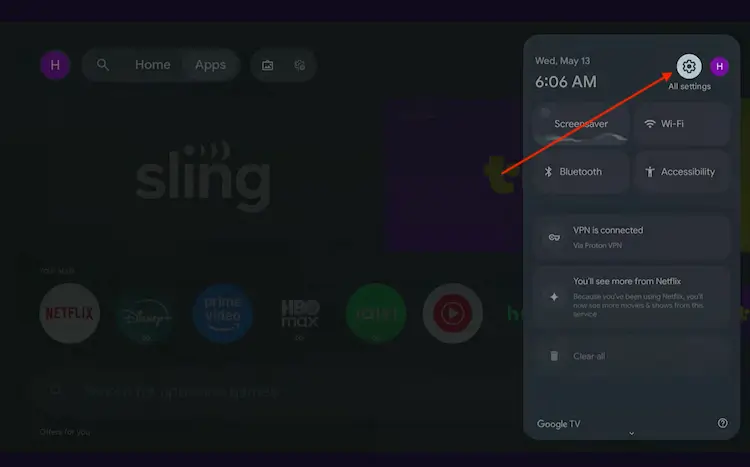
All Settings icon
Scroll down and select System, then choose About from the list.
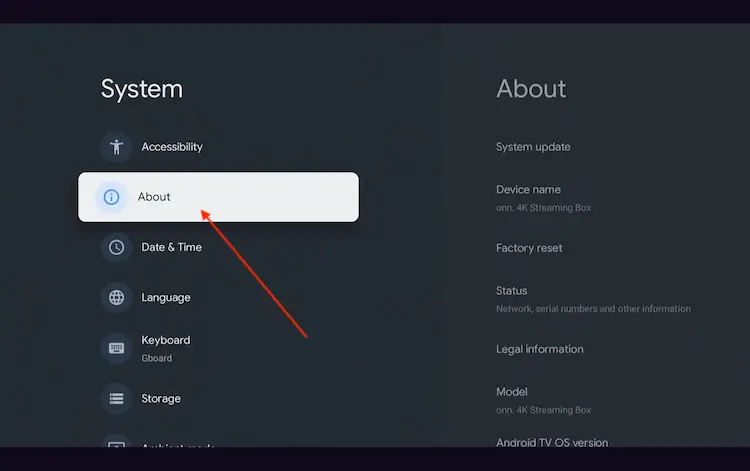
Navigate to System > About
Scroll to the bottom and click Android TV OS Build 7 times continuously until a pop-up says "You are now a developer."
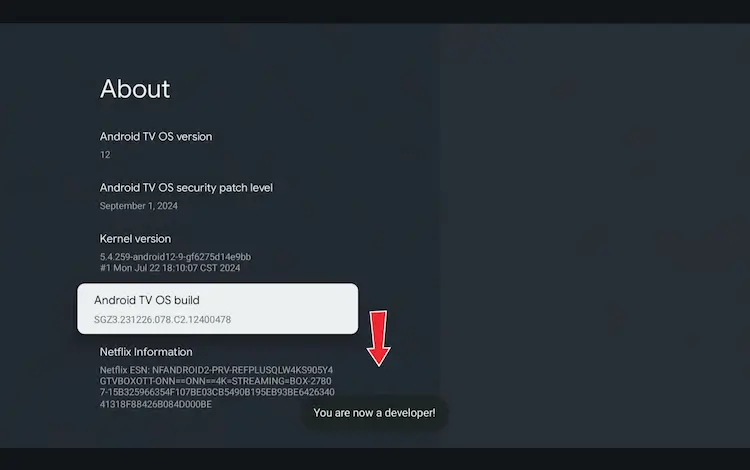
Click Android TV OS Build 7 times to unlock Developer Mode
Press the Home button on your remote, go to the top menu, and select Apps.
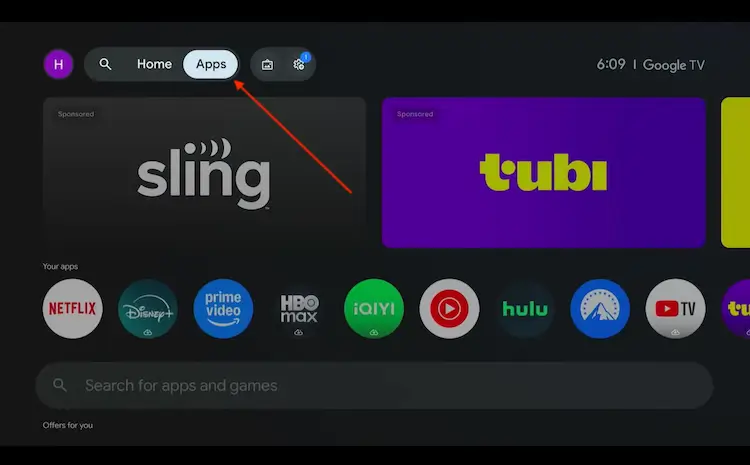
Back to the Onn TV home screen > Apps
Use the search bar and type Downloader and select the one at the top of the list
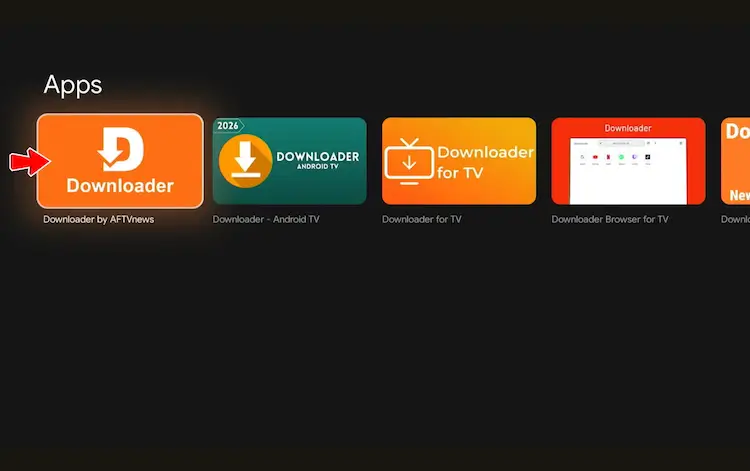
Select the Downloader app at the top of the search results
Click Install
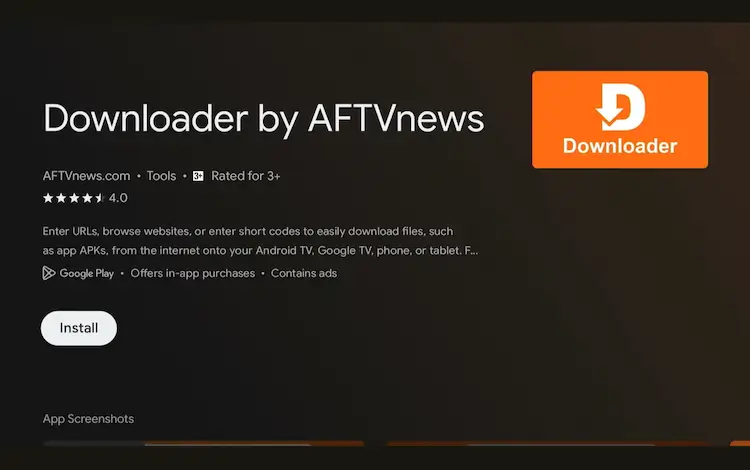
Press Install
Once installed, open the Downloader app and click on the URL/search bar.
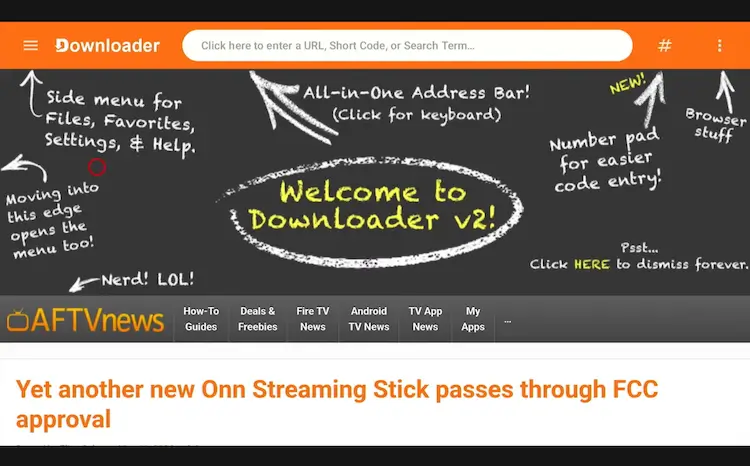
Open Downloader app > URL Search bar
Enter the exclusive Onn TV Hacks downloader code 8533602 below and press Go.
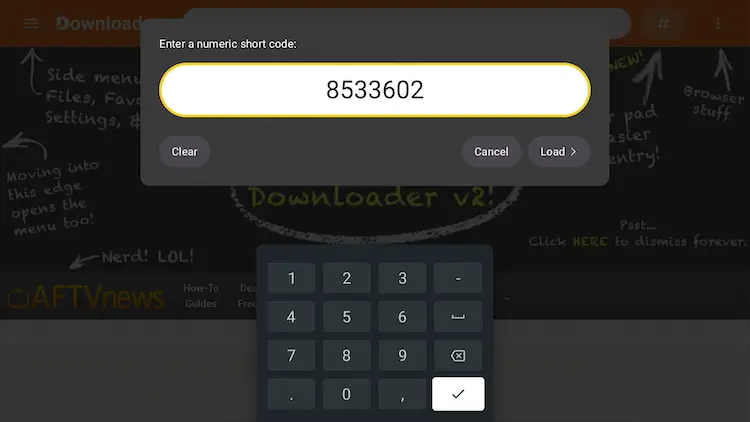
Add the popular 8533602 code
Scroll down and select the VPNs category.
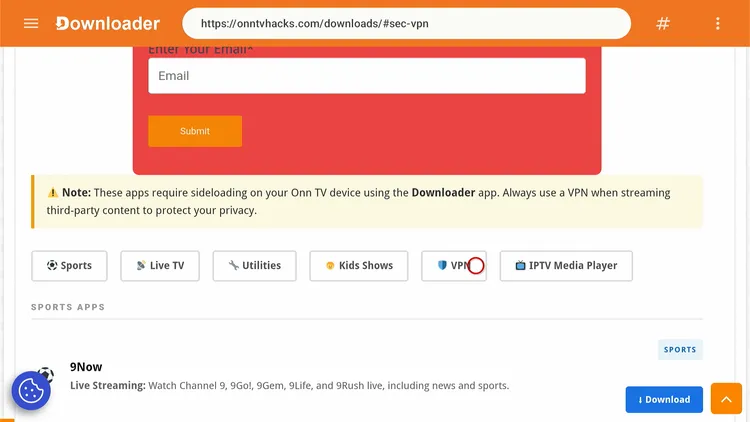
Select “VPNs”
Scroll down and select IPVanish, then click Download.
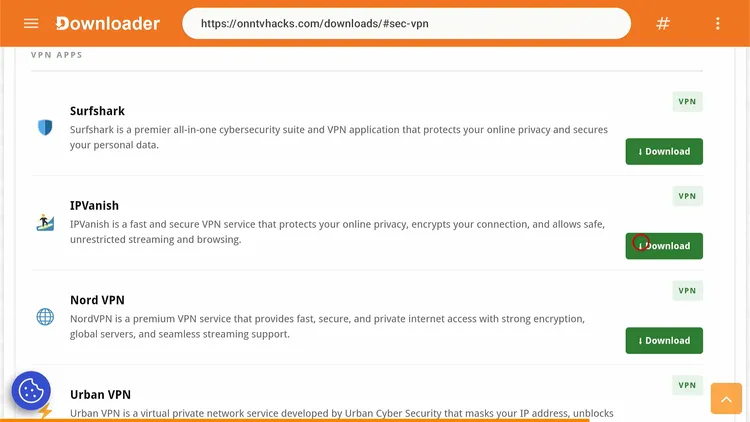
Select “IPVanish”
Click the Download icon.
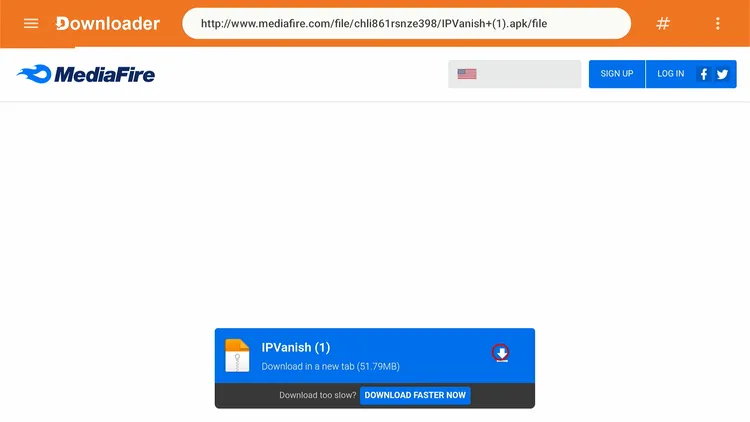
Click the “Download” icon
Wait for IPVanish to finish downloading.
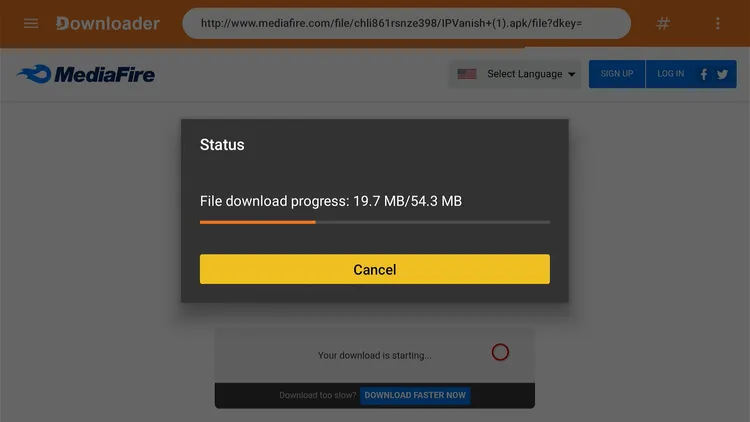
IPVanish is downloading
A status window will open. Select Install.
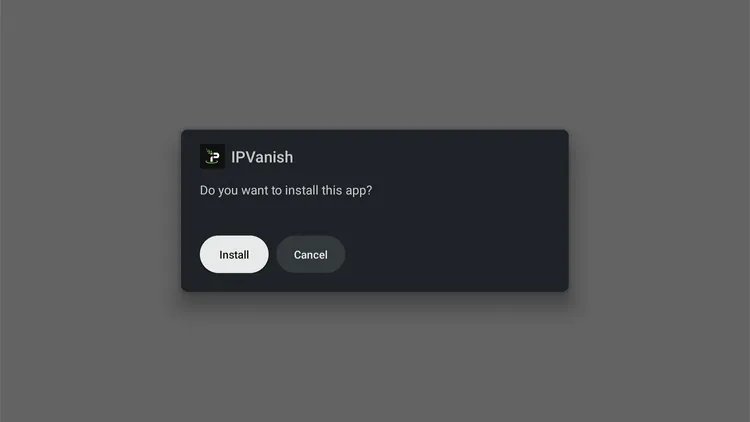
Select “Install”
Select Done.
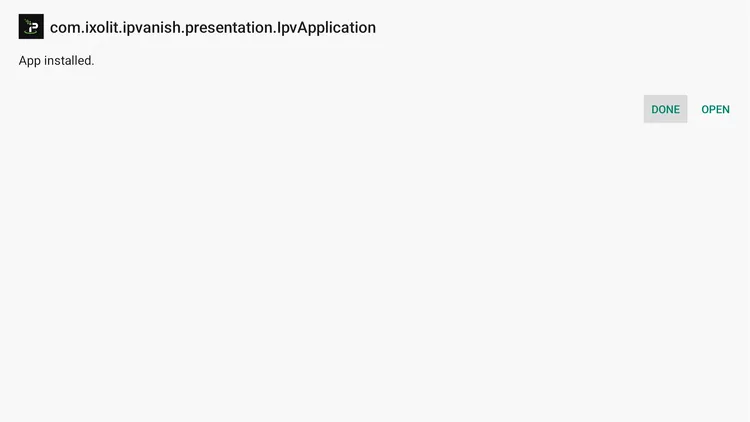
Select “Done”
Select Delete to remove the APK and free up storage space, then select Delete again to confirm.
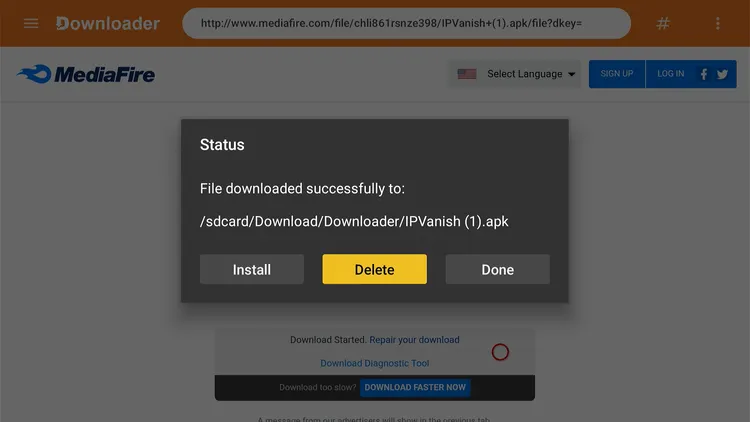
Select “Delete”
How to Sign In and Connect IPVanish on Onn TV
Once you’ve got an IPVanish subscription and installed the app, sign in with your account email and password. Here’s how to connect on your Onn TV:
Go to your Onn TV home page and open the IPVanish app.
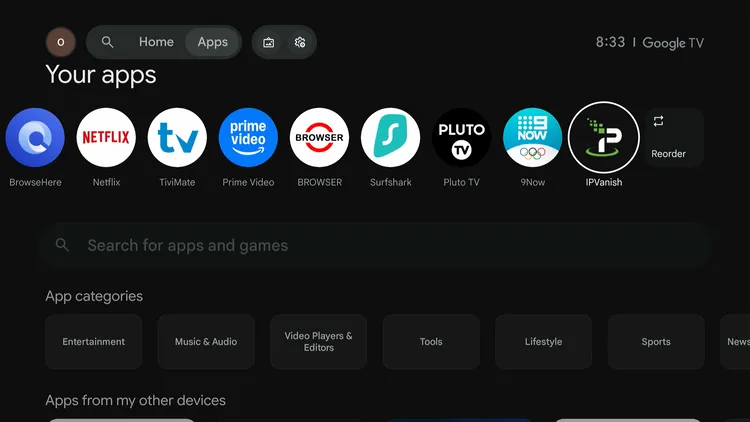
Home > IPVanish
Select Sign In.
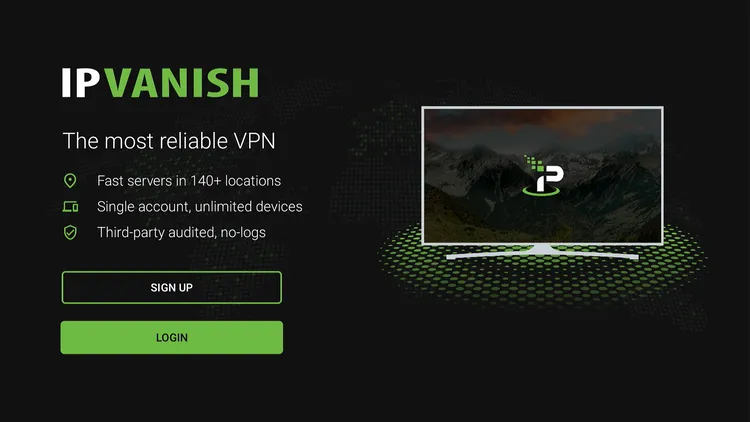
Select “Sign In”
Enter your credentials and select Sign In.
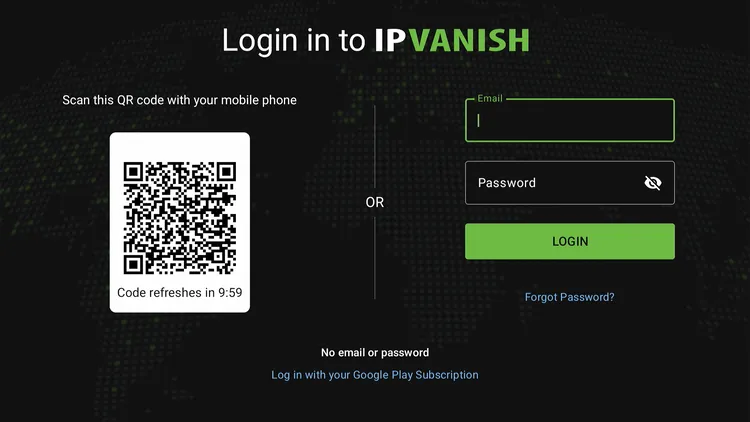
Enter your credentials, select “Sign In”
IPVanish is ready. Select Fastest Available to connect to the nearest server, or pick a specific location and select the connect icon.
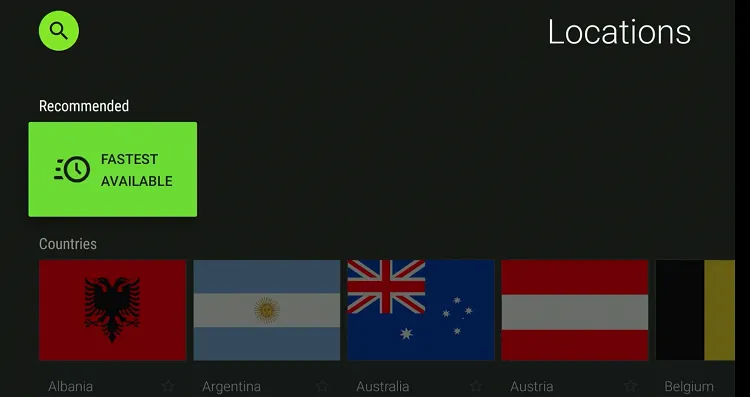
IPVanish is set up
You’re connected!
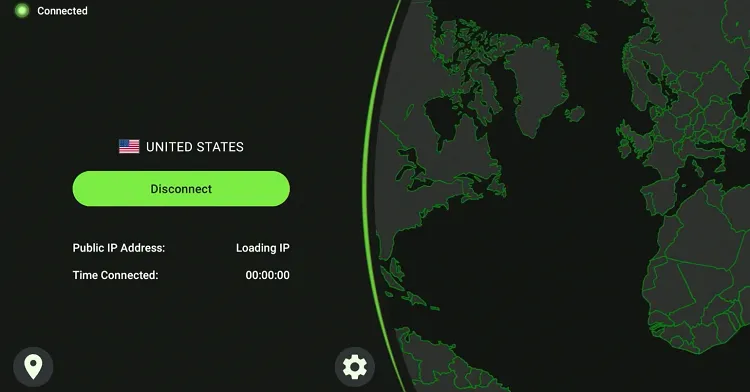
Connected
IPVanish Pricing (USD)
IPVanish sells several tiers, and Essential is the cheapest. Higher tiers add extras such as cloud storage on top of the core VPN.
Every plan includes a 30-day money-back guarantee and unlimited device connections. Prices are promotional and can change, so check the current rate at checkout.
Here’s the Essential plan breakdown:
| Plan | Monthly Cost | Billed As |
|---|---|---|
| 2-Year Plan | $2.19/mo | $52.56 for the first 24 months |
| 1-Year Plan | $3.33/mo | $39.99 for the first year |
| Monthly Plan | $12.99/mo | Billed monthly |
Renewal rates after the first term are higher than the introductory price shown above, so check the renewal price before you buy.
Best Value: 2-Year Essential Plan
A solid pick if unlimited device connections and a self-owned server network matter most to you. The 2-year Essential plan is one of the cheapest ways to get an audited no-logs VPN running on Onn TV, and the 30-day guarantee lets you test it and request a refund if it isn’t for you.
IPVanish Features
Here’s what stands out for Onn TV users:
WireGuard Protocol
Built for speed alongside OpenVPN and IKEv2
No-Logs Policy
Independently audited
AES-256 Encryption
Encrypts your connection
Kill Switch
Blocks traffic if the VPN drops
Double Hop
Routes traffic through two VPN exits
Threat Protection
Blocks malicious domains and trackers
Unlimited Devices
No cap on simultaneous connections
SOCKS5 Proxy
Available for supported apps
IPVanish Alternatives
If you’d rather compare a few options before settling on one for your Onn TV, these are worth a look:
- Surfshark — unlimited devices, built-in ad blocker
- ExpressVPN — fast speeds, simple interface
- NordVPN — large server network, Threat Protection
- Proton VPN — free plan available, Switzerland-based
📌 Related Onn TV Guides
- Best Apps for Onn TV Box & Stick — more top picks to install alongside IPVanish.
- Onn TV Downloads Page — sideload other working apps with a single code.
- New Android Sideloading Rule for Onn TV — what to know before you sideload.
Frequently Asked Questions
What is the Downloader code for IPVanish on Onn TV?
The Downloader code is 8533602. Enter it in Downloader, open the VPNs category, select IPVanish and click Download.
Is IPVanish available on the Onn TV Google Play Store?
Yes, IPVanish’s Android TV app is listed on the Google Play Store, so you can install it on Onn TV directly without sideloading.
Does IPVanish work on both the Onn TV Box and the Stick?
Yes, IPVanish works on the Onn 4K, 4K Plus, 4K Pro and 4K Stick, and the installation steps are the same on each.
How do I sign in to IPVanish on Onn TV?
Open the IPVanish app, select Sign In, and enter your account email and password. Then select Fastest Available or pick a location to connect.
Does IPVanish offer a free trial?
IPVanish doesn’t have a free plan. Every subscription comes with a 30-day money-back guarantee, so you can try it and request a refund within 30 days if it isn’t for you.
How many devices can I use with IPVanish on Onn TV?
A single IPVanish account supports unlimited simultaneous connections, so you can protect your Onn TV alongside your phone, laptop, and other devices at the same time.
Why does IPVanish buffer on my Onn TV?
Buffering on IPVanish is usually caused by a slow internet connection or a crowded server. As a rule of thumb, aim for around 15 Mbps or more for 4K streaming, and try a different server location if the issue continues.
Conclusion
Installing IPVanish on your Onn TV Box or Stick usually takes only a few minutes, whether you grab it from the Play Store or sideload it using Downloader.
Its unlimited device connections and straightforward interface make it a solid VPN to set up on Onn TV, and the 30-day money-back guarantee means there’s little risk in trying it.
Whether you’re browsing, streaming, or running sideloaded apps on Onn TV, keeping IPVanish active is an easy way to keep your connection private.
Ready to Get Started?
IPVanish
Unlimited devices, a self-owned server network, and a 30-day money-back guarantee.
📌 Found this guide useful? Share it with a fellow streamer and drop a comment below. Check out our Best VPNs for Onn TV guide for more options.