 Onn TV Hacks Master Your Onn TV with Expert Guides, Hacks, & Apps

Onn TV boxes and sticks are budget favorites, but they come with limited onboard storage, anywhere from 8GB to 32GB depending on the model (the Onn 4K Pro tops out at 32GB).
System files and pre-installed apps take up a good chunk of that from the moment you turn it on.
If you’re seeing a “Storage space is running low” warning, apps crashing on launch, or Downloader blocking new installs, don’t worry. Here are 5 practical ways to free up space on your Onn TV.
📋 Table of Contents
5 Fixes for Improving Low Storage on Onn TV
I’d recommend to try these fixes in the same order, with factory reset as a last resort.
Fix 1: Clear App Cache
Streaming apps build up cached thumbnails and playback data over time. Clearing this cache is the quickest way to reclaim space without losing any app data.
From the Onn TV home screen, select Settings (gear icon).
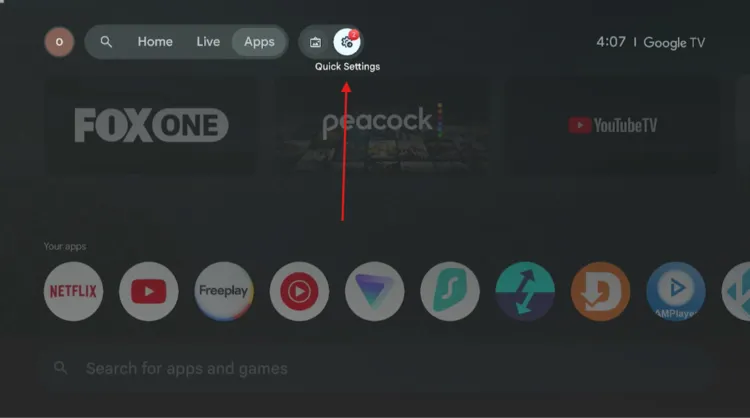
Open “Settings” from the home screen
Select All Settings from the side menu bar.

Select “All Settings”
Select Apps.

Settings > Apps
Tap See all apps and choose the app you want to clear (this example uses Kodi).
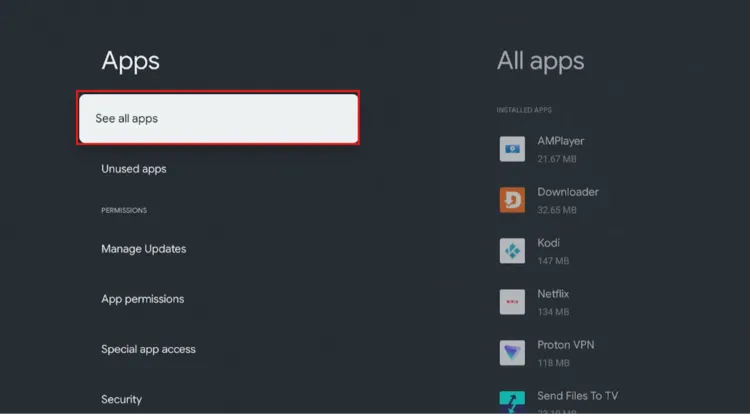
Select the app
Select Clear cache. Repeat for any other app running low on space.
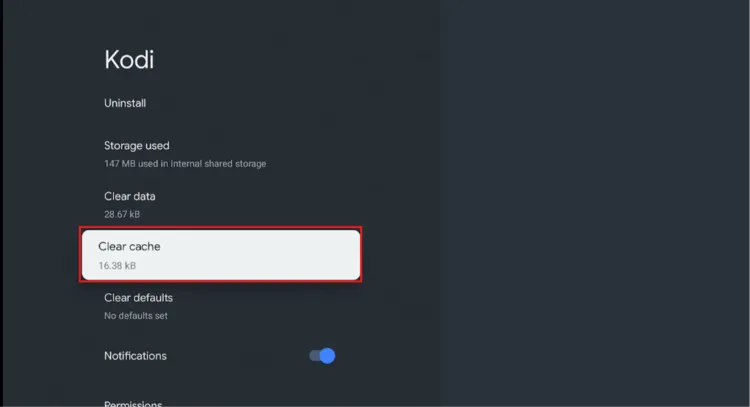
Tap “Clear cache”
Select OK.
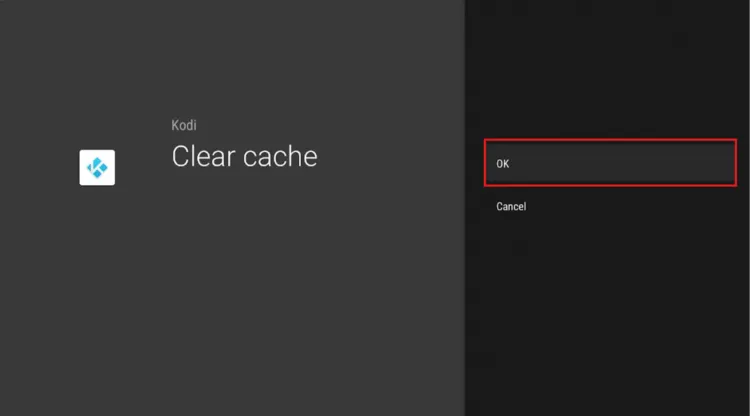
Select “OK”
Fix 2: Uninstall/Disable Apps You Don’t Use
Onn TV ships with several pre-installed apps you may never open. Removing anything you don’t use frees up real, permanent space instead of just temporary cache.
You can also disable preinstalled system apps that can’t be uninstalled outright, for a deeper walkthrough on stubborn system apps, see our Remove Pre-Installed Apps on Onn TV guide.
From the Onn TV home screen, select Settings (gear icon).
Open “Settings” from the home screen
Select All Settings from the side menu bar.
Select “All Settings”
Select Apps.
Settings > Apps
Tap See all apps and select the app you want to clear.
Select the app
Select the app you want to remove.

Select the app you want to remove
Tap Uninstall.

Tap “Uninstall”
Confirm by selecting OK.

Confirm by selecting “OK”
Some pre-installed system apps on Onn TV can only be disabled. If you don’t see an “Uninstall” button, look for “Disable” instead, this stops the app from running in the background.

Fix 3: Delete Leftover APK Files from Downloader
If you’ve sideloaded apps using the Downloader app (master code 8533602), the APK installer files are often left behind after installation and quietly take up storage. Here’s how to clear them out.
Open the Downloader app on your Onn TV.

Open the Downloader app
Select Files from the left sidebar menu.
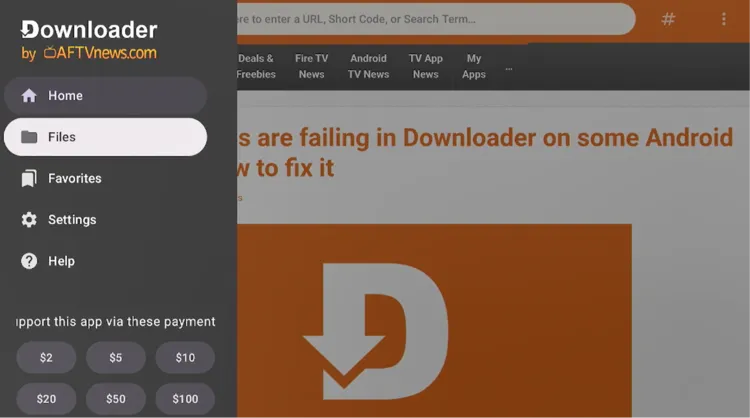
Tap “Files”
You’ll see every APK you’ve downloaded. Select one, then press the Menu button on your remote (long press).
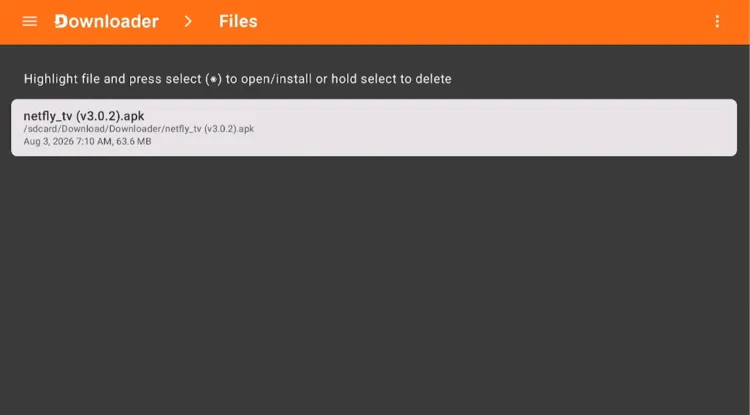
Select a file, then press Menu
Tap Delete File (repeat for each leftover APK, or delete all files together).

Tap “Delete”
Tap Delete again to confirm.

Confirm “Delete”
Fix 4: Add External USB Storage

Plugging in a USB drive is the another effective fix. You’ll need a USB 3.0 flash drive formatted to FAT32 or exFAT (32GB–128GB works well), and a 2-in-1 micro USB to USB adapter (OTG Cable). [shown in the picture above].
Follow the steps:
Connect your USB flash drive to the female port of the OTG cable and Plug the Micro-USB connector of the OTG cable into the Onn TV Box.

USB drive connected to OTG cable
Connect the Onn power adapter to the micro-USB power port on the OTG cable, then plug it into a power outlet on the wall.

Power adapter connected to OTG cable
Plug the Onn TV Box into your television’s HDMI port.

Onn TV Box plugged into TV
First jailbreak your Onn TV box, go to Settings > System > About. Scroll down to Android TV OS Build and click it 7 times until you see “You are now a developer!”

Jailbreak your device
Go back to Settings > System > Developer Options.

Enable Developer Options
Scroll down and Toggle ON Force allow apps on external.

Toggle ON ‘Force allow apps on external’
Now Go to Settings > System > Storage.

Settings > System > Storage
Select your plugged-in USB drive listed under Removable Storage.
Select your USB drive
Choose Erase & Format as Device Storage and confirm.
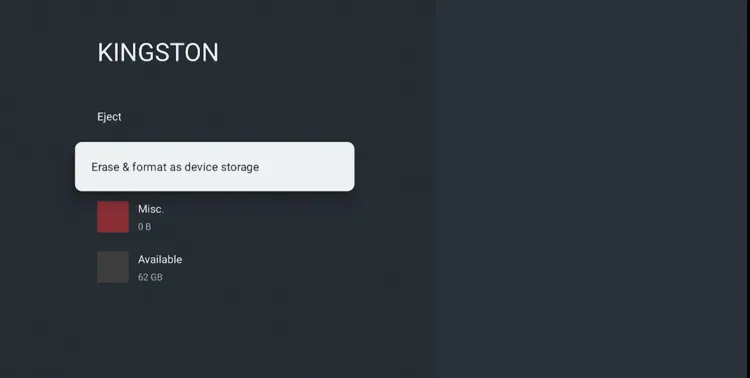
Choose Erase & Format as Device Storage
choose Format.

‘Format’
Let the device finish formatting the drive — this can take a few minutes.

The device will start formatting
Once formatting reaches 100%, Android TV pops up this prompt, click Move Now.

click Move Now.
Select the app you want to move (e.g., ExpressVPN app).
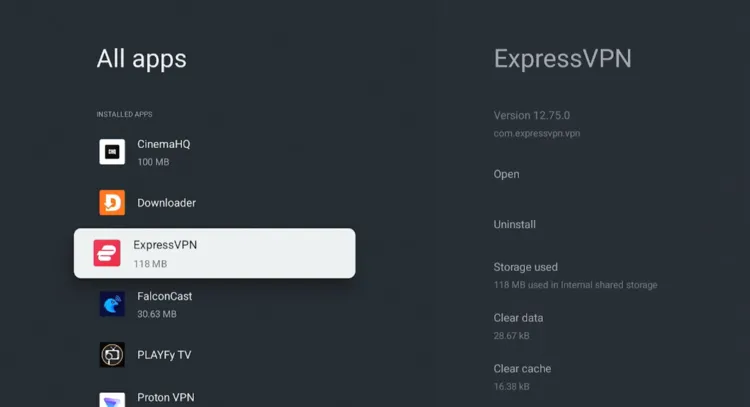
Select the App
Click Storage used.

Click Storage used
Switch it to your newly formatted USB drive.

Switch to newly formatted USB Drive.
Fix 5: Factory Reset Your Onn TV
If nothing above frees up enough space, a factory reset wipes everything and gives you a clean slate. It’s the most effective fix, but also the most drastic, you’ll have to fix the unsupported region error first to continue using the device.
Additionally you will have to reinstall and re-jailbreak your apps from scratch afterward.
From the Onn TV home screen, select Settings (gear icon).
Open “Settings” from the home screen
Select All Settings from the side menu bar.
Select “All Settings”
Go to System.
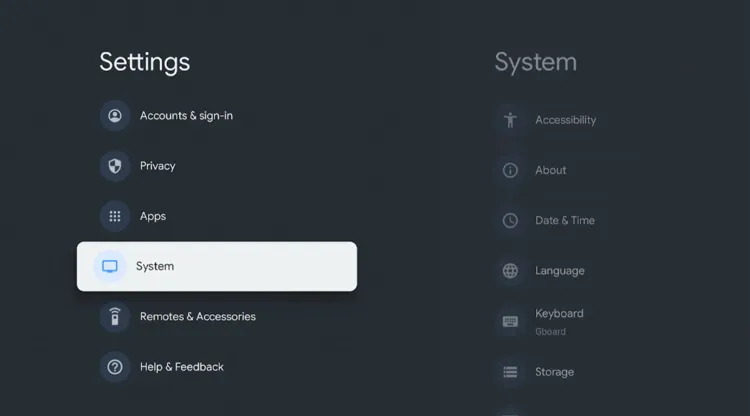
Go to “System”
Select About.
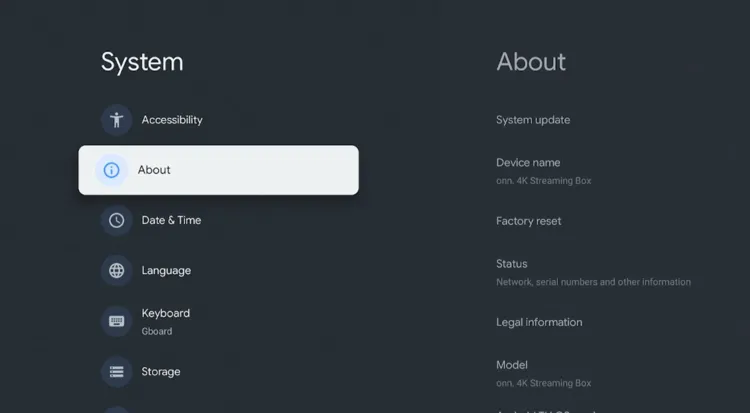
Select “About”
Choose Factory Reset.
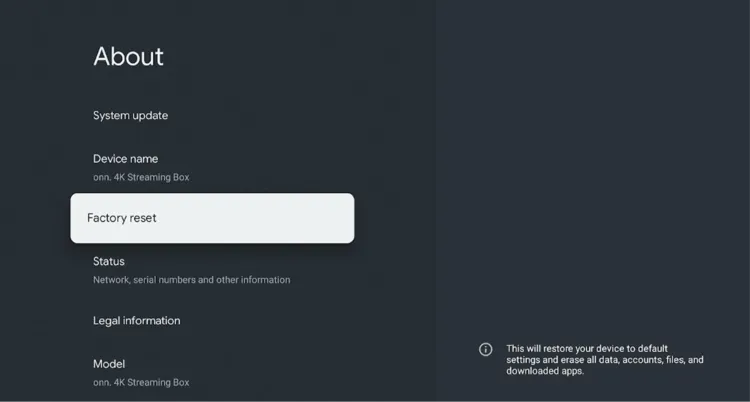
Choose “Factory Reset”
Tap Factory Reset again to confirm.
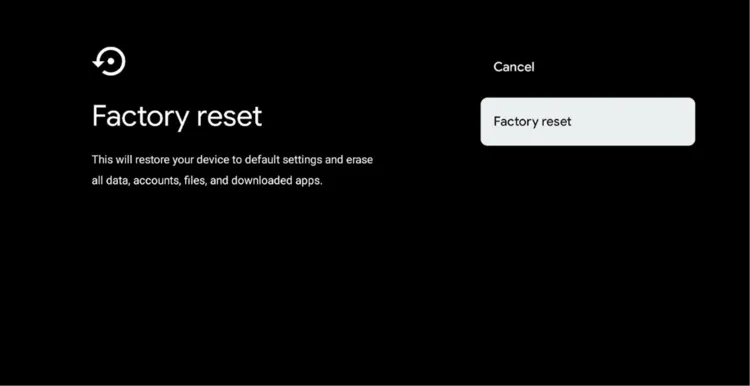
Bonus Tips to Prevent Low Storage on Onn TV
A few habits that keep your Onn TV running smoothly going forward:
Delete APKs Right Away
Always tap “Delete” after Downloader finishes installing
Clear Cache Monthly
Set a reminder to clear cache on heavy-use apps
Install Only What You Use
Uninstall apps you tried once and never opened again
Use a USB Drive from Day One
Set up external storage before your device fills up
Check Storage Regularly
Settings > Storage shows exactly what’s eating space
Related Onn TV Guides
- Best Apps for Onn TV Box & Stick — worth reinstalling after a factory reset.
- Onn TV Downloads Page — sideload apps with a single code.
- Close Background Apps on Your Onn TV — close unnecessary apps adding to the clutter.
Frequently Asked Questions
How much storage does Onn TV actually have?
Most Onn TV Stick models come with 8GB or 16GB of internal storage, while the Onn 4K Plus Box typically ships with 16GB. After system files and pre-installed apps, usable space is often much less than the advertised total.
How do I check my Onn TV’s current storage usage?
Go to Settings > Storage to see exactly how much space is used, and by what.
Can I use any USB drive for extra storage on Onn TV?
Most USB drives formatted to FAT32 or exFAT will work. If your Onn TV Stick only has one USB-C port, you’ll need a USB-C OTG adapter to connect the drive while keeping the power cable plugged in.
Will a factory reset delete my Onn TV’s jailbreak?
Yes. A factory reset wipes all sideloaded apps and settings, including the Downloader app itself. You’ll need to jailbreak your Onn TV again and reinstall your apps from scratch afterward.
Conclusion
Low storage is one of the most common complaints with budget streaming devices, but it’s rarely a dead end. Start with clearing cache and uninstalling unused apps, work your way up to deleting leftover APK files, and if you’re a heavy sideloader, an external USB drive is the best long-term fix for your Onn TV.
And if all else fails, a factory reset gives your Onn TV a completely fresh start.
📌 Found this guide useful? Share it with a fellow Onn TV user and drop a comment below. Check out our Hidden Onn TV Settings to Change guide for more ways to keep your device running smoothly.