 Onn TV Hacks Master Your Onn TV with Expert Guides, Hacks, & Apps

Written and tested by Black Joseph
Updated November 3, 2026
When you buy through our links, we may earn a commission. See how we work with brands here.
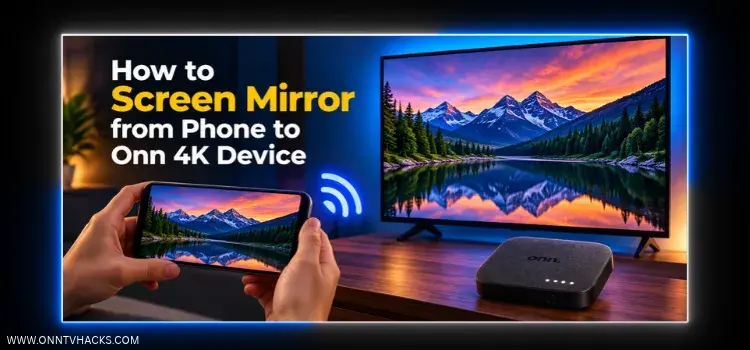
Ever wanted to see your phone’s photos, videos, or a presentation on the big screen? With an Onn TV Box or Stick, you can do it wirelessly, for free, without any additional app.
There’s no cable, and nothing extra to download on your Android phone, because Android’s built-in Cast feature does the work. Everything you do on the phone shows up on your TV in real time.
Below is the full setup, plus a few tips and fixes in case your phone refuses to find the TV.
Lost the remote, or tired of typing with it?
Use your phone as an Onn TV remote with Joz Remote, our free Android app.
Get it on Google PlayWe built this app ourselves.
📋 Table of Contents — tap to expand
Video Tutorial: Screen Mirror From Phone to Onn TV
Step 1: Set Up Your Onn TV Box/Stick
First, make your Onn TV easy for your phone to find. Both devices must be on the same Wi-Fi network, otherwise your phone won’t detect the TV.
Make sure your Onn TV and Android phone are connected to the same Wi-Fi network.
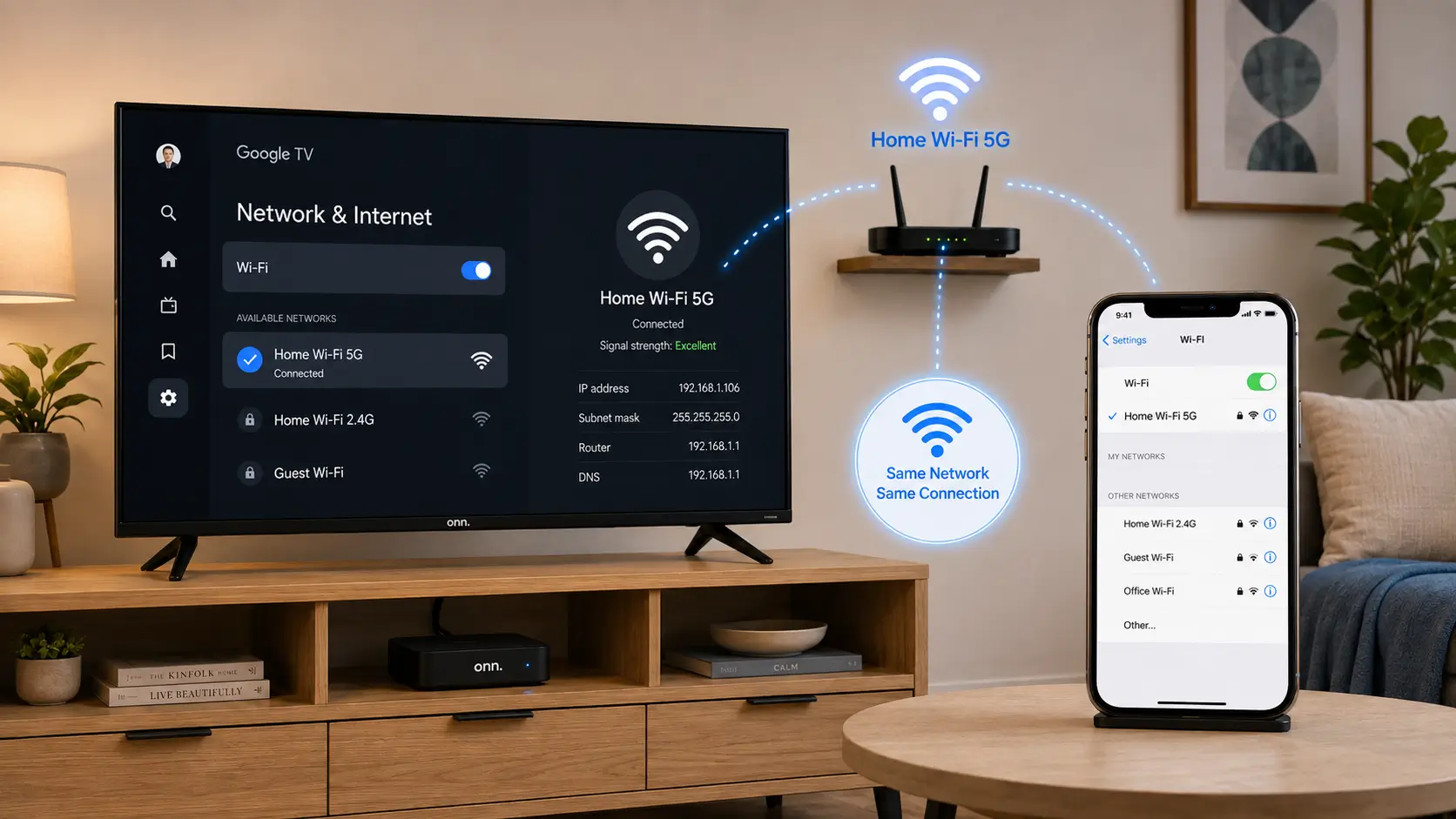
Same Wi-Fi on both devices
On your Onn TV, open Settings, scroll down, and select System.

Settings > System
Select Cast.
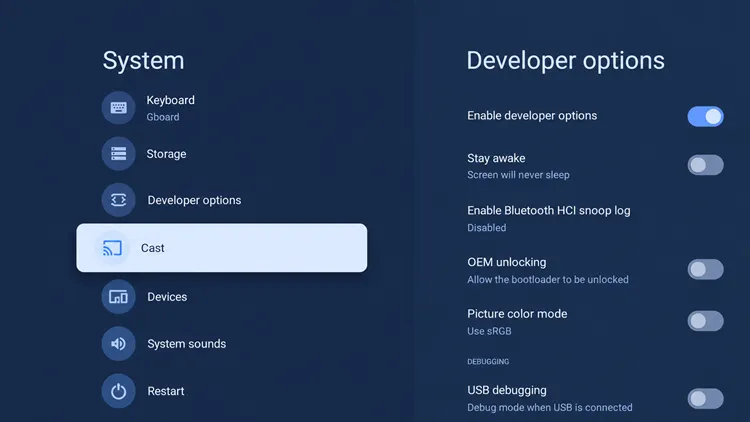
Select “Cast”
Set the option to Always. This makes it easier for your phone to discover your Onn TV.
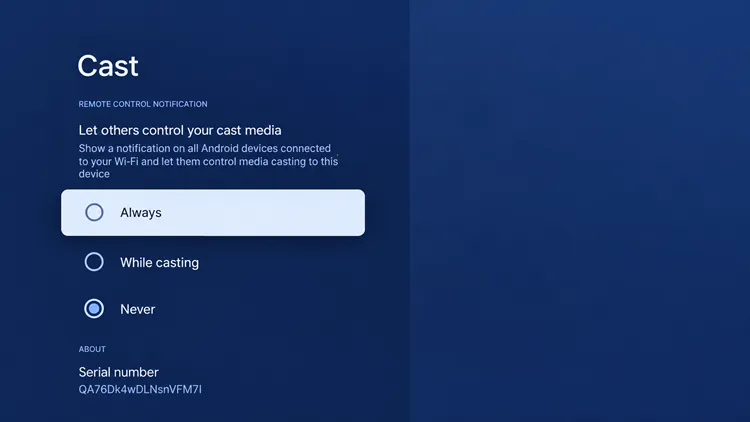
Set Cast to “Always”
Step 2: Mirror Your Phone
Now pick up your Android phone and find the Cast option.
Its name changes by brand, so look for Smart View (Samsung), Screen Cast, or Wireless projection. If you don’t see it, add it from the edit option in quick settings.
Swipe down from the top of the screen to open the quick settings panel and select the Cast option.
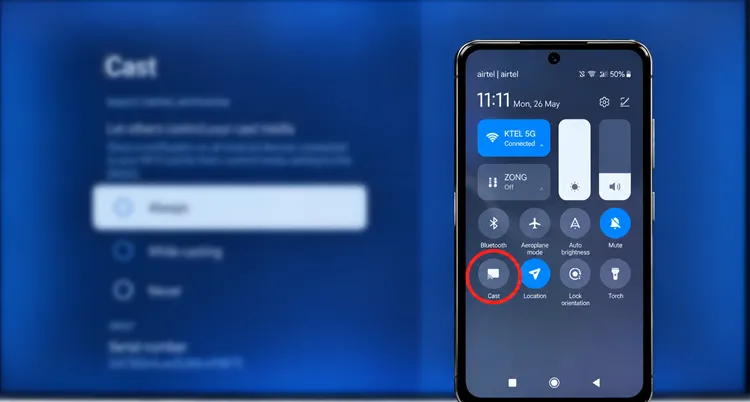
Swipe down for quick settings > “Cast”
When your Onn TV appears in the list, tap it and confirm the connection if prompted.
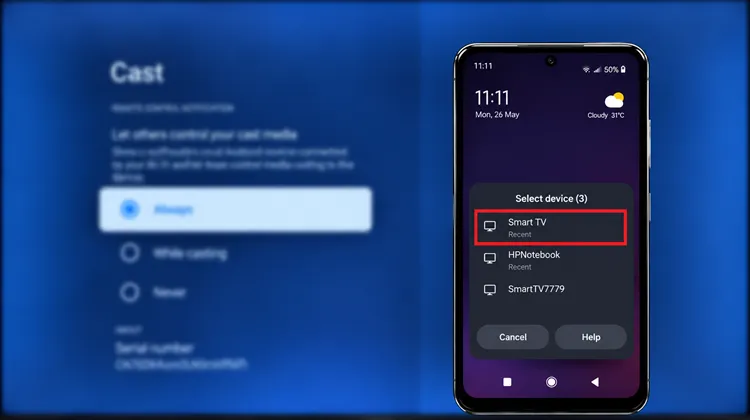
Select your Onn TV
After a few seconds, your phone screen appears on the TV. You’re mirroring!
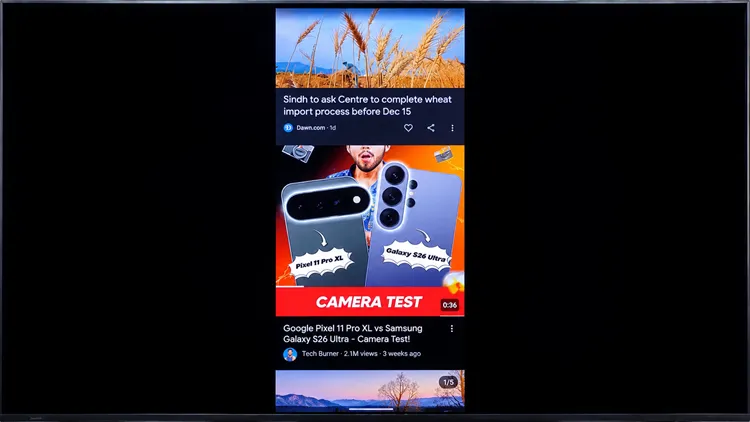
Phone mirrored on Onn TV
Tips for Smoother Mirroring
Once connected, you can scroll apps, open photos, play videos, give presentations, or even play mobile games on the bigger display. To get the best result:
- Rotate your phone sideways.
- Use full-screen mode.
- Use 5 GHz Wi-Fi.
- Stay close to the router, and keep both devices in the same room when you can.
- For movies and shows, use the Cast icon inside the app instead of full mirroring for a better experience.
Phone Not Finding Your Onn TV? Try These Fixes
If your phone can’t see your Onn TV, or the picture is choppy, work through these common causes and fixes.
| Problem | Fix |
|---|---|
| 🔍 Onn TV doesn’t appear | Check both devices are on the same Wi-Fi, and that Cast is set to Always. |
| 🌐 Router blocks it | Turn off any guest network or “client isolation” setting on your router. |
| 🐢 Laggy or choppy picture | Move closer to the router, switch to 5 GHz, and close other apps on your phone. |
| 🔒 VPN running on your phone | Turn the VPN off while mirroring, since it can hide the TV on your network. |
| 🔄 Still not working | Restart your Onn TV, your phone, and your router, then try again. |
📌 Related Onn TV Guides
- How to Set Up Your Onn TV Box — new to Onn TV? Start here.
- Use Your Phone as an Onn TV Remote — control your Onn TV from your phone.
- Close Background Apps on Onn TV — free up memory if your Onn TV lags.
Frequently Asked Questions
Do I need to install an app to screen mirror to Onn TV?
No, you don’t need an app to screen mirror to Onn TV. Android’s built-in Cast feature handles it, so you don’t need to download anything on your phone.
Does screen mirroring work on both the Onn TV Box and the Stick?
Yes, the steps are the same on the Onn TV Box and the Onn TV Stick, since both run Google TV.
Why can’t my phone find my Onn TV?
Most often, the two devices are on different Wi-Fi networks. Connect them to the same network and set Cast to Always on your Onn TV.
Can I screen mirror an iPhone to Onn TV?
This guide covers Android phones. iPhones don’t use Android’s Cast feature, so they need a different method.
Does screen mirroring work without Wi-Fi?
Screen mirroring to Onn TV needs both devices on the same local network, so you need Wi-Fi or a shared hotspot.
Can I play mobile games on my Onn TV?
Yes, you can mirror games to your Onn TV, but expect a little lag. Use 5 GHz Wi-Fi and stay close to the router for the best results.
Conclusion
Screen mirroring to your Onn TV Box or Stick only takes a few minutes: same Wi-Fi, Cast set to Always, then tap Cast on your phone.
It’s free, wireless, and needs no extra apps.
📌 Found this guide useful? Share it with a fellow streamer and drop a comment below. Check out our Best Apps for Onn TV guide for more.