 Onn TV Hacks Master Your Onn TV with Expert Guides, Hacks, & Apps

Written and tested by Black Joseph
Updated November 4, 2026
When you buy through our links, we may earn a commission. See how we work with brands here.
Your Onn 4K Pro shows the Google logo, restarts, shows the logo again, and keeps going. This is called a boot loop, and it’s more fixable than it looks.
The fixes below go from the easy ones (a power check) to the heavy one (a factory reset). Work through them in order and stop when your box boots normally.
Lost the remote, or tired of typing with it?
Use your phone as an Onn TV remote with Joz Remote, our free Android app.
Get it on Google PlayWe built this app ourselves.
📋 Table of Contents — tap to expand
Why Your Onn 4K Pro Gets Stuck on the Logo
A boot loop usually comes down to one of four things. Here’s what each one points to:
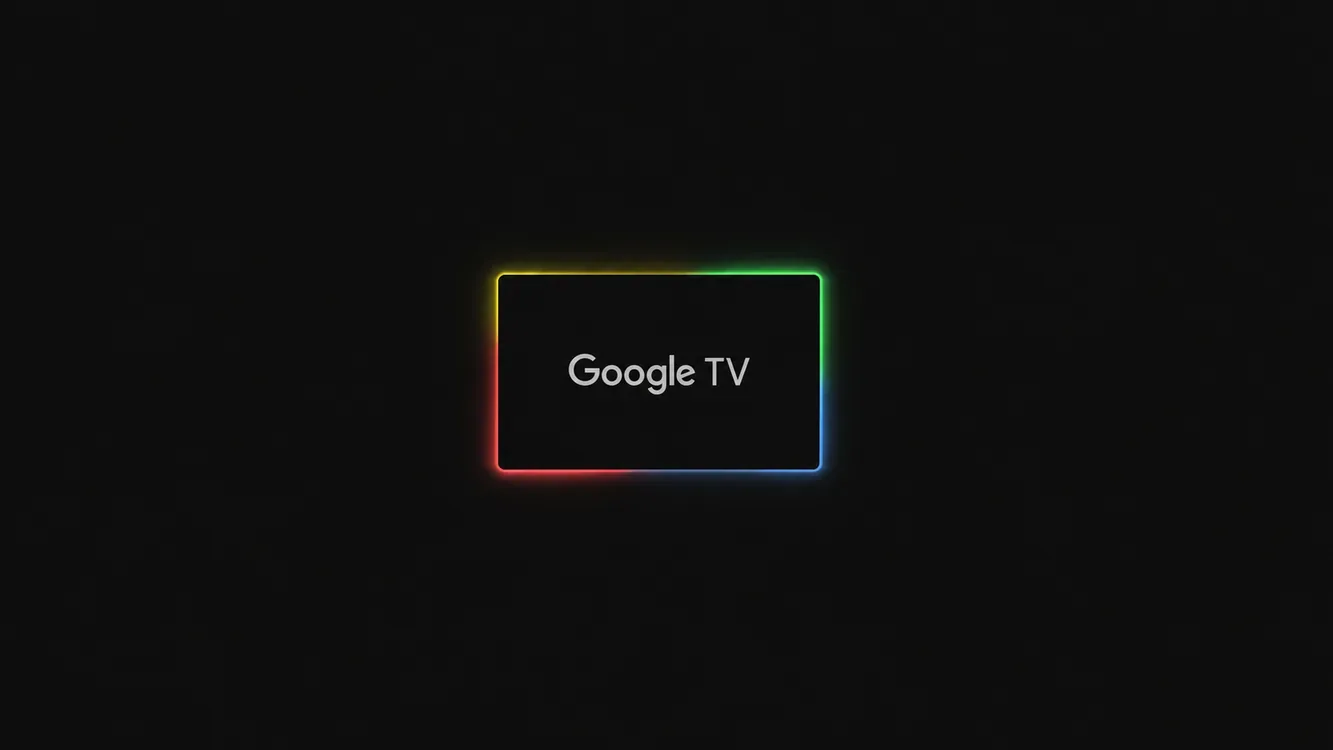
The box stuck on the Google TV logo
| Likely Cause | What Helps |
|---|---|
| Loose or weak power | Reseat the cable and try a wall outlet |
| Corrupted system data | Wipe data / factory reset from recovery |
| Temporary glitch | Cold boot, then reboot from recovery |
| Hardware fault | Contact Onn or Walmart support |
Fix 1: Check the Power Cables and Do a Cold Boot
Start here. Power problems are a common cause of boot loops, and the fix costs nothing.
Check that the power cable is firmly plugged into both the Onn 4K Pro and the power adapter.
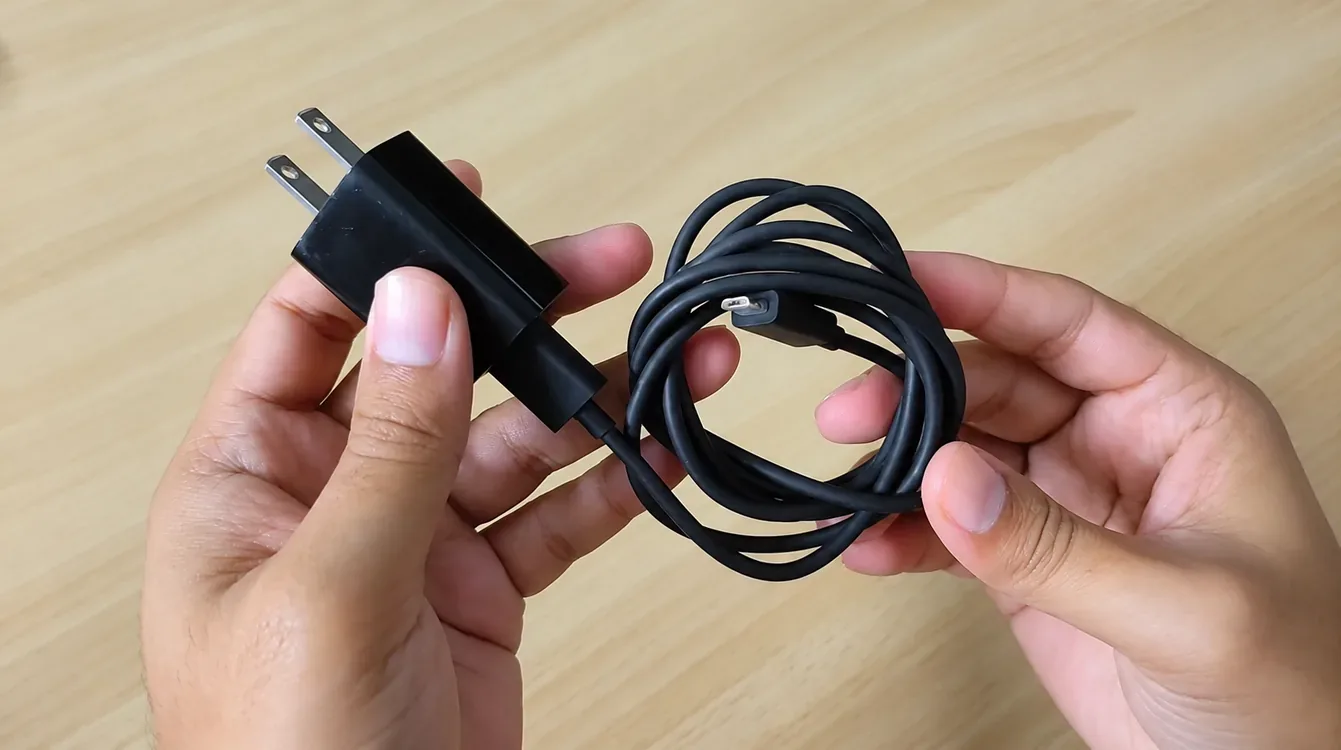
Check the power adapter and cable
Unplug the power cable, the HDMI cable and any accessories from the box, then leave everything disconnected for 3 to 5 minutes.
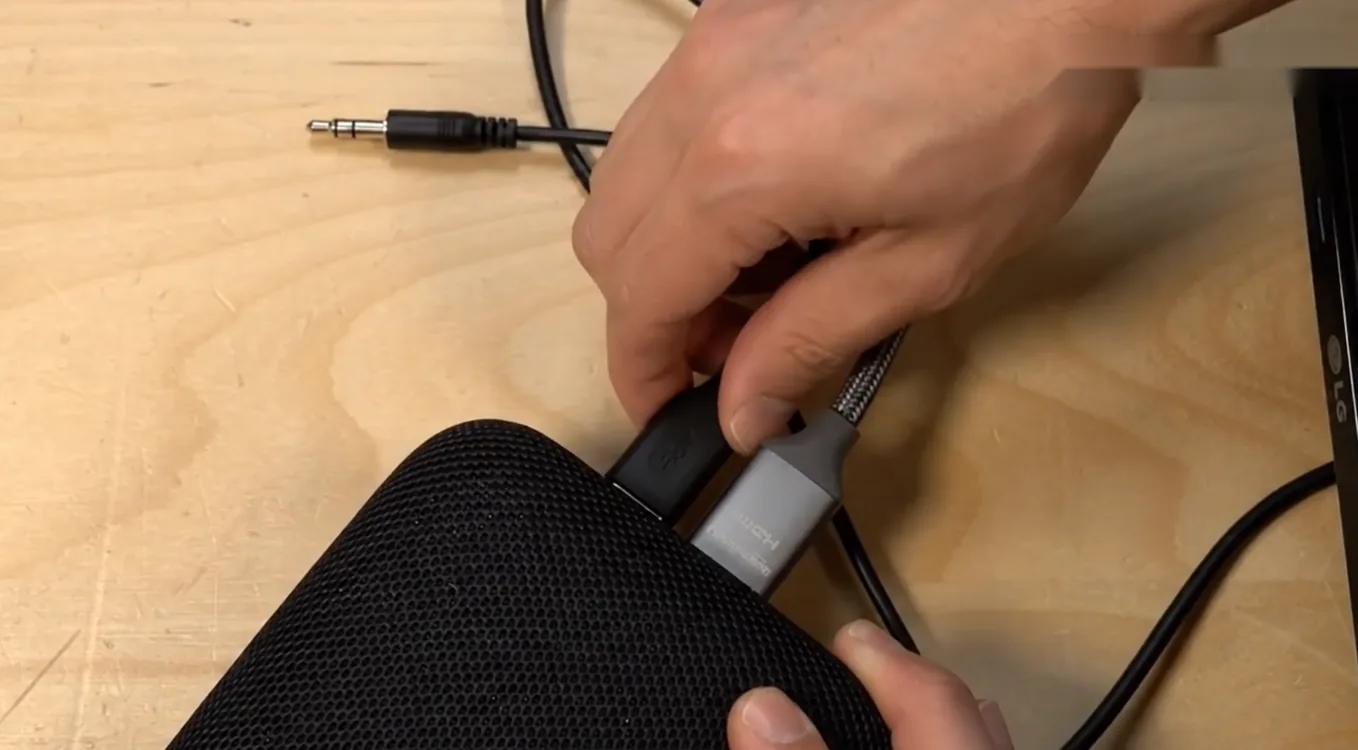
Unplug everything from the box
Plug in only the power cable and let the box power on fully. When the device lights come on, plug the HDMI cable back in and see if the loop is gone.
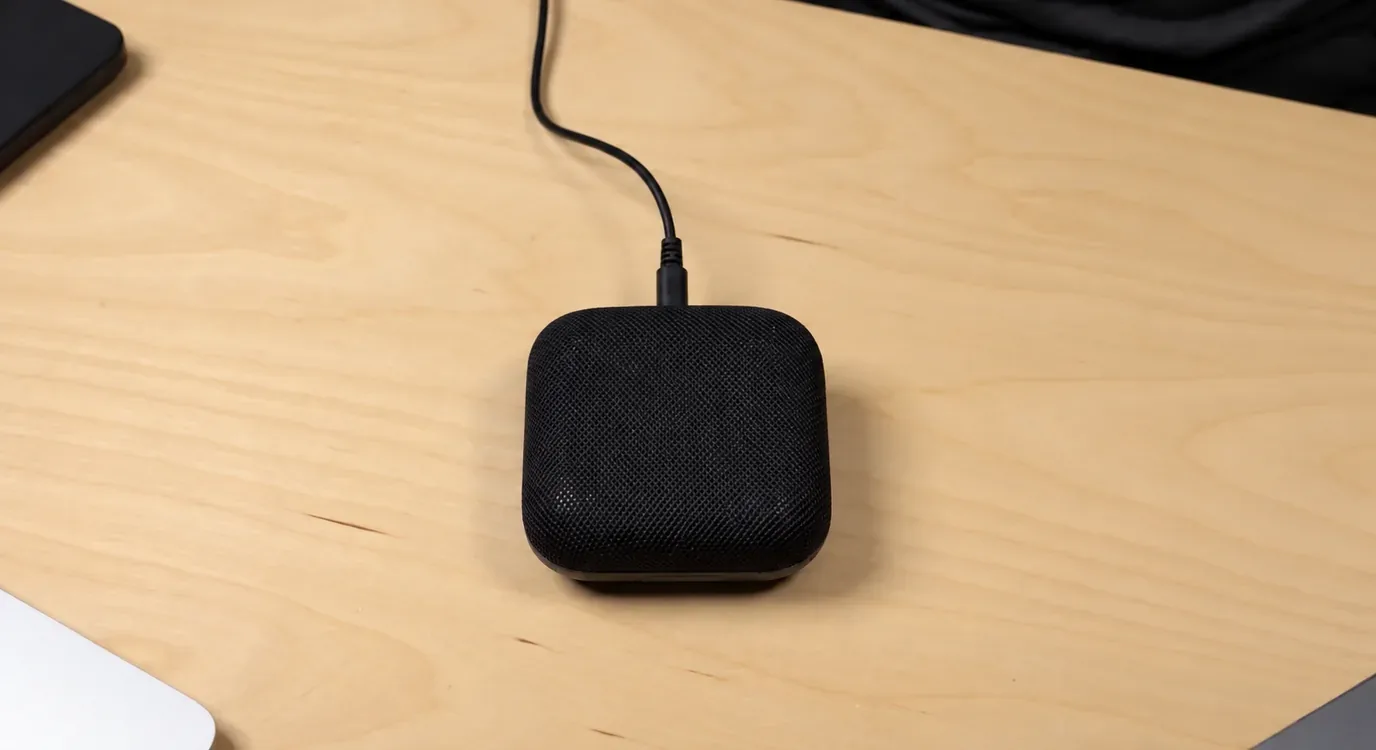
Connect only the power cable
Fix 2: Use a Wall Outlet or Try Another Adapter
Still looping? The box may not be getting enough power. Extension leads and power strips are common culprits.
Unplug the adapter from any extension lead or power strip and plug it straight into a wall outlet. Then restart the box.
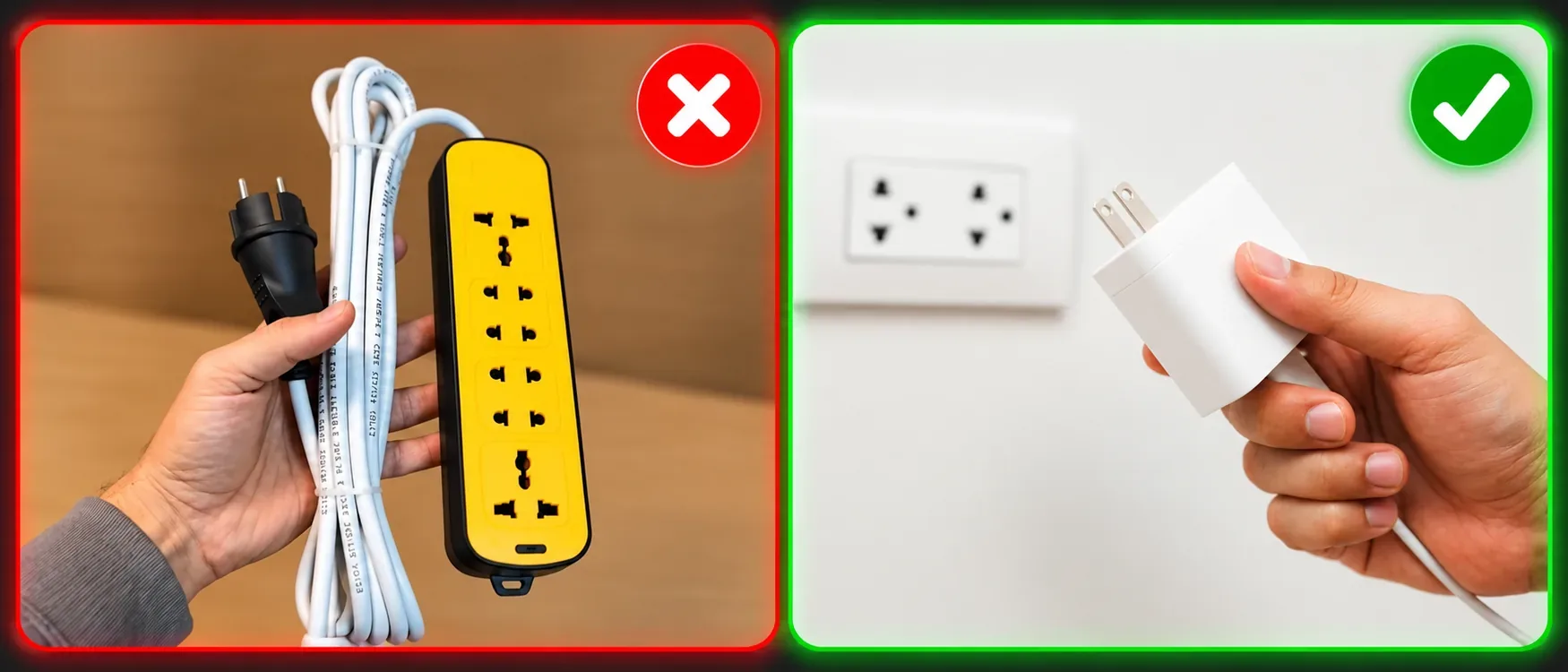
Use a wall outlet, not a power strip
Fix 3: Reboot From Recovery Mode
If power isn’t the problem, Android recovery mode is next. It lets you restart the system without needing the box to boot normally.
Unplug the power cable, then find the reset button on the back of the box, next to the Ethernet port, and press and hold it. It may be recessed, so use a paperclip or similar tool if you can’t press it with a finger.
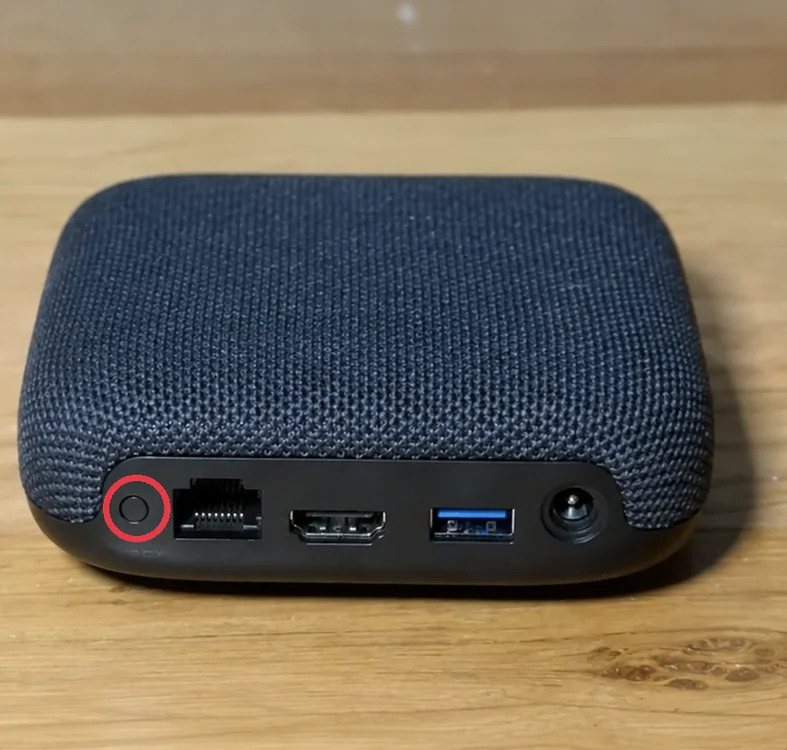
The reset button, next to the Ethernet port
While still holding the button, plug the power cable back in.
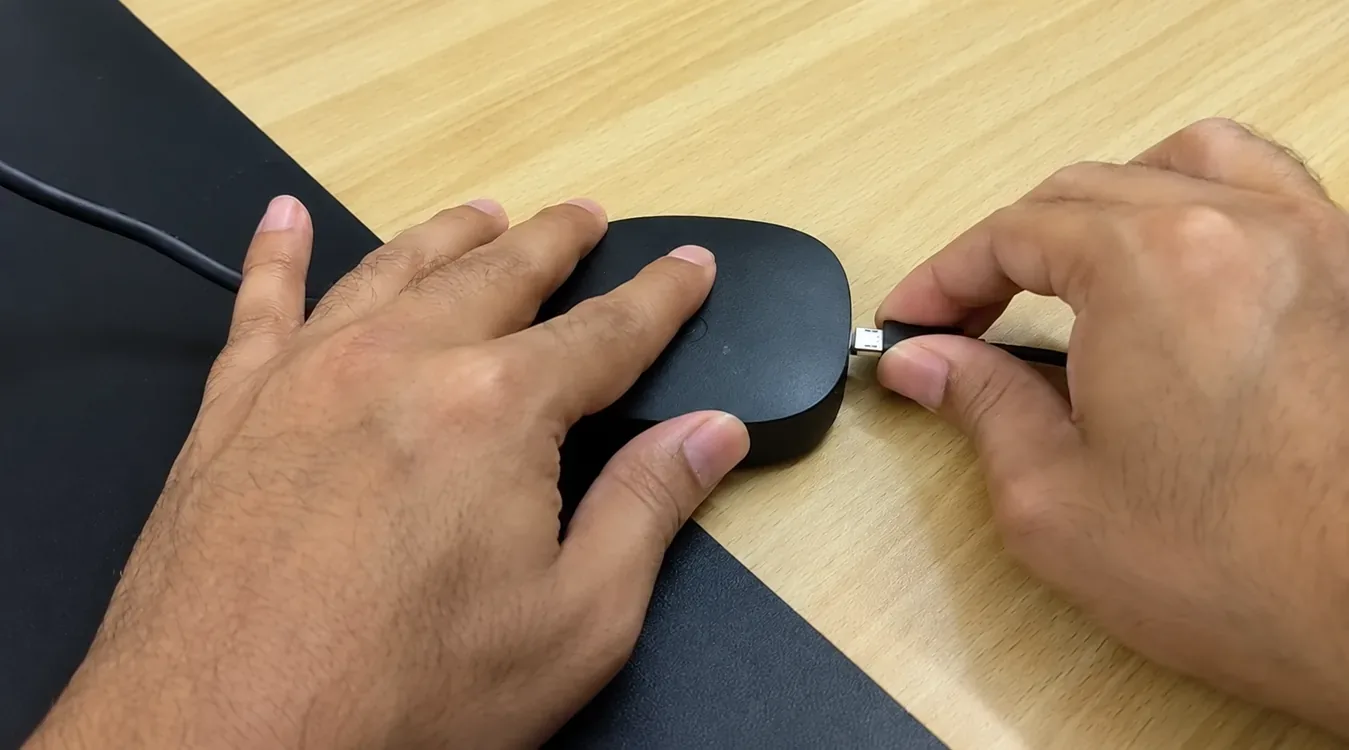
Plug the power cable in while holding the button
Keep holding until the Onn logo appears, then let go.

Release when the Onn logo appears
You’ll land in Android Recovery. Press any button to move the highlight, then long-press on Reboot system now to select it.
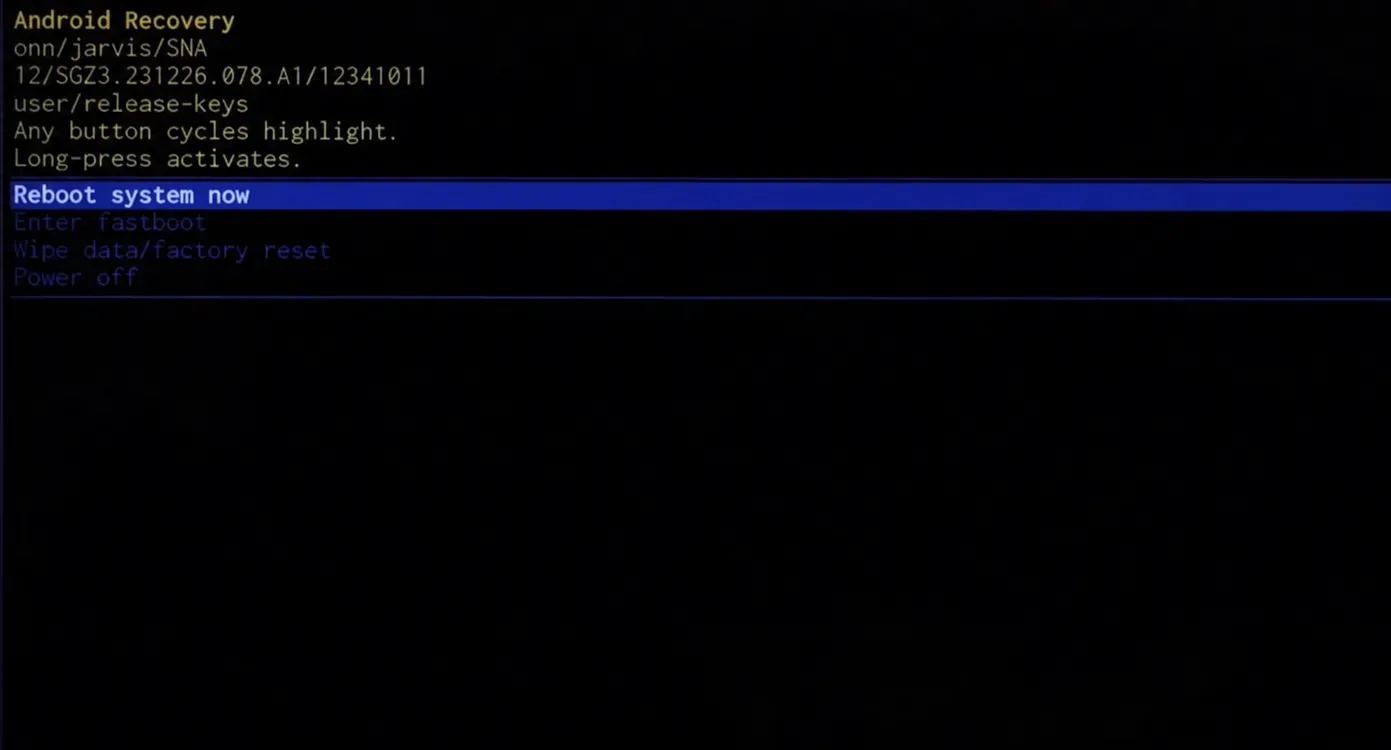
Select “Reboot system now”
Fix 4: Factory Reset From Recovery Mode
This is the big one, and it fixes many boot loops caused by corrupted system data. It also erases your installed apps, accounts and settings, so keep it as your last resort.
After a reset, you may need to fix the unsupported region error when you set up your Onn TV again.
Open recovery mode again using the same steps as Fix 3. Press any button until Wipe data/factory reset is highlighted, then long-press to select it.
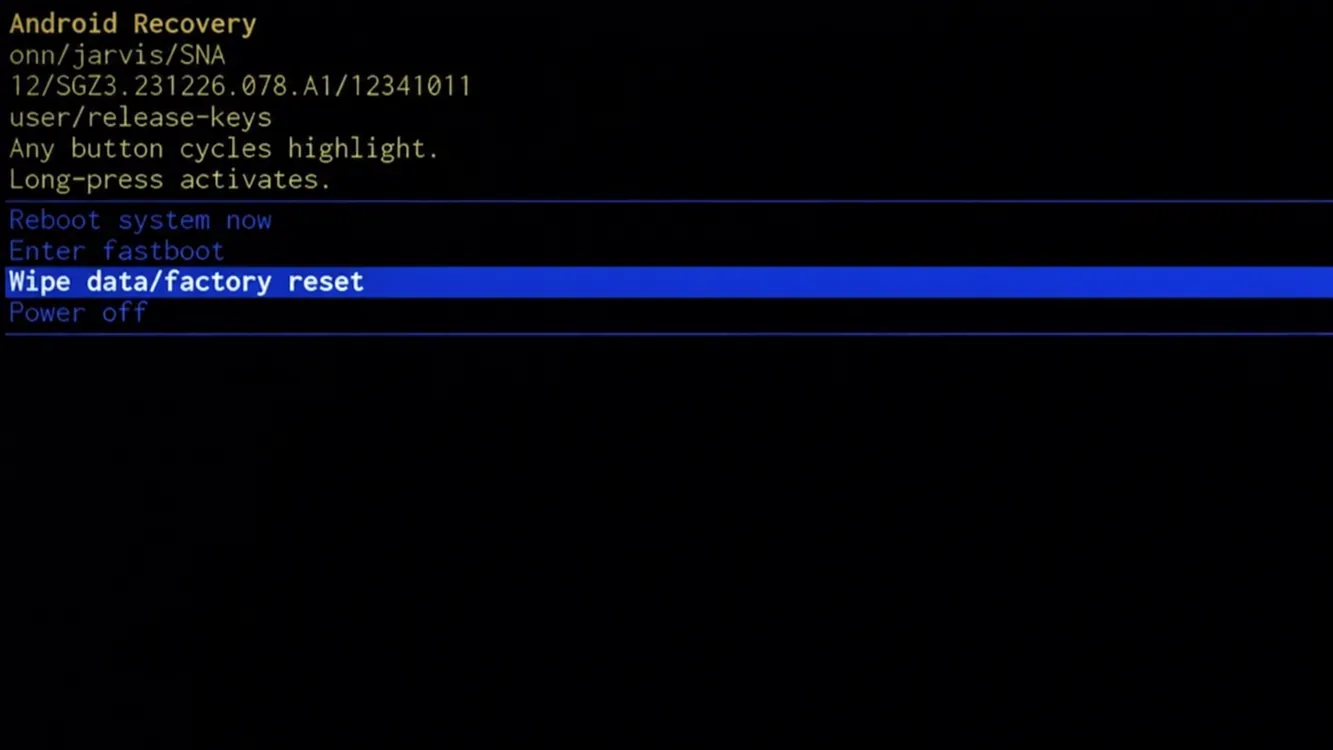
Select “Wipe data/factory reset”
When it finishes, reboot the box and go through the Onn TV setup again. If asked, pair your remote by holding Back and Home.
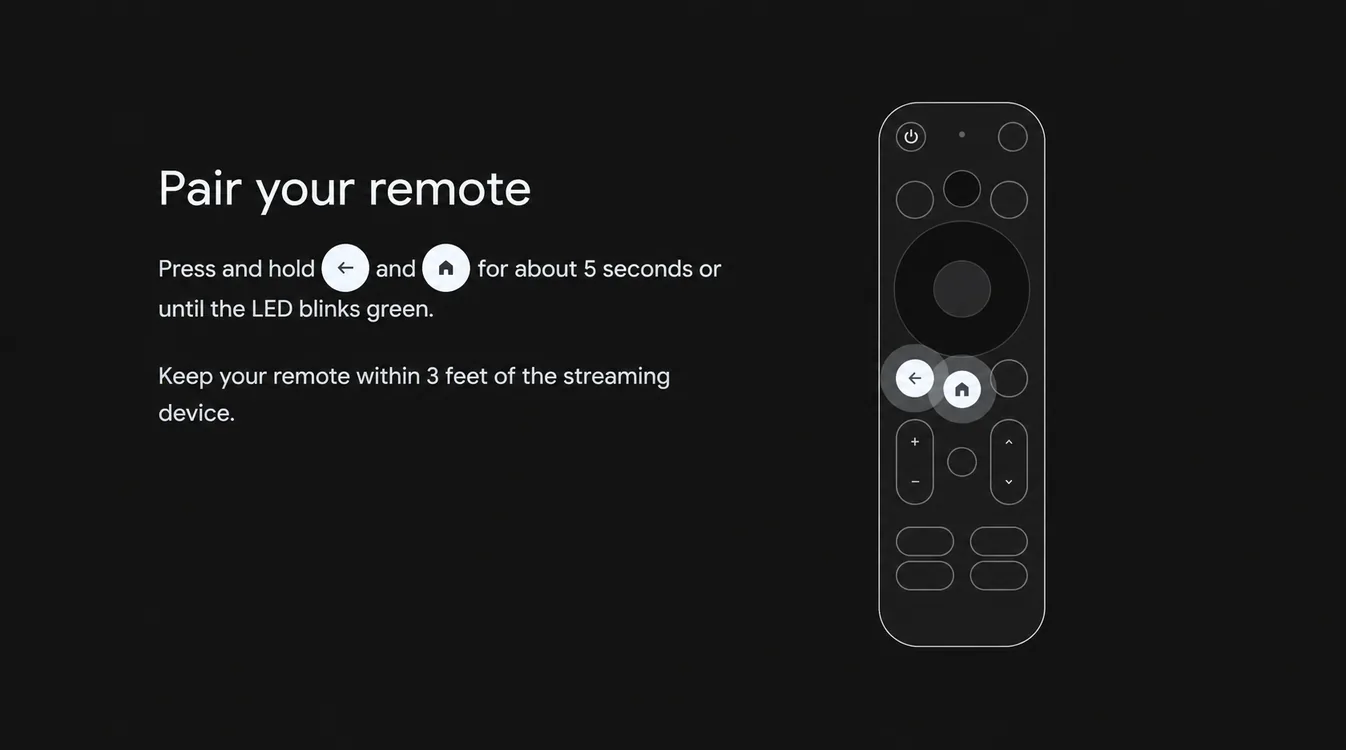
Pair your remote: hold Back and Home
Finish the setup and you’ll land on the Onn TV home screen.
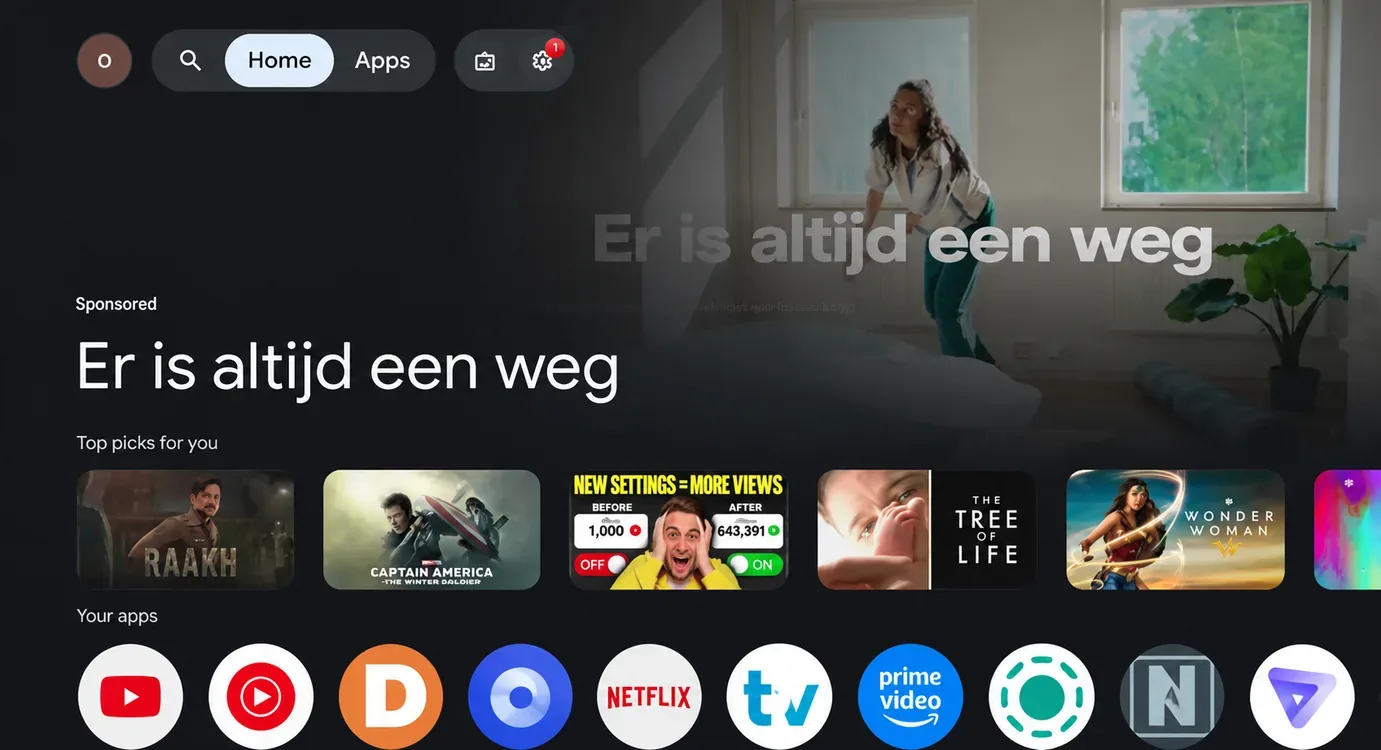
Back to the Onn TV home screen
What If Every Fix Fails?
If the box keeps looping even after a factory reset, the problem is likely hardware. At that point there’s not much more you can do at home.
Contact Onn or Walmart customer support, especially if the device is still under warranty or inside the return window.
📌 Related Onn TV Guides
- How to Update Your Onn TV — keep your device on the latest software.
- Fix Low Storage on Onn TV — free up space for your apps.
- Close Background Apps on Onn TV — free up memory if your Onn TV lags.
Frequently Asked Questions
What is a boot loop?
A boot loop is when your device gets stuck on the logo screen and keeps restarting instead of loading the home screen.
How do I get into recovery mode on the Onn 4K Pro?
Unplug the power cable, press and hold the reset button on the back, plug the power back in while holding, and release when the Onn logo appears.
Will a factory reset delete my apps?
Yes, a factory reset removes installed apps, accounts, settings and other data, so use it after the other fixes.
Can the wrong power adapter cause an Onn 4K Pro boot loop?
Yes, an adapter that doesn’t match the original voltage and amperage can leave the box underpowered, which can cause restarts.
Where is the reset button on the Onn 4K Pro?
The reset button is a small button on the back of the box, next to the Ethernet port. Hold it while you plug the power cable in.
Do these fixes work on other Onn models?
These steps are written and shown for the Onn 4K Pro. Other Onn models, including the Stick, may have the reset button in a different place.
What if nothing works?
If a factory reset doesn’t help, it’s likely a hardware issue, so contact Onn or Walmart support.
Conclusion
Most Onn 4K Pro boot loops come down to power or corrupted data. A cold boot and a wall outlet fix the easy cases, and recovery mode handles the rest.
📌 Found this guide useful? Tell us in the comments which fix worked for you. Check out our Best Apps for Onn TV guide for more.