 Onn TV Hacks Master Your Onn TV with Expert Guides, Hacks, & Apps

Written and tested by Black Joseph
Updated November 5, 2026
When you buy through our links, we may earn a commission. See how we work with brands here.
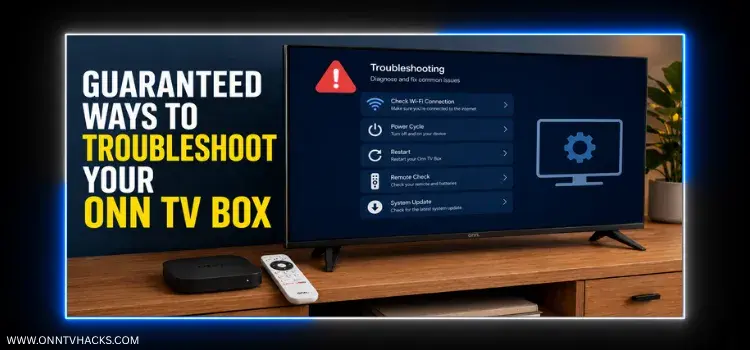
Walmart’s Onn Google TV streaming boxes and sticks offer great value, but like any budget hardware, they can occasionally suffer from frozen screens, unresponsive remotes, app crashes, or connectivity drops.
Most of these trace back to the same handful of causes: an overloaded cache, a pending update, a loose cable, or a Wi-Fi problem. They also trace back to the same handful of fixes, once you know where to look.
Here is a troubleshooting checklist built from common Onn user reports and manufacturer guidance.
Lost the remote, or tired of typing with it?
Use your phone as an Onn TV remote with Joz Remote, our free Android app.
Get it on Google PlayWe built this app ourselves.
📋 6 Ways to Troubleshoot Your Onn Device — tap to expand
1. Fix Random Wi-Fi Disconnects
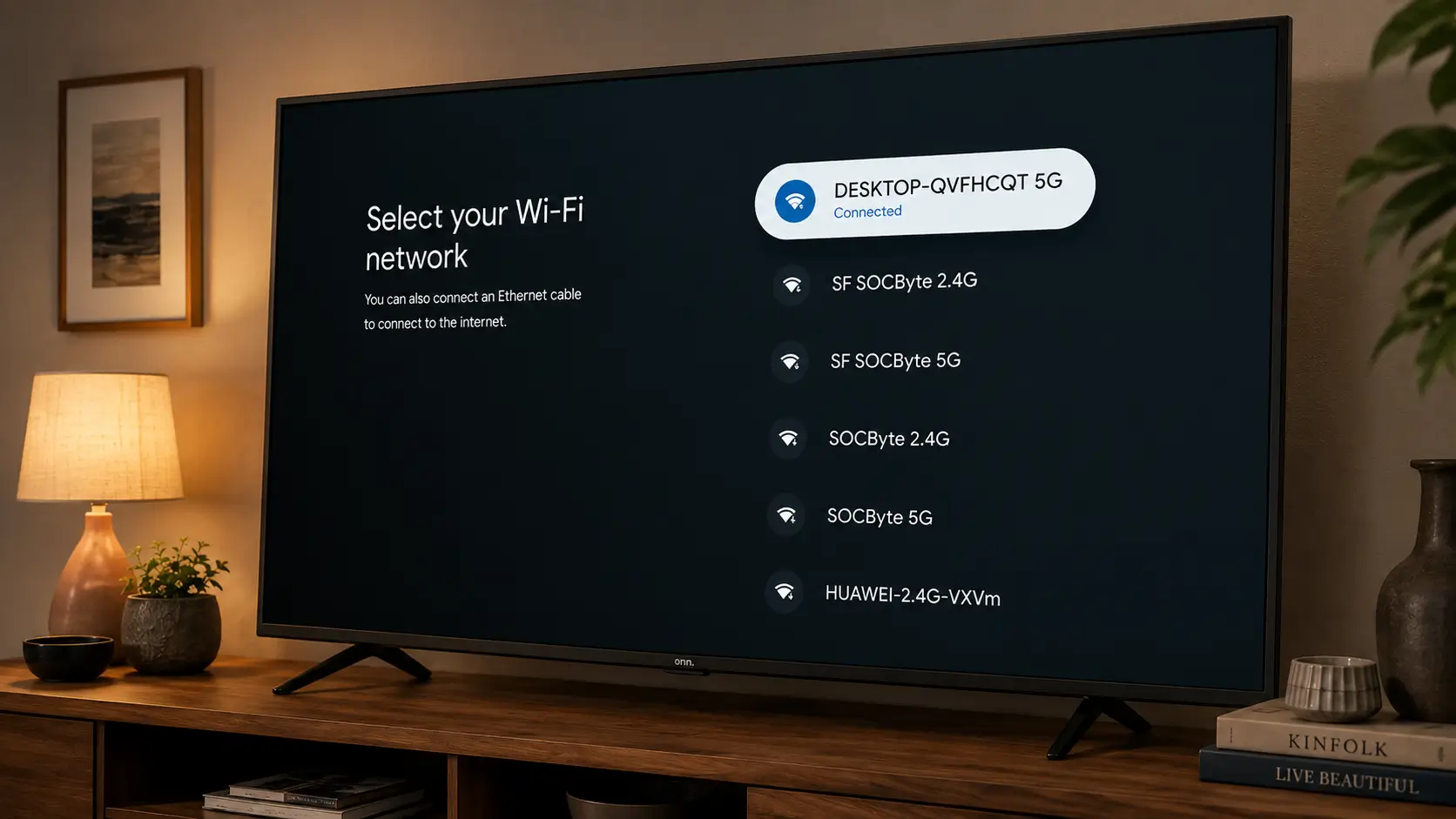
Unexpected Wi-Fi drops are a common issue on Onn devices. Work through these steps in order:
- Power cycle the device: unplug the power cable from the Onn device itself (not just the wall), wait 60 seconds, and plug it back in.
- Switch Wi-Fi bands: if you’re on 5 GHz, try 2.4 GHz. 5 GHz is faster, but 2.4 GHz usually reaches farther through walls.
- Forget the network and reconnect: select Forget network in your Onn device’s network settings, restart your router, then reconnect from scratch.
- Try a fixed IP address: go to Settings > Network & Internet, select your connected Wi-Fi network, open IP settings and choose Static. A fixed IP can help if drops happen when your router renews the box’s IP address. Entering wrong values can leave the box offline, so the safer option is to reserve an IP for the Onn device in your router’s DHCP settings.
Note: if the drops continue after these steps, the cause may be your router or the device itself.
2. Fix Random Restarting Tied to the Power Supply
If your device keeps restarting out of nowhere, check what is plugged into it.
The 2023 Onn 4K box uses its micro USB port for both power and accessories, and users report lockups and random reboots when a USB hub, Ethernet adapter or OTG cable is attached. The included adapter may struggle to power both.
Unplug everything except the original power adapter and see if the reboots stop. A better-quality power supply may help, but it isn’t guaranteed. If the reboots continue with nothing attached, it’s more likely a defective unit, and a factory reset or a replacement is the realistic path forward.
3. Clear App Cache, Delete Unused Apps & Check for Updates
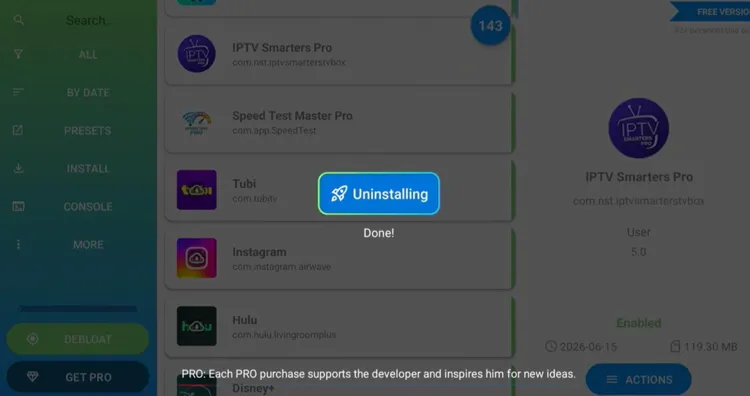
This matters more on Onn base models because the Onn 4K Box and HD Stick have just 8 GB of storage, and part of it is taken by the system and a handful of preinstalled apps. When storage runs low, menus can feel sluggish and apps launch more slowly.
Go to Settings > Apps, clear cached data, and uninstall apps you haven’t opened in months. You can also free up storage space or close background apps. While you’re there, check for a pending system update and individual app updates.
Some bugs, such as a home screen that won’t load recommendations, may already be fixed in an update that hasn’t installed automatically yet.
4. Check the HDMI Port and Cables
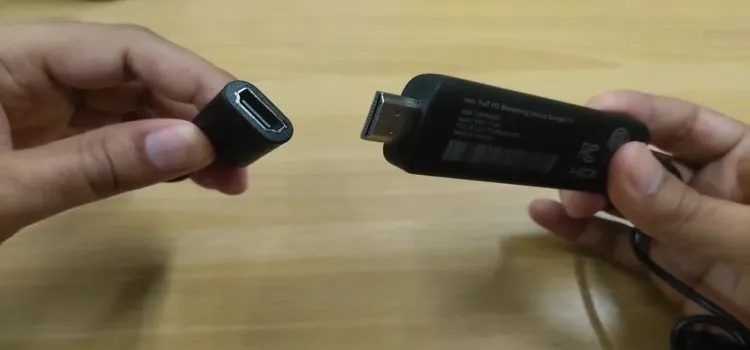
A black screen or a “No Signal” message doesn’t always mean the device has failed. A loose or damaged HDMI cable is a common cause. Unplug the cable, check it for bent pins or fraying, and reseat it firmly.
Also try a different HDMI port on the TV. If the signal drops now and then, unplug both the TV and the Onn device, then plug them back in. If you’re using the included HDMI extender, try removing it, since it can loosen over time.
5. Fix Remote Pairing and Universal Remote Quirks
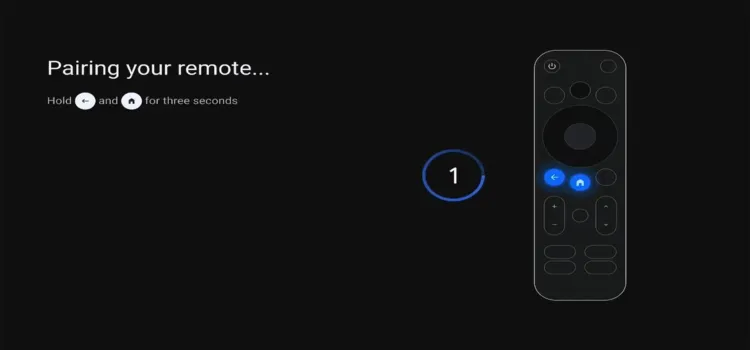
If your Onn remote stops responding, start by replacing the batteries with a fresh pair, checking that they face the right way.
If it still won’t connect, hold the Back and Home buttons together for about 3 to 5 seconds until the LED on the remote blinks, then follow the on-screen prompts to pair it again.
Onn’s quick start guide for the 4K Pro adds a second method: press and hold the reset button on the streaming device for 5 seconds, then follow the on-screen instructions to pair the remote. Other models may differ.
If the remote shows as paired but misbehaves, open your device’s Remotes & accessories settings, select the remote and choose Forget, then pair it again. Also clear anything blocking the TV’s sensor for power and volume controls.
In the meantime you can use your phone as an Onn TV remote.
6. Connect to the Same Network Across Devices
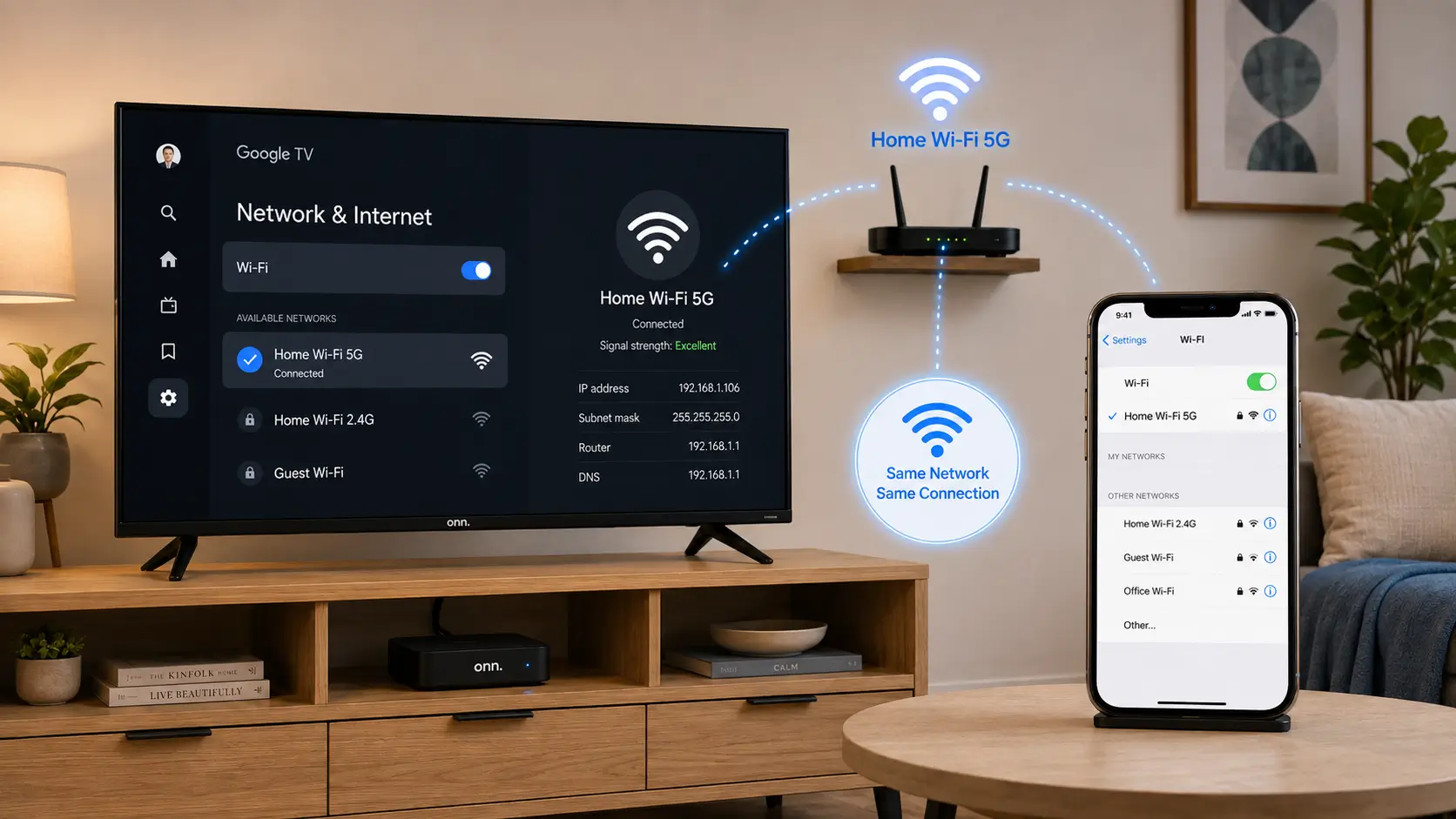
Several features need your Onn device and your phone or computer on the same network (the same router and Wi-Fi name, not a guest network). Google’s own community guidance also recommends keeping the casting device and the receiver on the same Wi-Fi band, either 2.4 GHz or 5 GHz.
If your Onn uses Ethernet while your phone uses Wi-Fi, try switching the Onn to the same Wi-Fi network to test. Here are the features that need a shared network:
- Google TV remote control app
- Media casting from apps
- Full screen mirroring from your phone
- Wireless file transfers from your phone or PC to the Onn device
- Google Assistant and smart home voice commands
- Local media server streaming (Plex, Kodi, VLC)
- Quick device setup via Google Home
If devices still don’t connect, turn off VPNs and proxy apps on your phone, put both devices on the same Wi-Fi band, and check that your router isn’t using a guest network or client isolation.
📌 Related Onn TV Troubleshooting Guides
- How to Fix “Unsupported Region” Error on Onn TV — a separate setup issue tied to your network location.
- How to Set Up Your Onn TV Box — the full setup walkthrough from unboxing to home screen.
- Hidden Onn TV Settings to Change — more settings worth tweaking.
Frequently Asked Questions
What’s the first thing I should try when my Onn device freezes?
Unplug it for a full 60 seconds before trying anything else. A proper power cycle resolves many freezes and stuck screens without touching any settings.
Why does my Onn box keep restarting on its own?
It’s often the power supply, especially on the 2023 Onn 4K box with a USB hub or other accessory attached. Try the original wall adapter with nothing else plugged in. If the reboots continue, it may be a defective unit.
Do these fixes work on both the Onn TV Box and the Stick?
Most do. The USB and OTG power issue is specific to the 2023 Onn 4K box, and the reset button location varies by model.
How do I re-pair my Onn remote?
Hold the Back and Home buttons together for about 3 to 5 seconds until the LED blinks, then follow the on-screen prompts. On the Onn 4K Pro you can also hold the device’s reset button for 5 seconds.
My universal remote works but some buttons don’t respond. Is my Onn device broken?
Probably not. Some actions, such as long presses, may not register from universal or TV-brand remotes. Test with the original Onn remote before assuming a hardware fault.
Why won’t my phone see my Onn device when I try to cast?
Check that both devices are on the same Wi-Fi network and band (2.4 GHz or 5 GHz), not a guest network, and turn off any VPN on your phone.
Summary
Most Onn problems are fixed by unplugging things and checking cables, and occasionally by finding that the cause wasn’t the device at all.
Start with a proper power cycle, rule out the power adapter and any accessories, and check cables, cache, updates and network settings before you assume something is seriously wrong.